

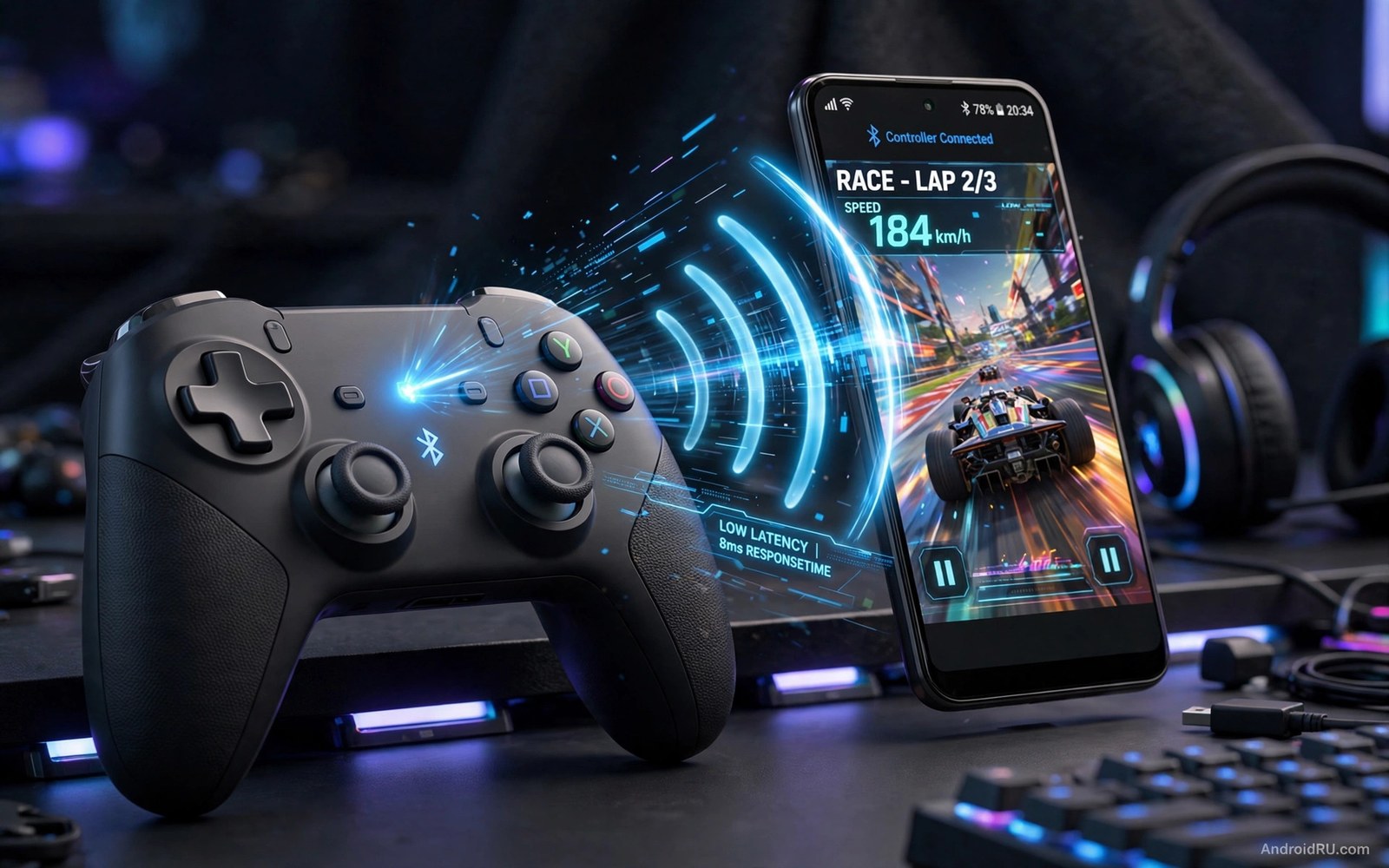
Input lag is the delay between pressing a button and seeing the result on screen. A small delay feels normal in a slow game. The same delay ruins a shooter or a rhythm game. Bluetooth adds delay by design because it sends input in small packets. Interference and distance and phone settings can make that delay much worse.
Fixing input lag starts with measuring the problem in a real game. A menu test will not show it clearly. Play a fast scene and watch for late jumps and late shots. Note whether the delay is constant or whether it comes in bursts. Constant delay points to a setting or a codec path. Bursty delay points to interference or a weak connection.
Check the basics before you buy new hardware. A low battery can make a controller send updates less often. A phone in a thick metal case can weaken the Bluetooth signal. A second Bluetooth device nearby can compete for the same radio time. If you have not chosen a pad yet then read the best Bluetooth gamepads tested for Android and pick a model with a strong connection record.
Cut interference and shorten the radio path
Move closer to the phone during testing. A controller on your lap with the phone on a stand gives a clean short path. A controller across the room with a body in between gives a weak path. Test at one metre first and then move to your normal distance. If lag appears only at distance then the radio path is the cause.
Turn off Bluetooth devices you do not need during play. Wireless earbuds and a smartwatch and a second controller all share radio time. Each extra device can add jitter to controller packets. Keep only the controller connected for ranked sessions. If you need audio then use the phone speaker or a wired headset for the test.
Change your Wi-Fi band when interference is heavy. The 2.4 GHz Wi-Fi band shares spectrum with Bluetooth. A busy 2.4 GHz network can crowd Bluetooth packets. Switch the phone to the 5 GHz band when the router offers it. That single change often cuts bursty lag in a crowded home.
Tune phone settings that slow input
Turn off battery saver during gaming sessions. Battery saver can limit background work and radio performance to save power. It can also delay input processing on some phones. Play with the phone plugged in or with a high battery level so saver modes stay off. Check the game mode settings on your phone as well. A game mode that boosts performance can help input feel faster.
Lower the screen refresh rate only as a test if the phone struggles. A very high refresh rate can load the graphics chip and delay frame delivery. A stable lower rate can feel more responsive than a shaky high rate. Test the same scene at both rates and keep the rate that gives steadier aim. Do not assume that the highest number is always best.
Close apps that poll sensors or location in the background. A fitness app or a map app can wake the processor often. Those wakes compete with input handling. Close such apps before a session and test again. A clean background often removes small stutters that feel like controller lag.
Measure input events with a timestamp log
The debug bridge can show input events with timestamps from a connected controller. The command below lists input events in a readable form. Press a button several times while the log runs and watch the timing between presses. A steady gap between presses shows a clean link. A gap that jumps wildly shows jitter in the radio path.
adb shell getevent -t /dev/input/event2
adb shell dumpsys input | grep -i -A 5 "controller"
adb shell settings get global bluetooth_on
The code above was written for this guide as a short input check example. The event device number differs by phone and by controller. List input devices first and replace the event number with the one that matches your controller. Read each line before you run it and stop the log with the normal interrupt key when you finish.
When a wired link is the honest fix
Some games and some phones will never feel perfect over Bluetooth. A wired USB controller removes the radio delay completely. A USB cable also removes interference from other devices. Test a wired pad in the same game scene and compare the feel. If wired play feels instant and Bluetooth play feels late then the radio path is the limit.
A wired link also helps when you play on a television or a large tablet. The longer Bluetooth distance in a living room adds delay and packet loss. A cable keeps the link short and stable. Keep a wired pad as a backup for tournaments even if you prefer wireless daily play. For a better phone position during wired play read seven controller mount accessories that upgrade mobile controls and choose a mount that holds the phone at eye level.
Update controller firmware when the maker offers it. Firmware updates can fix packet timing bugs and improve pairing stability. Check the maker app or support page once a month. A firmware fix can solve a lag problem that no phone setting can touch. If firmware and settings both fail then the controller hardware may be the limit.
Build a lag diary for every controller
A lag diary records delay problems by controller and by game. Create one note per controller with the phone model and the game and the play distance. Add whether the delay felt constant or bursty. That note helps you compare controllers honestly over time. It also stops you from rebuying a pad with a known flaw.
Test each new controller in the same game scene. A standard scene makes comparisons fair across pads. Use a fast training area with jumps and shots. Note missed inputs and late reactions in that scene. A pad that fails the standard scene will fail in ranked play too.
Record the radio environment for each test. Note whether earbuds were connected and whether Wi-Fi used the crowded band. Those details explain a result that changes between days. A diary without radio notes will confuse you when a pad feels different next week.
Revisit the diary when a firmware update arrives. A firmware fix can change latency for a pad you already own. Test the same scene after the update and update the diary entry. A pad that was laggy may become usable after a fix. A pad that was good may regress after a bad update.
Share diary notes with friends who own the same pad. A shared note can confirm a widespread bug faster than a solo test. It can also reveal a phone specific problem when only one model shows lag. Shared evidence helps support teams fix real bugs sooner.
Test controllers in real matches
A training mode test finds obvious faults but hides match pressure faults. A controller may feel fine in training and jitter under match stress. Play three casual matches after any training test. Note missed inputs during fast exchanges in those matches. A pad that fails in casual matches will fail worse in ranked matches.
Test controllers with the phone in its normal play position. A pad tested on a desk may behave differently on a sofa. Distance and body position change the Bluetooth path in real use. Sit where you normally sit and play a full match there. That position test reveals distance problems that desk tests hide.
Test controllers after a phone restart and after a long day of use. A phone that has run all day may handle Bluetooth differently from a fresh phone. Background apps accumulate during the day and compete for resources. A pad that lags only late in the day points to background load. Close background apps and test again to confirm the cause.
Common mistakes
The biggest mistake is blaming the game for a radio problem. A game patch cannot fix a crowded Bluetooth channel. Test the radio path first with distance and interference checks. That test takes ten minutes and saves hours of useless setting changes.
- Players keep earbuds and a watch connected and then blame the controller for jitter.
- Players test lag in a menu and miss the delay that only shows in fast action.
- Players leave battery saver on and then wonder why input feels sluggish.
- Players buy a new pad without checking firmware and then repeat the same bug.
- Players sit far from the phone and then call a short range controller broken.
Another mistake is changing five settings at once. A fix that works cannot be identified when five things change together. Change one factor and replay the same scene. Keep a short log of each change and its result. That log becomes your personal lag guide for future controllers.
FAQ
Is Bluetooth lag the same on every phone?
No Bluetooth hardware and software differ by phone model. One phone may handle controller packets quickly while another adds extra processing delay. The controller model also matters. Test the same controller on a second phone when you can. That comparison shows whether the phone or the pad is the weak link.
Bluetooth hardware differs by phone chip and by software version. A controller that feels instant on one phone may lag on another phone. Test the same pad on a second device when possible. That comparison separates a pad problem from a phone problem clearly.
Does a game mode really reduce input lag?
A game mode can help by boosting CPU priority and blocking notifications. It cannot remove radio delay completely. It helps most when the phone was throttling background work before. Test the same scene with game mode on and off. Keep it on only if the test shows a clear gain.
Game mode helps by raising game priority and blocking interruptions. It cannot remove radio delay from the Bluetooth link itself. It helps most when background work was stealing CPU time before. Test game mode on and off in the same scene to prove any gain.
Should I use a wired controller for competitive play?
Yes a wired controller is the safest choice for competitive play. It removes Bluetooth jitter and battery worries at once. Use wireless for casual play and wired for ranked play when possible. For touch only games that need mapping read how to map physical controllers to touchscreen games before you switch input types.
A wired controller gives the lowest and most stable input delay. It also removes battery worries during long sessions. Use wired play for tournaments and wireless play for casual sessions. That split gives competitive stability without giving up wireless comfort daily.
Conclusion
Bluetooth input lag is usually a radio or settings problem rather than a game bug. A short clean path and fewer competing devices and a stable phone setup remove most of the delay. A wired link remains the honest fix when wireless cannot meet a competitive standard. Test in a real game scene and trust the feel over a spec sheet.
Your concrete next step is to play one fast scene with only the controller connected and the phone on the 5 GHz band. Note the feel in that clean setup. Then add back one device at a time until lag returns. The device that brings lag back is your real culprit.

