

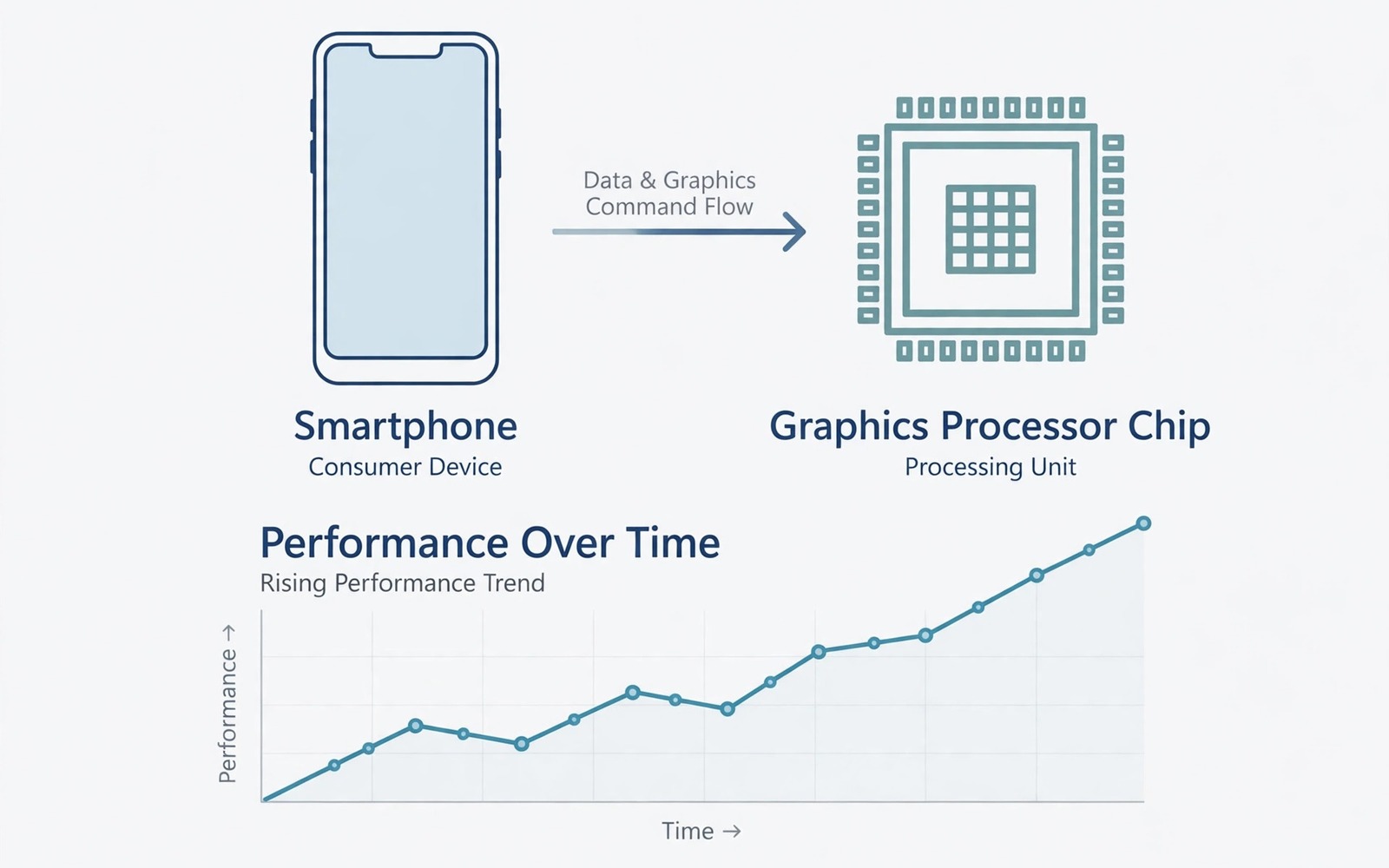
A graphics driver is a translator between a game and the GPU. A good translator passes instructions fast and correctly. A bad translator adds delay or draws a scene wrong. A newer driver can fix bugs and raise frame rates in specific games. It can also break a game that worked fine before. That trade is why driver updates need a careful test method.
Most Android phones do not offer a simple driver download button. Drivers usually arrive with system updates from the phone maker. Some phones offer a graphics driver preference per game in developer options. Some gaming phones offer a driver update through a system app. The method below starts with the safest path and moves to advanced options only when they exist on your phone.
Start with a baseline in one game before any driver change. Play a busy scene for five minutes and note stutter and heat. Write down the current driver version if your phone shows it. That baseline lets you judge a new driver by results rather than by hope. For a full GPU plan read five developer tweaks for maximum GPU gaming power and keep the one change method throughout.
Find the safe driver update path for your phone
Check for a system update first. Open Settings and look for a software update. A system update often includes a newer graphics driver even when the changelog does not mention it. Install the update on Wi-Fi and with a high battery level. Test your baseline game after the update before you change anything else.
Check developer options for a graphics driver preference entry. This entry appears on many phones with newer Android versions. It lets you pick a driver for a single app. Open the entry and look for your game in the list. Choose a newer driver for that game only. Do not set a new driver for every app at once. A system wide driver change can break apps that never needed it.
Check the phone maker gaming app when one exists. Some makers ship a game space app with driver or performance options. Open the game space app and look for a driver or graphics section. Follow only options that the maker provides in that app. Avoid random driver files from unknown sources. A bad driver file can cause boot problems that are hard to undo.
Test a new driver in one game only
Pick one demanding game as your test title. Play the same busy scene before and after the driver change. Use the same graphics settings for both runs. Count obvious stutters rather than trusting a peak frame number. A driver that raises the peak but adds stutter is not a win.
Test for at least fifteen minutes per driver. A short test can hide heat problems that appear later. A new driver that runs faster may also run hotter. Heat can trigger throttling that erases the early gain. A longer test shows the sustained result that matters in real play.
Test a second game after the first game passes. A driver can help one engine and hurt another engine. A driver that helps a racing game may break a strategy game with different rendering needs. Keep a short note per game with the driver version and the result. That note saves you from retesting the same driver later.
Check the current graphics stack with commands
The debug bridge can report graphics properties and driver details on many phones. The commands below only read information. They do not install or change any driver. Use them to record the current stack before a test and after a system update.
adb shell getprop ro.hardware.vulkan
adb shell getprop ro.hardware.egl
adb shell dumpsys SurfaceFlinger | grep -i -A 2 -B 2 "vulkan"
adb shell dumpsys gfxinfo | grep -i -A 2 "driver"
The code above was written for this guide as a short graphics reporting example. Record the output in a text file before you change any driver setting. That record lets you restore the original state when a test fails.
Roll back fast when a driver breaks a game
A broken driver often shows as a black screen or flickering textures or a crash at launch. Return to the graphics driver preference entry and restore the default driver for that game. Restart the game and test the same scene again. If the problem persists then clear the game cache from app settings. Do not clear game data unless you have a cloud save. Clearing data can delete local progress.
If a system update broke a game then check for a game update as well. Game makers often patch rendering bugs after a driver change. Wait for a game patch before you blame the driver permanently. A driver and a game patch together often fix the issue. For a game specific case read how to stop frame drops in Genshin Impact and apply the same rollback discipline there.
Keep a driver log with dates and versions and results. A log turns a confusing update history into a clear record. It also helps support teams when you report a bug. A report with a version and a test scene gets a faster answer than a report that only says the game broke.
Keep a driver log that saves future debugging
A driver log records every driver change with a date and a game and a result. Create one note per game with the old driver and the new driver. Add the test scene and the frame result for each change. That log turns a confusing update history into a clear record. It also helps support teams answer bug reports faster.
Update the log immediately after each test while details stay fresh. A log written a week later will miss the exact scene and version. Fresh notes capture the small details that matter. A driver version number and a scene name together make a useful entry. A vague entry helps nobody later.
Review the log before any system update. A past driver that broke a game may return in a new update. The log warns you to test that game first after the update. Early testing catches a regression before a ranked session. That warning alone justifies keeping the log.
Share log entries when reporting a game bug. A report with a driver version and a test scene gets a faster response. A report that only says the game broke gets a generic reply. Good logs help makers fix the right rendering path. They also help other players avoid the same bad driver.
Archive old log entries rather than deleting them. A driver that failed last year may work after a game patch this year. Archived entries let you retest old drivers with new information. Deleting history forces a full retest from scratch. A simple archive folder keeps history useful without clutter.
Compare drivers across game engines
Different game engines stress the GPU in different ways. One engine may use a rendering path that a new driver optimises well. Another engine may use a path that the same driver handles poorly. A driver that wins for a racing engine may lose for a strategy engine. Test drivers per engine rather than per phone alone.
Keep a small test set with one game per engine type. A racing game and a shooter and a strategy game cover most rendering paths. Test a new driver in all three games before you judge it. A driver that wins two out of three may still deserve a per game setting. A driver that wins only one game should stay limited to that game.
Watch for visual artefacts as well as frame numbers during driver tests. A driver may raise frame rate while breaking shadows or textures. Broken visuals matter even when the counter looks good. Note any flicker or missing texture in the test scene. A clean image at a slightly lower frame rate beats a broken image at a higher number.
Common mistakes
The biggest mistake is installing a driver file from an unknown source. A wrong driver can break graphics across the whole phone. Use only system updates and maker provided options. That rule alone prevents most driver disasters.
- Players set a new driver for all apps and then cannot find which app broke first.
- Players test a driver for two minutes and then claim a gain that heat erases later.
- Players forget the original driver version and then cannot roll back cleanly.
- Players blame a driver for a game bug that a game update would have fixed.
- Players clear game data during a driver test and then lose local save progress.
Another mistake is chasing a driver update when the real problem is heat. A hot phone throttles regardless of driver version. Cool the phone and lower graphics before you hunt for a driver. A driver gain on a cool phone is real. A driver gain on a hot phone may vanish in ten minutes.
FAQ
Can I update the GPU driver like a PC driver?
Most Android phones do not work like a PC for drivers. The maker controls driver updates through system updates. Per game driver preferences exist on some phones but not all. Do not force a PC driver file onto a phone. Use the paths in this guide for your model.
Most Android phones receive drivers through system updates from the maker. Per game driver preferences exist on some phones but not all. A PC driver file should never be forced onto a phone. Use system updates and maker options for your model only.
Will a newer driver always raise FPS?
No a newer driver can raise FPS in some games and lower it in others. Drivers fix specific bugs and optimise specific engines. A game that already ran well may see no gain. Test each game on its own and keep the driver that wins for that game.
A newer driver helps games that use the optimised rendering path. Other games may see no gain or even a loss. Test each game separately and keep the winning driver per game. A single driver rarely wins for every title on a phone.
What if my phone has no driver preference option?
Use system updates as your driver path in that case. Keep the phone updated and test games after each update. A phone without a driver option still benefits from maker updates. For general speed help read five performance fixes to stop lagging in mobile games and apply those fixes first.
A phone without a driver option still gains from system updates. Keep the system updated and test games after each update. General performance fixes also help when no driver option exists. Apply those fixes before hunting for a driver file.
Conclusion
A graphics driver update can boost mobile FPS when it fixes a real rendering path for your game. It can also break a game when applied blindly across all apps. The safe method is one game at a time with a baseline and a rollback plan. System updates and maker options beat random driver files every time.
Your concrete next step is to record your current graphics properties and a five minute baseline tonight. Apply a newer driver to one game only tomorrow. Keep it only if the same scene stays smoother for fifteen minutes. Roll back at once if textures break or the game crashes.

