

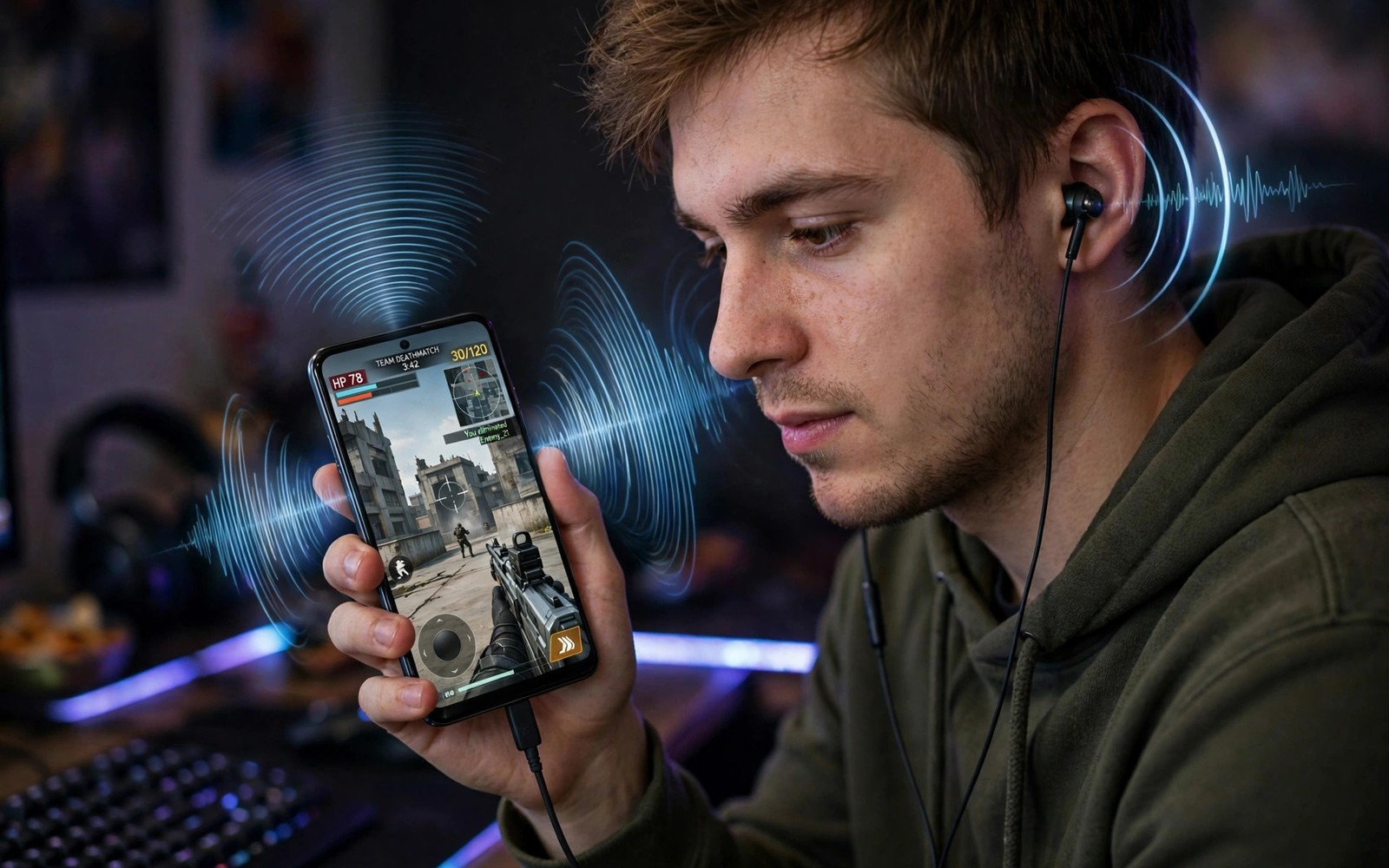
Footsteps are the most valuable sound in a shooter. They tell you where an enemy is before you see them. They tell you if an enemy is approaching or retreating. They tell you if a fight is about to start. Many players ignore footsteps because gunfire and music hide them. Three tweaks can bring footsteps forward in the mix. This guide shows you those tweaks with tests you can run in a practice range.
Start with a quiet test environment. Play a practice match with no voice chat and no background music. Walk slowly in a quiet area of a map. Listen for your own footsteps first. Your own steps should sound clear and rhythmic. If your own steps are hard to hear then the mix is wrong. Fix the mix before you worry about enemy steps. A mix that hides your own steps will hide enemy steps even more.
Use good earbuds or headphones for the test. Phone speakers cannot reproduce soft footsteps clearly in a noisy room. A sealed earbud blocks room noise and brings soft sounds forward. A low latency pair helps sound match vision. Test the same map with speakers and then with earbuds. The difference will be clear. A shooter played on speakers is a shooter played with missing information. Best low latency earbuds for gamers helps you pick gear that keeps footsteps tight.
Tweak One Balance The Audio Mix
Open game audio settings and find master volume and effects volume and music volume. Lower music volume first. Music is the biggest mask for footsteps. Set music to a low level or turn it off for competitive play. Music adds atmosphere but it hides information. A competitive mix prioritises information over atmosphere. Lower effects volume slightly as well. Very loud gunfire can mask the soft step that follows a shot. A balanced effects level keeps gunfire punchy without burying steps.
Raise footsteps if the game offers a separate footstep or dialogue volume. Some games offer a footsteps slider in advanced audio settings. Raise it one step at a time. Test walking in a quiet area after each step. A footstep that is too loud can feel artificial and distracting. A footstep that is just clear enough is ideal. Save the setting per game because each game mixes footsteps differently. A universal setting rarely suits every title.
Turn off dynamic range compression if it is available and it hurts clarity. Compression can make loud sounds quieter and soft sounds louder. That can help footsteps in theory. In practice some compression settings flatten the whole mix and hide direction cues. Test compression on and off in the same practice area. Listen for direction as well as volume. A step should sound left or right clearly. A compressed mix that loses direction is worse than a clear mix with softer steps.
Tweak Two Use An Equaliser For Footsteps
Footsteps live mainly in the mid and high frequencies. Gunfire and explosions live mainly in low frequencies. An equaliser can boost mid frequencies slightly and cut low frequencies slightly. That shift brings steps forward without raising overall volume. Use a gentle boost rather than an extreme boost. An extreme boost can make the whole game sound harsh. A gentle boost of a few decibels is often enough. Test the equaliser in a practice range with walking and gunfire.
Use a preset designed for footsteps or shooters if your earbud app offers one. A shooter preset often boosts the right frequencies already. Test the preset in a real match before a ranked game. A preset that sounds good in a menu may sound harsh in a fight. If no preset exists then create a custom preset with a small mid boost and a small bass cut. Save the preset under the game name. A per game preset avoids a shooter equaliser ruining music in other apps.
Do not boost volume overall to hear steps. Overall volume raises gunfire as well as steps. It can damage hearing over long sessions. It also hides direction because everything becomes loud. A targeted equaliser boost is safer and more effective. A safe volume with a good equaliser reveals steps without hurting ears. Hearing protection and competitive hearing can coexist with a smart mix.
Tweak Three Improve Direction And Awareness
music_volume = low
footsteps = high
equaliser = mid_boost
surround = stereo
voice_chat = clear
The snippet above is an original example written for this guide. It shows generic settings that you can adapt to your own device. It does not copy code from any outside source.
Use the profile above as a starting point for shooter audio. It sets music low and footsteps high and a mid boost equaliser. It uses stereo rather than a virtual surround mode that can blur direction. It keeps voice chat clear for team callouts. Test the profile in a practice range. Walk and listen for direction. A step on the left should sound left. A step on the right should sound right. A profile that preserves direction is more valuable than a profile that only raises volume.
Practise Listening In A Practice Range
Create a listening drill with a friend if possible. Ask a friend to walk around you in a practice map while you close your eyes or look away from the screen. Call out the direction of each step. A drill trains your ears to notice direction quickly. Repeat the drill for ten minutes. You will notice improvement within a few sessions. A trained ear can track an enemy through a wall by sound alone. That skill wins fights that vision alone cannot win.
Practise alone by walking known routes and noting step sounds on different surfaces. Wood and metal and concrete can sound different. A surface change can tell you that an enemy moved from a room to a corridor. Note surface sounds in each map you play often. A map knowledge plus a sound knowledge gives a full picture. A player who knows both can predict enemy movement. A player who knows only vision must wait to see the enemy.
Review a recorded match with audio focus. Listen for steps that you missed during play. A missed step in a recording reveals a mix problem or an attention problem. If the step is audible in the recording then attention was the problem. If the step is inaudible even in the recording then the mix was the problem. Fix the mix first. Train attention second. A recording review separates the two causes clearly. Reducing ping and latency in online shooters helps when a delayed sound is actually a network problem rather than an audio problem.
Keep Audio Settings Stable Across Sessions
Save audio profiles per game and do not change them mid match. A mid match change can distract and it can break a trained ear. A trained ear relies on a consistent mix. A changing mix forces the ear to relearn levels. Keep one profile per game for ranked play. Use a different profile for casual play if you want music and atmosphere. A ranked profile should stay stable for weeks.
Check audio settings after a game update. Updates can reset audio sliders without warning. A reset can silently restore loud music and hide footsteps. Check the mix after each update in a practice range. A quick check prevents a ranked loss caused by a reset mix. Add audio to your post update checklist alongside graphics and controls.
Clean earbuds regularly for clear sound. Wax and dust in a speaker mesh can muffle high frequencies. High frequencies carry footstep detail. A muffled mesh can hide the very sounds you want to hear. Clean gently with a dry soft brush. A clean mesh restores clarity without any setting change. A weekly clean is enough for most players.
Test footstep audio with different ear tip sizes. A tip that seals well can improve bass and mid clarity. A tip that seals poorly can make footsteps sound thin. Try all tip sizes in a practice range. Note which size gives the clearest steps. A tip change can improve audio more than an equaliser change. A good seal is the foundation for any audio tweak. Do not judge an equaliser until the seal is right.
Test footstep audio in a noisy room as well as a quiet room. A quiet room test can hide isolation problems. A noisy room test reveals whether earbuds block enough outside sound. A pair that works in quiet but fails in noise may need a better seal or noise isolation. A competitive player needs isolation as well as clarity. Test where you actually play rather than only in ideal conditions.
Common Mistakes
One mistake is to raise overall volume instead of balancing the mix. Overall volume hides direction and risks hearing. Another mistake is to leave music at full volume in competitive play. Music masks footsteps. A third mistake is to use a virtual surround mode that blurs direction. Stereo often gives clearer left and right cues. A fourth mistake is to test audio only in menus. Menus do not contain footsteps. Test in a real map.
Do not ignore network lag as a cause of late footsteps. A step sound that arrives late may be a network delay rather than an audio mix problem. Test in a practice range offline if possible. If steps are timely offline then network is the cause online. Fixing input lag on wireless controllers covers wireless delays that can also affect audio timing.
Frequently Asked Questions
Why can I not hear footsteps in shooters?
Music and loud effects can mask soft footsteps. Lower music volume and balance effects. Use earbuds rather than phone speakers. A mid frequency equaliser boost can bring steps forward. Test in a quiet practice area first.
Does an equaliser really help hear footsteps?
Yes footsteps live mainly in mid and high frequencies. A gentle mid boost can bring them forward. A bass cut can reduce masking from explosions. Avoid extreme boosts that make sound harsh. Test the equaliser in a practice range.
Should I use surround sound for shooters?
Virtual surround can blur direction on some earbuds. Stereo often gives clearer left and right cues. Test both modes in a practice range. Walk around a friend and call out direction. Keep the mode that gives the clearest direction.
Conclusion
Open your shooter audio settings today and lower music volume and raise footsteps if the option exists. Test walking in a quiet practice area with earbuds. If steps sound clear and directional then save that mix as your ranked profile. That saved mix is your concrete step toward hearing enemies first.

