

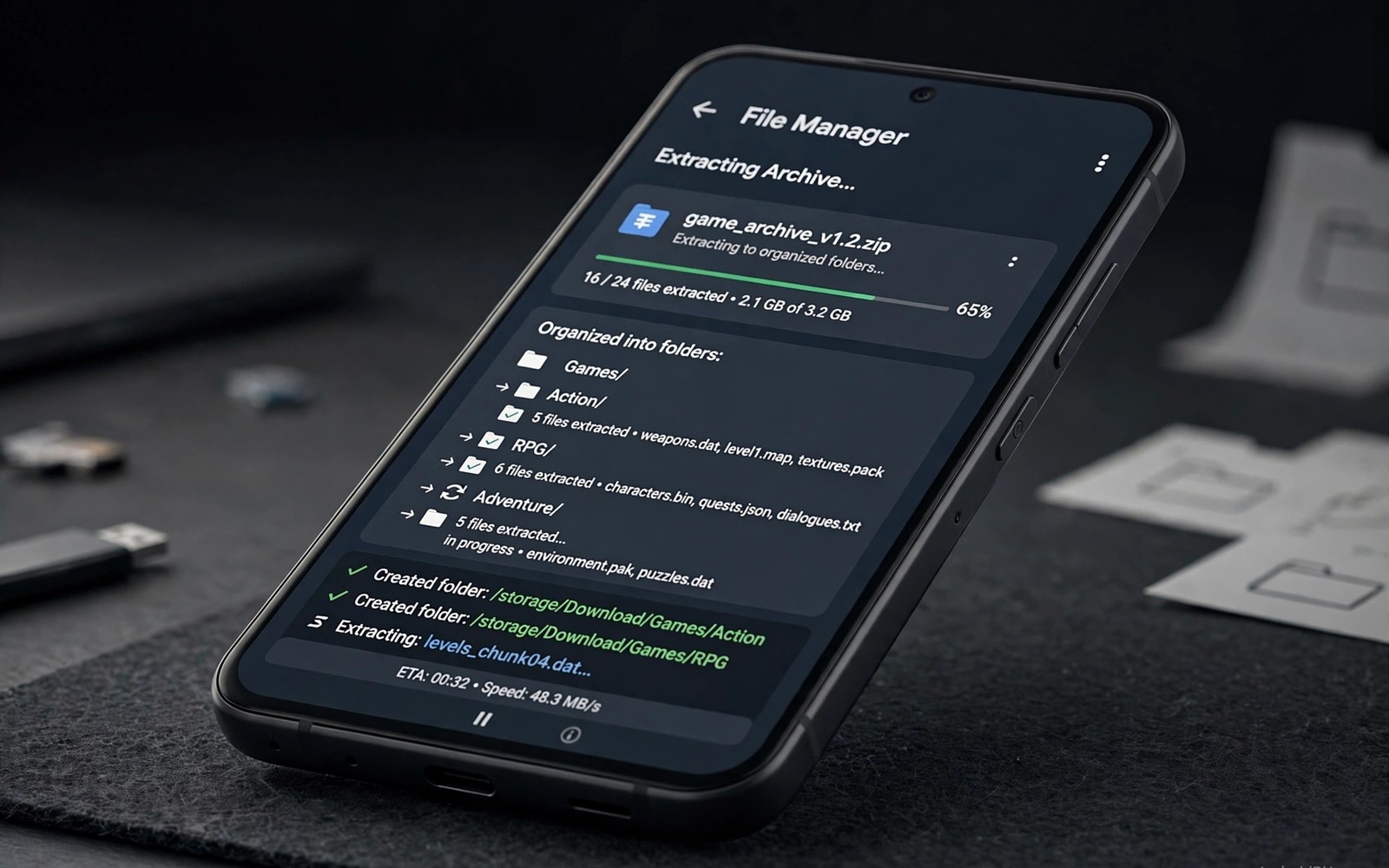
Extracting ROM game files on Android sounds simple until you meet a split archive or a password prompt or a folder full of unknown files. A ROM file is a copy of game data that an emulator reads. You must own the game legally to use such a file. This guide assumes you are working with your own games and your own backups. It shows you how to unpack archives safely on your phone without a computer.
Start by finding the archive on your phone. Open a file manager and look in the Downloads folder first. Many browsers save archives there by default. Check the file size before you unpack it. A very small file for a large game may be incomplete. A file that stops mid download will fail during extraction. Delete a broken download and fetch it again from your own backup source. Do not try to repair a truncated archive with random tools. A clean copy saves more time than a repair attempt.
Choose a file manager that supports the archive format you have. Common formats include ZIP and 7Z and RAR. Some managers handle ZIP well but fail on 7Z. Some managers handle 7Z but ask for a paid feature for RAR. Test the manager on a small archive first. A small test will show whether the app can handle your format before you trust it with a large game file. Keep the original archive until the extracted game runs. The original is your backup if extraction goes wrong. Setting up RetroArch for Android helps after extraction because it explains how to point an emulator at the right game folder.
Prepare A Clean Folder Structure
Create one folder for each game system. Name the folder clearly for the system it holds. Inside that folder create one folder for each game. Put the extracted files for that game inside its own folder only. A clean structure stops one game from overwriting another game with a similar file name. It also makes it easy to find a game later when you add new titles. A messy single folder with fifty games becomes hard to manage after a few weeks.
Check storage space before a large extraction. An archive can expand to several times its packed size. A 500 megabyte archive can need two gigabytes of free space after unpacking. Open storage settings and confirm free space. Move other large files to a safe place if space is tight. Extraction can fail near the end if the phone runs out of space. A failed extraction can leave half a game folder that looks complete but crashes on load. Free space first and extract second.
Extract Step By Step Without Errors
Open the archive in your file manager and look at the contents before you extract. A good archive shows game files with clear names and sizes. A suspicious archive shows only a single unknown executable or a pile of unrelated files. Do not extract a suspicious archive. Delete it and use your own trusted backup instead. For a good archive choose Extract to a folder and pick the game folder you created. Do not extract to the root of storage. A root extraction scatters files where they are hard to find.
If the archive is split into parts then keep all parts in the same folder. The extractor needs every part to rebuild the full game. A missing middle part will stop the process with an error. Check part names for a clear sequence. If one part is missing then fetch that part from your backup before you try again. Do not rename split parts unless the extractor asks for a clear name pattern. Renaming can break the sequence and cause a false corruption error.
Enter a password only if you set the password yourself for your own backup. A password prompt on a file you did not create is a warning sign. Do not guess passwords from the internet for game files. A wrong password wastes time and a shared password can hide malware in a fake archive. Use only archives from your own backups and your own discs. That rule protects your phone and it keeps your game collection legal and clean.
Verify The Extracted Game Before You Play
mkdir -p games/ps2/my_game
unzip game.zip -d games/ps2/my_game
ls -lh games/ps2/my_game
check_file_size = true
The snippet above is an original example written for this guide. It shows generic settings that you can adapt to your own device. It does not copy code from any outside source.
Use the steps above as a model for a tidy extraction. The commands show a folder for one system and one game. They show a listing step after extraction. That listing step matters. It lets you confirm that game files actually arrived. Open the game in your emulator after the listing looks complete. Load the game to its title screen before you judge the extraction. A title screen that loads cleanly is a strong sign that the files are intact.
Organize Saves And Backups With The Library
A game library is only half the job. Saves and states need the same care as game files. Create a saves folder beside each game folder. Copy save files there after a long session. A backup save can rescue progress when a phone resets or an emulator update changes save paths. Name backup folders with a date so you can find the newest backup quickly. A dated backup stops you from overwriting a good save with a broken one.
Test a backup restore before you need it. Copy a save back into the emulator folder and load it. If the game loads the save then the backup works. If it fails then fix the backup method now while the original save still exists. A backup that you never tested is only a hope. A tested backup is a real safety net. Repeat the test after each emulator update because save paths can change.
Keep the library size under control as it grows. Large libraries fill storage fast and they slow down file browsing. Archive games that you finished in a compressed folder. Keep active games extracted and ready to play. An archive folder lets you restore a finished game later without keeping it extracted all year. Saving emulator game progress anywhere instantly explains how save states add another layer of protection for progress. Combine a clean library with safe saves for a collection that lasts.
Document your library in a simple text note. List each system and each game and its folder name. A list helps you spot missing games after a phone move. It also helps you avoid extracting the same game twice under two names. Update the list when you add a game. A five minute update now saves an hour of searching later.
Move Your Library To A New Phone Safely
A new phone should not force you to rebuild a library from scratch. Copy the whole system folder structure to the new phone in one transfer. Keep folder names exactly the same. A renamed folder can break emulator paths and save links. After the copy open the emulator and point it at the same system folder. Load one game from each system to confirm the transfer. A single test per system catches most path problems quickly.
Keep the original phone library until the new phone passes all tests. A transfer can look complete while a few files hide as corrupt. Test saves as well as games. Load a save for your most played game on the new phone. If the save loads then the transfer preserved the important data. Only then should you clear the old phone. A careful move protects years of progress from a rushed transfer.
Label archives that you create yourself with a clear name and a date. A name like my_game_backup_2026 tells you what the file holds and when you made it. A vague name like backup_final_final hides the contents and the age. Clear names also help when you move files between phones. A future version of you will thank a clear name. Store a short readme note in the backup folder that lists the system and the game and the emulator version. That note can solve a restore puzzle months later when details fade from memory.
Test extraction on a small game first when you switch to a new file manager. A small test reveals format limits and permission problems before a large game fails. Check that the manager can write to your chosen folder. Some Android versions limit write access to certain folders. A manager that cannot write to a folder will show a vague error. A test in a permitted folder avoids that confusion. Once the small test passes then extract larger games with confidence in the same folder setup.
Keep this habit for every new game you add to the library.
Common Mistakes
One mistake is to extract every archive into the same folder. Shared file names can overwrite each other silently. Another mistake is to delete the original archive before testing the game. Keep the archive until the game runs. A third mistake is to ignore a checksum or size check when your backup tool offers one. A size check can catch a truncated file before you waste time on a broken extraction.
Do not extract files from unknown sources on a phone that holds banking apps and personal data. A fake game archive can carry harmful code. Stick to your own backups. Retro arcade emulators for 90s nostalgia shows how a clean library pairs with good emulators. A clean library is easier to back up and easier to move to a new phone.
Handle Split, Password-Protected, and Damaged ROM Archives
Split archives are the most common reason an otherwise complete game refuses to extract. The main archive and its numbered parts must stay together in the same folder. Open only the main archive rather than trying to extract each part on its own. If one part is missing or renamed, extraction will stop partway through, so check the part count and file sizes before you blame the file manager or the emulator.
Password prompts need the same care. Enter the password exactly as supplied, watching for capital letters and symbols, and do not let the file manager save a wrong guess and keep retrying it. If the prompt keeps returning after a careful entry, the archive is more likely damaged or the password is wrong than the manager is at fault, so re-check the source of the password and the file before forcing anything open.
A damaged archive should never be forced into a playable folder. Compare the downloaded size with the size the source lists, re-download the archive rather than patching a broken copy, and keep the original archive until the extracted game reaches its title screen without errors. That final check is what separates a folder that looks complete from a game that actually runs.
Frequently Asked Questions
Do I need a computer to extract ROM files on Android?
No a good Android file manager can extract ZIP and 7Z archives directly. Choose a manager that supports your archive format. Test it on a small archive first. Keep the original archive until the extracted game runs cleanly.
Why does extraction fail near the end?
The phone may run out of storage space during expansion. An archive can expand to several times its packed size. Free space before you extract. A missing split part can also stop extraction. Keep all parts in the same folder.
What should I do after extraction?
Check the game folder for complete files. Point your emulator at that folder. Load the game to its title screen. Keep the original archive as a backup until you confirm the game plays. Then organize the folder under its system name.
Conclusion
Create one system folder and one game folder today. Extract a single game archive into that folder and check the file listing. Load the game to its title screen. That clean test will become the template for your whole library.

