

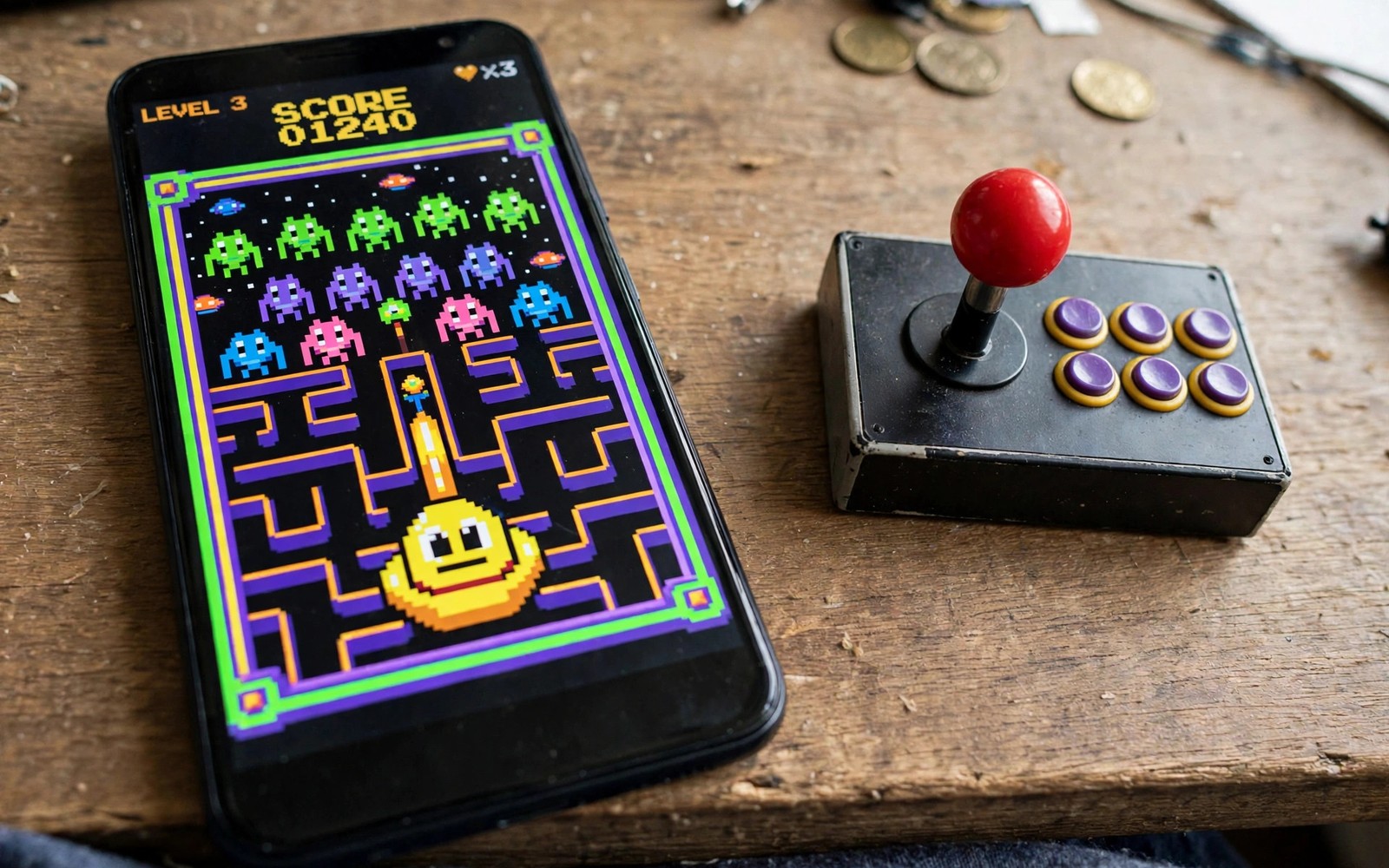
Retro arcade games from the 90s still play brilliantly on a phone. The games were built for short bursts and high scores. They used simple controls and clear goals. An arcade emulator brings that style to Android without a bulky cabinet. This guide picks five emulator types that cover the arcade era well. It also shows you how to set up controls and saves so a classic game feels right on a touch screen.
Start with the arcade system that you remember most. Some players love side scrolling beat them up games. Others love shooting games with waves of enemies. Others love puzzle games with fast falling blocks. Each style needs a different emulator core. A core is the engine inside an emulator that runs a specific system. Choosing the right core matters more than choosing a fancy emulator shell. A good core will run a game smoothly and with correct sound. A wrong core can cause glitches even on a strong phone.
Use only game files from your own collection. Arcade games are still owned by their creators. This guide covers setup and controls only. It does not provide game files. A legal collection also avoids fake files that crash or carry harmful code. A clean collection loads faster and it is easier to organise. Keep each game in its own folder under its system name. That habit will save time later. Setting up RetroArch for Android explains cores and folders in depth and it is a good companion to this guide.
Five Arcade Emulator Types To Try
The first type covers classic coin op arcade boards. It runs many 90s titles with accurate graphics and sound. The second type focuses on Neo Geo style arcade hardware. It suits fighting games with large character sprites. The third type covers early 3D arcade boards. It suits racing and shooting games with polygonal graphics. The fourth type covers handheld arcade style games that later moved to consoles. It suits puzzle and platform titles. The fifth type is a multi system emulator that bundles many cores in one app. It suits players who want one app for many systems.
Test each type with a game that you know well. A familiar game makes glitches easy to spot. You will know how a level should look and how music should sound. Play the first level fully. Watch for missing sprites or wrong colours. Listen for crackling audio or missing sound effects. A core that passes a familiar first level is a strong candidate. A core that fails a familiar level should be replaced before you invest time in a new game.
Check control layout for each type. Arcade games used joysticks and buttons. A phone screen must map those controls to touch zones. A good layout places the joystick on the left and buttons on the right. Buttons should be large enough to hit without looking. A layout with tiny buttons will cause missed inputs in a fast game. Adjust button size in the emulator settings. Test the layout in a busy level where you must move and attack at once.
Set Up Controls For Arcade Play
Place the virtual joystick where your left thumb rests naturally. Do not force your thumb to stretch to a far corner. A natural rest position reduces fatigue during long sessions. Place attack buttons in an arc that your right thumb can reach easily. The most used button should sit closest to the thumb rest. Less used buttons can sit further away. Save the layout per game if the emulator allows it. A fighting game needs a different button arc than a shooting game.
Use a physical controller when a game demands precise movement. Touch controls work well for many arcade titles but a controller can improve fighting games. A controller gives a real stick and real buttons. It also frees the screen from finger cover. Test a controller in a practice match before a high score run. A controller that lags will hurt more than touch. A stable controller can transform a hard game into a fair game.
Adjust input latency if movement feels delayed. Some emulators offer a frame delay setting. A lower delay can make controls feel tighter. A delay that is too low can cause audio problems on a slow phone. Change the setting one step at a time. Test the same jump or dash after each change. The right setting feels immediate without audio crackle. Note the setting per game because different cores react differently.
Save Progress And High Scores
core = arcade
controls = touch
button_size = large
save_states = on
high_scores = local
The snippet above is an original example written for this guide. It shows generic settings that you can adapt to your own device. It does not copy code from any outside source.
Use the setup above as a starting point for arcade play. It uses touch controls with large buttons and local high scores. Save states let you practise a hard level without starting over. Use save states for practice only if you want a fair high score. A high score earned with save state abuse feels hollow. Keep a separate clean run for score chasing. That separation keeps practice useful and scores honest.
Build A Nostalgia Library That Works
Organise games by genre rather than by random order. Create folders for fighting and shooting and puzzle and racing and platform games. A genre folder helps you pick a game for your mood. It also helps you test controls per genre. A fighting folder can share a button layout. A shooting folder can share a different layout. Genre folders turn a large library into a usable collection.
Keep a list of games that you finished or mastered. A finished list shows progress and it helps you revisit favourites. A list also stops you from reinstalling the same game under a new name. Write the game name and the emulator core that worked. A core note saves retesting later. When you move to a new phone the list becomes a setup guide for the whole library.
Share arcade nights with friends who remember the same games. A local multiplayer session can recreate the arcade atmosphere. Test multiplayer controls before a group session. Each player needs a clear control zone on screen or a separate controller. A crowded screen with overlapping zones will frustrate everyone. A planned layout with separate controllers works best for group play.
Preserve your library with backups. Copy game folders and save files to a safe place regularly. A phone reset can erase years of high scores. A backup restores them in minutes. Test a backup restore on a second device if you can. A tested backup is real protection. An untested backup is only a hope. Saving emulator game progress anywhere instantly covers save protection in more detail.
Fix Common Arcade Problems
Missing sprites often point to a wrong core or a missing system file that you own. Switch cores and test the same level. A different core may render the sprite correctly. Audio crackle often points to a latency setting that is too aggressive. Raise audio latency one step and test again. A small latency increase can fix crackle without hurting controls much. Screen tearing often points to a sync setting. Turn sync on and test again.
A game that runs too fast often has a frame rate setting that is too high for the original hardware. Arcade games were designed for a specific frame rate. Running faster can make a game feel frantic and unfair. Set frame rate to the original rate for that title. A correct rate restores the intended difficulty. A game that runs too slow often needs a lower resolution or a different core. Lower one graphics setting at a time and test the same level.
Do not ignore heat during arcade play. A phone that throttles can drop frames in a fast game. A frame drop in a fighting game can cost a match. Play in a cool room and take breaks between long sessions. A cooler phone holds a stable frame rate. Retro game emulators that work on low end devices shows how lighter cores can help weaker phones. A lighter core can be the right choice when a heavy core overheats the phone.
Keep Arcade Sessions Comfortable
Arcade games reward fast reactions but long sessions can strain hands and eyes. Take a short break every half hour. Stand up and stretch your thumbs and wrists. A break restores reaction speed. A tired player makes mistakes that a fresh player avoids. Breaks are part of good play rather than a interruption to it. A rested player enjoys a classic game more and plays it better.
Adjust screen brightness for your room. A very bright screen in a dark room can strain eyes. A dim screen in a bright room can hide details. Match brightness to the room. A comfortable brightness lets you play longer without fatigue. Eye comfort matters for games with small sprites and fast movement. A small brightness change can improve visibility more than a graphics upgrade.
Use headphones for arcade sound when you play in a shared space. Arcade music and effects can disturb others. Headphones also reveal sound cues that a phone speaker can hide. A jump sound or a enemy warning can be easier to hear with headphones. Test volume at a safe level. Loud volume over long sessions can damage hearing. A moderate volume with clear sound is the best balance.
Keep a high score journal for your favourite arcade games. Write the game name and the score and the date. A journal turns casual play into a personal challenge. It also shows improvement over weeks. A score that rises slowly is still progress. A journal can motivate a return to a game that you have not played for a while. Nostalgia plus a personal goal is a powerful combination.
Common Mistakes
One mistake is to use one core for every arcade game. Different boards need different cores. Another mistake is to judge a core from a menu screen. Menus can look fine while gameplay glitches. Test a full level. A third mistake is to use save states for every high score run. Save states are great for practice but they can make scores meaningless. Keep practice and score runs separate.
Do not download game files from unknown sources. Unknown files can be broken or harmful. Use only your own collection. A clean library is easier to organise and safer to play. A library built on your own games will last longer and it will not vanish when a shady source disappears.
Frequently Asked Questions
What is the best arcade emulator type for 90s games?
It depends on the arcade board that the game used. Coin op cores suit many 90s titles. Neo Geo cores suit fighting games. Multi system emulators bundle many cores in one app. Test a familiar game on each core. Keep the core that renders that game correctly.
Do arcade games work well with touch controls?
Many arcade games work well with a good touch layout. Place the joystick where your thumb rests naturally. Use large buttons for action. Fighting games may feel better with a physical controller. Test touch first and add a controller only if touch feels limiting.
Why does an arcade game run too fast on my phone?
The emulator may run at a frame rate above the original hardware rate. Set frame rate to the original rate for that title. A correct rate restores intended speed and difficulty. Check the core settings for a frame rate or speed option.
Conclusion
Pick one arcade game you own today and test it on a core that suits its board. Set a touch layout with large buttons and play the first level fully. If the level runs clean then save that core and layout as your arcade template. That template will speed up every future classic you add.

