

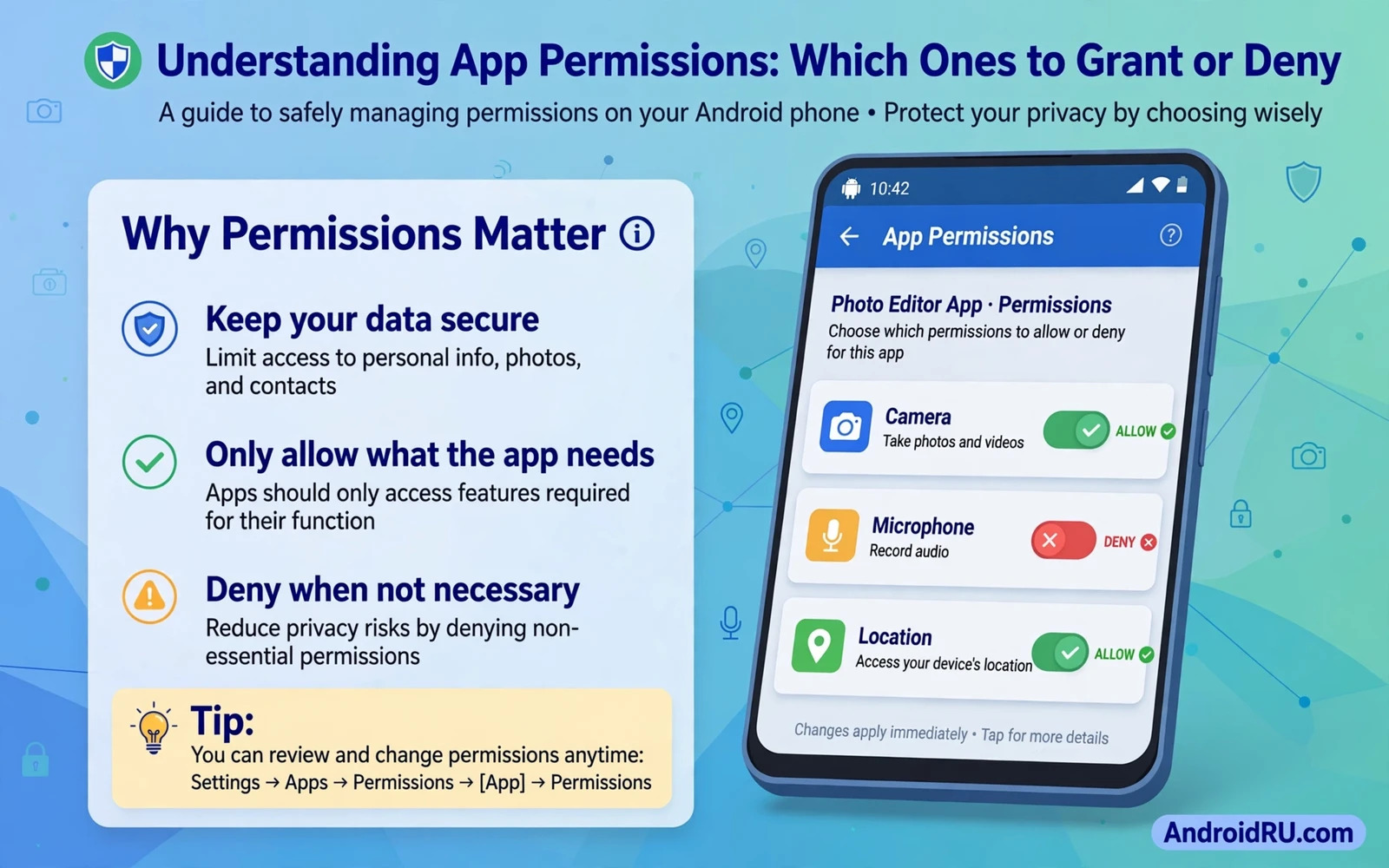
Every app request for access to your location or camera or contacts is a small negotiation about trust. The app asks for a capability and you decide whether the feature you want justifies the data it will receive. Most people answer these prompts quickly because they want the feature to work right away. That speed creates a slow accumulation of access that can outlive the original purpose. Understanding permissions means learning what each type actually exposes and matching it against the job the app performs.
Android groups permissions by sensitivity so ordinary capabilities such as vibration or internet access raise little concern while dangerous permissions require explicit approval. Dangerous in this context means the permission touches private data or device functions that could harm privacy if misused. Location and camera and microphone and contacts and storage and phone state belong in that sensitive group. The system asks at the moment of use rather than only at install time so you can judge the request in context. A camera request while you tap a photo button makes sense and the same request while you open a calculator does not.
Location Access And Its Three Levels
Location access reveals where you are and where you have been and patterns in that data can reveal home and work and daily routines. Android offers three useful levels for most apps. Allow all the time suits navigation and family safety tools that must work in the background. Allow only while using the app suits maps and ride services and delivery apps that need location during an active task. Deny suits games and utilities that function perfectly without knowing where you stand. Precise location pinpoints you within metres while approximate location narrows you to a broad area and many apps work fine with the approximate option.
Review location access by opening the permission manager and tapping location to see every holder at a glance. Change background location to while-in-use for any app whose background need you cannot explain. Remove location from social apps if you never use location tags because a tag added casually can reveal more than the photo itself. Remember that photos can carry location metadata even when the app itself lacks location permission so check camera settings for location tagging separately. Location control is less about hiding from maps and more about preventing a quiet history from forming without your attention.
Camera Microphone And Media Access
Camera access lets an app capture images and video and microphone access lets it capture audio around the phone. Both deserve special caution because they can record moments you never intended to share. Grant camera access only while using the app for messaging and social and scanning tools. Grant microphone access in the same while-in-use way for voice messages and calls and voice search. Watch the on-screen indicators that show when camera or microphone is active because an indicator appearing without a clear reason deserves immediate investigation. Close the app or revoke the permission if the indicator cannot be explained.
Media access changed over time so modern Android lets you grant access to selected photos and videos instead of the entire library. Use selected access whenever an app needs only one image for a profile picture or a single upload. Full media access suits gallery and backup apps that genuinely manage your whole collection. Deny media access for apps that only need to save a file because saving and reading are different capabilities. A photo picker provided by the system often achieves the task without granting broad library access at all. Choose the narrowest option that still completes the task you actually want.
Contacts Calendar And Phone State
Contacts access exposes names and numbers and email addresses for everyone you know and that data is valuable precisely because it describes other people as well as you. Messaging and dialler and email apps have a clear need for contacts. Games and wallpaper apps and utilities do not. Calendar access reveals appointments and locations and attendees and it deserves the same strict test. Phone state access can reveal call status and device identifiers and it should be granted only when the app purpose clearly involves calls or device identity. Ask what the app would lose without the permission and grant only when the loss breaks a feature you use.
Background access multiplies the impact of any permission because data collection continues when you are not looking at the app. Check which apps hold background location or background microphone-adjacent capabilities and revoke background rights aggressively. Many apps request background access during setup with a friendly explanation that hides how rarely the feature is used. You can always return and grant background access later if a feature proves its need through actual use. Starting narrow and widening later is safer than starting wide and forgetting to narrow.
Special Permissions That Deserve Extra Scrutiny
Some permissions live outside the standard list and carry outsized power. Accessibility access can read screen content and interact with apps on your behalf and it should go only to tools you trust deeply such as screen readers or well-known automation apps. Device administrator rights can lock the device or wipe data and an unknown app holding them is a serious red flag. Draw over other apps lets an app display content above everything else and adware abuses that power to show intrusive ads. Notification access lets an app read incoming notifications including message previews. Install unknown apps permission lets an app install other apps and it should stay disabled for browsers and messaging apps except during a deliberate install you control.
Review special access screens at least once after installing new tools because these screens are separate from ordinary permission prompts. If an app demands accessibility access for a feature that does not need to read the screen then look for an alternative app that achieves the same goal without that power. Legitimate accessibility tools explain their need in detail and come from developers with a visible track record. A vague explanation plus a powerful permission is a combination to reject. Powerful permissions are tools for trusted helpers and not tolls for ordinary features.
A Practical Decision Framework
A simple test answers most permission prompts without technical knowledge. Ask what feature needs this access right now and whether the app worked before without it. Ask whether a narrower option exists such as one-time access or selected photos or approximate location. Ask whether you would be comfortable if the data were collected continuously for a month. If any answer feels uncertain then deny or choose the narrowest option and observe the result. You can change any permission later from settings so a cautious denial costs only a second prompt when you truly need the feature.
One-time permissions make cautious decisions easy because they expire automatically after the task ends. Use them for rare actions such as scanning a code or uploading a single document. While-in-use permissions suit daily tools that need access during active sessions. Always-on permissions suit only a small set of tools with a genuine background job such as navigation or fitness tracking or device finding. The same framework that helps you set essential security protections across the whole phone applies here at the level of each individual app. Consistency between system settings and app permissions creates defence that works as a whole rather than as isolated switches.
Reviewing And Cleaning Up Existing Grants
Permissions granted months ago may no longer match how you use an app today. Android can auto-revoke permissions for unused apps and you should keep that behaviour enabled. Still run a manual review every month or two by opening the permission manager and scanning each sensitive category. Remove access from apps you have not opened recently and uninstall apps that no longer serve a purpose. Pay attention to apps that regained permissions after an update because updates sometimes present new prompts that are easy to accept without reading.
Children and shared devices need extra attention because other users may grant permissions casually. Set up separate profiles where the system supports them and review permissions on shared devices together. Explain the decision framework in plain language so family members can judge prompts themselves. A household that understands permissions protects shared accounts and shared photos far better than a single careful owner can alone. Privacy on a phone is partly a technical setting and partly a habit of pausing for one second before tapping allow.
Permissions And App Locking Work Together
Permission control limits what an app can collect while app locking limits who can open the app at all. A messaging app with sensible permissions still exposes conversations to anyone holding an unlocked phone. Adding a second lock closes that gap and the approach behind locking apps behind biometrics or a PIN code complements permission hygiene rather than replacing it. Think of permissions as controlling data flow outward and locks as controlling human access inward. Both layers matter and neither layer alone covers every risk.
Browser permissions deserve a final note because websites can request location and camera and microphone and notifications through the browser. Treat website prompts with the same framework and revoke site permissions that you granted during a moment of haste. Clear site data for sites you no longer visit. A browser with disciplined site permissions behaves like a careful app with disciplined app permissions. Over time the habit becomes automatic and prompts stop feeling like obstacles and start feeling like useful checkpoints. That shift is the real goal of permission literacy.
Browser prompts follow the same logic as app prompts since a website asking for location or notifications deserves the same pause you give an app asking for camera access. Tightening browser prompts for notifications and location keeps a casual visit from turning into a permanent channel for ads and tracking. Review those site permissions with the same monthly rhythm you use for installed apps.
- Grant sensitive access only while using the app unless background use is proven.
- Choose approximate location and selected photos wherever those options exist.
- Use one-time permissions for rare tasks such as single uploads.
- Revoke accessibility and administrator rights from unknown apps at once.
- Review the permission manager monthly and remove unused grants.
- Start narrow with every new app and widen access only when a feature proves need.

