

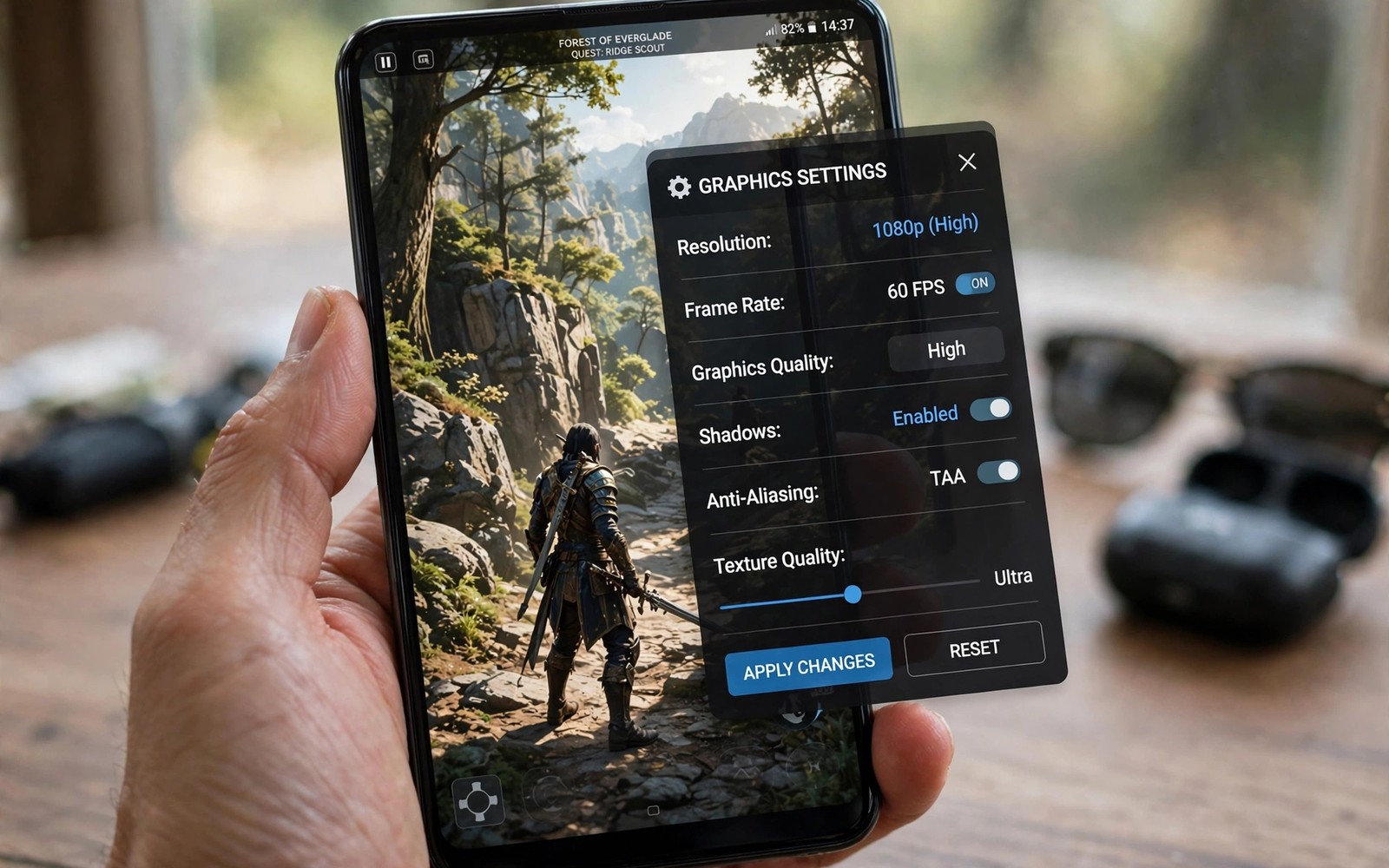
PPSSPP can turn a PSP classic into a sharp high definition game on Android. The emulator renders the original 3D scene at a higher resolution. It can also apply texture filtering and shaders. The result can look close to a modern remaster. The trick is to raise graphics in the right order. Resolution first and filtering second and shaders last. A wrong order can cause stutter that looks like a weak phone.
Start with a clean baseline at native resolution. Load a game you know well and play a busy scene. A busy scene with many characters and effects stresses the emulator most. If the busy scene runs smooth at native then you have headroom. If it stutters at native then lower other settings before you raise resolution. A baseline test prevents a resolution change from hiding a deeper problem. Note the frame rate at baseline for comparison later.
Use only game files from your own PSP collection. PPSSPP itself is an emulator tool. Game files must come from games you own. This guide covers settings only. It does not provide game files. A legal file also avoids fake data that can crash or glitch. A clean file gives a fair test for graphics settings. GameCube and Wii games at 4K covers a similar upscale path for another system. The order of steps is similar even when the emulator differs.
Raise Internal Resolution Safely
Open graphics settings and find rendering resolution. Set it to two times PSP resolution first. Test the same busy scene. Watch for frame drops during camera turns. If the scene stays smooth then try three times. Test again with the same scene. Each step increases pixel work sharply. A phone that handles two times may fail at three times. That failure is normal. Keep the highest step that stays smooth for a full level.
Check the frame rate with a counter if PPSSPP shows one. A stable target frame rate matters more than a resolution label. A game designed for 30 frames should hold 30 frames. A game designed for 60 frames should hold 60 frames. A resolution that drops below target is too high for that game. Step back one level and test again. A stable lower resolution will feel better than a stuttering higher resolution.
Test different games separately. A simple 2D style game may handle a high resolution easily. A complex 3D game with large open areas may need a lower resolution. Save settings per game if PPSSPP allows it. Per game settings stop a heavy game profile from hurting a light game. A light game can use a higher resolution without waste. A heavy game can use a lower resolution without stutter.
Add Texture Filtering And Shaders
Texture filtering sharpens surfaces viewed at an angle. It helps ground and wall textures in 3D games. Set filtering to a moderate level first. Test a scene with long ground planes. If ground textures look sharper without stutter then keep the setting. If stutter appears then lower filtering before you lower resolution. Filtering costs less than a full resolution jump in many games. A balanced pair of settings often beats one extreme setting.
Anisotropic filtering is a specific filter that helps distant textures. Try it after basic filtering works. Set it to four times first. Test a racing or open world scene with distant roads. Distant detail should sharpen. If distant detail sharpens without stutter then the setting is a win. If it stutters then lower it. Do not max it on a first test. A moderate value often gives most of the visual gain for a fraction of the cost.
Shaders can add a final polish. A shader can sharpen the image or add a subtle CRT look. Test one shader at a time. A shader that looks great in a screenshot can still cause stutter in motion. Compare screenshots before and after a shader. Keep the shader only if it clearly improves the image. Remove shaders during a stability test. Add them back only after the base game runs clean.
Tune Performance For Ultra Graphics
rendering_resolution = 3
texture_filtering = linear
anisotropic = 4
frameskip = off
vsync = on
shaders = none
The snippet above is an original example written for this guide. It shows generic settings that you can adapt to your own device. It does not copy code from any outside source.
Use the settings above as a balanced ultra starting point. It uses three times resolution and linear filtering and moderate anisotropic filtering. It turns frameskip off because frameskip can cause judder in a high definition test. It leaves shaders off until the base image is stable. Adjust one value at a time from this point. A single change test will show whether a new setting helps or hurts.
Fix Stutter And Visual Glitches
Stutter at high resolution often means the graphics chip is at its limit. Lower resolution one step first. If stutter remains then lower filtering. If stutter still remains then check heat. A hot phone throttles and stutters even at a moderate resolution. Let the phone cool and test again. A cool test separates a heat problem from a settings problem. A settings problem stays at the same scene when cool. A heat problem vanishes when cool.
Missing textures at high resolution can point to a backend problem. PPSSPP offers Vulkan and OpenGL backends. Test the same scene on the other backend at native resolution. If textures return then keep that backend for the game. A backend that renders correctly at a lower resolution beats a broken backend at a higher resolution. Save the backend per game when possible.
Audio crackle during high graphics play often means the processor is overloaded. Graphics work can starve audio. Lower resolution one step and listen again. Clean audio is a sign of headroom. Crackling audio is a warning before a crash. Do not ignore it. A game that sounds clean and runs smooth is at a sustainable setting. Fixing texture glitches and crashing in PS2 emulators shows how backend choice affects textures in another emulator.
Save Ultra Settings Per Game
Create a per game profile after you find a stable ultra setup. Name the profile with the game title and the resolution. A clear name helps you restore the setup after an update. Updates can reset graphics settings without warning. A profile note lets you restore in minutes. Keep notes in a document if the emulator profile system is limited. A document with game names and settings is a portable backup.
Test ultra settings after each PPSSPP update. An update can improve performance and allow a higher resolution. An update can also break a setting that worked before. Test a familiar busy scene after an update. If the scene runs better then try one higher step. If it runs worse then return to the previous profile. A post update test keeps your library stable across versions.
Share ultra settings with friends who own the same phone model. A shared setting can save a friend hours of testing. Include the phone model and the game title and the resolution. A setting without a phone model can mislead a friend with different hardware. A complete note is useful. An incomplete note can waste time. Share settings in a community that values clear hardware notes.
Compare PPSSPP Settings On Different Phones
A setting that works on a flagship may fail on a midrange phone. Share settings only with a phone model attached. A friend with a weaker chip can waste hours on a setting that never worked for that hardware. A friend with a stronger chip can miss a higher setting that their phone could handle. Hardware notes make shared settings useful. A setting without hardware context is only a guess.
Test PPSSPP on a tablet as well as a phone if you own both. A tablet screen can reveal texture detail that a phone screen hides. A tablet processor may also handle higher resolution better. A setting that looks great on a tablet may stutter on a phone. A setting that runs smooth on a phone may look soft on a large tablet. Test each device separately and save a profile per device.
Check battery impact of ultra settings during a long session. High resolution and filtering use more power. A phone that lasts three hours at native may last only two hours at ultra. Plan charging for long play sessions. A battery warning during a boss fight can distract and cause a loss. A charged phone with a realistic setting beats a dying phone with a maximum setting.
Keep a settings diary for PPSSPP games. Write the game name and the resolution and the filtering level. A diary helps you restore settings after a reset. It also helps you compare games. A game that needs low settings may have a heavier engine. A game that allows ultra settings may have a lighter engine. Patterns in a diary can guide future purchases and settings choices.
Common Mistakes
One mistake is to max every graphics setting at once. Max settings interact and hide the true cause of stutter. Another mistake is to copy settings from a flagship to a midrange phone. Hardware differences change the stable ceiling. A third mistake is to judge graphics from a still screenshot. Motion reveals stutter that a screenshot hides. Test in motion for a full level.
Do not ignore audio warnings during a graphics test. Crackle often precedes a crash. Lower a setting when audio breaks. Adding custom graphic shaders to mobile emulators shows how to add shaders safely after a stable base. A stable base plus one shader beats a shaky base with many shaders.
Frequently Asked Questions
What is the best PPSSPP resolution for Android?
It depends on your phone and the game. Start at two times PSP resolution. Raise one step at a time. Keep the highest step that holds the target frame rate for a full level. Save that step per game. A stable lower resolution beats a stuttering higher one.
Does texture filtering help PPSSPP graphics?
Yes filtering sharpens surfaces viewed at an angle. It helps ground and wall textures. Use a moderate level first. Anisotropic filtering helps distant detail. Test filtering after resolution is stable. A balanced pair of settings often looks best.
Why does PPSSPP stutter at ultra settings?
Higher resolution increases pixel work sharply. A phone can handle a lower step but fail at a higher step. Heat can also cause stutter after several minutes. Lower resolution one step and test a full level when cool. Clean audio and stable frames show a sustainable setting.
Conclusion
Load a PSP game you own today and set rendering resolution to two times first. Test a busy scene and raise one step at a time. Save the highest stable step as a per game profile. That profile is your personal ultra high definition setup.

