

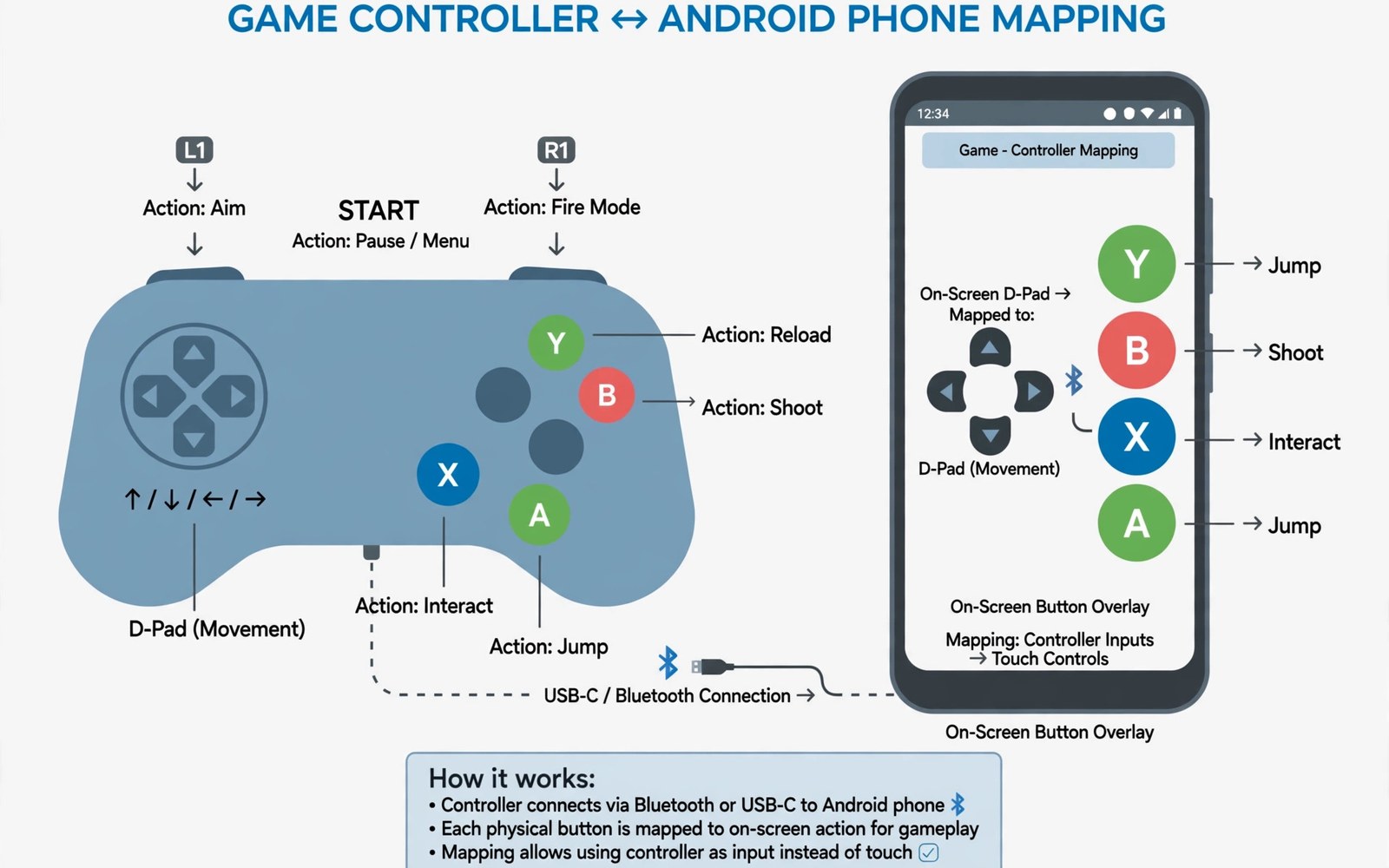
Many great Android games never added controller support. They were built for thumbs on glass and they ignore your gamepad completely. That leaves a controller owner tapping a screen for games that would feel better with sticks and buttons. Key mapping closes that gap by translating controller input into screen touches.
Mapping works by placing virtual buttons over the on screen controls. Pressing a physical button triggers a tap at that screen position. Moving a stick drags a virtual joystick across its range. The game believes a finger touched the screen while your hands enjoy real controls. The illusion works surprisingly well when set up carefully.
This guide walks through mapping from first connection to polished profile. You will learn which tools suit different games and how to place buttons precisely. You will learn per game profiles and sensitivity tuning. By the end touch only games will feel almost native on a controller.
Connect the controller and pick a mapping tool
Pair your controller over Bluetooth or USB-C before opening any mapping tool. USB-C gives lower latency for timing sensitive games. Bluetooth gives freedom of movement and works with more controllers. Test both if your controller supports both and keep the steadier option.
Choose a mapping tool with per game profiles and a clear overlay editor. A good editor lets you drag virtual buttons onto the screen while the game runs. It should support sticks and buttons and swipe gestures. A tool without per game profiles forces you to rebuild layouts constantly.
Grant only the permissions the tool genuinely needs for overlay mapping. Accessibility access is commonly required to inject touches. That power is significant so choose a well reviewed tool with a clear privacy policy. Revoke access when you stop using the tool.
Test the connection in a calm game area before mapping a full layout. Press each button and confirm the tool registers it. A controller that drops connection mid mapping wastes your layout work. Stable connection first and mapping second.
Place buttons over touch controls precisely
Open the game and note every touch control you actually use. Movement stick and jump and attack and menu buttons form the core set. Ignore rarely used buttons at first. A clean layout with eight well placed buttons beats a cluttered layout with twenty.
Drag each virtual button so its centre sits exactly over the touch control centre. A misaligned button taps beside the control and does nothing. Zoom the editor if it offers magnification for fine placement. Precision at setup prevents frustration during play.
Size virtual buttons to match the touch targets they cover. A tiny button over a large joystick area may miss edge positions. A huge button may overlap neighbours and trigger two actions. Match size to target and test edges after placement.
Save the layout under the game name as soon as the core buttons work. An unsaved layout lost to a crash means rebuilding from scratch. Save early and save often during tuning. Version your layouts when you experiment with a new arrangement.
Tune sticks and sensitivity for each genre
Stick mapping needs a virtual joystick zone that matches the game stick area. Place the zone centre over the game stick centre. Set the radius to cover the full travel of the on screen stick. A radius too small limits movement speed. A radius too large pushes the stick past its intended range.
Adjust dead zones to stop drift without dulling fine movement. A small dead zone ignores tiny stick wobble at rest. A large dead zone makes small adjustments impossible. Test in a calm area with slow movements. The right dead zone feels invisible.
Shooter games need higher look sensitivity than adventure games. Tune look speed in a practice area with moving targets. Too fast and you overshoot constantly. Too slow and turning feels like wading. Small steps toward comfort beat large jumps.
Racing games benefit from trigger mapping for accelerate and brake. Analog triggers give finer speed control than buttons. Map triggers to the pedal areas with full range. Smooth trigger control transforms racing feel on a controller.
Handle gestures and special controls
Some touch games use swipes for special moves. Mapping tools let you bind a button to a swipe path. Draw the swipe direction and length in the editor. Test the mapped swipe in a safe area before relying on it in combat. A swipe that is too short fails silently.
Pinch gestures for zoom need a dedicated mapping approach. Bind a button to a pinch in or pinch out action where the tool supports it. Alternatively map zoom to a stick direction for gradual control. Choose the method that feels natural for the specific game.
Multi touch actions like holding two buttons need care. A mapping tool may need a combo definition for simultaneous presses. Test combos in practice before a real match. A combo that fails under pressure costs more than a missing feature.
Menu navigation often needs a separate simpler layout. A layout optimised for combat may make menus awkward. Some tools switch layouts automatically between game and menu states. Where that is absent keep a menu friendly button mapped to open the pause screen.
Build profiles and share them wisely
Create one profile per game and name it clearly. A profile named after the game plus the controller model prevents confusion. When you switch controllers the profile name reminds you what to retest. Organisation matters as the library grows.
Back up profiles to cloud storage or export them to a file. Rebuilding ten tuned layouts after a phone change is painful. An export file restores them in minutes. Treat profiles as valuable configuration work worth preserving.
Share profiles with friends only when the game and screen size match. A layout built for a large tablet misaligns on a small phone. Screen size changes every button position. Share the method and not just the file when devices differ.
Refine profiles over several sessions rather than in one marathon. Play and note one annoyance per session and fix it after. Gradual refinement produces layouts that feel native. A layout tuned across a week beats one built in a frantic hour.
Controller mastery completes a broader gaming setup. A guide on how to turn your Android phone into a handheld gaming console shows how mapping fits the full console transformation. Mapping is the bridge between touch games and console feel.
adb shell dumpsys input | grep -i -A3 "controller"
adb shell getevent -l | head -20
The code block above is an original example written for this article. It shows diagnostic commands that list input devices and raw input events from a computer with developer tools. The output confirms the system sees your controller. It is a learning aid for troubleshooting a controller that a mapping tool ignores.
Accessibility services power most mapping tools and they deserve periodic review. Open accessibility settings monthly and confirm only tools you still use hold access. A forgotten tool with touch injection power is a security risk. Revoke access for any mapping tool you abandoned. Good hygiene costs a minute and protects every app on the phone.
Screen size changes break layouts when you upgrade phones. A profile built for a six inch screen misaligns on a larger display. Budget thirty minutes to rebuild core layouts after a phone change. Export the old profile first so button choices transfer even when positions shift. A planned rebuild beats a frustrating first session on new hardware.
Gyro aiming through a controller adds a precision layer that sticks alone cannot match. Map gyro to fine aim adjustments while sticks handle broad movement. That combination suits shooters that demand both speed and accuracy. Tune gyro sensitivity separately from stick sensitivity in practice. Two tuned inputs together feel closer to mouse aim than either alone.
Common mistakes
The first mistake is mapping every on screen button at once. A cluttered layout confuses fingers and overlaps targets. Map the core controls first and add extras only when needed. Clean layouts play better.
The second mistake is misaligning virtual buttons by a few pixels. A near miss taps nothing and feels like a broken controller. Zoom the editor and centre each button precisely. Precision at setup prevents mid game rage.
The third mistake is using one layout for every game. Different games place controls differently and need different sensitivities. Per game profiles exist for a reason. Build one per game and switch automatically where possible.
The fourth mistake is granting mapping permissions to an unreviewed tool. Accessibility access is powerful and a shady tool can abuse it. Choose well reviewed tools and revoke access when done. Security matters even for gaming utilities.
Frequently asked questions
Does key mapping work for online competitive games?
Mapping works technically but some competitive games prohibit it in their terms. Check the game rules before using mapping in ranked play. A ban for a mapping tool is a harsh price for comfort. Use mapping freely in single player and check rules for competitive titles.
Why does my mapped stick feel inaccurate?
Stick radius and dead zone usually cause inaccuracy. Centre the zone precisely and tune radius to full stick travel. Test slow movements in a calm area. Small adjustments to dead zone and sensitivity usually fix the feel.
Can I map a controller to any touch game?
Most touch games map well when controls are fixed on screen. Games with constantly moving buttons map poorly. Fixed layouts suit mapping best. Test a game briefly before investing in a detailed profile.
Conclusion
Mapping turns touch only games into controller games with careful placement and tuning. Connect stably and map core controls precisely and tune sticks per genre. Build per game profiles and back them up. Your controller will soon feel native even in games that never supported it.
Your concrete next step is to pick one touch game you love and map its movement and two main action buttons today. Play for thirty minutes and note alignment or sensitivity issues. Fix one issue and save the profile. Then expand your console setup with stop lagging in mobile games with 5 performance fixes and the ultimate Switch emulator guide for high-end Android devices as your next guides.

