

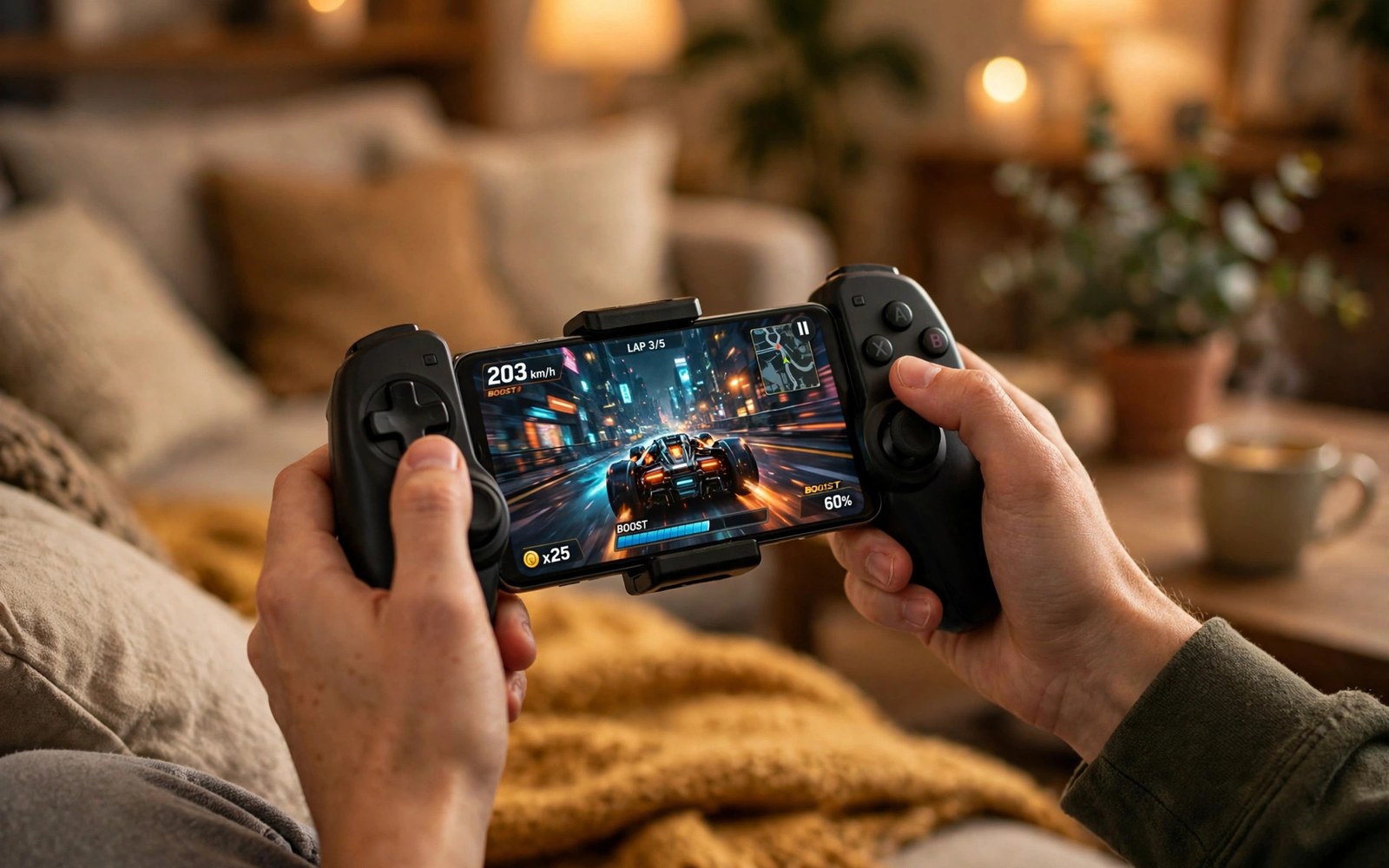
A dedicated handheld console costs hundreds and plays one library. Your Android phone already has a fast chip and a sharp screen and a battery. Add a controller and a few smart settings and it becomes a console that plays retro games and streamed games and native mobile games in one device. The transformation costs far less than a new handheld.
The trick is treating the phone as a console on purpose. A console has a controller that feels right and a library that is easy to browse and settings tuned for play. A phone used casually has none of those things. This guide builds each piece step by step so gaming stops feeling like a compromise.
You will learn how to pick a controller that fits your phone and your hands. You will learn how to organise emulators and games into a clean library. You will learn performance and battery settings that keep long sessions smooth. By the end your phone will feel like a device built for play.
Pick a controller that feels like a console
Telescopic controllers grip your phone in the middle like a handheld console. They connect over USB-C for low latency and they charge through pass through ports. This design feels most like a real console because the weight balances in both hands. It also folds small enough for a jacket pocket when the phone is removed.
Clip style controllers hold the phone above a traditional gamepad shape. They suit players who already own a console controller and want to reuse it. A clip plus a controller you love beats a cheap telescopic pad for comfort. The trade is bulk because you carry two pieces instead of one.
Bluetooth controllers work with almost any phone but add a small input delay. Most players never notice the delay in turn based games or slow adventures. Fast fighting games and rhythm games expose it sooner. USB-C controllers win for timing sensitive play while Bluetooth wins for flexibility.
Test the controller with your case on before you commit. Some telescopic pads fit only bare phones or thin cases. A controller that forces you to strip the case every session will stay in a drawer. Measure your phone with its case and compare against the maker specs. Fit decides whether the setup survives daily use.
Build a game library that is easy to browse
A frontend app turns scattered emulators into one console menu. It shows box art and game titles in a grid you can scroll with the controller. Without a frontend you open a different app for each system and the console illusion breaks. With one you browse like a real console dashboard.
Organise game files into folders by system name. A folder named PS2 and a folder named GBA and a folder named Switch keep scanning simple. Name files clearly with the game title and the region. A tidy folder structure today prevents a weekend of renaming later when the library grows.
Scrape box art only for games you legally own and have backed up yourself. Artwork transforms a text list into a browsable shelf. It also helps you recognise games at a glance during a quick pick up session. Keep the art cache on internal storage for fast loading.
Separate native Android games from emulated games in your launcher. A console home screen with two sections keeps browsing fast. Native games launch from the app drawer section while emulated games launch from the frontend. Two doors into one library feel organised rather than messy.
Tune performance for long smooth sessions
Set your screen refresh rate to match the game rather than forcing maximum always. A sixty frame game gains nothing from a one hundred twenty hertz screen except battery drain. A high frame game benefits from the faster panel when the chip can sustain it. Match the setting to the game for the best balance.
Turn on your phone game mode or performance mode before a long session. Game mode blocks notifications and prioritises the game process. It also stops accidental touches on navigation gestures in many implementations. A quiet session with no popups feels far more like a console.
Manage heat before it manages you. A phone that throttles mid game stutters at the worst moment. Play without a thick case during long sessions and keep the phone out of direct sun. A small clip on fan helps on hot days and costs little. Cool hardware sustains speed while hot hardware throttles.
Use cloud saves or manual backup for emulated progress. Emulator save states live in app folders that vanish if you clear data carelessly. Back up the save folder to cloud storage weekly. Losing fifty hours of progress to a cleanup teaches this lesson once and painfully.
Add streaming and native games to the mix
Cloud streaming turns your phone console into a big screen machine without local power. A strong Wi-Fi connection matters more than chip speed for streamed play. Test streaming near your router before judging it in a far room. A stable connection makes a streamed game feel local.
Remote play from a home console or PC extends the library further. You stream games you already own to the phone in another room. The phone becomes a second screen for the living room console. Latency stays low on a home network and the experience surprises most first time users.
Native Android games fill the gaps between emulated sessions. Many offer controller support now and they launch instantly. A mix of native and emulated and streamed games means the console never runs dry. Variety is the real advantage of a phone over a single purpose handheld.
Performance tuning connects across the whole gaming toolkit. Learning how to stop lagging in mobile games with 5 performance fixes gives you a checklist for any stutter. Fix the bottleneck once and every game benefits. A console mindset means fixing the system and not just one title.
adb shell settings put global game_driver_opt_out_apps com.example.game
adb shell dumpsys gfxinfo com.example.game framestats
The code block above is an original example written for this article. It shows diagnostic commands that inspect graphics driver settings and frame statistics for a game. Replace the example package name with the real package of your game. It is a learning aid for advanced users who want to verify frame performance with data.
Display settings deserve a final pass once the controller and library are ready. Turn off adaptive brightness during play so the screen stops shifting mid game. A stable brightness keeps colours consistent and prevents sudden dimming during dark scenes. Set a comfortable manual level before launching the frontend. Small display stability tweaks make long sessions feel more console like.
Audio completes the console illusion more than most players expect. A pair of low latency earbuds or a small speaker beats the phone speaker for atmosphere. Bluetooth audio adds delay that can disturb rhythm games so wired audio suits timing sensitive titles. Test audio delay in a music game before committing to a wireless setup. Sound you can trust makes every game feel more complete.
Emulator save states and in game saves serve different purposes and both deserve use. In game saves persist across emulator versions and travel well. Save states capture exact moments including mid jump positions. Use in game saves for story progress and states for difficult sections. Two save methods together protect progress better than either alone.
Controller firmware updates occasionally improve stick accuracy and battery life. Check the maker app monthly for firmware news before a long trip. An update applied at home beats a discovered bug on the road. Keep the controller charged the night before a gaming day so a dead pad never ends a session early. Small maintenance habits keep the console ready.
Cloud streaming services add another library layer to the phone console when home Wi-Fi is strong. A streaming app plus the same controller plays big titles without local installs. Test streaming latency in a fast action game before a story game. Latency that hides in slow scenes shows clearly in combat. A mixed local and streamed library covers every mood and network condition.
Common mistakes
The first mistake is buying the cheapest controller available. A mushy stick and a sticky button ruin every game no matter how good the phone is. Spend a little more on a controller with honest reviews. Comfort and precision decide whether you play daily or quit.
The second mistake is scattering game files across random folders. A frontend cannot build a clean library from chaos. Organise by system before you scan. Ten minutes of folders saves hours of hunting later.
The third mistake is forcing maximum graphics on every game. A phone that overheats throttles and stutters. Lower one setting and gain a stable frame rate. Smooth play beats a pretty screenshot every time.
The fourth mistake is never backing up emulator saves. Save states live in folders that cleanup tools can delete. Back up the save folder weekly to cloud storage. Progress is the most valuable file on a gaming phone.
Frequently asked questions
Do I need a flagship phone for a phone console?
No. A midrange phone handles retro systems and many native games smoothly. Demanding modern emulation needs stronger hardware but most classics run well on modest chips. Start with the phone you own and upgrade only when a specific game demands it.
Is a USB-C controller better than Bluetooth?
USB-C wins on latency and on charging convenience through pass through power. Bluetooth wins on compatibility across devices. For timing sensitive games choose USB-C. For casual play either works well.
Can I use my phone console on a television?
Yes. A USB-C to HDMI cable or a wireless cast mirrors the phone to a television. Pair a Bluetooth controller and the phone becomes a living room console. Keep the phone cool and charged during long television sessions.
Conclusion
Your phone becomes a handheld console when you add a good controller and a clean library and tuned settings. The hardware is already in your pocket. The setup turns it from a casual device into a deliberate gaming machine. Variety across native and emulated and streamed games is the reward.
Your concrete next step is to choose a controller that fits your phone with its case and pair it today. Install one frontend and organise ten games into system folders. Play one full session and note heat and battery and comfort. For the next upgrade read how to map physical controllers to touchscreen games easily and 10 offline Android games with console-quality graphics to fill your new console library.

