

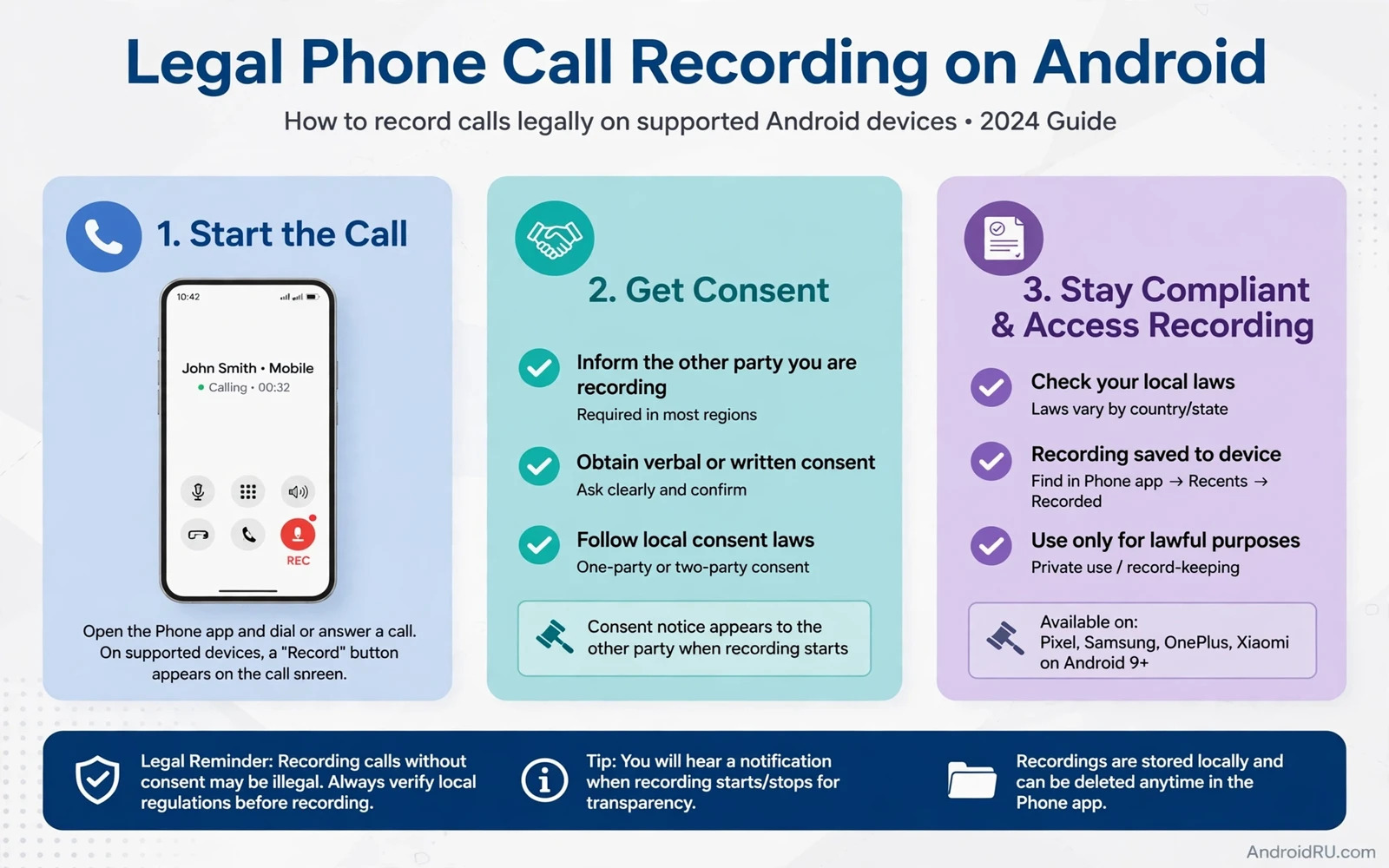
The Law Comes Before The Record Button
Call recording is useful for interviews and business agreements and personal notes. It is also regulated in many places. Some regions allow recording when one party knows about it. Other regions require every party to agree. A few regions ban secret recording outright. The rules can also differ between a private call and a business call. Never assume that a feature on your phone makes recording legal where you live. Check the law for your region before you record a single call.
The safest habit is simple. Tell the other person that you plan to record and why you want the recording and get a clear yes before you start. A short spoken consent at the start of the recording itself creates a clear record of agreement. Keep recordings private and do not share them or post them without permission. A recording made for personal notes is not the same as a recording you may publish. When in doubt pause the recording and ask again rather than hoping the law will forgive a shortcut.
Check Whether Your Phone Supports Recording
Not every Android phone offers built-in call recording. Some phone apps include a record button during calls. Others hide the feature by region or by carrier. A few phones remove it entirely. Open your phone app and start a test call to a voicemail or a friend who agrees to help. Look for a record button on the call screen. If no button appears then check the phone app settings for a call recording section. The setting may be named Call recording or Record calls.
If your phone app lacks recording then check whether your device maker offers it in a separate dialer or settings app. Do not rush to install a random recording app from outside the Play Store. Third party recorders face strict limits on newer Android versions and many cannot capture both sides clearly. An app that demands broad access to your calls and contacts and files deserves scepticism. Built-in recording is cleaner and safer whenever it exists on your device.
Record With The Built-In Feature
When the feature exists the steps are usually short. Open the phone app and go to its settings and find call recording. Turn on the option that matches your need such as always record or record selected numbers or record manually. Manual recording gives you the most control because you decide call by call. Automatic recording suits business users who must keep a record of every work call but it also creates a larger store of sensitive audio so protect it well.
During a call tap the record button and watch for a clear indicator that recording is active. Some phones play a short announcement that the call is being recorded. That announcement helps with consent and you should not try to silence it with tricks. At the end of the call the recording saves to a folder inside the phone app or to a recordings folder in storage. Open the phone app and look for a recorded calls section to play it back. Test playback right away so a silent or one-sided recording is caught early.
Store And Protect Your Recordings
Recordings contain private voices and personal details so treat them like sensitive documents. Keep them on the device or in a locked folder rather than in a shared album. Delete recordings you no longer need instead of letting them pile up for years. If you must keep a recording then back it up to encrypted storage and keep the backup separate from the phone. A lost phone with unprotected recordings can expose conversations you never meant to share.
Review who can access the recordings folder. A file manager app or a cloud backup app may upload recordings automatically if it syncs the whole storage. Check your backup settings and exclude the recordings folder unless you truly want cloud copies. Readers who handle sensitive files will find the same caution in the guide to fixing microphone audio during calls because a clear microphone and a protected recording go together. Good audio is worthless if the file ends up in the wrong hands.
Fix One-Sided Or Silent Recordings
A recording that captures only your voice usually points to a restriction rather than a broken microphone. Newer Android versions limit how third party apps capture call audio. That limit protects privacy but it breaks many older recorders. Switching to the built-in recorder is the most reliable fix. If the built-in recorder also captures one side only then test with a different call type. A Wi-Fi call and a mobile call can behave differently because they travel through different audio paths.
Check microphone permission for the phone app and make sure no other app is holding the microphone during the call. A voice assistant or a recording app running in the background can compete for audio. Close other audio apps and retry. Test with speaker off and speaker on because speaker mode changes the audio route. If the problem stays across call types and modes then the feature may be limited on your device and region. Accept that limit rather than rooting the phone or installing a risky workaround to force recording.
Use Recordings Responsibly
A recording is a record of trust. Use it for the purpose you stated when you asked for consent. Do not edit a recording to change its meaning and do not share clips out of context. If a dispute arises then keep the full original file rather than a trimmed copy. The full file carries timestamps and context that a short clip loses. Label recordings with a date and a name so you can find them later without opening every file.
Business users should agree a recording policy with their team before anyone presses record. The policy should state when recording is allowed and where files live and how long they are kept and who may listen. A clear policy prevents awkward surprises and protects both staff and customers. Personal users can adopt a simpler version of the same habit. Decide a retention time such as a month and delete older files on a regular schedule. Discipline with recordings is part of recording legally.
When Recording Is Not Available
If your phone and region do not support recording then alternatives exist that stay within the law. Take written notes during the call and send a summary message afterwards asking the other person to confirm it. A confirmed written summary is often enough for business purposes. You can also ask the other person to send the key points by message or email. These methods avoid the legal risk of a secret recording entirely.
Never use a second device hidden nearby to record a call that you could not record openly. Hiding the method does not change the consent rule. If the other person would not agree to an open recording then they would not agree to a hidden one either. Respect that answer. A refused recording is not a problem to work around. It is a clear signal to use notes instead. For message records the guide to restoring deleted text messages shows how to protect written records that support your notes.
A Short Checklist Before Every Recording
Pause before the call and run a quick mental checklist. Do you know the consent rule for your region. Have you told the other person and received a clear yes. Is the built-in recorder ready and tested. Is your storage protected and your backup setting correct. Four yes answers mean you can record with confidence. A single no means you should fix that point first or use notes instead.
Call recording on Android works best when law and technology and courtesy point the same way. The built-in feature handles the technology. Your consent habit handles the law. Your storage habit handles privacy. Keep all three in balance and recording becomes a helpful tool rather than a risk. That balance is the real skill behind this guide.
Recordings For Accessibility
Call recording can help people who struggle to remember spoken details. A recording lets you replay instructions and numbers at your own pace. It also helps language learners who want to review a conversation slowly. These uses are legitimate and they deserve the same consent care as any recording. Tell the other person that you record to help your memory. Most people agree when the reason is clear and the storage is private.
Pair recordings with written notes for the best result. Notes give you a searchable summary. Recordings give you exact wording when the summary is unclear. Together they cover both speed and accuracy. Store the notes beside the recording with a matching date and name so you can find both later. A paired system beats either tool alone.
Business Recording Etiquette
Business calls carry extra expectations. A company policy may require an announcement at the start of every recorded call. Follow that policy even when the law would allow silent recording. The announcement builds trust with customers who hear it. It also protects the company if a dispute later questions consent. A clear announcement is cheap insurance for any business recording habit.
Store business recordings separately from personal recordings. A separate folder with access limited to relevant staff keeps personal calls out of business review. Set a retention period for business recordings and delete them when it expires. A defined retention period shows discipline and limits exposure if storage is ever compromised. Good etiquette plus good storage makes business recording defensible.
Check Recording Quality Before Important Calls
Test recording quality before a call that matters. Record a short test call with a consenting friend and play it back. Listen for both voices at similar volume. Listen for distortion and dropouts. A test call reveals a one-sided recording before it costs you an important conversation. If the test sounds poor then switch to the built-in recorder or change the call type as the main guide describes.
Keep the phone software updated because recording behaviour can change with system updates. An update can alter audio routing in ways that affect third party recorders most. Built-in recorders usually adapt faster. After a major update run a fresh test call. A two minute test after each update prevents a nasty surprise during a call that cannot be repeated. For privacy settings that surround recording the guide to blocking website push notifications shares the same principle of controlling what apps can observe on your phone.

