

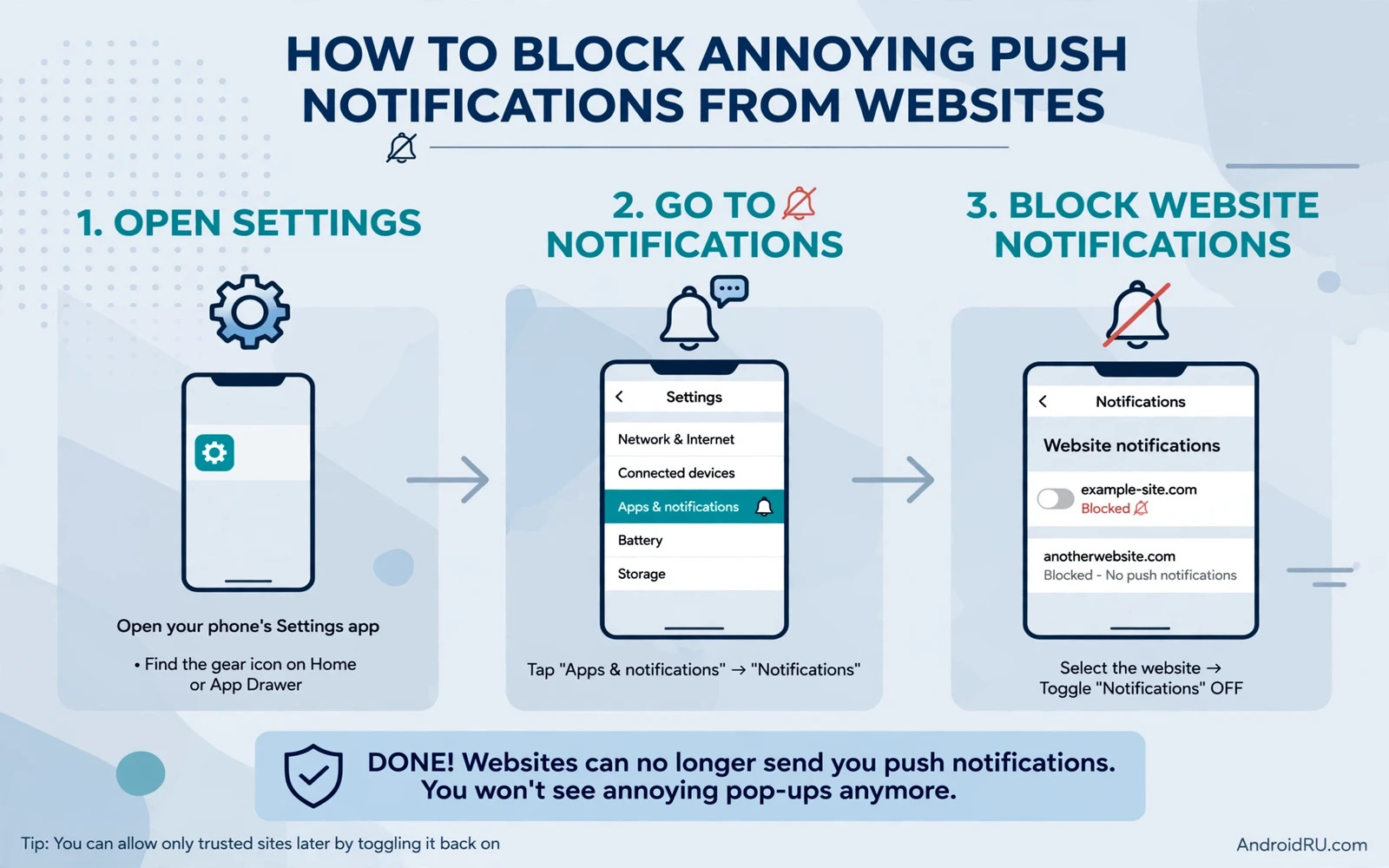
Why Website Notifications Become So Annoying
A website notification can feel helpful at first and it can turn into constant noise within a few days. Many sites ask for permission while you are reading an article or looking for a download link. A quick tap on Allow can open the door to alerts about sales and breaking news and new posts that you never asked to follow closely. Those alerts arrive even when the browser is closed and they can interrupt work and sleep and family time. The good news is that permission is not permanent and you can take it back in a few minutes without deleting the browser or losing your bookmarks.
Readers who want a calmer browser can start by reviewing the same permission controls described in How to Stop Pop-Up Ads and Trackers on Android Browsers and then apply the website steps in this guide. That wider cleanup helps you see which sites send pop-ups and which sites send notifications and why both problems often come from the same permission habit. Once you understand the pattern you will pause before you tap Allow on any new site. A short pause saves you from weeks of unwanted alerts and it keeps your lock screen clean.
How Browser Notification Permission Really Works
When a site asks to send notifications the browser stores that choice for that exact site address. The site can then push a short message to your phone through the browser service even when you are not on that page. Android also shows a notification channel for the browser app itself and that channel can hide the real source of the alert. This is why turning off all browser notifications can feel like a blunt tool while blocking one site feels precise and fair. A precise block stops the noisy site and it leaves useful alerts from sites that you truly value.
Chrome and other Android browsers keep a site settings page for notifications and each site appears there with its own Allow or Block choice. Some browsers also group sites by recent activity so the worst offenders appear near the top of the list. You should check that list once a month because a site that was quiet last month can become noisy after a redesign or a marketing push. A regular check takes only a few minutes and it prevents a slow build-up of alert spam. Treat notification permission like a key to your home and give it only to sites that earn trust over time.
Block One Website In Chrome On Android
Open Chrome on your phone and tap the three dot menu in the top corner of the screen. Tap Settings and then tap Site settings and then tap Notifications to open the full list of sites. Look for the site that sends unwanted alerts and tap its name to open its own permission page. Change its notification permission to Block and then go back to confirm that the site now appears under the blocked section. Test the result by waiting for the next alert window and by checking that no new message arrives from that site.
If the site still sends alerts after the block then check whether a second address for the same site is also allowed. Many sites use a main address and a news subdomain and a promotion subdomain and each one needs its own block. Search the notification list for the brand name and block every matching entry that you do not trust. Also clear the browser data for that site if its prompt keeps returning after every visit. A clean block plus a cleared site record usually ends the problem for good.
Chrome path
Settings > Site settings > Notifications > Site name > Block
Block Notifications In Other Android Browsers
Firefox on Android keeps notification control inside site permissions for each site that you visit. Open the site and tap the lock icon near the address bar to see what the site is allowed to do. Change notifications to blocked and then reload the page to confirm that the choice stays in place. Samsung Internet keeps a similar control under its sites and downloads section and under notification settings for the browser app. Brave and Edge follow the same pattern with a site settings page and a clear Allow and Block list.
If you use more than one browser then you must repeat the block in each browser that you use. A block in Chrome does not stop the same site in Firefox because each browser stores its own permission list. Make a short note of the sites that you block so you can repeat the same blocks after you switch phones or reinstall a browser. A small note saves you from repeating the same detective work later. Consistency across browsers is the key to a quiet phone.
Use Android Notification Settings As A Second Layer
Android lets you control notifications for the browser app itself from the system settings page. Open Settings and tap Notifications and then tap App settings to find your browser in the list. You can turn off a noisy notification category while you keep useful categories such as downloads and security alerts. This system layer is useful when a site alert uses a generic browser channel and you cannot find the site in the browser list. Use it as a backup and not as a replacement for a precise site block.
Do not turn off every browser notification channel at once unless you are sure that you do not need any browser alerts. A download alert can warn you that a file is ready and a security alert can warn you about a risky page. Keep the channels that help you and silence the channels that only carry marketing messages. Check the result over one full day and adjust one channel at a time. A careful adjustment keeps useful alerts alive while noisy alerts disappear.
Stop Sites From Asking Again
Some sites show the permission prompt on every visit even after you dismiss it once. You can stop that behaviour by turning off the option that lets sites ask to send notifications. In Chrome the notification settings page has a switch for asking permission and turning it off means new sites cannot ask at all. Existing allowed sites still need a manual block so check the allowed list after you change the switch. This one change prevents most future prompt spam before it starts.
People who compare browsers for privacy often find that a stricter default helps and the privacy strengths in Best Web Browsers for Android Prioritizing Privacy and Speed show why defaults matter for daily browsing. A browser that asks less often gives you fewer chances to tap Allow by accident. A browser that shows site permission clearly makes a later block easier to find. Choose a browser whose controls you understand and stay with it for daily reading.
Clean Up Old Permissions And Site Data
Open the notification list and remove permission from sites that you no longer visit or no longer recognise. A site that you allowed two years ago may have changed owners or changed content and it may now send alerts that you would never approve today. Remove its permission and clear its stored data if the browser offers that option for the site. Clearing site data also removes saved preferences for that site so you may need to sign in again on your next visit. That small cost is worth the quiet that follows.
Also review app notifications for browsers and news apps that mirror website alerts. A news app can send the same story as a website alert and it can make you think that the website block failed. Open the app notification settings and silence the duplicate source while you keep the website block in place. A single source for each story keeps your notification shade readable. Write down the sources that you keep so you can restore them later if you change your mind.
What To Do When Alerts Keep Coming Back
If alerts return after a block then check whether you allowed the site again during a later visit. Some sites place the Allow button near a video play button or near a download button and a hurried tap can restore permission. Reopen the site settings page and confirm that the site is still blocked before you try any deeper fix. Also check whether a second browser or a lite browser app on the same phone still allows the site. A block must cover every browser that can show the site.
If the alert looks like a system warning or a virus warning then do not tap it and do not follow its link. A real browser notification never asks you to install a cleaner app from a strange link. Close the notification and block the site that sent it and run a scan only through a trusted security app that you installed yourself. A scary alert is often a marketing trick and a calm block is the safest response. Share the trick with family members so they do not tap it either.
A Quiet Routine For New Sites
Before you allow any new site ask yourself whether you will want its alerts in a month and not only today. A site that offers a one-time discount rarely deserves permanent alert permission. A site that you read every morning may deserve permission if its alerts are rare and useful. A site that you found through a single search rarely deserves permission at all. Use email or a bookmark for one-time sites and reserve notification permission for a short list of trusted daily reads.
Small system habits add up over time and the display and focus tweaks in How to Enable and Customize Dark Mode Across System Apps show how one calm setting can improve the whole phone experience. A quiet notification shade and a calm display work together to reduce distraction. Review your allowed sites once a month and remove any site that has become noisy. A short monthly review keeps the phone quiet without a big cleanup effort.
Final Checklist Before You Finish
Confirm that every noisy site appears under the blocked list in your main browser. Confirm that the ask permission switch is off if you do not want new prompts. Confirm that the browser app channels in Android settings match the blocks that you set inside the browser. Confirm that no second browser still allows the same site. Confirm that duplicate news app alerts are silenced so they do not confuse the test. A short checklist turns a one-time fix into a lasting quiet phone.
Keep this routine simple and repeat it whenever a new noisy site appears. Block the site and check its subdomains and silence duplicate sources and review the list once a month. A phone that respects your attention feels faster even when its hardware has not changed. Your lock screen should show only messages that you chose to receive. That control is the real goal of this guide and it is fully within your reach today.

