

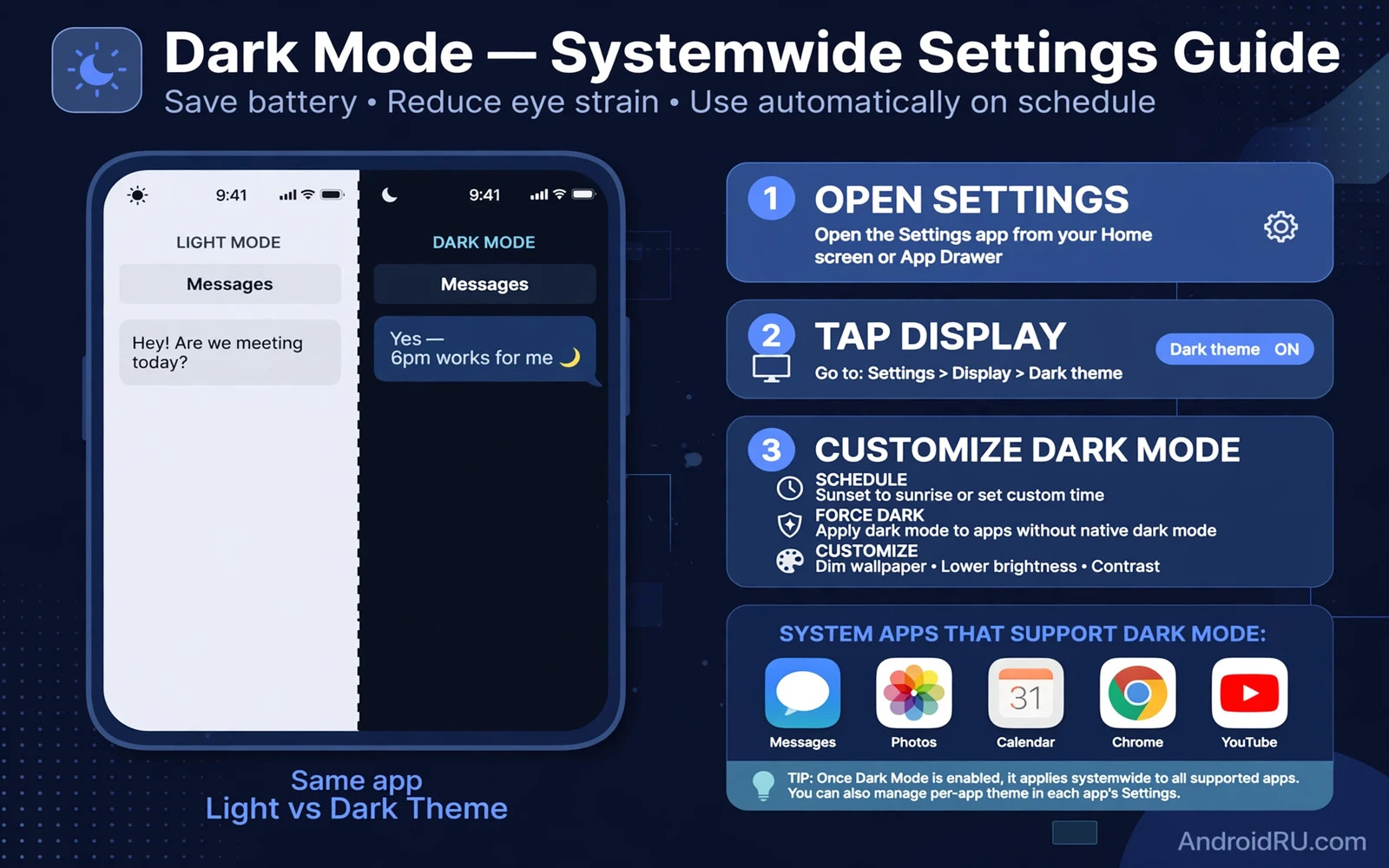
What Dark Mode Changes Across System Apps
Dark mode changes the background and text colours used by system apps and by many third party apps that follow the system theme. Menus become dark and text becomes light and contrast stays readable in dim rooms. The change is visual only for most apps. It does not delete data or change accounts or remove features. It simply asks apps that support the system theme to use their dark appearance.
Some apps follow the system setting at once while other apps keep their own theme switch. That split causes confusion when one app stays bright after you enable dark mode everywhere else. This guide shows how to enable the system switch and then check each app that keeps its own setting. A launcher change can also reshape how the home screen looks and the steps for changing the default launcher on Android step by step pair well with a dark theme refresh.
Enable Dark Mode From System Settings
Open Settings and then open Display and look for the theme option. The option may be named Dark theme or Dark mode depending on the phone maker. Turn it on and watch system menus change at once. Open Messages and Settings and the phone app to confirm the change. If those core apps turn dark then the system switch works and any bright app that remains likely uses its own theme setting.
Some phones also offer a schedule for dark mode. A schedule can turn dark mode on at sunset and off at sunrise or follow a custom time window that you choose. A schedule is useful when you want dark evenings and bright days without toggling the switch by hand. Test the schedule for one day before you rely on it so you can confirm that it switches at the times you expect.
- Open Settings and then open Display to find the dark theme switch
- Turn dark mode on and check system apps such as Messages and Settings
- Open each bright app and look for its own theme or appearance setting
- Use a sunset schedule when you want automatic evening dark mode
- Restart an app that stays bright after you change its theme setting
Customize Dark Mode Inside Individual Apps
Open the settings inside each app that stays bright. Look for Appearance or Theme or Display options. Choose the dark option or choose the follow system option when both exist. Follow system is the better long term choice because the app then changes whenever the system changes. A fixed dark choice is useful when you want one app dark while the rest of the system stays bright.
Browsers and mail apps and social apps often hide theme options under general settings rather than display settings. Search inside app settings for the word theme when you cannot find the option quickly. After changing an app theme close the app fully and reopen it. Some apps apply a new theme only after a full restart rather than at once.
Match Wallpaper And Accent Colours
Dark mode looks best when wallpaper and accent colours support it. A very bright wallpaper can clash with dark menus even when the theme works correctly. Choose a darker wallpaper or let the system pick colours from the wallpaper when that feature is available. Accent colours affect buttons and highlights and small controls across system menus. A muted accent keeps dark mode calm while a vivid accent can make controls stand out more clearly.
Launcher themes and icon packs can also override the look of the home screen. If icons stay bright after dark mode then check the launcher theme separately from the system theme. A consistent home screen needs both layers to agree. Battery saving is a related benefit for some screens and you can explore how battery life improves on any Android smartphone for broader saving steps that work alongside a dark theme.
Fix Apps That Refuse To Go Dark
An app that stays bright may not support dark mode at all. Check the app settings once and check for an app update that may add theme support. If no theme option exists then the app will stay bright until its developer adds one. You cannot force every app dark from system settings alone on most phones. Developer options may offer a force dark override but it can break layouts and colours in some apps so use it only as a test.
Warning. Forcing dark mode through developer options can make text unreadable in apps that were never designed for it. Buttons may blend into backgrounds and images may invert in odd ways. Turn the override off at once when an app becomes hard to use. A clean system theme plus per app settings is safer than a forced override for daily use.
Settings - Display - Dark theme - On
App - Settings - Appearance - Follow system
Launcher - Theme - Match system dark mode
Dark Mode And Readability
Dark mode helps many people in dim rooms but it is not better for every eye in every light. Bright rooms may make dark text harder to read on some screens. Try dark mode in the rooms where you actually use the phone most. Adjust brightness alongside the theme because a dark theme with very low brightness can strain eyes just as much as a bright theme at full brightness.
Keep font size and display size in mind as well. A theme change does not fix tiny text. Open display settings and set a comfortable text size after you settle the theme. The combination of a good theme and a good text size makes long reading sessions far more comfortable than either setting alone.
Frequently Asked Questions
Why does one app stay bright after I enable dark mode. That app likely uses its own theme switch or it does not support dark mode yet. Open its settings and choose dark or follow system when that option exists.
Does dark mode save battery on every phone. The saving depends on the screen type and the apps that you use. Screens that turn pixels off for black can save more energy than screens that always light the whole panel.
Dark Mode Across Browsers And Mail Apps
Browsers often include a theme setting that is separate from the system theme. Open browser settings and look for appearance or theme options. Choose dark or follow system depending on what the browser offers. Some browsers also offer a dark mode for web pages themselves which can darken bright sites that do not follow the system theme. Page darkening can change how images and colours look so test it on a few favourite sites before keeping it on for all browsing.
Mail apps deserve the same per app check because mail is read for long periods each day. Open mail settings and find the theme option. A dark mail view reduces glare during evening reading. Keep an eye on link colours inside dark mail because some links may blend into dark backgrounds in older app versions. Updating the mail app often fixes link contrast when a dark theme is new to that app.
Social apps and video apps frequently update their theme options. An app that lacked dark mode last year may offer it now after an update. Check for updates when a favourite app stays bright. After updating reopen the app and check its appearance settings again. Theme support arrives quietly in many updates and a quick recheck after each update keeps your dark setup consistent across the apps that you actually use.
Widgets can break the dark illusion when they stay bright on a dark home screen. Open widget settings or launcher settings and look for a dark widget style. Some widgets follow the system theme while others need a manual style choice. Replace a stubborn bright widget with a dark alternative when the original offers no dark style. A home screen feels complete only when widgets and icons and wallpaper agree with the system theme.
Reading comfort depends on more than theme alone. Brightness and font size and blue light settings all shape how a dark screen feels at night. Lower brightness gradually rather than dropping it to minimum at once. A very dim dark screen can strain eyes just as much as a bright screen. Find a brightness level that lets text stay crisp without glowing harshly in a dark room. Test the combination during your normal evening reading rather than in a bright store.
Material You colours connect dark mode to the wider system look. When the system picks accent colours from wallpaper those accents appear in buttons and highlights across system menus. A dark wallpaper with muted accents creates a calm dark theme while a vivid wallpaper can make accents pop against dark backgrounds. You can explore how system colours shape the phone in Android 15 features and everything new coming to your phone which covers system appearance changes alongside other platform updates.
Dark Mode Mistakes To Avoid
A common mistake is forcing dark mode on every app through developer options and then blaming the system when layouts break. Forced dark mode is a test tool rather than a daily solution. Another mistake is judging dark mode only in a bright room where dark themes naturally look washed out. Judge dark mode in the dim rooms where you will actually use it. A third mistake is forgetting scheduled dark mode after travel across time zones. Check the schedule after travel so sunset switching still matches local evening.
Keep a note of which apps use follow system and which apps use a fixed dark choice. When you later switch the system back to light for a bright day a fixed dark app will stay dark and may surprise you. A short note prevents confusion and lets you restore a consistent look quickly. Consistency comes from knowing each app choice rather than from hoping that every app follows the system.
Dark Mode And Night Reading
Night reading benefits most from dark mode when brightness is also reduced gently. A dark page at full brightness still glares in a dark bedroom. Reduce brightness in small steps until text stays crisp without a harsh glow. Use the system night light or warm colour option alongside dark mode when your phone offers it. Warm colours plus dark backgrounds create a calmer night screen than either setting alone.
Ebooks and long articles deserve a dedicated reading check. Open a long article in dark mode and read for several minutes before judging comfort. Short glances can mislead because eyes adapt slowly to a new theme. A theme that feels odd in the first minute may feel comfortable after five minutes of steady reading. Judge dark mode by a real reading session rather than by a quick home screen glance.
Children and shared phones may need different theme choices per user when profiles exist. A dark theme that suits one person at night may confuse another person during daytime use. Agree on a schedule that switches themes by time of day rather than by personal preference alone. A sunset schedule gives everyone dark evenings and bright days without daily arguments about settings.

