

What Changing The Default Launcher Means
The launcher controls your home screen and your app drawer and many gestures that you use every day. Changing the default launcher changes that layer only. It does not delete your apps or your accounts or your files. Your old launcher stays installed unless you remove it yourself. You can switch back at any time through the same default app setting.
A new launcher can change icon size and grid layout and folder style and search behaviour. It can also add gestures and hide apps and reshape widgets. Start with a launcher from a trusted source and explore one change at a time. A dark theme pairs naturally with a fresh home screen and the steps in enabling and customizing dark mode across system apps can help the new launcher look consistent.
Install A Launcher You Trust
Open the app store and search for the launcher by its exact name. Check the developer name and recent reviews and permission requests before you install. A launcher needs broad access to your home screen so trust matters more here than for a simple utility app. Avoid launchers from unknown sources that ask for permissions far beyond home screen control.
After installation do not set it as default at once. Open it once from the app drawer and explore its welcome setup. Many launchers offer to import your current layout or to start fresh. Importing can save time but starting fresh can reveal clutter that you no longer need. Choose the option that matches how much change you actually want.
- Choose a launcher from a trusted developer and check its permission requests first
- Open the launcher once and explore its setup before setting it as default
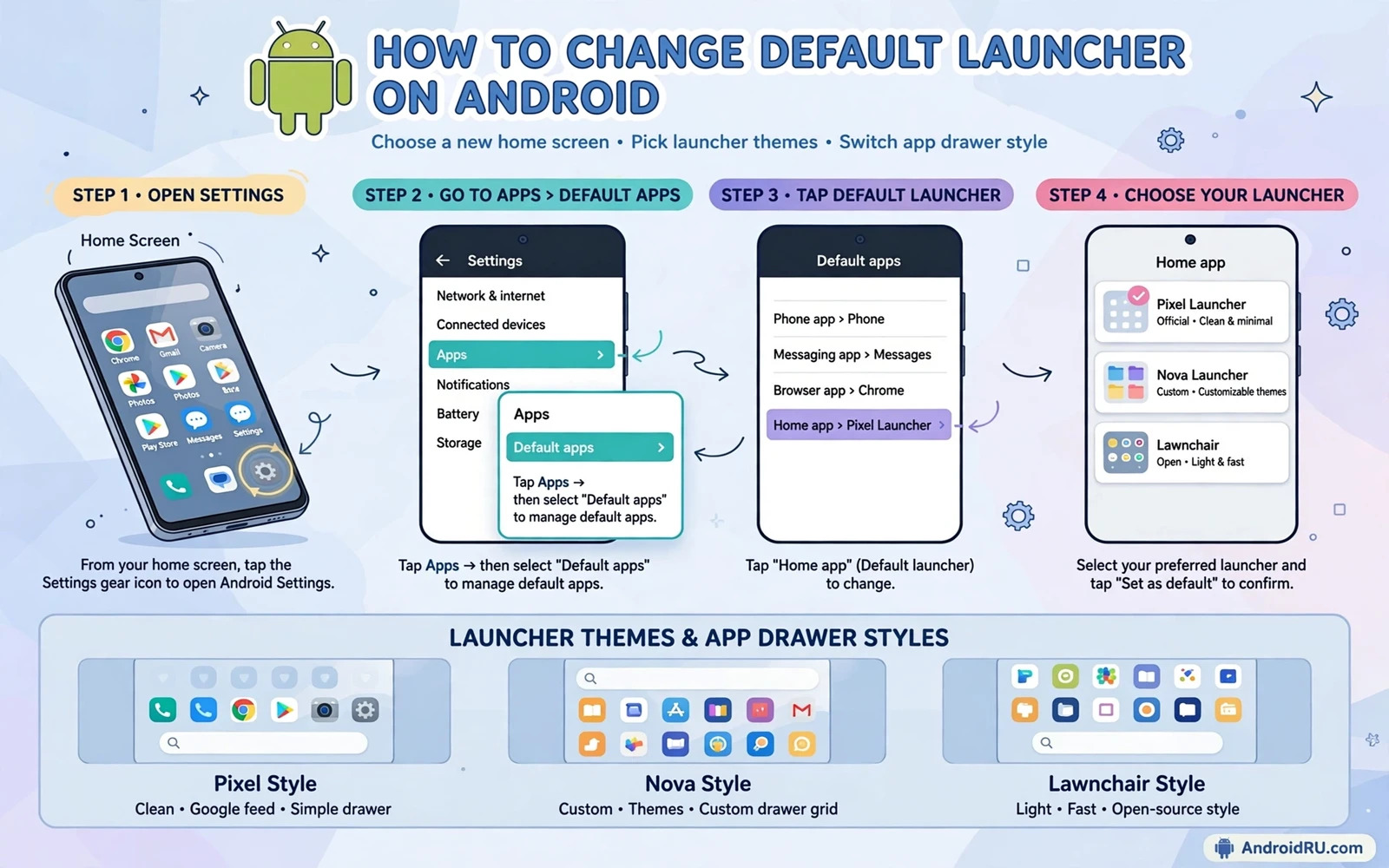
- Set the default in Settings under Apps and then Default apps and then Home app
- Test home gestures and the app drawer and folders before customizing deeply
- Keep the old launcher installed until you are sure the new one suits you
Set The New Launcher As Default Step By Step
Open Settings and then open Apps and then open Default apps. Tap the Home app entry and choose the new launcher from the list. Press the home button and confirm that the new home screen appears. If the phone asks you to confirm the choice once more then confirm it and test again. The new launcher now controls the home button and the home screen.
Some phone makers place the default home setting under a different menu name. Search Settings for the word default or home when the path above looks different. The core idea stays the same on every phone. You choose one home app as default and the system sends home presses to that app. A related system cleanup can also refresh the phone and you can review clearing the system cache partition to speed up performance before a deeper home screen rebuild.
Customize Layout Widgets And Gestures
Start with the grid size because it controls how many icons fit on each home screen page. A larger grid fits more icons but makes each icon smaller. A smaller grid looks cleaner but needs more pages. Add widgets one at a time and place the most used widget on the first home screen. Test each widget for a day before adding another so the home screen stays useful rather than crowded.
Gestures can speed up daily use when you learn them slowly. Set one gesture for opening the app drawer and one for search and leave the rest at default for now. Add more gestures only after the first ones feel natural. A home screen with too many hidden gestures becomes hard to use when you hand the phone to someone else.
Settings - Apps - Default apps - Home app - Choose launcher
Launcher - Settings - Home screen grid - Choose grid size
Launcher - Settings - Gestures - Set one gesture at a time
Switch Back Or Remove A Launcher
Switching back uses the same default app setting. Open Default apps and choose the previous launcher as the Home app. Your old layout usually returns when the old launcher still holds its settings. If the old layout looks empty then check whether its data was cleared during cleanup. Keeping the old launcher installed until you are certain avoids this surprise.
Removing a launcher is safe only after you switch the default away from it. Never remove the active default launcher first because the phone may fall back to a bare home screen. Switch default first and then uninstall the unwanted launcher. After removal test the home button and the app drawer once more to confirm that everything still works.
Frequently Asked Questions
Will a new launcher delete my apps. No. A launcher only changes the home screen layer. Your apps and accounts and files stay exactly where they were.
Can I try several launchers safely. Yes. Install one at a time and set only one as default. Keep the others installed for testing or remove the ones that you do not want after switching the default away.
Choose A Launcher That Fits Your Habits
Some launchers focus on minimal home screens with few icons and calm layouts. Others focus on power features with gestures and folders and hidden apps. Think about which style matches your daily use before you install a third option. A minimal launcher suits a phone that you use mainly for calls and messages. A power launcher suits a phone packed with apps that need folders and search. Matching style to habit prevents a cycle of installing and removing launchers every week.
Read recent reviews with attention to update frequency. A launcher that receives regular updates is more likely to support new system versions. A launcher abandoned for a long time may break after a system update. Check the last update date in the store listing before you invest time in a deep setup. A well maintained launcher protects the time that you spend arranging icons and widgets.
Icon packs deserve a separate decision from the launcher itself. Many launchers support icon packs that restyle every app icon at once. An icon pack can refresh an old phone without changing layout logic. Test one icon pack at a time and keep the default icons as a fallback. When an icon pack makes an app hard to recognise then remove it at once because a home screen must stay readable at a glance.
Folders help when the app drawer feels overwhelming. Group apps by task rather than by colour or by name. A folder for travel and a folder for finance and a folder for media matches how you actually reach for apps. Keep folder names short and clear. A folder system that needs a map to navigate defeats its own purpose. Review folders monthly and remove apps that you no longer open.
Widgets need the same discipline as folders. A weather widget and a calendar widget and a music widget can cover most daily needs on one home screen. Adding every available widget creates clutter that hides the icons you need most. Place widgets where your thumb naturally rests and test the layout for a full day before adding more. A calm home screen is faster than a crowded one because the eye finds targets without scanning.
A fresh home screen pairs well with a fresh theme. When icons and wallpaper and accent colours agree the phone feels new without any hardware change. Dark themes in particular can transform a launcher layout at night. You can coordinate the two changes with enabling and customizing dark mode across system apps so the launcher and the system apps share one consistent look.
Launcher Mistakes To Avoid
A common mistake is granting a launcher every permission that it requests without reading the list. A launcher needs home screen control but it does not need access to every account on the phone. Review permissions during setup and deny anything that feels unrelated to home screen work. Another mistake is deleting the old launcher before switching the default away from the new one. Keep the old launcher until the new setup proves itself over several days of normal use.
A final mistake is copying a complex setup from a video without understanding each gesture. A setup that looks impressive on video can confuse daily use when gestures conflict with system gestures. Learn one gesture at a time and keep the rest at default. A home screen that you understand beats a home screen that merely looks advanced.
Launcher Backups And Restore
Many launchers offer a backup of layout and settings inside their own settings menu. Create a backup after you finish a layout that you like. Store the backup where you can find it after a phone change or a launcher reinstall. A backup turns a future phone setup from a long rebuild into a quick restore. Test the restore once on the same phone when the launcher allows it so you know that the backup file actually works.
Icon positions and widget settings may restore differently across phone models. A grid that fits one screen size may overflow on a smaller screen. After restoring on a new phone check every home screen page and every widget. Adjust grid size first when icons overlap. A backup saves most of the work but a short manual check after restore still matters for a clean result.
Launcher data deserves the same backup caution as other app data. Clearing launcher data to fix a glitch can erase a layout that took hours to build. Back up the layout before clearing data for any launcher experiment. A backup before a risky step is cheap while rebuilding a lost layout is slow and frustrating.
Launcher And System Gestures
System gestures and launcher gestures can conflict when both claim the same swipe. A swipe from the bottom edge may trigger the system home gesture on one phone and a launcher action on another. Test edge gestures after installing a new launcher and adjust the launcher gesture to a different swipe when conflict appears. A launcher that respects system gestures feels smoother because the phone behaves the same way across every app.
Full screen gestures change how the app drawer opens. Some launchers open the drawer with an upward swipe while others use a drawer button. Choose the method that feels natural for your thumb reach and keep it consistent. Switching drawer methods every week forces relearning and slows daily use. A stable gesture habit matters more than the newest gesture option.
A Final Launcher Check
Finish any launcher change with a full day of normal use before judging it. A layout that looks good in setup may feel slow during real use when widgets refresh often or gestures conflict with daily habits. Test calls and messages and navigation and camera access from the new home screen during that day. A launcher that passes a full day of real use earns its place as default. A launcher that fails during that day can be replaced without regret because the old launcher still waits in the default apps setting.

