

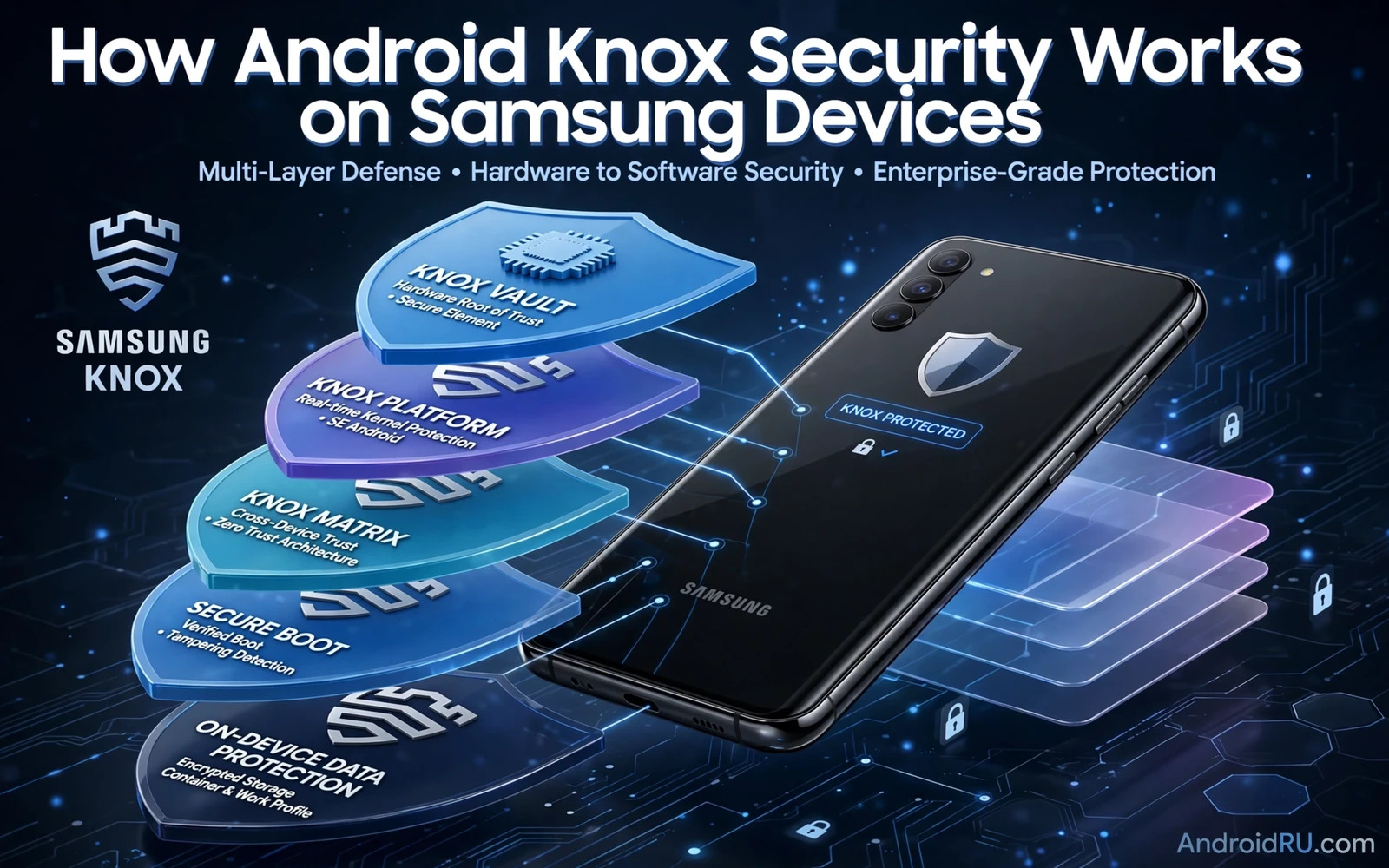
Samsung Knox is a security platform built into Samsung Android devices that combines hardware protection and software protection and enterprise management into a single system. Knox starts before the operating system loads and it continues through everyday app use and it extends into work profiles that separate business data from personal data. Understanding Knox helps Samsung owners use features that already exist on their phones and helps business users judge whether a Samsung device meets workplace security needs.
Knox differs from a single security app because it operates at multiple layers at once. A hardware root of trust verifies the boot process. A trusted execution environment isolates sensitive operations. A secure folder creates an encrypted container for private apps and files. Enterprise tools let organisations manage devices and enforce policies remotely. Those layers reinforce each other so that a failure at one layer does not automatically expose everything else. That layered design is the core Knox idea.
This guide explains Knox boot verification and hardware protection and secure folder and enterprise features and the limits that users should understand. Knox is powerful on supported Samsung devices but it is not available on other brands and its strongest enterprise features require organisational setup. Personal users benefit most from secure folder and device protection features that work without any enterprise enrolment.
Hardware Root Of Trust And Secure Boot
Knox secure boot starts with hardware keys fused into the device during manufacturing. Those keys verify each stage of the boot process before the next stage loads. A bootloader that was tampered with fails verification and the device refuses to boot normally or marks itself as compromised. That early verification matters because malware that loads before the operating system could otherwise hide from every later security tool. Secure boot pushes trust down to hardware that software cannot easily rewrite.
Knox also monitors the device for tampering after boot through integrity checks that detect unauthorised modifications. A device that trips a Knox warranty flag after deep modification may lose access to certain Knox features permanently. That permanence surprises some power users who modify their phones and later expect Knox features to return after restoring stock software. The flag exists to give enterprises a reliable signal that a device was modified even when the modification was later reversed. Personal users should understand that tradeoff before modifying a Samsung device.
Trusted Execution And Key Protection
Knox uses a trusted execution environment to isolate sensitive operations from the main operating system. Biometric matching and cryptographic key operations run inside that isolated area and return only results to normal apps. That isolation mirrors hardware-backed encryption on other Android phones but Knox integrates it with Samsung specific hardware and software. Payment credentials and biometric templates benefit from that isolation because a compromised app process cannot read the protected material directly.
Knox key protection also supports hardware backed keys for apps and for enterprise containers. An enterprise app can store its keys in the trusted area with policies that require device compliance before use. A non compliant device that fails integrity checks may lose access to enterprise keys even when the user knows the correct credentials. That policy link between device health and key availability is what makes Knox valuable for regulated workplaces. Personal users benefit indirectly because the same isolation protects their own biometric and payment data.
Secure Folder For Personal Privacy
Secure Folder is the most visible Knox feature for personal users. It creates an encrypted container on the phone that holds its own copies of apps and files separately from the main profile. Photos and documents moved into Secure Folder are encrypted with keys tied to the container authentication. Apps inside Secure Folder run separately from their main profile copies so a personal gallery inside Secure Folder does not share data with the gallery outside it. That separation suits private photos and sensitive documents and secondary accounts.
Set up Secure Folder with an authentication method that differs in strength from casual use. A strong PIN or biometric gate for Secure Folder adds a second barrier even when the main lock screen is unlocked. Back up Secure Folder contents through Samsung backup options before a device change because container data does not always transfer automatically with a normal device backup. Test Secure Folder restore during migration before wiping the old phone. A container that you cannot restore after migration protects privacy by accident through data loss.
Enterprise Management And Work Profiles
Enterprises use Knox management tools to enrol devices and to enforce password policies and to configure work profiles and to wipe corporate data remotely without wiping personal data. That separation between work and personal data is essential for bring your own device programmes. An employee can carry work email and work apps in a managed container while personal photos and messages remain outside organisational control. Remote wipe of the work container protects company data when an employee leaves or when a device is lost.
Knox enterprise features also support device attestation that proves device integrity to corporate services before granting access. A device that fails attestation may be blocked from sensitive corporate resources until it returns to compliance. That gate protects company systems from modified devices that might leak data. Employees should understand which policies their organisation enforces before enrolment because managed profiles can restrict features such as camera use or app installation inside the work container.
Limits Availability And Practical Advice
Knox availability varies by Samsung model and region and carrier. Flagship and many mid range Samsung phones include full Knox support while some entry level models offer a reduced feature set. Check Knox support for your exact model before relying on a specific feature for work compliance. Knox features also depend on Samsung software updates because security fixes for Knox components arrive through system updates. Keep updates installed promptly to preserve Knox protection.
Knox does not replace user habits such as strong credentials and careful app permissions and phishing awareness. A Knox protected phone with a weak PIN and broad app permissions remains vulnerable to social engineering and to data exposure through approved apps. Use Secure Folder for genuinely private content and keep the main profile clean and review permissions regularly. Knox gives Samsung owners a strong platform and good habits turn that platform into real everyday protection.
Knox builds on platform encryption so study understanding app sandboxing and Android memory protection and compare update discipline in understanding Android security patch lifecycle support while locking apps behind biometrics or PIN codes adds app gates beside the Knox container.
- Use Secure Folder with a strong separate authentication gate for private apps
- Keep system updates installed so Knox components stay patched
- Back up Secure Folder contents before any device migration
- Understand that deep modification can permanently affect Knox feature access
- Pair Knox platform protection with strong credentials and permission review
Knox Features For Personal Users Without Enterprise Setup
Personal users without enterprise setup still gain real value from Knox through features that work out of the box. Secure Folder gives private app and file separation without any organisation enrolment. Device protection features guard boot integrity and key storage automatically on supported models. Samsung account security features add device finding and remote lock for personal use. Those features require only normal Samsung setup and a strong lock screen credential to deliver value.
Set up Secure Folder as a personal vault rather than as a duplicate phone. Move sensitive photos and documents and a secondary copy of banking apps into the container. Use a strong container authentication method that differs from casual daily unlock habits. Back up container contents through Samsung backup and test restore during any device change. A Secure Folder treated as a vault stays organised and trustworthy while a container filled with every app becomes confusing and loses its purpose.
Combine Knox platform protection with personal habits that Knox cannot replace. Keep system updates installed promptly and review app permissions monthly and use strong unique passwords for Samsung and Google accounts. Avoid deep device modification unless you accept Knox feature consequences that may follow. Knox provides a strong foundation and personal discipline builds everyday security on top of that foundation. Together they give Samsung owners protection that rivals dedicated enterprise devices without enterprise complexity.
Knox And Samsung Device Lifecycle Management
Samsung device lifecycle management benefits from Knox from purchase through retirement. At purchase check Knox support for the exact model and confirm that secure boot and Secure Folder meet your needs. During ownership keep updates installed and use Secure Folder for private content and review permissions regularly. At retirement follow the full wipe routine and confirm that Secure Folder contents are backed up or deleted as your needs require before handover. Knox supports every lifecycle stage when owners use its features deliberately.
Plan device replacement around Knox feature continuity so that a new Samsung phone inherits the same protection level as the old one. Check that the replacement model supports the Knox features that you relied on because entry level models may offer a reduced set. Transfer Secure Folder contents through Samsung backup during migration and verify container contents on the new phone before wiping the old phone. Lifecycle planning prevents a downgrade disguised as an upgrade where a cheaper replacement quietly loses a security feature that mattered.
Knox security on Samsung devices works as a layered platform rather than as a single feature. Hardware verified boot and trusted execution and Secure Folder and enterprise management together protect data from boot through daily use. Samsung owners should switch on Secure Folder for private content and keep updates current and understand modification tradeoffs. Those steps turn built in Knox protection into practical security that works quietly every day.

