

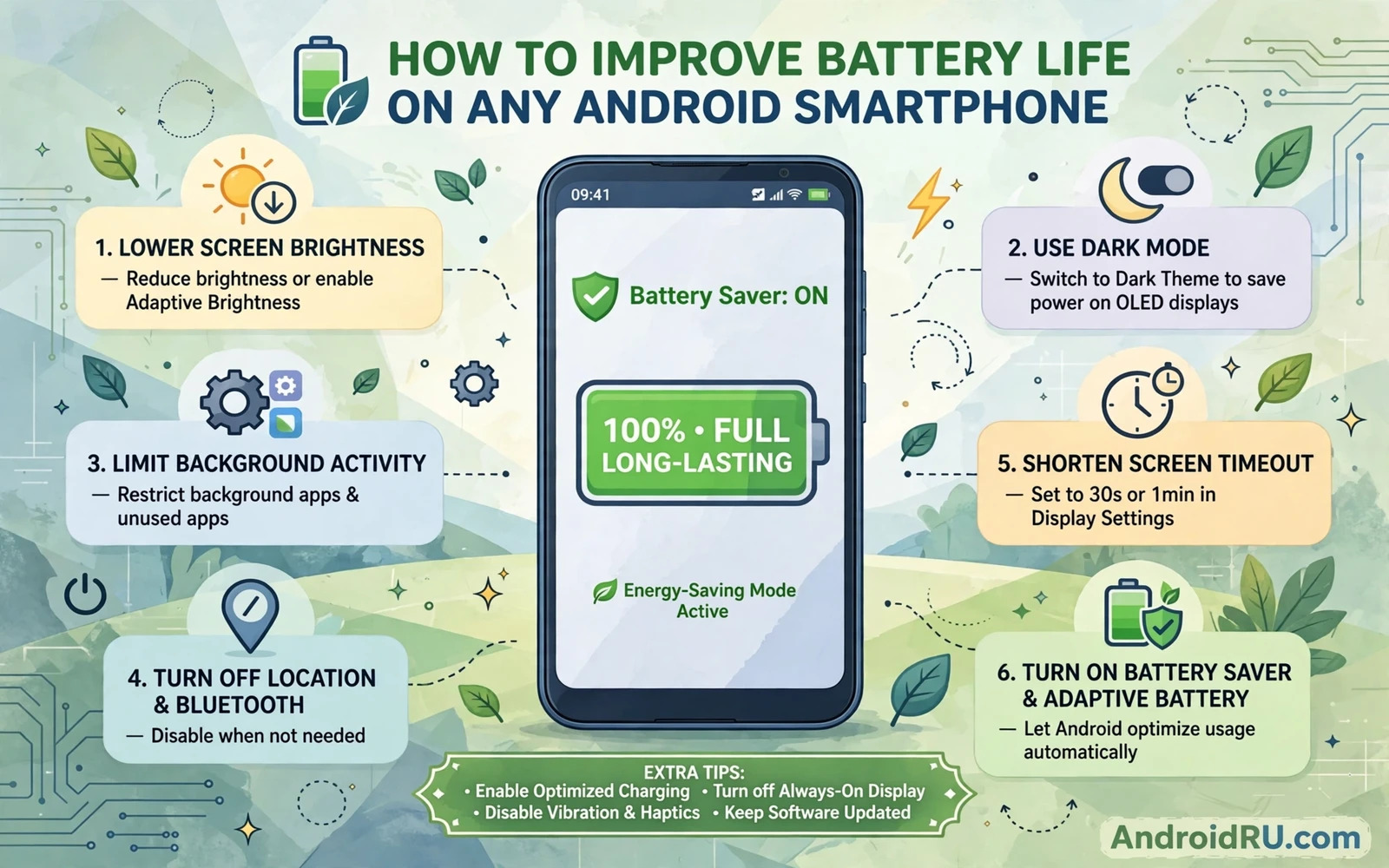
Why Battery Life Drops Over Time
Battery life depends on how the phone uses power across a full day. The screen uses a large share of power. The mobile radio uses power when signal is weak. Apps running in the background use power even when you do not open them. Location services and sync services add steady drain. Heat makes the drain worse because the phone works harder to cool itself. A battery also ages. An older battery holds less charge than a new battery even when the phone looks the same. Software settings can slow drain a great deal but they cannot restore a worn battery to new capacity. Knowing the difference helps you set fair expectations.
Check battery usage in Settings and then Battery and then Battery usage. The list shows which apps and system parts used the most power since the last full charge. Look for one app that stands far above the rest. A single app with high background use is a strong clue. Look at screen time too. A phone with many hours of screen time will drain faster no matter how good the settings are. Compare days with heavy use and days with light use. A pattern across days tells you more than a single bad day. A single bad day may reflect weak signal or a long video call rather than a broken setting.
Signal strength deserves special attention. A phone in a weak signal area boosts its radio power to stay connected. That boost drains the battery fast. A phone that searches for signal in a basement or a rural area can lose charge even while idle. Wi-Fi calling or a stable Wi-Fi connection can help when mobile signal is weak indoors. Airplane mode during a long period without coverage saves power but it also blocks calls. Use airplane mode only when you truly cannot receive calls anyway. Understanding signal drain stops you from blaming apps for a radio problem.
Screen Settings That Save Real Power
Lower screen brightness to a level that still feels comfortable. Auto brightness works well for most users because it adapts to the room. Manual brightness set very high all day wastes power indoors. Set screen timeout to a short value such as thirty seconds or one minute. A screen that stays on after you put the phone down drains power for no benefit. Turn off always on display when battery life matters more than glanceable info. Always on display uses power all day even when the phone sits in a pocket.
Refresh rate affects power too. A high refresh rate looks smooth but it uses more power than a standard rate. Switch to a standard rate or an adaptive rate when battery life is the priority. Adaptive rate lowers the rate when the screen shows static content. That setting gives smooth motion when needed and savings when idle. Dark mode can help on phones with OLED screens. Dark pixels on OLED screens use less power than bright pixels. Dark mode helps less on LCD screens where the backlight stays on regardless of pixel color. Know your screen type before you expect large dark mode savings.
Wallpapers and widgets also matter in small ways. A live wallpaper animates constantly and uses power. A static dark wallpaper uses less. Widgets that update every few minutes wake the phone often. Keep only widgets you actually read. Remove widgets that show data you never check. Small savings add up across a day. No single screen tweak will double battery life. A set of screen tweaks together can add hours of standby time.
Control Background Apps And Sync
Open Settings and then Apps and review apps you rarely use. Restrict background activity for apps that do not need to run constantly. A news app does not need to refresh every few minutes. A shopping app does not need to track location in the background. Keep background access for messaging apps and mail apps that must deliver alerts on time. Restrict the rest. Check background use again after a few days. An app that still drains power after restriction may need an update or may need to be replaced with a lighter alternative.
Sync settings control how often accounts fetch new data. Push sync delivers mail instantly but wakes the phone often. Manual sync or a longer interval saves power when instant mail is not critical. Set social apps to fetch on open rather than in the background when you can tolerate a short delay. Turn off auto sync for accounts you rarely use. You can still open those accounts manually when needed. Sync is a trade between freshness and power. Choose freshness only for accounts where timing truly matters.
Location services deserve a careful review. Open Settings and then Location and then App permissions. Change location access to While using the app for most apps. Only navigation and ride apps truly need always on location. A weather app can use approximate location instead of precise location. Approximate location uses less power and protects privacy at the same time. Turn off location history when you do not need a timeline of places visited. Each location wake uses radio and processor power. Fewer wakes mean longer battery life.
Network And Connection Habits
Wi-Fi uses less power than mobile data in most indoor settings. Connect to Wi-Fi at home and at work when the network is trusted. Turn off Wi-Fi scanning when you do not need it. Scanning searches for networks constantly and wakes the radio. Bluetooth scanning has a similar cost. Turn off Bluetooth when no accessory is connected. Turn off mobile data when you use Wi-Fi only for a long period. These small radio choices reduce idle drain without changing how you use the phone.
Hotspot use drains power fast. A phone acting as a hotspot powers its radio continuously for other devices. Use hotspot only when needed and plug the phone into power during hotspot use. Tethering through USB can be more efficient than wireless hotspot in some cases. Close the hotspot when the other device finishes. A forgotten hotspot running in a bag can drain a full battery in a few hours. Check the hotspot toggle before you put the phone away after sharing a connection.
Weak signal handling helps too. When you know signal will be poor for hours consider Wi-Fi calling if your carrier supports it. Wi-Fi calling routes calls over Wi-Fi and lets the mobile radio rest. When neither Wi-Fi nor mobile signal is available airplane mode saves the most power. Use airplane mode during flights and in remote areas where no coverage exists. Remember to turn airplane mode off when you return to coverage. A phone left in airplane mode misses calls even though the battery looks healthy.
Heat And Charging Habits
Heat is the enemy of both daily battery life and long term battery health. A hot phone drains faster and ages faster. Avoid gaming or video recording in direct sunlight. Remove a thick case during heavy use when the phone feels warm. Close heavy apps when the phone heats up and let it cool before you continue. Charging while gaming creates extra heat. Charge first and play later when you can. Heat management is not just comfort. It protects the battery for the next year of use.
Charging habits affect long term capacity. Avoid letting the battery sit at zero for long periods. Avoid keeping the phone at full charge on a charger for days at a time when possible. A charge range in the middle feels less stressful for the battery than constant extremes. Many phones offer a charging limit or optimized charging feature. Turn that feature on when available. It slows the final charge stage and reduces time spent at full charge overnight. These habits will not show results in one day. They show results over many months.
Fast charging is convenient but it creates more heat than slow charging. Use fast charging when you need a quick top up before leaving home. Use slower charging overnight when time allows. A cooler overnight charge is gentler on the battery. Check the charger itself too. A damaged cable or a low quality charger can cause slow charging and extra heat. Use a charger that matches the phone maker guidance. When charging feels unusually slow or hot the charger or cable is a likely cause and a replacement is cheaper than a battery problem.
Slow charging has its own set of causes beyond battery age. A weak adapter or a dirty port or a background load during charging can all slow the process. The same care that extends battery life also helps charging stay predictable. When a phone charges slowly despite a good charger and a cool environment it helps to work through how to fix slow battery charging speeds on a smartphone step by step before assuming the battery itself has failed. A charging fix often restores normal behaviour without any battery replacement. Check the port for lint with the phone powered off and use a soft tool that cannot damage the contacts.
Overheating And Battery Drain Together
Overheating and battery drain often appear together. A hot phone uses more power and a draining battery can signal a runaway process that also heats the phone. When both symptoms appear together look for the process causing the heat first. Open battery usage and look for the top app. Force stop that app once and watch temperature and drain for an hour. A single runaway app can explain both symptoms. Restarting the phone clears temporary runaway processes too. A restart is a safe first response when heat and drain arrive suddenly.
Long term heat needs a broader view. Background video processing and cloud photo uploads and large game downloads all heat the phone. Schedule large uploads for times when the phone can sit on a cool surface with power connected. Avoid stacking the phone under other warm devices during uploads. Let the phone cool between heavy tasks. When heat persists during normal light use the cause may be a failing battery or a hardware fault. In that case a service check beats more settings tweaks. Settings cannot fix a battery that swells or a phone that heats while idle for no app reason.
Cooling accessories help gaming phones more than normal phones. A clip on cooler can keep a gaming phone stable during long sessions. A cooler does not fix a software runaway. Use cooling gear as a supplement to good settings not as a replacement for finding the hot app. When normal use alone causes heat the right next step is to learn how to fix Android overheating during normal use and follow the checks for background processes and signal and case and charging. Heat during normal use deserves attention because it shortens battery life every day it continues.
When Drain Starts After An Update
Battery drain after a system update is common for a few days. The system reindexes files and rebuilds caches after an update. Apps update in the background too. This extra work drains power temporarily. Wait a few full charge cycles before you judge an update. Keep the phone updated and let background work finish. If drain persists after a week then look for an app that conflicts with the new version. Check battery usage for a new top entry that appeared after the update date. Update that app or restrict its background use.
A drain pattern that matches an update exactly is worth tracking. Note the update date and the drain start date. Share both dates with support when you seek help. A clear timeline helps support identify a known issue faster than a vague complaint. Do not roll back an update casually to chase battery life. A rollback can remove security fixes and can cause data loss. A rollback is a last resort after backup and after maker guidance. Most post update drain settles with time or with an app fix.
When drain starts right after a system update on a phone that also runs hot the update may have changed a power setting or re-enabled a feature you had turned off. Re-check location and sync and refresh rate after major updates. Updates sometimes reset settings to defaults. Restoring your preferred settings after an update can recover the battery life you had before. A short settings review after each major update prevents weeks of unexplained drain.
A related post update pattern is a battery that drains faster even though usage looks unchanged. That pattern often traces to one background service that the update restarted. The fix may be as simple as restricting that service again. Work through how to fix battery drain after installing a system update when the timeline points clearly at an update rather than at a new app or a new habit. A timeline first approach keeps you from changing many settings at random. Change one setting and watch the result for a day before you change the next setting.
Daily Routine That Protects Battery Life
Build a simple daily routine. Charge overnight with optimized charging on. Start the day with brightness on auto and timeout short. Keep location on while using for most apps. Keep background restriction on for apps you rarely open. Connect to Wi-Fi indoors. Close hotspot when done. Let large uploads finish on power. These habits take little effort once set. They protect both daily runtime and long term health. A routine beats a one time fix because battery drain returns when habits slip.
Review battery usage once a week. A weekly review catches a new drain app early. Look for changes in the top three entries. Investigate any new entry before it becomes a habit. Uninstall apps that repeatedly drain power without clear benefit. Replace a heavy app with a lighter web version when the app offers little extra value. A weekly review takes two minutes and prevents many bad battery days. Treat battery usage like a health check not like an emergency tool.
Know when to seek a battery replacement. A battery that drops sharply from a moderate level to empty may be worn. A phone that shuts down in cold weather may have a weak battery. A battery that swells or pushes the back cover open needs immediate service. Do not keep using a swollen battery. Take the phone to an authorized service point and do not puncture the battery. Replacement restores capacity that settings cannot restore. A new battery can give an older phone another useful year of life.
Frequently Asked Questions
Does closing apps save battery. Closing apps from the recent list rarely saves much power. Android manages background apps efficiently in most cases. Force closing an app that you open often can use more power because the phone must reload it fully each time. Restrict background activity for problem apps instead of closing every app manually. Manual closing helps only when an app is stuck or misbehaving.
Is battery saver mode safe to use daily. Battery saver mode is safe. It limits background work and lowers performance slightly. Daily use is fine when battery life matters more than instant notifications. Some apps may delay alerts in battery saver mode. Keep battery saver off for messaging apps that must alert instantly when you can. Use scheduled battery saver at a low percentage when you want automatic help without constant limits.
Does dark mode always save battery. Dark mode saves power mainly on OLED screens. LCD screens gain little because the backlight stays on. Dark mode still helps eye comfort at night on any screen. Do not rely on dark mode alone for battery savings. Combine dark mode with brightness control and timeout control and background control for real gains.
Why does my phone drain overnight. Overnight drain usually comes from sync and location and weak signal. Turn on Do Not Disturb and keep the phone on Wi-Fi overnight when possible. Restrict background apps that wake the phone at night. A small overnight drop is normal. A large overnight drop points to a specific app or to signal searching. Check battery usage in the morning to find the cause.
Should I charge to full every time. Charging to full occasionally is fine. Charging to full every night with optimized charging on is also fine for most users. Avoid extremes as a general habit rather than as a strict rule. The phone is a tool for daily use. Balanced charging habits protect the battery without making charging stressful.

