

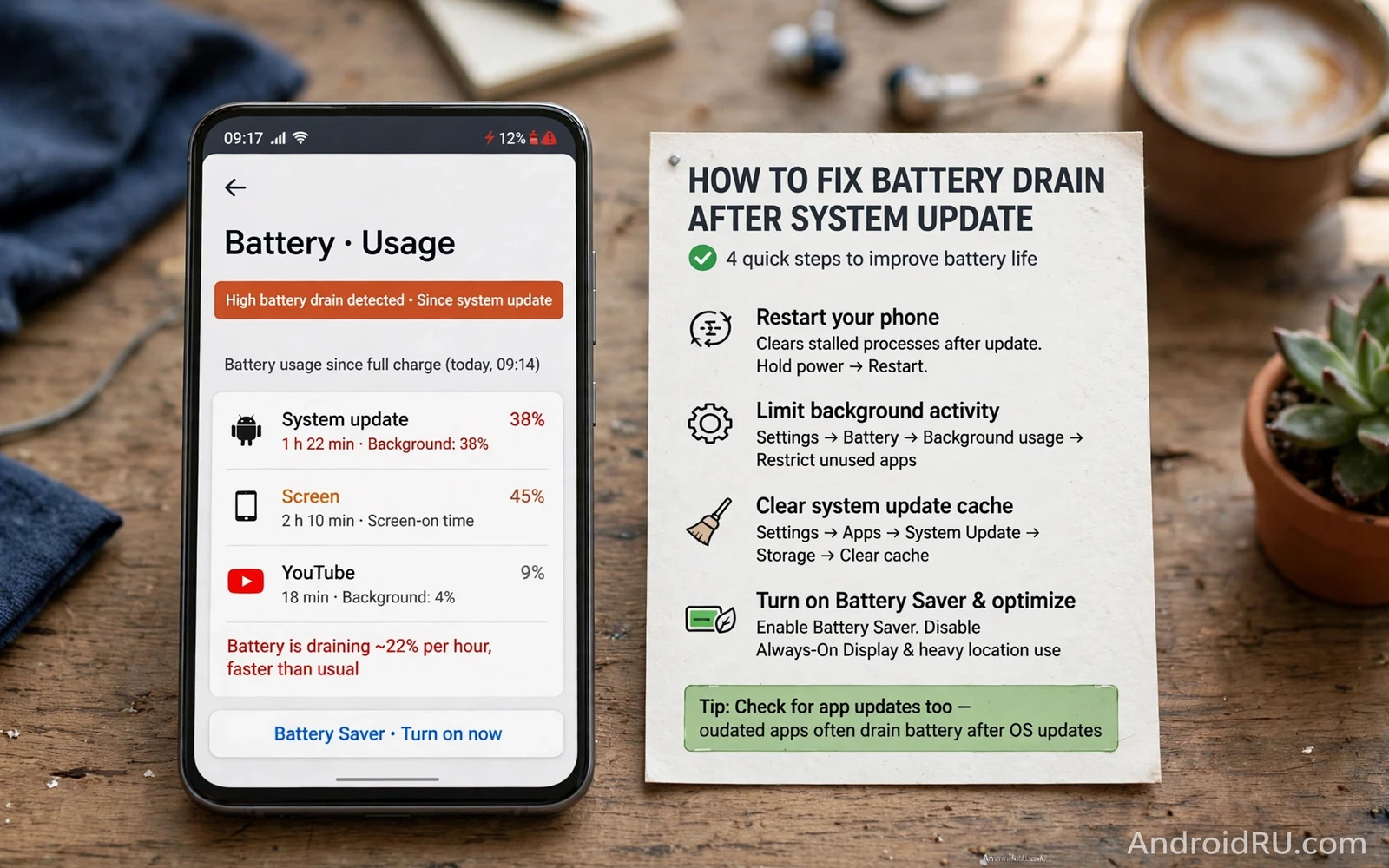
Why Battery Drain Spikes After An Update
A system update can make battery life look worse for a short time. After an update the phone reindexes files and rebuilds caches and reoptimises apps in the background. Those jobs use processor power and they run while you also use the phone normally. The result is a day or two of heavier drain that fades as the jobs finish. Many users panic on day one and change settings that were fine. Waiting through the settling period is often the correct first step.
Not every post-update drain is temporary. An update can change a setting or wake a previously quiet app or introduce a bug that holds the phone awake. The difference between settling drain and real drain is time and pattern. Settling drain fades within a few days. Real drain stays steady or grows and ties to a specific app or a specific setting. This guide helps you tell the two apart and fix the real cases without undoing a healthy update.
Wait And Watch Before Changing Anything
Give the phone two full charge cycles after the update before you judge battery life. Charge normally and use the phone normally during that window. Avoid judging a single heavy day because a single day can reflect travel or gaming or poor signal rather than the update. Note screen-on time and total time off charger at the end of each day. A fair comparison needs similar use across days.
During the settling window avoid installing many new apps or changing many settings at once. Each change adds a variable that confuses diagnosis. Keep use steady and let background jobs finish. Restart the phone once after the update to clear any stuck post-update process. A single restart after an update is good hygiene and it often trims the first day of drain noticeably.
Find The App Or Service Eating Power
Open Settings and then Battery and then Battery usage. The list shows which apps used the most power since the last full charge. Look for an app with high background use that you barely opened. That pattern points to a runaway background job. Tap the app and check its battery setting. Change it from unrestricted to optimised if it does not need constant background work. A single greedy app can explain a whole day of drain.
Also check the system entries in battery usage. A high Android System or Google Play services entry can reflect the settling jobs or a stuck sync. Check account sync status if Play services looks high. A sync that retries forever drains power steadily. Toggle sync off and on for the affected account to break a retry loop. For a broader battery method the guide to improving battery life on any Android smartphone covers the full set of screen and sync and background tweaks that complement this update-specific fix.
Calm Background Activity After The Update
Open Settings and then Apps and review battery permission for apps you rarely use. Set rarely used apps to restricted background activity where the phone offers that choice. Restricted apps cannot run freely in the background. They still work when you open them. That single change often restores pre-update battery life when an update woke several quiet apps at once.
Check location and sync settings that an update may have reset. An update can restore a location mode to high accuracy or re-enable a sync you had turned off. Review location permissions and turn off always-on location for apps that do not need it. Review auto-sync for accounts you do not use daily. Each restored permission is a small drain that adds up across many apps. A post-update permission review is worth ten minutes.
Tame Screen And Network Drain
The screen remains the largest single battery user on most phones. Lower brightness slightly and shorten the screen timeout after an update. An update can reset display settings to brighter defaults. Check adaptive brightness and refresh rate settings too. A high refresh rate looks smooth but uses more power. A standard refresh rate on a normal day saves power without hurting readability.
Poor signal also drains battery fast because the phone boosts radio power to hold a weak connection. If drain worsened after an update and you also moved or travelled then signal may be the real cause. Test battery life in a strong signal area before blaming the update. For charging side questions the guide to fixing slow battery charging speeds pairs well because drain and charging together define daily battery experience. A phone that drains fast and charges slowly feels doubly broken even when only one side is at fault.
Clear Cache And Revisit The Update
Clear the system cache partition if your phone supports that recovery option. The steps vary by brand and usually involve powering off and holding buttons to reach recovery. Read the brand instructions carefully before attempting it. A cache partition clear removes temporary system files without deleting personal data. It can fix post-update glitches that a normal restart cannot reach. Do not choose factory reset in recovery by mistake.
If your phone lacks a cache partition option then clear cache for the most power-hungry apps individually. Open Settings and then Apps and then the app and then Storage and then Clear cache. Cache clears are safe and they remove stale temporary data left by the update. Test battery life for a day after cache work before moving to deeper steps. Patience between steps keeps diagnosis clean.
Consider Rolling Back Or Waiting For A Patch
Rolling back an update is possible on some phones but it carries risk. A rollback can erase data and can void aspects of support. It also requires firmware files and tools that vary by brand. Do not roll back casually for a few days of drain. Back up fully first if you ever consider it. For most users waiting for a follow-up patch is safer. Makers often release a quick patch when an update causes widespread drain.
Check for a follow-up system update a week after the faulty update. Install it promptly because it may contain the battery fix. Report the drain through the phone feedback tool if the maker offers one. Reports with battery usage screenshots help makers find the fault faster. A single report rarely changes a release but many reports with the same pattern do. Your report contributes to the fix for everyone.
Restore Normal Battery Life
Most post-update drain ends with settling plus one greedy app tamed plus display settings restored. That trio covers the common cases without drastic action. Keep monitoring battery usage for a week after the fix. A stable usage list with no single app dominating means the phone has settled. Screen time should again dominate the list as it does on a healthy phone.
Battery anxiety after an update is understandable because the phone feels changed overnight. The update changed software but it rarely damages the battery itself. Give settling time and check usage data and calm background activity. Those steps restore confidence with evidence rather than guesswork. For heat that accompanies drain the guide to fixing Android overheating during normal use covers cooling steps that pair with battery steps. A cool phone with a calm battery is the normal state you are restoring.
Battery Health After Many Updates
Battery health declines slowly with age and charge cycles. An update cannot reverse that decline but it can expose it. A phone with a worn battery may show drain after an update because new software uses the battery harder during settling. Check battery health in settings if your phone reports it. A health figure well below new capacity explains drain that settings cannot fix. A worn battery needs replacement not software tweaks.
Charging habits affect long-term health more than any single update. Avoid leaving the phone at full charge in heat for long periods. Avoid deep discharges to zero whenever possible. Partial charges through the day are gentler than full cycles. These habits slow decline and keep post-update drain from compounding an already tired battery.
Heat And Drain Together
Heat and drain feed each other. A hot phone drains faster and a draining phone runs hotter. Break the cycle by cooling the phone first. Move it out of sunlight and close heavy apps and let it rest. A cooled phone often shows normal drain again. A phone that stays hot at idle needs investigation beyond battery settings. A stuck process or a failing battery can hold heat at idle.
Check for heat sources beyond apps. A case that traps heat can raise temperature during charging. A fast charger that heats the phone can add drain during use. Remove the case while charging if heat is high. For cooling detail the guide to fixing Android overheating during normal use pairs with battery steps. Cool plus calm plus charged is the healthy trio to restore.
Monitor After The Fix
Monitor battery usage for a week after any fix. A stable week proves the fix held. A relapse within days points to a deeper cause that the first fix masked. Keep notes on which step helped and when drain returned. Notes turn a vague battery complaint into a pattern that support can act on. Patterns beat impressions for battery diagnosis.
Share battery feedback through the maker feedback tool when drain follows an update widely. Include the update version and the usage screenshot. A specific report helps makers reproduce the fault. A vague report helps no one. Specificity is a service to every user on the same update. Your week of monitoring becomes evidence that improves the next patch for everyone.
A Practical Checklist For Post-Update Battery
Judge post-update battery with a checklist that prevents panic changes. Wait two full charge cycles before judging drain. Track screen-on time and total time off charger under similar use. Restart once after the update. Open battery usage and identify any app with high background use. Review location and sync settings that the update may have reset. Tame the single greediest app before changing global settings. A checklist prevents a cascade of setting changes that make diagnosis impossible. One change at a time with a day of observation between changes gives evidence instead of guesses.
Separate settling drain from real drain with time and pattern. Settling drain fades within a few days as background jobs finish. Real drain stays steady and ties to a specific app or setting. A usage list dominated by the screen is healthy. A usage list dominated by an app you barely opened is a warning. A usage list dominated by system services during the first days is normal settling. Pattern reading beats battery percentage watching because percentages vary with use while patterns reveal causes.
Build a post-update routine for every future update. Back up before updating when the update is major. Note display and location settings before updating so resets are spotted fast. Check battery usage on day one and day three after updating. Report persistent drain with usage evidence through maker feedback. A routine turns each update from a battery gamble into a managed event. Managed updates keep battery anxiety low even when an update temporarily disturbs the phone.

