

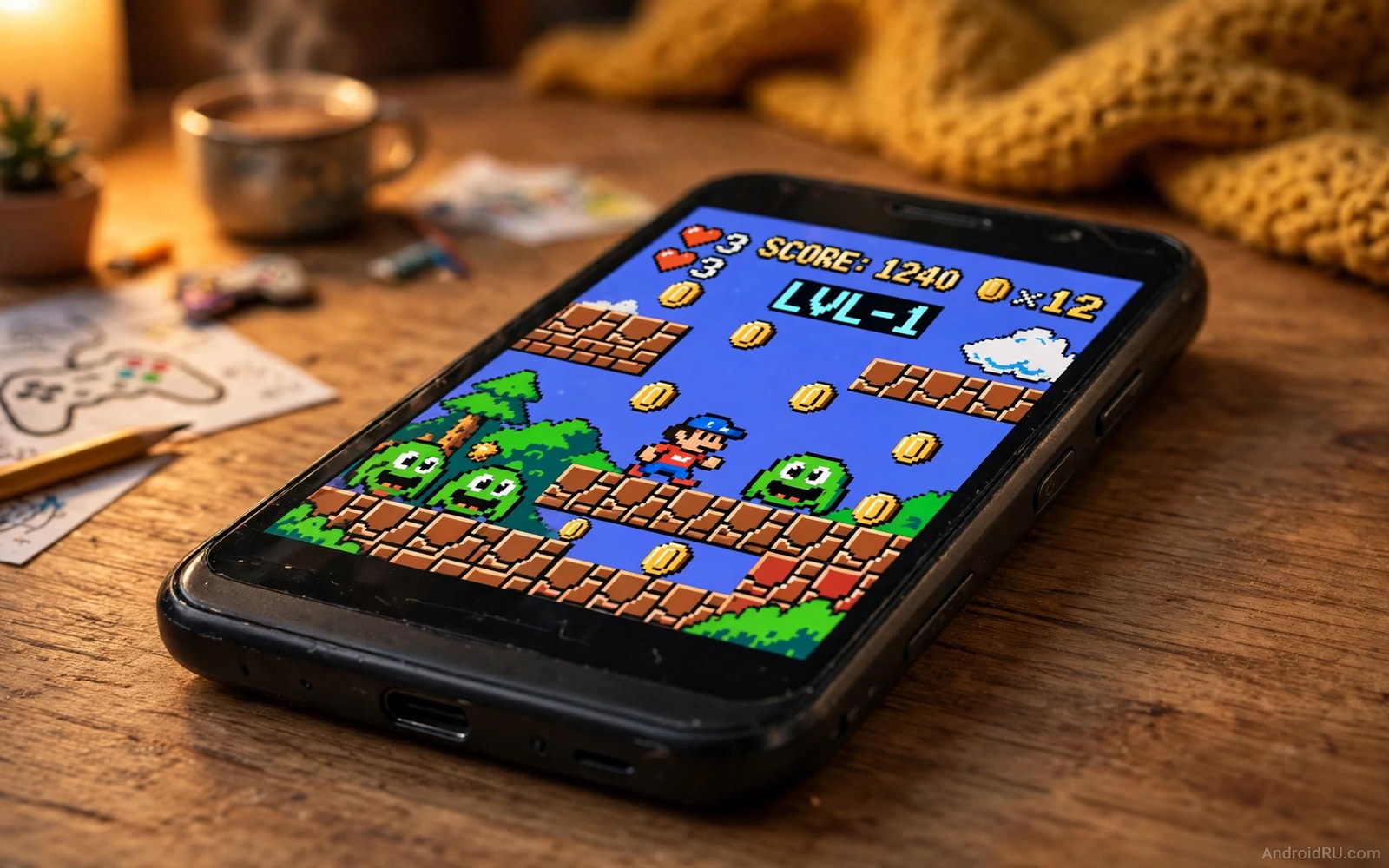
Classic games were built for hardware far weaker than a modern budget phone. That fact makes retro emulation a perfect match for low-end devices. A phone that struggles with a modern 3D title can run a 16 bit classic at full speed. The trick is picking an emulator that stays light instead of chasing accuracy at any cost.
Lightweight emulators use fast simple cores and low resolution rendering. Accurate emulators use heavy cycle exact cores that need a strong chip. A low-end phone needs the fast option. A fast core may miss a tiny visual detail. It will still play the game smoothly from start to finish. Smooth play beats perfect accuracy on weak hardware every time.
Start with the systems you actually want to play. A handheld system needs less power than a home console system. A 2D platformer needs less power than a 3D racing game from the same era. Match the emulator to the system and to the game type. If you want one app for many systems then read how to set up RetroArch for Android for a multi system plan that also stays light.
Pick emulators by system and weight
For 8 bit and 16 bit consoles choose a dedicated light emulator first. These emulators start fast and use little memory. They often include save states and fast forward and cheat support. A dedicated app also gives a simple interface for one system. That simplicity helps new players avoid a confusing multi system setup.
For handheld classics choose an emulator with a clean touch layout. Handheld games were designed for small screens and simple buttons. A good handheld emulator maps buttons well to touch. It also offers a screen layout that keeps the game visible. A bad layout covers the action with virtual buttons and ruins the game.
For early 3D consoles be more careful on a low-end phone. Early 3D games need more power than 2D games. Lower the internal resolution to the native value first. Turn off texture filtering and extra enhancements. A native look on a small screen still looks sharp. Enhancements that double the workload will cause stutter on weak hardware.
Set up games legally and cleanly
Use only game files that you legally own. Dump your own cartridges when possible or use homebrew titles made for free distribution. Keep game files in one folder per system. A clean folder layout makes scanning fast and avoids duplicate entries. Name files clearly with the game title and region when needed.
Check the BIOS requirement for each system before you play. Some systems need a BIOS file to boot games. A missing BIOS file causes a black screen or an error message. Place the BIOS file in the folder that the emulator settings point to. Do not mix BIOS files from different systems in one folder. That mix causes confusing errors later.
Test one game per system before you import a full library. A single working game proves that the core and the BIOS and the controls all work. Import the rest only after that proof. A full library import before a test can hide a simple setup error behind hundreds of entries.
List and verify your emulator game folders
A short folder listing can confirm that game files sit where the emulator expects them. The snippet below lists files in a simple retro folder layout. Adjust the paths to match your phone storage before you run it. The snippet only lists files. It does not move or delete any game.
ls -la ~/retro/nes
ls -la ~/retro/snes
ls -la ~/retro/gba
find ~/retro -type f | head -50
The code above was written for this guide as a short folder check example. Look for missing folders and for files with odd names before you scan inside the emulator. A clean folder scan inside the app will then find every game on the first try.
Tune performance for weak hardware
Turn off shaders and filters on a low-end phone first. Shaders can transform a flat retro look into a CRT look. They also add GPU work that a weak phone cannot spare. Play with a plain look first and add one light shader only after smooth play is proven. A plain look at full speed beats a fancy look at half speed.
Use frame skip only as a last resort. Frame skip can raise the apparent speed of a slow game. It also makes movement look choppy and uneven. Lower resolution and turn off enhancements before you touch frame skip. A stable native frame rate is the real goal. For shader fans with stronger hardware read how to add custom graphic shaders to mobile emulators after you prove smooth base performance.
Close other apps before a retro session on a phone with little memory. A browser with many tabs can steal memory from the emulator. A music app can also compete for resources. A clean background gives the emulator the full phone. That habit alone can fix stutter on a phone with two gigabytes of memory.
Build a retro library that stays organised
A retro library stays useful when folders stay clean. Create one folder per system and one subfolder for saves. Keep BIOS files in a separate system folder. Name game files clearly with title and region. A clean library scans fast and avoids duplicate entries.
Back up save files weekly when you play retro games often. Save files are small but precious after a long campaign. Copy them to a separate folder with a date in the name. A backup protects progress when a phone resets or an app updates badly. Losing a long save hurts more than losing a game file.
Curate the library rather than hoarding every title. A library with hundreds of unplayed games feels overwhelming. Keep twenty favourites per system and archive the rest. A curated library invites play rather than browsing. Rotate archived games back in when a favourite finishes.
Test new additions in small batches. Add five games at a time and test each one briefly. A bad file in a large batch can hide among good files. Small batches make a bad file easy to find. That habit keeps the library trustworthy over time.
Document favourite settings per system in a short note. Record the core and the shader and the control layout that works. That note rebuilds a system fast after a phone change. It also helps a friend set up the same system. Good notes turn a hobby into a repeatable setup.
Test retro games beyond the first level
A first level test can hide problems that appear later in a retro game. Later levels may use effects or enemies that stress the emulator harder. A game that runs perfectly in level one may stutter in level five. Play at least three levels before you declare an emulator setup good. That deeper test catches late game problems early.
Save states should be tested in later levels as well as early levels. A save state that works in level one may fail after a complex scene change. Create and load a save in a later level during testing. A reliable save system matters most when progress grows valuable. Early save tests alone give false confidence.
Control layouts also change in importance across levels. A layout that suits slow early levels may fail in fast later levels. Test the same layout in a fast later section before a long campaign. Adjust button positions when later levels demand faster reactions. A layout proven in later levels stays comfortable throughout.
Common mistakes
The biggest mistake is picking an accuracy focused core on a weak phone. An accurate core may run at half speed and frustrate every session. Pick the fast core for the system and keep the accurate core for a stronger device later.
- Players enable heavy shaders on a budget phone and then blame the emulator for lag.
- Players mix BIOS files across systems and then cannot boot any game cleanly.
- Players import hundreds of games before testing one game per system.
- Players raise internal resolution on a weak chip and then suffer needless stutter.
- Players use illegal game downloads and then risk malware hidden in game packs.
Another mistake is judging an emulator from a single heavy game. A 3D title from a later era may struggle while dozens of 2D titles run perfectly. Test a light game from the same system before you declare the emulator slow. That test separates a core problem from a single game problem.
FAQ
Can a low-end phone run PlayStation era games?
Many early 3D games run well on a low-end phone at native resolution. Heavy 3D titles with complex scenes may still struggle. Lower resolution and turn off enhancements first. A phone that fails a heavy title may still run dozens of lighter titles from the same era.
Early 3D games run well on many low-end phones at native resolution. Heavy 3D titles may still struggle with complex scenes. Lower resolution and turn off enhancements first. A phone that fails a heavy title may still run many lighter titles well.
Do emulators need a controller?
No most retro emulators include touch controls that work well for slow games. A controller helps a lot for platformers and fighting games. Touch controls can work for turn based games and puzzles. For multiplayer retro play read the secret hack to play local multiplayer emulated games on mobile before you plan a shared session.
Touch controls work for slow retro games and puzzles. A controller helps a lot for platformers and fighting games. Test touch controls in a slow game before a fast game. A controller remains the best choice for action titles.
Why does my game run too fast?
A fast forward toggle may be stuck on. Check the emulator speed setting and turn fast forward off. Some emulators also offer a speed multiplier for grinding. Set the multiplier back to normal speed for regular play. A game that runs at double speed is a setting issue rather than a hardware issue.
A stuck fast forward toggle causes a game to run too fast. Check the speed setting and turn fast forward off. Some emulators offer a speed multiplier for grinding. Return the multiplier to normal speed for regular play.
Conclusion
Retro emulation is the best gaming use for a low-end phone. Light cores and native resolution and clean folders give smooth classic play. Dedicated emulators suit single systems well. A multi system app suits players with many systems. Legal game files and a clean setup keep the hobby safe and fun.
Your concrete next step is to pick one system and one light game tonight. Set up its folder and BIOS file and test it at native resolution. Add a second system only after that first game runs smoothly for thirty minutes.

