

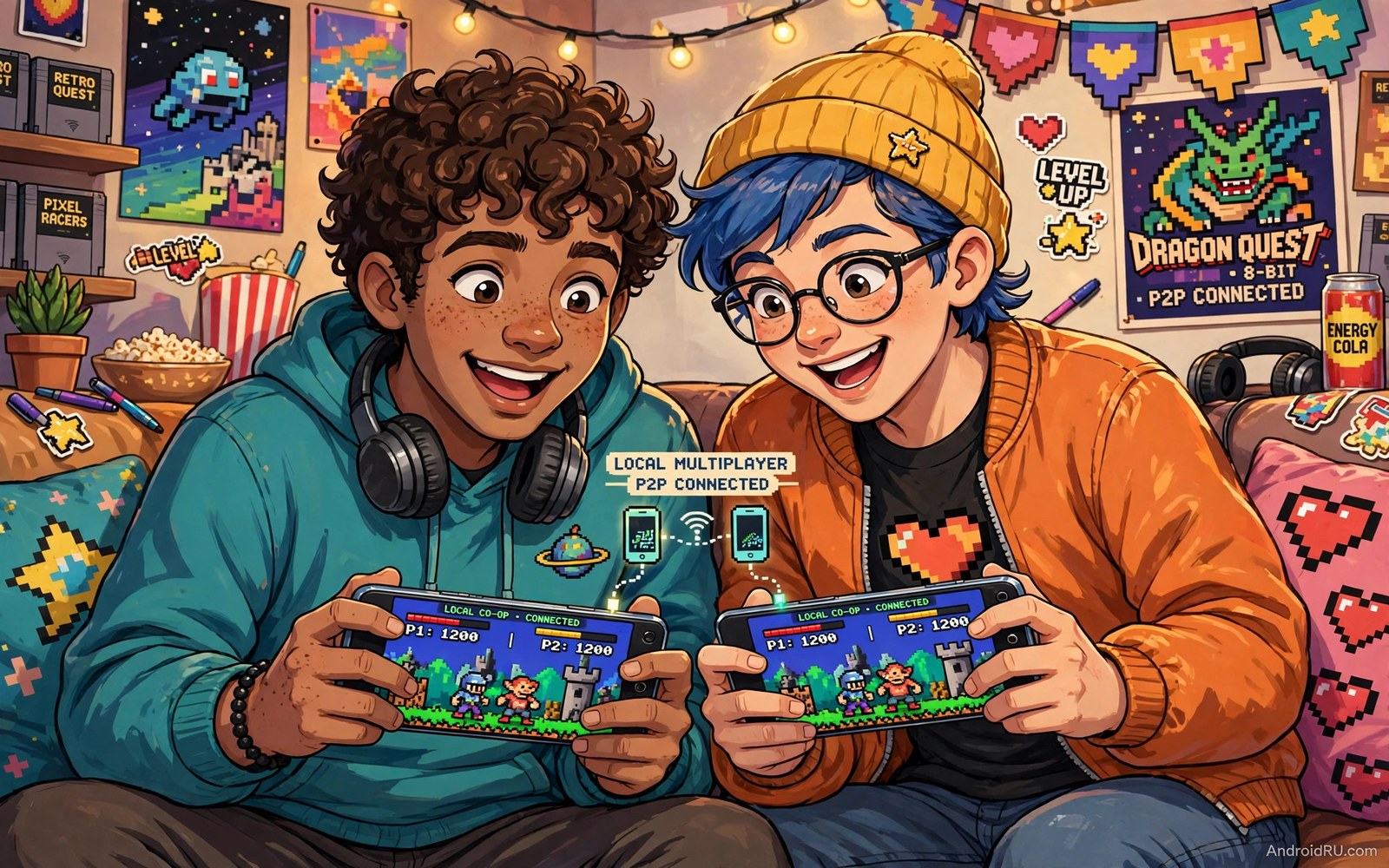
Retro games were made for shared play. Two players on one couch could finish a platformer or fight a tournament bracket for hours. Mobile emulation can recreate that feeling. The secret is planning controllers and screens before the session starts. A session that starts with setup chaos rarely recovers its fun.
Local multiplayer on mobile takes three forms. Shared screen play puts two players on one phone or tablet. Network play connects two devices over the same Wi-Fi. Controller sharing passes one controller between turns. Each form suits a different game type. Shared screen suits fighting and racing games. Network play suits cooperative adventures. Turn passing suits puzzle and board style games.
Start with the game type and the device count. One tablet with two controllers suits a shared screen session well. Two phones on the same Wi-Fi suit a network session well. One phone with touch controls suits only slow turn based play. If you are new to emulation then read how to set up RetroArch for Android first so cores and saves are already stable.
Set up shared screen play on one device
Use a tablet or a large phone for shared screen play when possible. A small phone screen crowds two players into a tiny view. A tablet gives each player a readable area. Connect two controllers over Bluetooth before you launch the game. Map player one and player two separately in the emulator settings. Test both controllers in the game menu before a match.
Place the device on a stand at a comfortable height. A stand keeps the screen steady while both players focus on controllers. A handheld device that shakes during play distracts both players. A stable screen also reduces eye strain during long sessions. Keep the stand close enough that both players can read small text.
Agree on game rules before the first match. A tournament bracket or a cooperative goal keeps the session focused. A session without a goal can drift into menu browsing. A simple goal such as first to three wins or finish one world gives structure. That structure keeps the fun high even when one player loses badly.
Set up network play on the same Wi-Fi
Network play needs both devices on the same local network. Connect both phones to the same Wi-Fi band. The 5 GHz band gives lower delay at short range. Place both devices in the same room as the router for the first test. A weak link on one device will hurt both players in a synchronised game.
Use the same emulator core version on both devices. A version mismatch can cause desync during play. A desync means each device shows a different game state. That state breaks multiplayer completely. Update both devices to the same core before the session. Test a short match before a long campaign.
Use the same game file version on both devices. A different region or revision can also cause desync. Check file names and sizes on both devices before play. A matching file set gives the cleanest network session. Back up saves on both devices before a network campaign starts.
Use a real network play configuration snippet
RetroArch network play uses settings in its configuration file. The snippet below shows a small set of common network settings in that file format. Replace the example address with the host device address on your local network. The snippet only sets values. It does not start a network session by itself.
netplay_ip_address = "192.168.1.20"
netplay_ip_port = "55435"
netplay_password = ""
netplay_spectate_password = ""
netplay_public_announce = "false"
netplay_start_as_spectator = "false"
The code above was written for this guide as a short network play example. Keep passwords empty only on a trusted home network. Use a password when other devices share the network. Test the connection with a short match before a long session.
Fix desync and controller conflicts
Desync often comes from a core mismatch or a game file mismatch. Check both devices for the same core version first. Check both devices for the same game file next. Restart the network session after any fix. A session that started with a mismatch cannot heal itself mid game.
Controller conflicts often come from identical controller models. The emulator may map both pads to player one. Map each controller manually in the input settings. Save each mapping with a clear player name. A saved mapping prevents the same conflict at the next session.
Lag in network play often comes from a weak Wi-Fi link on one device. Move the lagging device closer to the router and test again. Close background apps on both devices during play. A background sync on one device can add delay for both players. For controller latency help read how to fix input lag on wireless controllers over Bluetooth before a competitive session.
Plan a multiplayer night that actually works
A multiplayer night needs a plan sent before anyone arrives. Share the game name and the emulator version and the start time in advance. Ask each player to update cores and test one game before the night. Pre-night testing prevents an evening lost to setup errors. A short message saves hours of frustration.
Prepare the play space before guests arrive. Charge controllers and place the stand and test the screen angle. Connect both controllers and confirm player mapping in a menu. A ready space lets guests start playing within minutes. A chaotic space kills enthusiasm fast.
Plan a game rotation that suits mixed skill levels. Start with a simple cooperative game that everyone can enjoy. Move to a competitive game only after warm-up rounds. End with a favourite game that the group knows well. A thoughtful rotation keeps every player engaged.
Schedule breaks between long sessions. A ten minute break every hour keeps energy high and prevents eye strain. Use breaks to check battery levels and save progress. A break also lets players switch controllers or roles. Rested players enjoy multiplayer far more than tired players.
End the night with a save and a short recap. Save progress on every device before anyone leaves. Note the best moments and the next game to try. A recap turns one night into a recurring tradition. A tradition keeps retro multiplayer alive beyond a single evening.
Keep multiplayer saves safe
Multiplayer saves need protection on every device in the session. A save that exists on only one device can vanish when that device fails. Copy save files to a backup folder on each device after every session. A shared backup habit protects a campaign from a single device loss. That habit costs minutes and saves weeks of progress.
Agree on a save leader before a network campaign starts. The leader keeps the master save and shares it when others lose theirs. A clear leader prevents confusion about which save is current. Without a leader, conflicting saves can overwrite each other. A simple agreement prevents most save disputes.
Test save compatibility after any core update during a campaign. A core update can change save format and break old saves. Back up saves before updating any core mid campaign. Test the backup load after the update before continuing. A campaign paused for a backup test beats a campaign lost to an update.
Multiplayer sessions also benefit from a shared snack and break schedule agreed in advance. Players who eat at different times drift in and out of the game at random moments. A shared break keeps everyone together for the next match. It also gives controllers time to charge between long sessions. A simple schedule turns a casual night into a smooth group event that everyone enjoys.
Common mistakes
The biggest mistake is starting a network session without matching cores and game files. A mismatch wastes the whole evening on desync errors. Check versions before anyone sits down to play. That five minute check saves hours.
- Players use different core versions and then blame the network for desync.
- Players use different game file revisions and then wonder why states diverge.
- Players map both controllers to player one and then cannot move player two.
- Players play on a weak Wi-Fi link and then call network play broken.
- Players skip a short test match and then lose a long campaign to a late desync.
Another mistake is crowding two players onto a tiny phone screen for a fast game. A tiny shared screen causes eye strain and missed details. Use a tablet or a television output for shared screen action games. A larger screen keeps both players competitive and comfortable.
FAQ
Can two players share one phone screen?
Yes many retro games support two players on one screen with two controllers. A tablet works better than a small phone for this setup. Touch controls for two players on one phone work only for slow games. Use controllers for action games on a shared screen.
Two players can share one screen with two controllers in many retro games. A tablet works better than a small phone for shared play. Touch controls for two players suit only slow games. Controllers remain best for action games on a shared screen.
Does network play need internet access?
No local network play works on a home Wi-Fi without internet access. Both devices must share the same local network. Internet play needs a stable internet route and matching cores. Local play gives lower delay and simpler setup.
Local network play works on home Wi-Fi without internet access. Both devices must share the same local network. Internet play needs a stable internet route and matching cores. Local play gives lower delay and simpler setup.
What if one player disconnects mid game?
A disconnect usually ends the synchronised session. Load the last save state on both devices and restart the session. Save states during network play protect long campaigns. For single player emulator help read five retro game emulators that work on low-end devices and practise save states before a shared campaign.
A disconnect usually ends a synchronised network session. Load the last save state on both devices and restart. Save states during network play protect long campaigns. Practise save states in single player before a shared campaign.
Conclusion
Local multiplayer on mobile works best with planning before play. Matching cores and game files prevent desync. Two controllers and a stable screen prevent input conflicts. A short test match proves the setup before a long campaign. Shared retro play then feels as fun as the original couch sessions.
Your concrete next step is to pick one cooperative game tonight and check cores and game files on both devices. Play one short test match on the same Wi-Fi. Start a campaign only after that test finishes without desync or controller conflict.

