

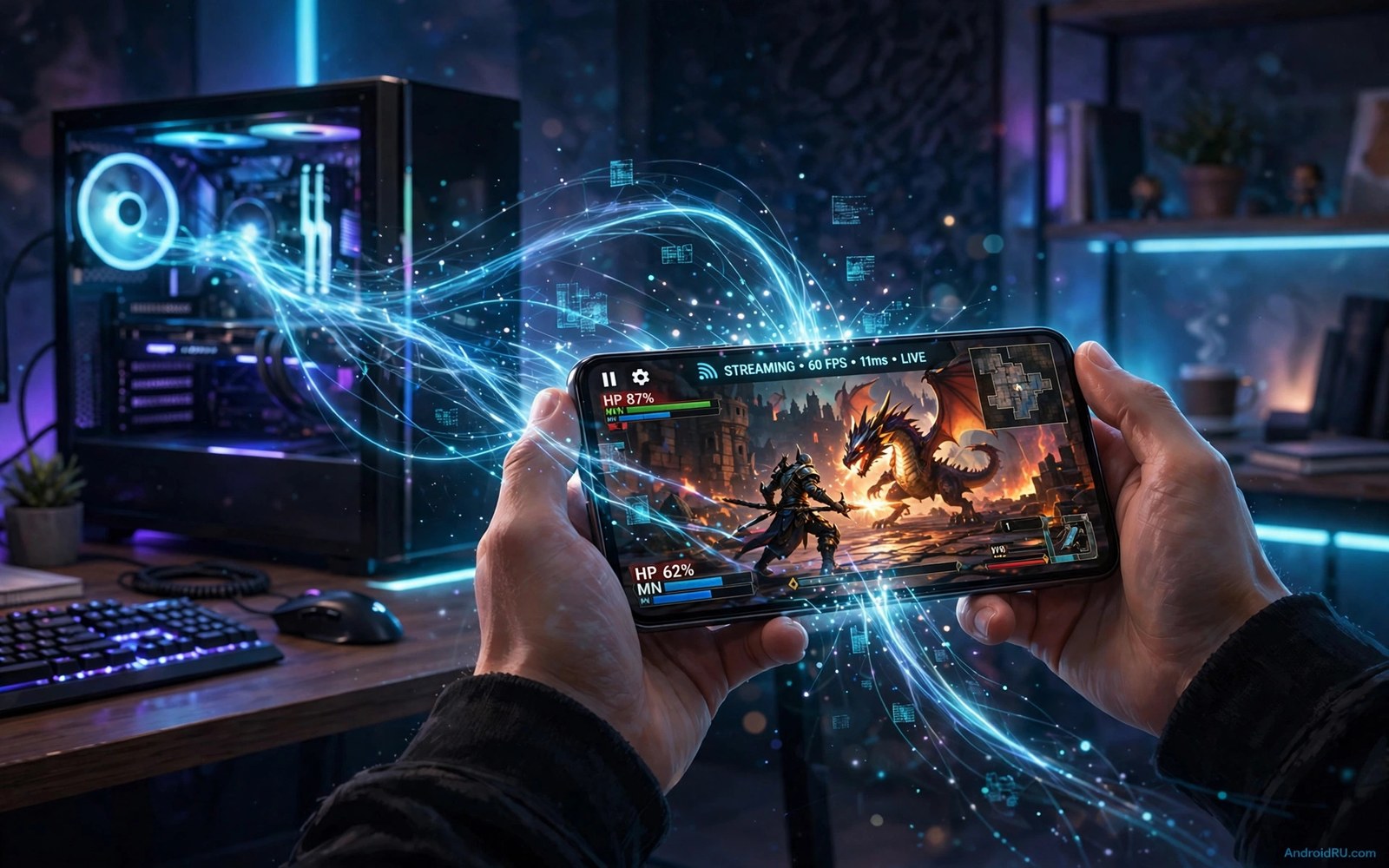
A gaming PC can stay at a desk while its games travel to a phone. Home streaming sends the game video to the phone over the local network. The phone sends controller input back to the PC. The PC does the heavy rendering work. The phone only decodes video and handles input. That split lets a phone play games it could never run natively.
Zero lag is a goal rather than a literal promise. Every stream adds some delay. The aim is to keep that delay so low that it feels instant in normal play. Local network quality decides most of the result. A clean wired PC and a strong Wi-Fi phone link beat any software tweak. This guide builds that clean link first.
Start with the PC connection. Connect the PC to the router with an Ethernet cable when possible. A wired PC removes half of the wireless problems at once. Place the phone in the same room as the router for testing. If you want cloud play outside the home then read the secret hack to use cloud gaming on low-end budget phones because internet streaming needs different planning.
Set up the PC streaming host correctly
Install a streaming host app on the PC and sign in with the same account as the phone app when required. Enable streaming in the host settings and choose the PC display resolution. A resolution that matches the phone screen works best. A 4K PC stream to a small phone wastes bandwidth and adds encoding delay.
Set the host encoder to hardware encoding when the graphics card supports it. Hardware encoding uses a dedicated chip on the graphics card. It adds little load to the game itself. Software encoding uses the main processor and can slow the game. Choose the hardware option first and test it in a fast game scene.
Close heavy PC apps before streaming. A browser with many tabs or a video render can steal encoder time. A large download on the PC can also crowd the local network. A clean PC host gives the stream a stable frame supply. That stability matters more than a slightly higher bitrate.
Build a clean local network link
Use the 5 GHz Wi-Fi band for the phone when possible. The 5 GHz band offers higher speed at short range. Keep the phone close to the router for the first test. Walls and floors add delay that no app setting can remove. If the phone must sit farther away then add an access point closer to the play spot.
Stop other heavy traffic during a stream test. A family video stream or a large download can starve the game stream. Pause cloud backups on the PC and on the phone before play. Test at a quiet time of day first. A clean test shows the best possible result. A busy test shows the real evening result.
Set the stream bitrate to a sane value for your network. A very high bitrate looks sharp but needs a perfect link. A moderate bitrate stays smooth when the link wobbles. Start at a medium bitrate and raise it only after a week of clean sessions. A stable medium stream beats a stuttering maximum stream in every game.
Test the stream ports and link speed
Streaming apps use specific network ports on the host PC. A firewall block on one port can break discovery or input. The snippet below tests basic reachability to a host PC from a terminal. Replace the example address with your real PC address before you run it. The snippet does not change any firewall rule by itself.
ping -c 20 192.168.1.50
nc -zv 192.168.1.50 47984
nc -zv 192.168.1.50 47989
nc -zv 192.168.1.50 48010
The code above was written for this guide as a short network reachability example. A successful ping with low spread and open ports points to a clean host link. A failed port test points to a firewall or host app problem rather than a phone problem.
Tune the phone client for low latency
Choose the low latency or fast streaming preset in the phone client when one exists. That preset favours speed over perfect image quality. Turn off extra video processing on the phone when possible. Extra processing adds delay after decoding. A plain fast decode path feels more responsive than a heavily processed picture.
Use a controller for fast games rather than touch controls. Touch controls add their own delay on top of stream delay. A controller with a short clean Bluetooth link keeps input tight. For controller latency help read how to fix input lag on wireless controllers over Bluetooth before a competitive session. Keep the phone cool during long streams. A hot phone can throttle decoding and add frame drops.
Test the same fast scene at two bitrates and keep the smoother one. A scene with fast camera movement exposes stream problems fast. A slow menu scene hides them. Use a racing start or a combat scene as your test. That scene gives an honest latency check.
Build a streaming room that stays stable
A streaming room is a play spot optimised for low latency. Place the router in the same room as the phone when possible. Keep the PC wired to the router with a short cable. Remove other heavy devices from the room network during play. That room setup gives the stream its best chance.
Lighting and seating matter for long streaming sessions. A comfortable chair and a phone stand reduce fatigue during story games. A stand holds the phone steady while a controller handles input. Good seating keeps sessions enjoyable for hours. A tired posture ruins a great stream faster than a small delay.
Keep a backup plan for network hiccups during a stream. A lower bitrate preset can rescue a session when the network wobbles. Switch to the lower preset rather than quitting the game. A stable lower quality stream keeps progress safe. Return to the higher preset when the network calms down.
Test the room at different times of day for a week. Evening congestion may differ from morning calm. Note the best time for fast games and the best time for story games. Schedule competitive play for the quieter window. That schedule turns a shared home network into a reliable asset.
Document the room setup with a short note. Record the router position and the Wi-Fi band and the bitrate that works. That note helps you rebuild the setup after a move or a router change. It also helps a housemate understand why the setup matters. Good notes protect good rooms.
Keep streams stable during busy evenings
Busy evenings test a home stream harder than any other time. Family video streams and downloads compete for the same local link. A stream that works at noon may stutter at eight in the evening. Test your stream at the busiest evening hour before ranked play. That evening test shows the real worst case result.
Reserve bandwidth for the stream by pausing other heavy traffic during play. A paused video download frees the link for the game stream. A paused cloud backup frees upload capacity for controller input. Small pauses by housemates make a large difference to stream stability. Agree on stream windows in advance to avoid conflict.
Lower the bitrate preset for evening sessions rather than fighting congestion. A medium bitrate stream stays smooth when a high bitrate stream stutters. Switch presets by time of day rather than by frustration. An evening preset and a morning preset give the best of both worlds. That simple switch keeps evenings enjoyable.
Common mistakes
The biggest mistake is streaming over a weak Wi-Fi link and blaming the app. A weak link cannot carry a fast game stream no matter how good the software is. Fix the link first with a wired PC and a close phone position.
- Players stream at maximum bitrate on a crowded network and then call the app laggy.
- Players leave the PC on Wi-Fi and then wonder why frames drop during fast scenes.
- Players test streaming in a menu and then fail in a real combat scene.
- Players ignore a firewall block and then chase phone settings for a host problem.
- Players use touch controls for a shooter and then blame stream delay for input problems.
Another mistake is expecting internet quality from a home stream without planning. Home streaming works best on the local network. Internet streaming adds distance and congestion that local play avoids. Use a cloud service for play outside the home rather than forcing a home stream across the internet.
FAQ
Do I need a fast internet plan for home streaming?
No home streaming uses the local network rather than the internet plan. A strong local Wi-Fi link matters more than internet speed. A wired PC and a 5 GHz phone link give the best result. Internet speed matters only when you stream outside the home network.
Home streaming uses the local network rather than the internet plan. A strong local Wi-Fi link matters more than internet speed. A wired PC and a 5 GHz phone link give the best result. Internet speed matters only for play outside the home.
Can I stream any PC game to Android?
Most PC games stream well when the host app supports them. Games with strong anti cheat systems may block streaming or remote input. Check the host app game list before you plan a session around one title. A game that launches on the PC but ignores remote input needs a different host option.
Most PC games stream well when the host app supports them. Anti cheat systems may block remote input for some titles. Check the host app list before planning a session around one game. A game that ignores remote input needs a different host option.
Why does audio lag behind video in a stream?
Audio and video take different paths through the decoder. A busy phone or a high bitrate can widen the gap. Lower the bitrate one step and close background apps. If audio lag persists then test a wired headset. For a tablet version of this setup read how to turn an Android tablet into a portable cloud gaming console for a larger screen stream plan.
Audio lag can come from a busy phone or a high bitrate. Lower the bitrate one step and close background apps first. Test a wired headset when audio lag persists. A wired headset removes Bluetooth audio delay from the chain.
Conclusion
Home PC streaming works best when the PC is wired and the phone link is clean and the bitrate is sane. Hardware encoding and a low latency preset remove most of the remaining delay. A fast test scene proves the setup better than any spec sheet. A stable medium stream beats a stuttering maximum stream every time.
Your concrete next step is to wire the PC to the router and place the phone in the same room tonight. Run one fast scene at a medium bitrate for fifteen minutes. Keep the setup only if aiming and movement feel instant in that scene. Lower the bitrate one step if frames stutter during fast camera moves.

