

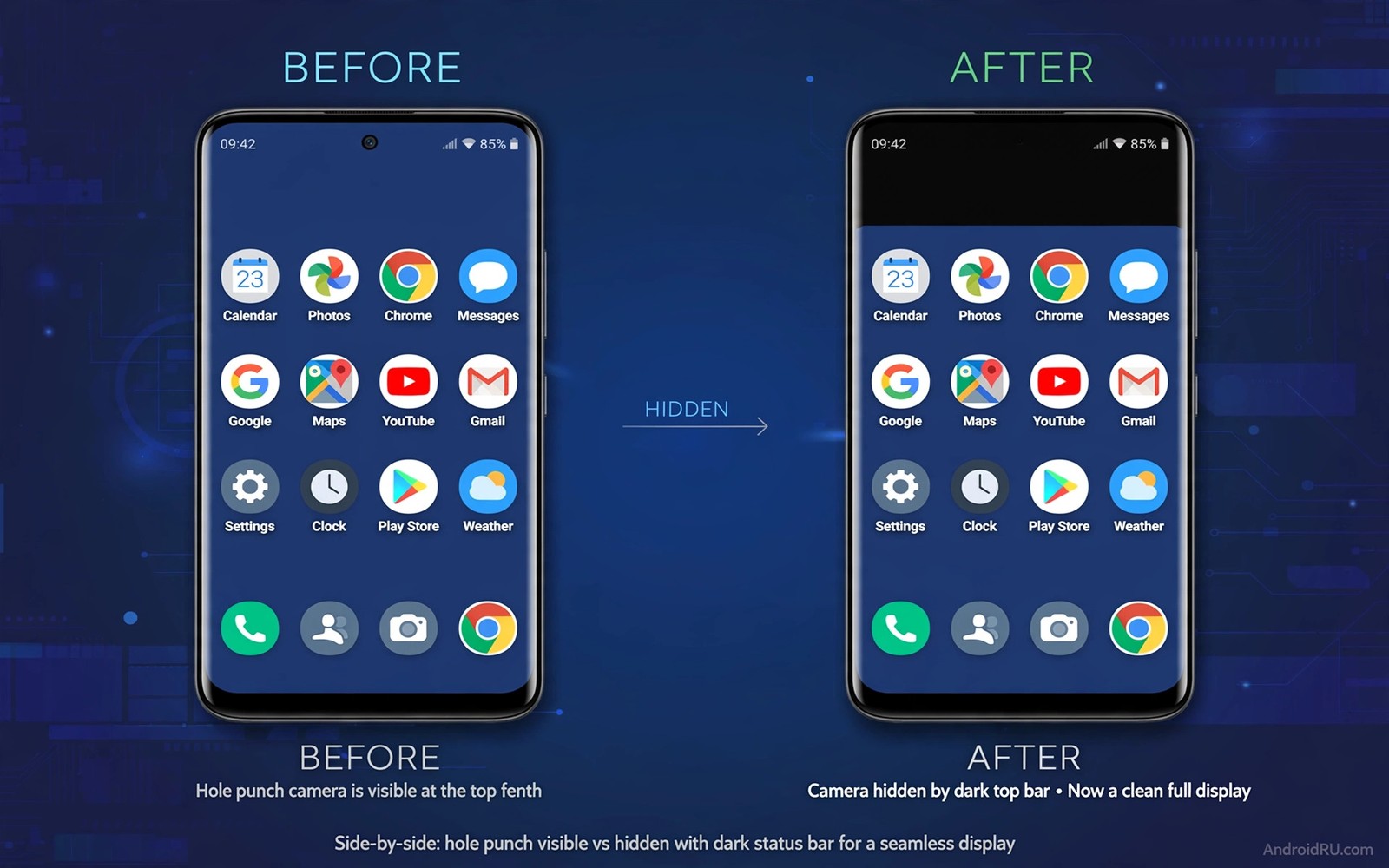
A notch or a hole punch cutout interrupts the top of the screen. A video can lose a corner to a black hole. A game can hide a health bar behind a camera circle. A photo can feel unbalanced with a dark spot at the edge. Hiding the cutout restores a clean rectangle. The screen loses a little height but it gains visual order. For many people that trade is worth it especially for video and reading.
Hiding does not remove the camera hardware. It adds a black bar or a matched background around the cutout so the hole blends into the top edge. The status icons move below the bar or sit inside it depending on the method. Apps then treat the screen as a rectangle without a hole. That rectangle is smaller but it is predictable. Predictability helps apps place buttons where you can actually tap them.
Different phones offer different hiding methods. Some offer a system setting to hide the cutout. Others require a theme or a wallpaper trick. Some apps let you hide the cutout per app. This guide covers all three routes and their trade offs. The right method depends on whether you want hiding everywhere or only in certain apps. Global hiding is simpler. Per app hiding preserves full screen where it matters.
Use the system setting to hide the cutout
Open display settings and look for notch or cutout or full screen options. Some phones offer a toggle named hide notch or hide camera cutout. Turn it on and watch the top of the screen. A black bar should appear across the top and the status icons should move into or below it. Open a video app and check whether the video now sits below the bar. The video will be slightly smaller but it will be complete.
Test the setting in portrait and landscape. In portrait the bar runs across the top width. In landscape the bar runs along the side where the camera sits. Some phones hide the cutout only in portrait. Others hide it in both orientations. Note which orientations your phone supports. A setting that works only in portrait still helps reading and messaging. Landscape video may need a separate per app setting.
Check status icon visibility after hiding. Time and battery and signal icons must remain readable inside the black bar. If icons become cramped then reduce the number of status icons or turn off less important notifications icons. A hidden cutout with unreadable status icons trades one problem for another. The bar should look like a deliberate bezel and not like a crowded strip.
Restart apps that were open before you changed the setting. Apps cache screen size at launch and they may keep drawing into the cutout area until they restart. Force stop a video app and reopen it if its controls still sit under the hole. A fresh launch lets the app measure the new rectangle correctly. This restart step solves many reports that hiding did not work when it actually just needed a relaunch.
Hide the cutout with wallpaper and theme tricks
A wallpaper with a black top band can hide a cutout visually without any setting. Choose or create a wallpaper where the top strip is pure black. The cutout sits inside that black strip and becomes nearly invisible. This trick works on phones with dark themes and it costs nothing. It fails on light wallpapers because the black band stands out as a stripe. Use it only with dark wallpapers for a seamless look.
Some wallpapers include a fake bezel design that frames the whole screen. A dark frame around the photo creates a consistent border and the cutout disappears into the top frame. This style suits people who like framed photos. It does not suit people who want a full bleed photo. Choose a framed wallpaper deliberately. A random dark wallpaper with a black top may look like a mistake rather than a design choice.
Themes can also hide cutouts by forcing a black status bar background. A theme with a solid black top bar makes the cutout blend in across apps. Test the theme in a messaging app and in a browser. The top bar should stay black in both. If an app forces a light top bar then the cutout reappears in that app. Theme hiding works best when you use apps that respect theme colours.
Live wallpapers with a dark top area can also help but they add battery cost. A static wallpaper with a black band is more efficient. Save a copy of your favourite wallpaper with a black band added using an image editor. Keep the original too so you can switch back. A small edit to a favourite photo is often better than searching for a new wallpaper that happens to have a dark top.
Set per app hiding for video and games
Per app hiding is ideal when you want full screen in some apps and a clean rectangle in others. A game may benefit from full screen because its controls avoid the cutout area by design. A video app may benefit from hiding because subtitles sit near the top. Open full screen app settings and set each app individually. Choose hide for video and reading apps. Choose show for games that already handle the cutout well.
Test each app after setting its preference. Open a video and check whether subtitles and controls stay clear of the hole. Open a game and check whether health bars and menus stay visible. A per app setting that looks right in the settings list may still fail in the app if the app caches size. Restart the app after changing its setting. A restart gives the app a clean measurement of the available rectangle.
Camera apps are a special case. The camera app needs the cutout area for its own preview controls. Hiding the cutout inside the camera app can shrink the preview unnecessarily. Keep the camera app at full screen or at its default. The cutout is part of the camera hardware and hiding it there offers no benefit. Let the camera app use the full screen as designed.
Foldables and tablets with hole punches need per app care too. A hole punch on a large screen is less intrusive because the screen is bigger. Hiding it globally wastes more space proportionally on a tablet than on a phone. Use per app hiding on large screens. Hide only in apps where the hole actually covers content. Leave other apps full screen to preserve space.
Balance screen space against visual calm
Hiding the cutout costs screen height. On a tall phone the cost is small. On a compact phone the cost is more noticeable. Measure the trade by using the phone for a day with hiding on. Notice whether you miss the extra height in messaging or browsing. If you constantly scroll more because of the smaller area then hiding may not be worth it for daily apps. Reserve hiding for video where the benefit is clear.
Visual calm is subjective and it changes with use. A clean rectangle feels calm for reading and video. A full screen with a hole feels modern for games and photos. You do not need one rule for all time. Switch hiding on for a movie night and off for a gaming session if your phone allows quick toggling. A flexible approach beats a rigid rule that fits only half your usage.
Screenshots also change with hiding. A screenshot taken with hiding on will show the black bar. A screenshot taken with hiding off will show the hole. If you share screenshots often then consider how the bar looks to recipients. A black bar in a screenshot can look like a cropped image. A hole in a screenshot looks like a normal phone capture. Choose the setting that makes your shared screenshots look intentional.
Finally consider a case with a raised top edge. A case that frames the top can make a cutout feel less intrusive even without hiding. The physical frame draws the eye to the border rather than the hole. Combine a slim case with a dark wallpaper for a low effort improvement. Physical and software tricks together often beat either alone. You can coordinate the top area style with Material You colour tweaks so the bar matches the rest of the interface.
cutout_mode = "hide_global"
per_app_cutout = {"video_app": "hide", "game_app": "show", "camera_app": "default"}
print(cutout_mode, per_app_cutout["video_app"])
The code above is an original example created for this article to show how cutout preferences could be written down as a simple plan. It is a planning aid and not a setting you must apply on your phone.
A clean top bar also helps when you pull down controls and custom quick settings tiles keep brightness and rotation reachable below the hidden cutout.
A clean top edge also suits a personal lock screen and custom lock screen ideas can keep the hidden cutout look consistent before unlock.
Common mistakes
The biggest mistake is hiding the cutout globally and then wondering why the screen feels smaller. Hiding always costs height. Use it where it helps most and keep full screen where height matters. A selective approach preserves space while fixing the apps that actually suffer from the hole.
Another mistake is using a black wallpaper band on a light theme. The band stands out as a stripe and looks worse than the hole itself. Match the band to your theme. Use black bands only with dark themes. Use theme based hiding for light themes if available. Consistency between band and theme is what makes hiding invisible.
People also forget to restart apps after changing cutout settings. An app that cached the old screen size will keep drawing under the hole. Restart the app and test again before declaring the setting broken. A fresh launch is part of the setup and not an optional extra.
Frequently asked questions
Does hiding the cutout damage the camera?
No hiding only changes how the screen draws around the camera. The camera hardware stays fully functional. Photos and video calls work exactly as before. Hiding affects display layout only. It does not block or disable the camera sensor.
Will hiding work in every app?
System hiding works in most apps but some apps draw their own full screen layouts and ignore the setting. Per app settings help for those cases. Test each important app individually. Games and camera apps may need different settings from video and reading apps. A per app approach covers the exceptions.
Can I hide a notch and a hole punch the same way?
Yes the same methods apply to both shapes because both are cutouts at the screen edge. A black bar hides a notch and a hole punch equally well. Wallpaper tricks also work for both. The only difference is bar height. A notch needs a taller bar than a small hole punch. Adjust bar height to match your cutout shape and test with custom quick settings tiles style quick toggles if your phone supports them for fast switching.
Conclusion
Hiding a notch or hole punch restores a clean rectangle at the cost of a little screen height. Use system hiding for reading and video and per app settings for games. Your concrete next step is to turn on hide cutout tonight and watch one full video. If subtitles and controls stay clear and the smaller video still feels comfortable then keep hiding for video apps and leave other apps full screen.

