

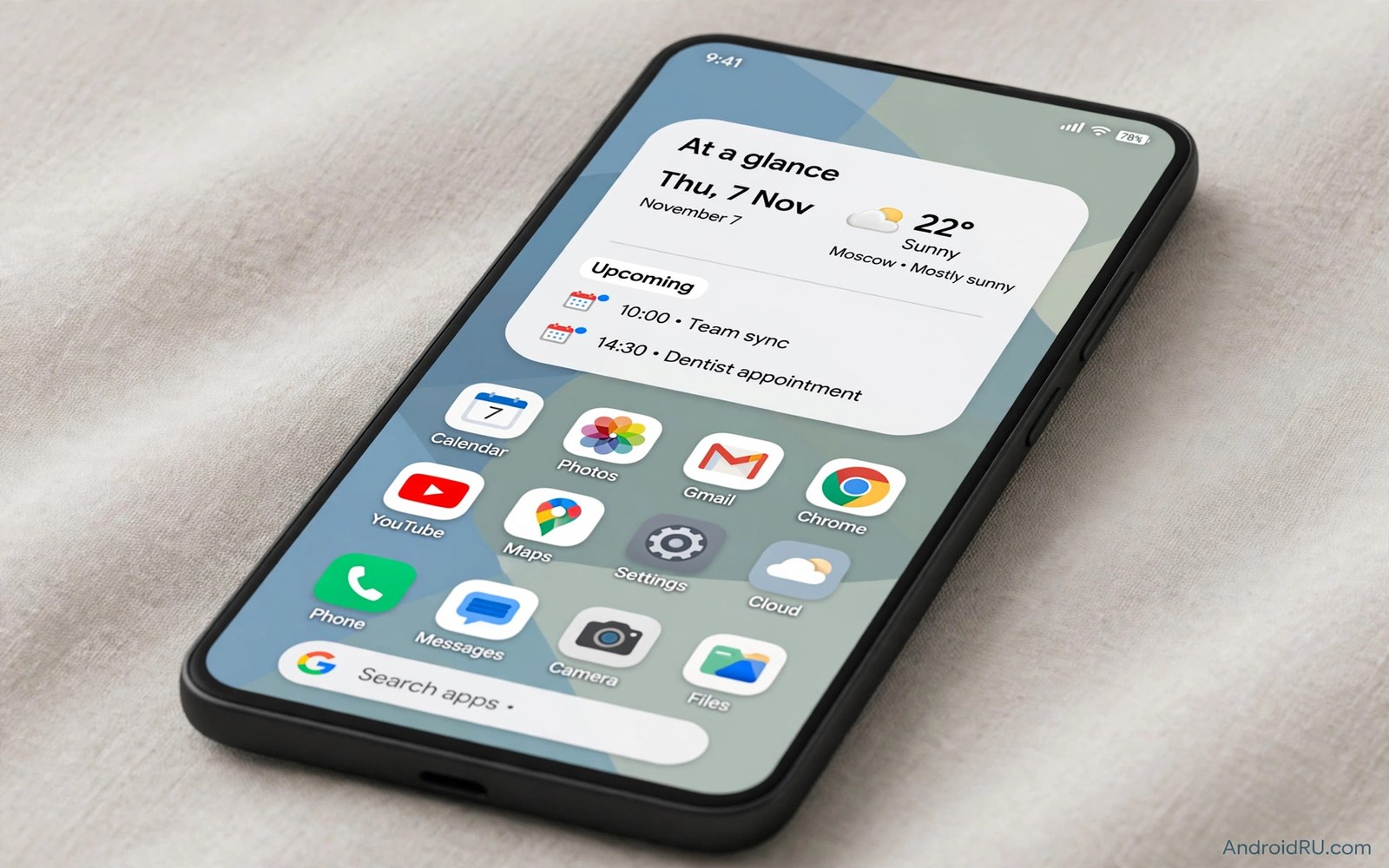
How to Get Pixel At a Glance Smart Widget on Any Smartphone
There is a small block at the top of every Pixel home screen that quietly runs the whole morning. It shows the date, the weather, and the next thing on your calendar, all in one line, without asking you to open a single app. I noticed how much I relied on it the first week I carried a Pixel: I stopped opening the calendar app before breakfast, because the answer was already sitting on the home screen. The widget never shouts. It just changes as the day changes, and after a while you forget it is even a widget.
That block is the part of the Pixel experience most people miss when they switch to a Samsung, a OnePlus, a Xiaomi, or a Motorola. The good news is that you can rebuild it on any Android phone, and the rebuild can be just as useful as the original. The honest news is that it will not be identical inside. The real At a Glance widget is a system feature of the Pixel Launcher, and no app on another phone can copy it exactly. What a good recreation can do is match the daily value: one look, date plus weather plus the next event, always current.
This guide builds that block in layers, and it covers the three routes that actually work in 2026: Another Widget for the quickest setup, KWGT presets for the most control, and Pixel-style launchers for people who want the whole home screen to feel like a Pixel. You will place the widget, connect your calendar and weather, tune what it shows and what it hides, and test it through a full day of changing plans. By the end you will know which route fits your phone and your patience.
What the Pixel At a Glance widget actually shows on a Pixel phone
Before you rebuild something, it helps to know what you are rebuilding. On a Pixel, the At a Glance widget sits at the top of the home screen and shows the current date on the left and the weather on the right. Below that line, it shows the next calendar event with its start time. As the day moves, the line changes on its own: a morning flight shows check-in details, an afternoon meeting replaces the morning one, and in the evening the widget starts showing tomorrow. It also surfaces smart suggestions when they are relevant, like a timer you set, a package that is out for delivery, or a reminder to leave for a commute. The whole point is that it only shows one thing at a time, the next thing.
That restraint is the design. A glance widget that lists five events is not a glance widget anymore, it is a calendar app squeezed into a small box. Google built the Pixel version to show the single most relevant item for the current moment, and that is why it feels calm while other widgets feel busy. When you judge your recreation later, judge it by that standard: does one look tell you what happens next, or do you have to read a list?
The three things the widget shows every day
Every useful version of this widget, Pixel or not, has to nail three pieces of information. First is the date, including the day of the week, because a glance block that only shows the weather is just a weather widget. Second is the weather right now for where you are, temperature plus a simple condition icon, sun or rain or cloud, with no long forecast text crowding the line. Third is the next timed event from your calendar, with its title and start time in a single line you can read in two seconds.
Everything else is optional. Flight details, timers, commute times, and package tracking are nice when they appear, but they are not the core of the widget. If your recreation shows the date, the weather, and the next event correctly all day, it has done the job. If it shows ten suggestion types and gets the next event wrong, it has failed, no matter how pretty it looks.
Why the real At a Glance widget stays Pixel-only
The genuine widget ships inside the Pixel Launcher and talks directly to the Google app and the system calendar, which is why it updates so reliably and why it can show flight and commute details that third-party apps cannot reach. Google has never shipped it as a standalone app for other phones. Sideloading the Pixel Launcher onto a Samsung or a Xiaomi sometimes shows the widget, but it usually breaks after a system update, and on many phones the launcher refuses to run at all. That path wastes an afternoon and leaves you with a home screen that crashes.
So the honest answer to the question of how to get the Pixel At a Glance widget on any smartphone is that you do not get the original, you get a faithful recreation. The three routes in this guide are the ones that hold up over months rather than days, and they all work with the launcher you already have. Pick the one that matches how much fiddling you enjoy, because the best widget is the one you will actually keep.
Another Widget: the closest free At a Glance replacement for any Android phone
If you want the Pixel look with the least effort, start with Another Widget. It is a free app built specifically to recreate the At a Glance layout on any Android phone, and it has been doing that job for years. It shows the date and the weather on the top line and the next calendar event underneath, in the same quiet two-line style as the Pixel original. It also lets you change the text size, the colors, and what happens when you tap each part of the widget, which the Pixel original does not allow.
I tested it on a Samsung and a Motorola, and the setup took under five minutes on both. The widget asks for calendar permission so it can read your next event, and location permission so the weather matches where you are. After that it just works. The weather comes from its own weather feed, and the calendar reading is local, so your events never leave the phone to make the widget work.
Installing Another Widget in five minutes
- Install Another Widget from Google Play and open it once so it can ask for its permissions.
- Grant calendar access. Without it, the widget can only show the date and the weather, which defeats the purpose.
- Grant location access while using the app, so the weather follows your city when you travel.
- Long-press a blank spot on the home screen, tap Widgets, find Another Widget, and drag the 4×1 size to the top of the first home screen.
- Tap the widget to open its settings, pick the layout that shows the date on the left and the weather on the right, and set the tap action for the event line to open your calendar app.
- Add a calendar event starting in the next hour and check the home screen. The event should appear with its time and title in one line.
That last step matters more than the rest. If the widget shows an all-day event instead of your timed event, open its settings and tell it to prefer timed events over all-day blocks. All-day events like birthdays have no start time, so they mislead you about what happens next. The setting that fixes this is usually called something like “prefer timed events” or “hide all-day events”, and it is the single most important toggle in the whole app.
Getting the size right: 4×1 or 5×1 on wide screens
Another Widget offers a 4×1 size on most phones and a 5×1 size on phones with wider home screen grids. The 5×1 version gives the event title more room, so long meeting names do not get cut off mid-word. If your launcher lets you change the grid, set it to 5 columns wide before you place the widget, then stretch the widget to fill the full width. A glance widget squeezed into half the screen loses the calm look, and truncated event titles are the first thing that makes people stop trusting it.
What Another Widget does better than the original Pixel widget
Here is the part that surprises people: the copy is better than the original in a few small ways. You can pick which calendar the widget reads, so a work calendar and a family calendar can be weighted the way you actually live. You can change the tap actions, so tapping the weather opens your weather app instead of a Google search. You can also show two upcoming events instead of one, though I would leave that off for the first week, because one event is what keeps the block glanceable.
The trade-off is that Another Widget cannot show the deep system suggestions the Pixel version shows, like flight check-in times pulled from your email. It shows calendar, weather, and date, and it shows them well. For most people, that covers the whole morning. If you fly every week and need flight cards on the home screen, the Pixel original still wins, but that is a narrow use case and you already know if it is yours.
KWGT At a Glance presets: the most customizable route to a Pixel widget
KWGT, short for Kustom Widget Maker, is a different kind of tool. It does not ship one widget. It lets you build widgets from parts, or load presets other people built, and its presets include several that copy the At a Glance layout down to the spacing. The base KWGT app is free on Google Play, and it reports more than 10 million downloads, so it is a well-worn path rather than an experiment. The catch is that the best At a Glance presets are paid packs, and importing them needs the KWGT Pro key, which was listed at $6.99 in the United States in October 2026.
The most direct preset pack is called At a Glance Widget for KWGT, made by Vratislav Jindra, which reached version 18 with an update in June 2026. It offers a set of At a Glance layouts with more options than the original, including different date formats, weather layouts, and event row counts. There are also free KWGT preset packs with At a Glance designs, though their quality varies and some have not been updated in years, so check the last update date before you pay for anything.
Setting up a KWGT At a Glance preset step by step
- Install KWGT from Google Play, open it once, and grant calendar and location permissions the same way you would for Another Widget.
- Install the KWGT Pro key if the preset you want requires importing from an external pack.
- Install your chosen At a Glance preset pack, then long-press the home screen, tap Widgets, and place a 4×1 KWGT widget at the top of the screen.
- Tap the empty KWGT widget to open the editor, then load the At a Glance preset from the pack.
- In the preset settings, pick your calendar, set the weather to update hourly, and choose the font size that keeps the event title on one line.
- Save the preset and go back to the home screen. If the widget is blank, tap it again and check that the calendar permission is still granted.
KWGT presets also need a backup habit the other routes do not. Export the preset from inside KWGT after you finish tuning it, and save the export file somewhere safe. If you switch phones or reinstall the app, that export is the difference between a five-minute restore and starting over from a blank widget.
When KWGT is worth the effort, and when it is not
KWGT is the right choice if you enjoy tuning details: exact font sizes, custom colors for each element, a second event row, or a layout that matches a specific wallpaper. It is the wrong choice if you just want the widget working before lunch. A KWGT setup takes thirty to sixty minutes to get right, where Another Widget takes five, and the KWGT widget will not follow your Material You theme colors automatically, so you will be recoloring it by hand every time you change your wallpaper.
My rule is simple. If you change your home screen layout more than once a month, use Another Widget and spend the saved time elsewhere. If your home screen stays the same for months and you want every pixel in a specific place, KWGT earns its setup time. Either way, the widget you end up with shows the same three things, so the choice is about your patience, not about the information.
Lawnchair and Smart Launcher 6: Pixel-style home screens with a built-in glance block
The third route skips the widget app entirely and changes the launcher. Lawnchair is a free, open-source launcher that copies the Pixel home screen layout, including a built-in At a Glance block at the top and Google Discover integration on the left. Smart Launcher 6 takes a different approach: it is a full launcher with precise widget placement and its own glance-style widget, and it suits people who want the widget and the app drawer organized at the same time. Both work on almost any Android phone, and both keep working after system updates because they are launchers, not fragile workarounds that break after an update.
Changing launchers is a bigger decision than installing a widget, because the launcher controls the whole home screen. That said, if you already dislike your phone’s default launcher, this route fixes two problems at once. If you love your current launcher, do not switch just for the widget, because Another Widget gives you the same block without touching anything else.
Lawnchair: the free Pixel-style home screen for any Android phone
Lawnchair is the closest thing to a Pixel home screen you can install on a non-Pixel phone. Install it from Google Play, set it as your default home app under Settings, then Apps, then Default apps, then Home, and the At a Glance block appears at the top of the first screen. It shows the date, the weather, and the next calendar event, and it follows the same quiet style as the Pixel original. Because Lawnchair is open source and community-built, releases and device compatibility can shift, so check that the version you install supports your Android version before you commit to it.
One detail to know: Lawnchair’s glance block reads your calendar through the same permissions as any widget app, so grant calendar access when it asks. If the block shows the date but no event, the permission is the first thing to check. The second thing is the weather source, which Lawnchair sets from your location, so location permission matters here too.
Smart Launcher 6: a glance widget with precise placement
Smart Launcher 6 is the better pick if your priority is placing and resizing widgets exactly where you want them. Its home screen uses a grid that makes a wide glance widget easy to position, and its widget handling is more forgiving than most stock launchers when you resize. The glance widget itself is simpler than Lawnchair’s Pixel copy, but it shows the same core information, and the launcher around it is genuinely pleasant to live with.
That said, Smart Launcher changes more of your daily habits than Lawnchair does, because its app drawer uses categories instead of a plain alphabetical list. Give it three days before you judge it. Most people who bounce off Smart Launcher do it in the first hour, before the category drawer has had a chance to feel normal.
Connecting calendar and weather so the widget tells the truth
A glance widget is only as honest as the calendar and weather behind it. The widget itself is a display, and if the display is wrong, the problem is almost always upstream: the wrong calendar selected, an all-day event outranking a timed meeting, a weather feed updating twice a day, or a location permission that only works at home. Fix the inputs and the widget fixes itself.
Start with the calendar. Open the widget settings and check which calendars it reads. Most people have at least two: a personal calendar and a work calendar, plus a shared family calendar and a holidays calendar they forgot they subscribed to. Turn off the holidays calendar and any old sports schedule, because those inject noise into the single glance slot. Then decide the priority: work hours should show work events first, evenings should show family events first. That sounds fussy, but it takes two minutes and it is the difference between a widget you trust and one you ignore.
Then pair the glance block with your lock screen. The same next event should earn space in both places, so the morning check works whether the phone is locked or open. The lock screen setup is its own project, and the guide to customizing the lock screen like a pro walks through putting the next event on the lock screen as well. Keep the two surfaces consistent: if the home screen widget and the lock screen disagree about what happens next, one of them is reading the wrong calendar.
Calendar hygiene: the widget can only show what your calendar contains
Here is an uncomfortable truth about smart widgets: they expose calendar problems that a hidden calendar conceals. Duplicate events, vague titles, and missing locations all appear in the glance block, in front of you, several times a day. A recurring event titled simply “meeting” tells you nothing at a glance. Rename it with a purpose word, like “team standup” or “client review”, and the widget turns from decoration into a planning tool.
Spend an hour merging duplicates and clarifying titles before you judge any widget. The widget can only display what the calendar contains, and an hour of calendar cleaning improves the result more than any widget setting can. Audit your calendar subscriptions every few months too, because an old holiday calendar from another country or a sports schedule from last season adds stale events to the block for years if nobody removes it.
Weather that stays honest without draining the battery
Weather is the second input, and the setting that matters most is the update interval. Set weather updates to hourly rather than every few minutes. Hourly updates keep the temperature honest without draining the battery, because the widget wakes the weather feed twelve times less often than a five-minute interval would. A temperature that is an hour old is still useful. A temperature that is six hours old because the widget stopped updating is not.
Choose a display with the temperature and a simple condition icon and no lengthy forecast text. The glance block has one line for weather, and a forecast paragraph turns it into a weather app. Test the weather on a day when conditions change sharply, like a morning that starts sunny and turns to rain by lunch. The widget should shift from sun to rain without your intervention. If it lags by hours, the update interval or the location permission needs fixing, not the widget design.
Making the widget match Material You and your wallpaper
A glance widget with fixed brand colors clashes with every theme change, and it looks wrong on half the wallpapers you will ever use. The Pixel original follows the system colors, so it looks calm on a light wallpaper and calm on a dark one. Your recreation should do the same. In Another Widget, pick the theme option that follows the system or the wallpaper colors rather than a fixed color. In KWGT, you will set the colors by hand, which is more work but gives you exact control. In Lawnchair, the glance block follows the launcher theme automatically.
The palette thinking behind this is worth a few minutes on its own. The guide to Material You color tweaks explains how the system picks colors from your wallpaper and how to steer those colors when the automatic pick looks wrong. A widget that follows those colors looks like it belongs on the phone. A widget with a fixed blue background looks like an ad pasted onto the home screen, and you will notice it every time you look at the phone.
Matching the widget to a light wallpaper and a dark wallpaper
Light wallpapers need a widget with dark text and a transparent or very light background, because white text on a pale sky is unreadable at a glance. Dark wallpapers need the opposite: light text, and a background that is either transparent or a dark translucent panel. The mistake people make is picking a widget style for one wallpaper and then changing the wallpaper a month later without revisiting the widget. When you change wallpapers, spend thirty seconds checking the widget, because readability at a glance is the whole job.
Transparency is your friend here. A fully transparent widget background lets the wallpaper show through and keeps the block feeling light, while a solid background makes the widget look like a separate card. Another Widget and KWGT both offer transparency settings. Set the background to transparent first, and only add a translucent panel if the text is hard to read against a busy wallpaper photo.
Keeping the home screen minimal so one block carries the day
A glance widget earns its place by being the first thing you see, and it loses that place the moment three other widgets crowd around it. Put the glance block at the very top of the first home screen, and leave the rest of that screen empty or nearly empty. The apps you open ten times a day belong in the dock or the app drawer, not competing with the widget for attention.
This is the same minimal thinking behind a minimalist aesthetic setup, where one block carries the day and everything else waits in the drawer. Let the widget stay small by saying no often: no to extra suggestion types, no to a second event row, no to a forecast paragraph, no to a news headline inside the widget. Every element you refuse makes the one remaining line easier to trust.
Battery optimization, stale data, and other At a Glance widget problems
Most At a Glance widget problems have the same three causes: battery optimization killing updates, the wrong calendar selected, or an update interval set too long. The fixes are boring and they work, which is why this section is short on theory and long on checks. Work through the symptom that matches yours, and test after each fix instead of changing five settings at once.
The widget stops updating after a few hours
This is the most common complaint, and it is almost always battery optimization. Android puts apps it thinks you do not use into a deep sleep, and a widget app that only updates in the background looks unused to the system. The widget then freezes on whatever it showed hours ago, and the weather and the next event both go stale at the same time.
Exempting the widget app from battery optimization
Open Settings, then Apps, then find your widget app, then Battery, and set it to Unrestricted or remove it from battery optimization, depending on what your phone calls the option. Samsung calls it “never sleeping apps” under Battery and device care, OnePlus buries it under Battery optimization, and Xiaomi hides it behind an autostart permission that also needs to be on. The menu names differ, but the idea is the same: tell the phone that this app is allowed to wake up and refresh itself.
Checking the weather refresh interval after the battery fix
Once the app is allowed to run, check the weather refresh interval inside the widget settings. If it is set to six hours or to manual refresh, the widget will still look stale even with the battery fix in place. Set it to hourly, then force one manual refresh and watch the temperature. If the temperature changes to the current reading, the fix worked, and you can stop fiddling with it.
Weather stuck on yesterday’s forecast
When the date and the event are current but the weather is a day old, the weather feed is the problem, not the widget. Check that location permission is set to “while using the app” rather than “never”, and check that the weather source is set to your current city rather than a city you typed in once and forgot. If you travel, a widget locked to your home city will show home weather while you are three time zones away, which is worse than no weather at all.
Some widget apps let you pick the weather provider. If yours does, and the forecast keeps lagging, switch providers once and compare for a day. Different providers update at different times, and one of them usually matches your region better. Do not switch providers every hour, because then you cannot tell which one was right.
The next event never appears
When the widget shows the date and weather but never an event, the calendar permission is usually missing or the widget is reading the wrong calendar. Open the widget settings and confirm the calendar permission is granted, then confirm the correct calendar is selected. If you use more than one calendar app, the widget may be reading a calendar that has no events while your real events live in another app.
The second cause is the all-day event problem. If your calendar has an all-day birthday today, some widgets show that instead of your 2 p.m. meeting, because the all-day event starts first. Turn on the setting that prefers timed events, or turn off all-day events in the widget entirely. Timed events are what a glance block is for, and birthdays belong in a notification, not in the single most valuable line on your home screen.
Privacy: what a glance widget shows to everyone who sees your screen
A glance widget broadcasts personal information to anyone who sees your home screen. Calendar event titles can reveal medical appointments, job interviews, and private meetings. Weather plus location reveals your city to strangers in photos of your phone. Review the widget content as if every home screen screenshot were public, because screenshots travel further than owners expect, and a photo meant to show a wallpaper also shows the widget with its events and weather.
Work widgets deserve special caution. A client name in an event title leaks a business relationship to anyone who glances at your phone during a meeting. Use generic event titles for sensitive work, like “call” instead of a client name, or hide the widget during meetings with a second home screen layout that has no calendar block. The extra layout takes a minute to set up and saves you from explaining a confidential meeting to a room full of people.
Children in the household also read glance widgets casually. A widget showing a surprise party planning event can ruin the surprise for a child who glances at your phone, and a widget showing a difficult medical appointment can worry a child for no reason. Consider what every household member might learn from a single glance before you enable detailed event titles on a phone that gets passed around the kitchen table.
Showing categories instead of details
The safest widget strategy is to show categories rather than details. Show that a meeting exists at three o’clock without showing its title. Show weather for your region without naming your exact town. Categories give you glance value while the details stay behind the lock screen where they belong. Most widget apps cannot do this automatically, so the practical version is simpler: keep sensitive event titles short and generic in the calendar itself, and the widget will display the generic version without any extra setting.
A second home screen layout for meetings and photos
Set up a second home screen page with no widget at all, and swipe to it before meetings or before taking a photo of your phone for social media. Crop widget areas out of shared screenshots, or use a clean demo layout for photos. The extra cropping step takes seconds and prevents permanent public exposure of your schedule. If your launcher supports hiding a widget per layout, use that instead, because it is faster than swiping pages in front of an audience.
At a Glance widget questions readers actually ask
Will this widget work without a Pixel phone?
Yes. Smart widget apps recreate the layout on any Android phone, because the widget runs as a normal app widget with calendar and weather permissions. It needs those permissions to show live information, and it works on Samsung, OnePlus, Xiaomi, Motorola, and Nothing phones the same way. The only thing you do not get is the Pixel system integration, like flight details pulled from email, which stays exclusive to Pixel phones.
Why does my widget show old weather?
Battery optimization or a long update interval usually causes stale data. Set weather updates to hourly and exempt the widget app from aggressive battery optimization, then check again after an hour. If the weather is still old, check the location permission and confirm the widget is set to your current city rather than a city you typed in months ago. One of those three fixes solves the problem in nearly every case I have seen.
Can I show two events at once?
Most glance widgets show one next event to stay glanceable, and that is the right default. Another Widget and KWGT both offer a two-event option if you want it, but I would leave it off for the first week. Open the calendar app for the full day list. The widget job is the next thing, not the whole agenda, and a second event row is the first step toward a widget that looks like a calendar.
Does the At a Glance widget drain the battery?
Not if you set it up the way this guide describes. Hourly weather updates and calendar reads use very little power, because the widget only wakes up to fetch small pieces of data. What drains the battery is a weather interval of five minutes, or a widget app that is fighting battery optimization and getting restarted by the system over and over. Set the interval to hourly, exempt the app once, and the battery cost becomes too small to notice in a normal day of use.
The one-look test for your new At a Glance widget
Your home screen now carries a smart glance block with the date, the weather, and the next event, and you check the day in one look instead of opening two apps. That single look is the Pixel advantage, recreated on a phone Google never intended to have it. The widget earns its place every morning it shows the right meeting, and it loses its place the first week it shows a stale forecast, so keep the battery setting and the calendar selection right and it will stay trustworthy.
Your concrete next step is simple: check the widget at lunch tomorrow and confirm it shows the correct next event for the afternoon. If it lags, fix the battery optimization setting tonight and retest the next day. If it passes the lunch test and the evening test, take a screenshot of the widget at its best, because that screenshot helps you rebuild the layout after a phone switch or a launcher change without starting over.

