

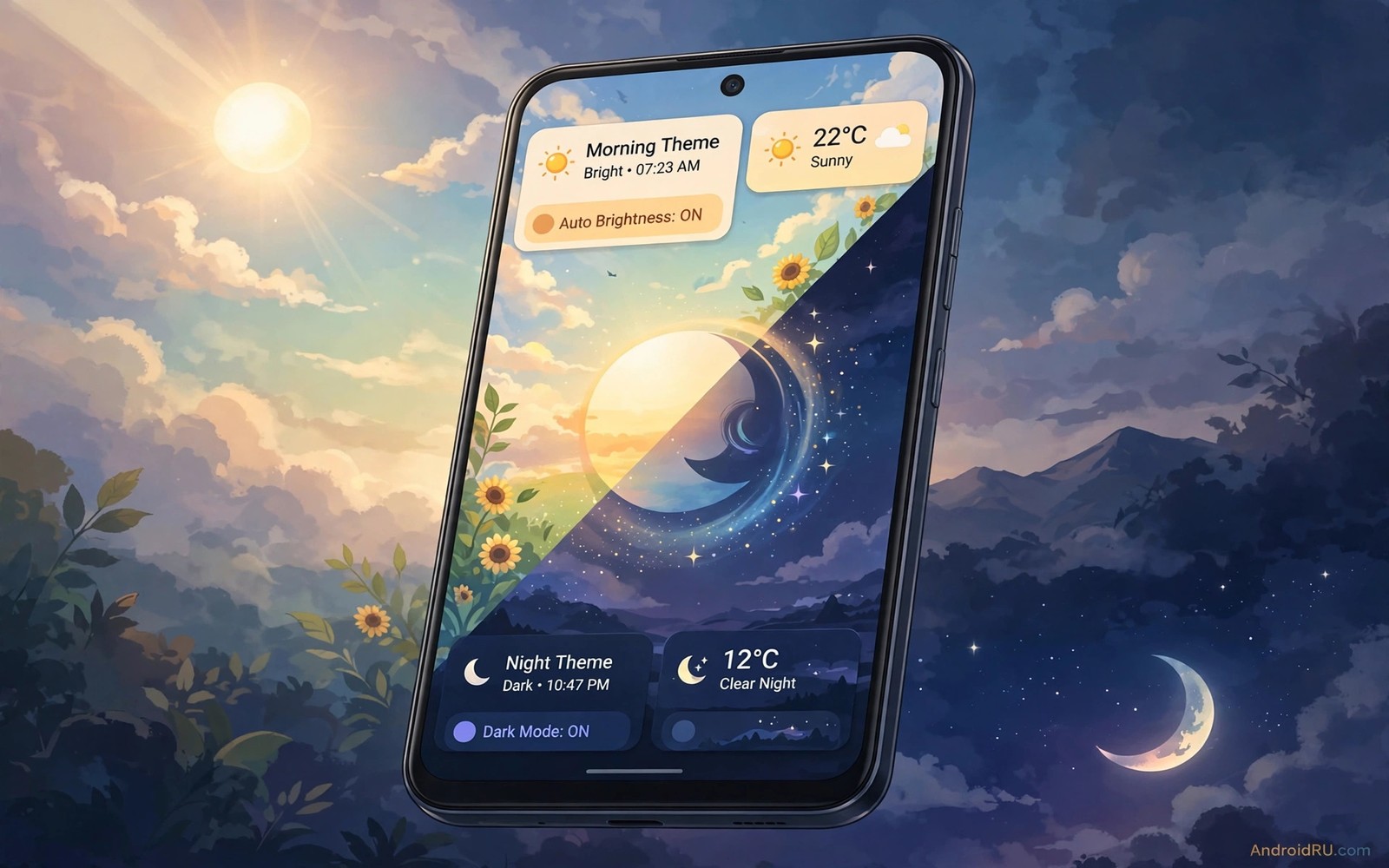
Material themes change colour and contrast across your phone. A light theme suits bright mornings. A dark theme suits quiet nights. Switching manually twice a day is tedious and easy to forget. Automatic time based syncing solves this by changing the theme with the sun. Your phone looks bright when you wake and calm when you wind down. The change happens without a tap and it feels natural because it matches your environment.
Time based theming is more than aesthetics. Light themes improve readability in sunlight. Dark themes reduce glare in dark rooms and they can save battery on OLED screens. A theme that follows time of day supports your eyes throughout the day. It also supports sleep by reducing bright light exposure at night. A phone that adapts to time is a phone that respects your circadian rhythm.
Android offers several routes to automatic theming. System dark mode scheduling is the simplest. Material You colour scheduling adds colour changes on top of light and dark. Third party automation tools can schedule full theme presets including wallpaper and icon style. This guide covers all three layers from simple to advanced. Start simple and add layers only if you need them.
Set up automatic dark mode by schedule
Open display settings and find dark theme or dark mode. Look for a schedule option. Many phones offer sunset to sunrise scheduling based on location. Others offer a custom time schedule where you set start and end times. Choose sunset to sunrise if you want the theme to follow natural light. Choose custom times if your routine differs from daylight. A night worker may want dark theme during daytime sleep and light theme at night work.
Test the schedule for two days. Note whether the theme switches at the expected time. Location based sunset times change daily by a few minutes. That gradual shift is natural and it prevents a sudden change at a fixed clock time. Custom schedules switch at exactly the same time daily. That predictability suits strict routines. Choose the mode that matches how you live rather than which sounds more technical.
Check app behaviour after the first switch. Most apps follow system dark mode automatically. Some apps have their own theme setting that overrides the system. Open your most used apps after a switch and confirm they match. If an app stays light at night then open its settings and set it to follow system theme. A single light app in a dark interface breaks the calm and it can glare in a dark room.
Widget colours also follow theme changes in many cases. A calendar widget that was dark text on light background should flip to light text on dark background. Test widgets after a switch. If a widget stays in the wrong colours then update its theme setting or choose a widget that follows system theme. Widgets that ignore theme changes look broken at night and they undermine the automatic system.
Sync Material You colours with time of day
Material You generates colours from your wallpaper. A morning wallpaper with warm tones generates warm accent colours. An evening wallpaper with cool tones generates cool accents. Syncing wallpaper with time of day therefore syncs colours too. Set a morning wallpaper with bright warm colours and an evening wallpaper with deep cool colours. The system will generate matching accents for each period.
Wallpaper scheduling tools can change wallpaper automatically at set times. Choose two or three wallpapers that represent morning and afternoon and night. Set morning wallpaper for sunrise to noon. Set afternoon wallpaper for noon to sunset. Set night wallpaper for sunset to sunrise. Each wallpaper change triggers a colour regeneration. The result is a theme that evolves through the day rather than flipping only between light and dark.
Test colour regeneration after each wallpaper change. Open quick settings and check accent colours. They should reflect the new wallpaper within seconds. If colours stay stuck on the old wallpaper then restart the theme engine or reapply the wallpaper manually once. Colour caching can delay regeneration after an update. A manual reapply usually clears the cache and restores automatic behaviour.
Keep wallpaper colours harmonious across the day. A neon morning wallpaper and a pastel night wallpaper create a jarring transition. Choose wallpapers from the same family with different brightness levels. A blue family can go from sky blue in the morning to navy at night. That gradual family shift feels intentional. A random wallpaper rotation feels chaotic even if each wallpaper is beautiful alone.
Automate full theme presets with routines
Full presets go beyond light and dark. A morning preset can include a bright wallpaper and a productivity widget layout. An evening preset can include a calm wallpaper and a minimal widget layout. A night preset can include a dark wallpaper and silent notifications. Automation tools can switch presets at scheduled times. This is the most powerful layer and it requires the most setup.
Build presets one at a time. Start with a day preset that you already like. Save it as a named preset if your launcher supports it. Build a night preset by copying the day preset and changing wallpaper and widget opacity. Save it separately. Test switching between presets manually first. Manual switching reveals problems like missing widgets or wrong icon packs. Fix those problems before you automate.
Schedule preset switches with a routine tool. Set morning preset for wake time. Set evening preset for sunset. Set night preset for bedtime. Test the routine for a week. Note any preset that fails to apply fully. A preset that changes wallpaper but not widgets is partially broken. Adjust the routine to include widget steps or simplify the preset to elements that automate reliably. Reliability matters more than completeness for automatic presets.
Handle exceptions for travel and shift changes. A routine based on home times will switch at the wrong local time when you travel. Pause routines during travel or set them to follow location based sunset instead of fixed times. A routine that adapts to location stays useful across time zones. A fixed routine becomes a nuisance when you cross zones. Flexibility is part of good automation.
Fix theme switches that fail or flicker
Failed switches often trace back to battery optimisation. Automation tools need to run at scheduled times even when the phone sleeps. Exclude the automation tool from battery optimisation. Check the exclusion after system updates. If a theme stops switching after an update then recheck permissions first. Most failures are permission problems and not tool bugs.
Flicker happens when two tools try to set theme at the same time. A system schedule and a third party routine can conflict if both trigger at sunset. Disable one schedule and keep the other as the single owner of theme switching. A single owner prevents flicker and partial switches. Audit all schedule settings in system and in automation tools. Keep only one active schedule for theme.
Wallpaper scaling issues can also break the effect. A wallpaper that looks good in the morning may crop badly at night if the tool scales it differently. Use wallpapers with the same ratio and resolution for all presets. Test each wallpaper in both portrait and landscape. Consistent sizing prevents a theme switch from also changing framing. Framing consistency keeps transitions smooth.
When a switch fails repeatedly simplify the preset. Remove widget changes and keep only wallpaper and dark mode. A simple preset that always works beats a complex preset that works half the time. Add complexity back one element at a time after reliability returns. Simplification is a diagnostic tool as well as a solution. It isolates which element causes failure.
theme_schedule = {"morning": "light warm", "evening": "light cool", "night": "dark navy"}
print(theme_schedule["night"])
The code above is an original example created for this article to show how a time based theme plan could be written down as a simple schedule. It is a planning aid and not a file you must run on your phone.
Theme timing also pairs well with a calm lock screen and custom lock screen ideas can keep night colours consistent before unlock.
For daytime readability you can also align accents through Material You colour tweaks so morning and evening palettes stay harmonious.
Common mistakes
The biggest mistake is scheduling theme changes but forgetting app level overrides. A system switch does nothing for apps set to a fixed theme. Audit your top apps after the first switch. Set each to follow system theme. A system schedule only works when apps respect it. That audit takes ten minutes and it prevents a half dark interface.
Another mistake is using unrelated wallpapers for different times. Random wallpapers create jarring colour jumps. Choose wallpapers from one colour family with varying brightness. Gradual family shifts feel natural. Random shifts feel like a different phone each time. Cohesion across time is the goal.
People also run two schedules at once and blame flicker on the tool. Keep one schedule owner for theme. Disable system scheduling if a routine tool handles it. Disable routine scheduling if system scheduling handles it. One owner keeps transitions clean. Dual ownership creates race conditions.
Frequently asked questions
Does automatic theming drain battery?
Automatic theme switching itself uses negligible battery because it changes colours at scheduled times. Dark themes can save battery on OLED screens at night. Wallpaper changes use little power when they happen a few times a day. Problems arise only if a tool polls constantly to check time. Use schedule based tools rather than polling tools.
Can I sync themes across phone and tablet?
Some theme systems sync across devices with the same account. Others require separate schedules per device. Set schedules per device based on how you use each one. A tablet used mainly in the evening may need a different schedule from a phone used all day. Per device schedules often work better than forced sync.
What if I work night shifts?
Use custom times instead of sunset to sunrise. Set light theme for your work hours at night and dark theme for your sleep hours during the day. Custom schedules adapt to any routine. Location based sunset is only useful for daytime workers. Your schedule should follow your life and not the sun alone. You can coordinate night themes with always on display customisation for a calm night setup.
Conclusion
Time based Material themes work when dark mode scheduling and wallpaper colour syncing share one owner and one colour family. Start with sunset to sunrise dark mode. Your concrete next step is to enable that schedule tonight and check your top five apps tomorrow morning. If all five follow the theme then add a morning and night wallpaper pair next week for colour syncing.

