

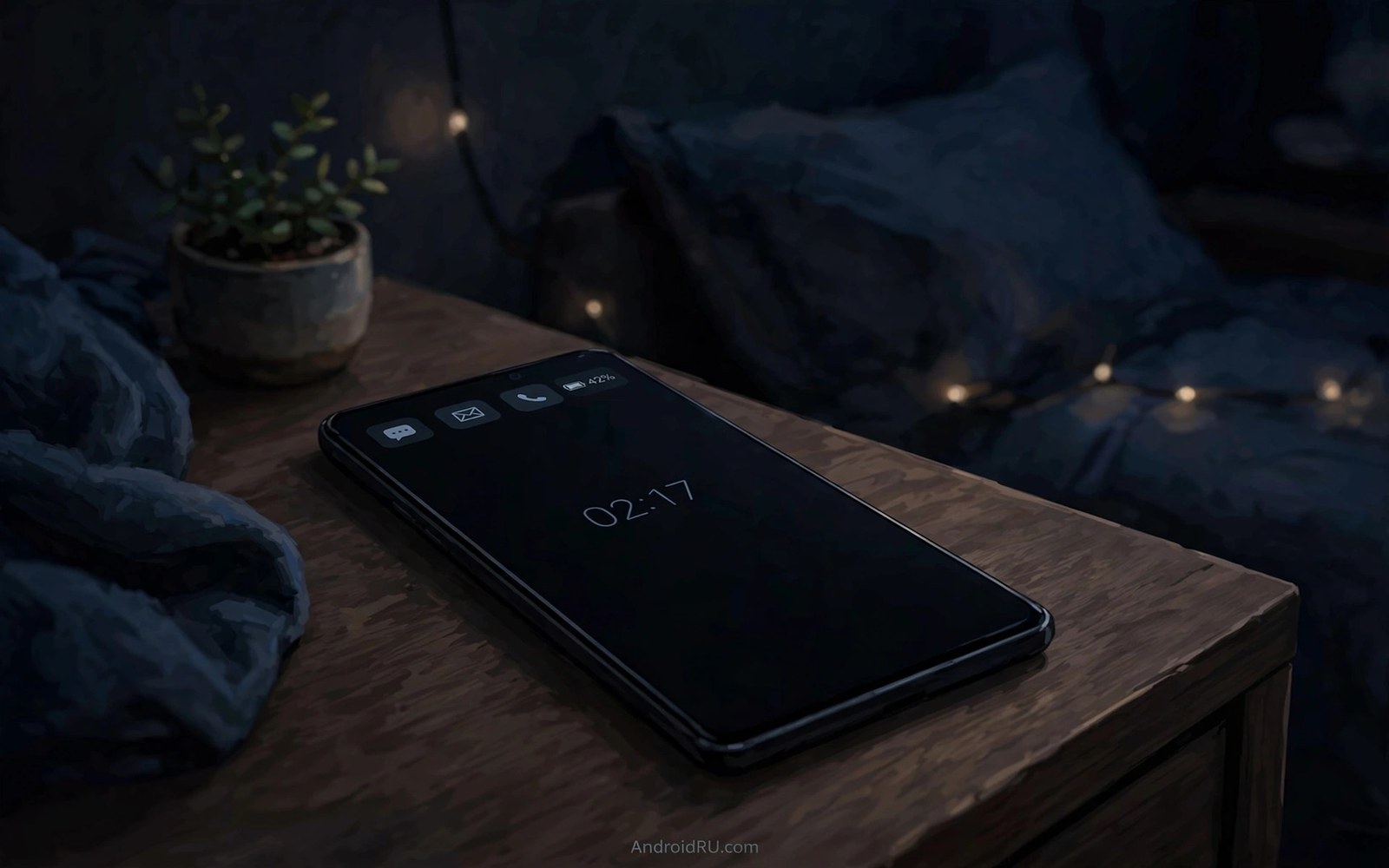
Always-on display feels like magic the first week. The time glows on a dark screen and notifications peek through without a single press. Then the battery anxiety arrives and many people turn the feature off entirely.
A well tuned always-on display costs very little power. The screen shows few lit pixels and updates rarely and sleeps on a schedule. The expensive version shows bright images and constant animations and never sleeps.
This guide builds the efficient version. You will choose a dim clock and limit notifications and set sleep hours. Each choice saves power while keeping the glance value that made the feature appealing.
Choose a dim clock that sips power
Pick a simple digital clock in a dim white or soft gray. Avoid bright colors and large images because every lit pixel costs power on an OLED screen. A small clock centered on black uses the fewest pixels of any useful layout.
Set the clock brightness to automatic if your phone offers it. Automatic brightness dims the clock in dark rooms where a bright clock wastes power and disturbs sleep. Manual maximum brightness defeats the efficiency goal entirely.
Dim clock discipline matches the wallpaper calm in live wallpapers that do not drain battery where few lit pixels and slow motion keep costs low. Apply the same logic to the always-on screen.
Limit notifications to urgent apps only
Allow always-on notifications only for messages and calls and calendar alarms. Turn off shopping and social and game notifications on the always-on screen. Those alerts add light cycles without adding decisions you need at a glance.
Set notification icons to show as small dots rather than full previews. Dots tell you that something waits without lighting a large text block. Open the phone only when the dot belongs to an urgent app.
Notification limits echo the lock screen privacy rules in customizing the lock screen like a pro where hiding content protects privacy and saves power at once. Fewer lit previews serve both goals.
Schedule sleep hours for the display
Set the always-on display to turn off during your sleep hours. A clock glowing all night beside your bed wastes power and disturbs rest. A schedule that sleeps from midnight to morning costs nothing in usefulness because you are asleep.
Add a pocket mode or flip to sleep option if your phone offers it. The display should turn off inside a pocket or a bag where nobody can see it. Sensors already detect those situations on most modern phones.
Sleep scheduling follows the same routine thinking as customizing quick settings tiles where controls follow your daily pattern. Time zone changes can shift sleep hours until you update them.
Measure the real battery cost
Note your bedtime battery percentage for three nights with the display off. Then enable the tuned display and note three more nights. Compare the averages rather than single nights because daily use varies.
A well tuned display should cost under two percent overnight. If the cost exceeds five percent then a bright element or a chatty app is lighting the screen too often. Remove the brightest element first and retest.
Keep the winning layout stable for a month. Constant layout experiments reset your sense of normal battery use. Stability lets you spot real drain changes quickly when they appear.
Always-on display efficiency settings
Apply these settings as a group. Each line removes one power cost while keeping glance value. Do not skip the schedule because night hours are the largest wasted block.
clock_style = small digital, dim white
clock_brightness = automatic
notification_apps = messages, calls, calendar only
notification_style = small dots, no previews
sleep_schedule = midnight to morning
pocket_mode = on
The settings above were written for this guide to summarize the efficient always-on configuration. They are not code to run. Apply them inside your display settings screens.
Use always-on display as a bedside clock
A phone on a nightstand becomes a bedside clock with always-on display. A dim clock with the next alarm time serves the bedroom better than a bright alarm clock. The phone already knows your alarm schedule.
Set the bedside layout to show time and next alarm only. Remove notification dots at night through the sleep schedule. A bedroom screen should answer two questions and nothing more.
Place the phone face up at a slight angle for easy reading from bed. A flat phone forces you to lift your head to read it. A small stand angle makes the glance effortless and sleep friendly.
Choose a warm dim color for the bedside clock rather than cold white. Warm light disturbs sleep less than bright white light. The color difference is small but nightly repetition makes it matter.
Test the bedside setup for three nights before judging it. The first night feels novel and the third night reveals truth. A setup that still feels calm on night three earns a permanent nightstand place.
Always-on display and screen health over years
Long term screen health depends on cumulative pixel use rather than any single day. An always-on display lights a small set of pixels for many hours daily. Over years that cumulative use can create uneven wear if the same pixels always light. Modern phones combat this by shifting the clock position slightly over time. That shifting spreads wear across a wider pixel area and dramatically reduces visible aging.
Brightness is the dominant factor in long term wear because brighter pixels age faster. A dim always-on clock ages pixels far slower than a bright one. Automatic brightness helps because it dims the clock in dark rooms where most always-on hours accumulate. Manual maximum brightness for always-on display is the single worst choice for screen longevity.
Color choice also affects aging because different color subpixels age at different rates. Blue subpixels age fastest on OLED panels. A clock rendered mostly in blue will age those subpixels unevenly over years. White or warm gray clocks distribute aging across all subpixels more evenly and preserve color balance longer.
Screen protectors do not affect always-on aging but they affect perceived brightness. A dark tinted protector may tempt you to raise always-on brightness to compensate. That compensation increases pixel aging to overcome the protector. Choose a clear protector if you use always-on display daily so brightness can stay low.
Replacement economics put the risk in perspective. A phone kept for three years with a dim shifting clock shows negligible always-on aging in practice. A phone kept for six years with a bright static clock may show faint retention. Match your always-on boldness to your planned ownership length and enjoy the feature without anxiety.
Always-on display for shift workers
Shift workers need always-on display schedules that follow rotating shifts rather than fixed night hours. A nurse on rotating shifts sleeps at different times each week. A fixed midnight to morning sleep schedule fails during day sleep weeks. Shift workers should update display schedules weekly to match the current rotation. That weekly update takes a minute and protects both battery and sleep quality.
Night shift workers face the opposite schedule from day workers. Their sleep hours fall during daylight when a bright always-on display disturbs rest more. A display that sleeps during day sleep hours matters enormously for night shift recovery. Configure the sleep schedule to the actual sleep window for the current rotation rather than to clock conventions.
Rotating shift workers benefit from multiple saved schedules if their phone supports profiles. A day shift profile and a night shift profile can switch with one tap. Profile switching beats manual schedule editing for workers whose rotations change frequently. Set up both profiles during a calm week so busy rotation weeks need only a tap.
Emergency availability complicates shift worker display settings because on call workers must see urgent alerts even during sleep. Configure exceptions for on call contacts and hospital systems during sleep hours. Exceptions let urgent alerts through while ordinary notifications stay silent. That balance protects sleep without compromising patient safety or job duties.
Light exposure during shift work affects circadian rhythms and display color plays a role. Warm dim display colors during night shifts reduce blue light exposure that disrupts sleep hormones. Cool bright displays during day shifts support alertness. Match display color temperature to shift timing for a small but real circadian benefit over months.
Finally shift workers should review display settings after every schedule change rather than assuming old settings still fit. A promotion to a new shift pattern or a move to a different rotation demands a settings review within days. Phones that lag behind schedule changes create sleep disruption that accumulates into health problems over time.
Common mistakes
Always-on display setups fail through brightness and noise. Avoid these.
- Using a bright full color image that lights thousands of pixels constantly.
- Allowing every app to show full notification previews on the dark screen.
- Leaving the display on all night beside the bed without a schedule.
- Enabling animated always-on elements that update every second.
- Judging battery cost from one unusual night instead of a three night average.
Frequently asked questions
Does always-on display cause screen burn in?
Modern phones shift the clock position slightly over time to prevent burn in. A dim small clock with position shifting carries very low risk. Bright static images carry higher risk and should be avoided.
Can I use always-on display without an OLED screen?
Some LCD phones offer a limited version but it costs more power because LCD backlights light the whole panel. Check your phone type before enabling it. LCD users should prefer tap to wake instead.
Why does my display stay on in my pocket?
Pocket mode may be off or the sensor may be covered by a case. Enable pocket mode and test with the case on. If it still stays on then use the sleep schedule as a backup.
Conclusion
Your always-on display now shows a dim clock and urgent dots and sleeps at night. It gives you glance value without the battery anxiety that made many people disable it.
Your concrete next step is to set the sleep schedule tonight and check the overnight battery cost tomorrow morning. Keep the layout if the cost stays under two percent.

