

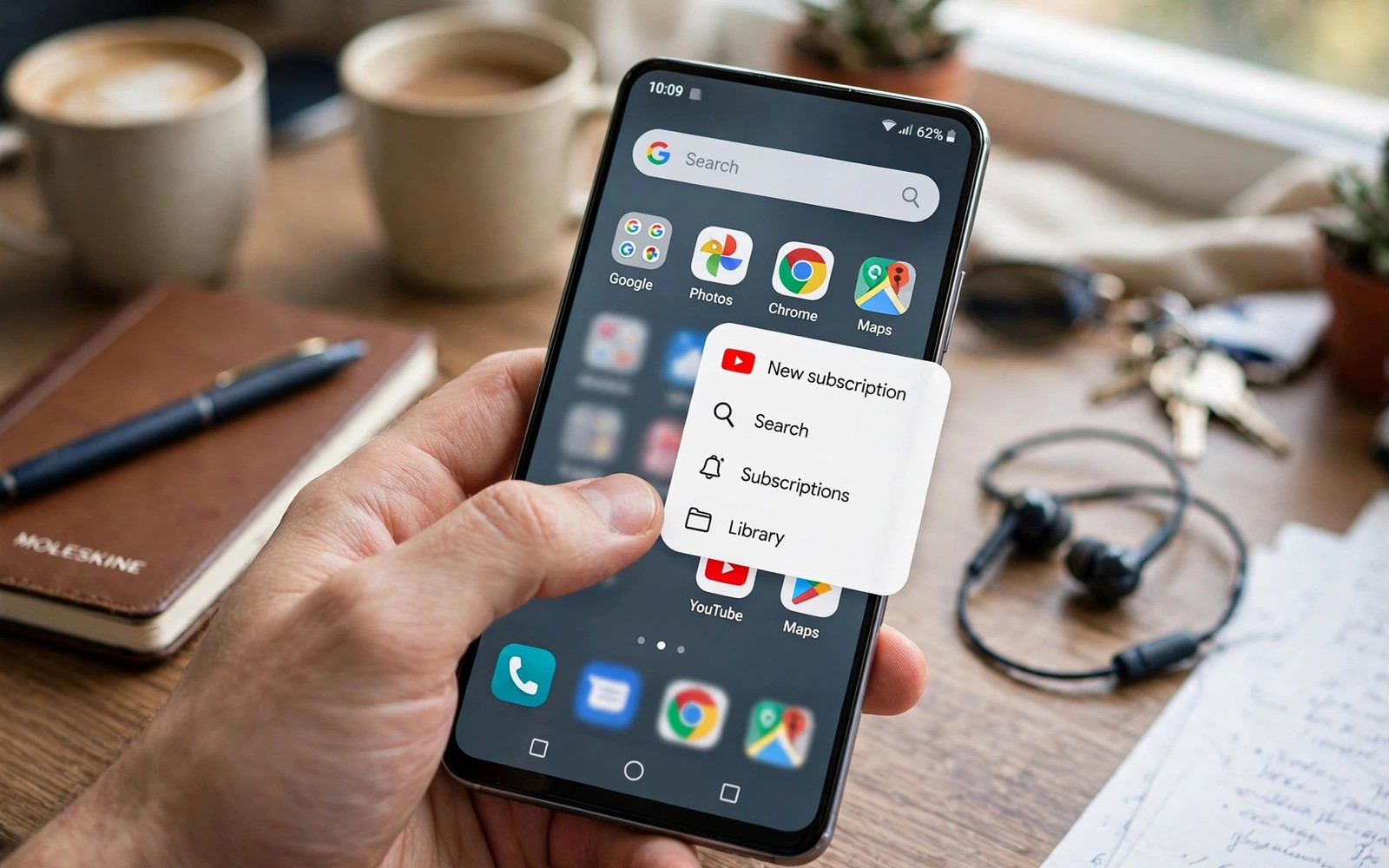
Most people open an app and then tap through menus to reach a task. That path wastes seconds every time and those seconds add up across a day. Launcher shortcuts skip the menus and jump straight to the task. A long press on an icon can reveal a call or a note or a new message. A swipe on an icon can open a second function at once. These shortcuts are already on your phone and they cost nothing to use.
Shortcuts feel strange at first because they hide behind a long press. Once you learn three of them they become automatic. You will call a favourite contact without opening the dialler. You will start a note without opening the notes app first. You will open a camera mode without scrolling through camera options. The guide below covers seven shortcuts that help real daily tasks rather than gimmicks.
Test each shortcut right after you read about it. A shortcut you do not try will not stick. Pick the three that match your day and practise them for a week. Add more only after the first three feel natural. That slow method builds speed that lasts.
Long Press Shortcuts On App Icons
Long press an app icon to see a small menu of direct actions. A messaging app may offer a new message action. A maps app may offer directions home. A browser may offer a new private tab. Tap the action you need and the app opens straight at that task. No menu hunting is needed.
Some actions can be dragged from the menu onto the home screen as a standalone shortcut. Drag a call contact shortcut to the home screen if you call that person daily. Drag a note shortcut if you capture ideas often. One-handed launchers make these shortcuts even more useful because everything stays within thumb reach. Keep only shortcuts you use weekly on the home screen.
Swipe Actions On Icons
Many custom launchers let you assign a swipe action to each icon. Swipe up on a phone icon to call a favourite. Swipe down on a camera icon to open video mode. Swipe up on a browser icon to open a bookmarked page. These swipes turn one icon into two tools without adding clutter.
Choose swipe actions that differ from the tap action in a clear way. A tap can open the app while a swipe opens a specific task inside it. Do not assign a swipe you will trigger by accident when scrolling. Test each swipe for a day and change any action that fires at the wrong time. A reliable swipe beats a clever swipe that misfires.
Launcher shortcut setup
1. Long press five daily apps and note their actions
2. Drag the three most useful actions to the home screen
3. Assign one swipe action to two icons
4. Set double tap to lock the screen
5. Add one action widget for notes or music
6. Practise the new shortcuts for one week
The example above was written for this guide as a plain summary of the steps in the sections before it. It uses only the menus and options described above and it needs no extra tool to understand. Follow the steps in order so you can see which change helps most. If one step makes things worse then undo that step alone and keep the rest.
Folder Shortcuts And Quick Launch
Folders can hold shortcuts as well as apps. A folder for travel can hold a maps shortcut and a boarding pass shortcut. A folder for work can hold a document shortcut and a meeting shortcut. Opening the folder shows tasks rather than just app names. That shift saves a tap inside each app.
Some launchers let you tap a folder icon to open the first app and swipe to see the rest. That gesture turns a folder into a quick launch pad. Put your most used app first in the folder so a tap opens it at once. Launcher features for productivity often include this folder gesture. Learn it for one folder first and expand it only if it feels natural.
Gesture Shortcuts Across The Home Screen
Home screen gestures work anywhere on the screen rather than on one icon. A double tap can lock the screen. A swipe down can open notifications. A pinch can open the home screen editor. A two finger swipe can open a chosen app. These gestures replace buttons and menus with a single motion.
Pick gestures that do not clash with scrolling or with app gestures. A double tap to lock is safe because it rarely conflicts. A swipe down for notifications is safe because it matches the system gesture. Keep the gesture list short so you remember every one. Three reliable gestures beat ten gestures you forget.
Widget Shortcuts For Instant Actions
Some widgets act as shortcuts rather than displays. A music widget can play and pause without opening the player. A notes widget can start a new note with one tap. A calendar widget can jump to today with one tap. Place these action widgets where your thumb rests naturally.
A widget shortcut works best when it does one thing clearly. A widget with ten tiny buttons is hard to tap and easy to misread. Choose widgets with large tap targets and clear labels. Better default launchers often ship with cleaner widgets that support this style. Replace a confusing widget with a simpler one rather than tolerating it.
Shortcuts For Calls Messages And Notes
Daily communication benefits most from shortcuts. A contact shortcut on the home screen calls or messages that person in one tap. A messaging shortcut starts a chat without opening a list. A notes shortcut captures an idea before it fades. These three shortcuts alone can save minutes every day.
Place communication shortcuts on the first home screen page. A shortcut buried on a third page saves no time. Group family shortcuts together and work shortcuts together so muscle memory builds fast. Review the shortcuts monthly and remove contacts you no longer message often. A current shortcut set stays fast while a stale set slows you down.
Build A Morning Shortcut Routine
A morning routine can run on shortcuts alone. A weather shortcut can show the forecast in one tap. A calendar shortcut can show the day agenda in one tap. A news shortcut can open headlines without scrolling through an app. Place those three shortcuts in a row on the first home screen page. Tapping them in order becomes a morning habit that takes less than a minute.
Keep the morning routine to three shortcuts at first. A longer routine feels like a chore and you will skip it on busy days. Add a fourth shortcut only after the first three feel automatic. A traffic shortcut suits a commute day while a notes shortcut suits a planning day. Match the routine to your actual morning rather than copying someone else routine.
Shortcut Safety And Accidental Taps
Shortcuts for calls and payments need extra care because an accidental tap can start a real action. Place call shortcuts away from the screen edge where a swipe can trigger them. Use a long press action for sensitive shortcuts rather than a single tap shortcut. A long press adds a small safety step that prevents most accidents.
Review shortcut placement after you change your case or your grip. A thicker case can shift thumb reach and cause new accidental taps. Move any shortcut that misfires twice in a week. A shortcut that triggers by accident is worse than no shortcut at all. Test placement for a few days after any hardware change.
Shortcuts For Accessibility And Large Text
Shortcuts help users who find menus hard to navigate. A direct shortcut to a favourite contact removes several menu steps. A direct shortcut to a notes app removes the need to search the app drawer. For users with large text enabled shortcuts stay usable because the shortcut label grows with the system text size. Test shortcuts with large text on to ensure labels do not clip. A clipped label can confuse a shortcut that otherwise works well. Choose short shortcut names so they fit even at large text sizes.
Voice shortcuts can complement tap shortcuts for accessibility. A voice command to call a contact can work when hands are busy. A tap shortcut remains faster when the phone is already in hand. Offer both paths for the most important contacts so the user can choose per situation. A contact that is reachable by tap and by voice is reachable in more contexts. Keep the voice command name simple and consistent with the shortcut label. Consistency between tap and voice reduces learning effort for everyone.
Shortcut placement for accessibility should favour the lower half of the screen. The lower half is reachable without stretching. Place emergency and family shortcuts there first. Place less urgent shortcuts higher up where they are still reachable with a second hand. Review placement with the actual user rather than assuming a layout works. A layout that looks good in a screenshot can fail for a user with limited reach. Real testing with the user is the only reliable check.
Common mistakes
One common mistake is adding twenty shortcuts at once and remembering none of them. Start with three and add more slowly. Another mistake is placing shortcuts on a hidden page where they save no time. Keep daily shortcuts on the first screen. A third mistake is assigning swipe actions that trigger by accident. Test each swipe for a day and change any action that misfires. A small reliable set beats a large confusing set.
FAQ
Do launcher shortcuts work on stock launchers?
Many stock launchers support long press shortcuts for apps. Swipe actions and advanced gestures often need a custom launcher. Check your launcher settings for gestures before installing a new launcher.
Can I create a shortcut for a specific contact?
Yes through a contact widget or a long press menu on the phone or messaging app. Drag that contact action to the home screen. It will call or message that person with one tap.
Why does a shortcut disappear after an update?
An app update can remove or rename an action. Recreate the shortcut from the new long press menu. Keep the shortcut on the home screen so you notice the change fast.
Conclusion
Long press five apps you use daily today and drag the three most useful actions to your home screen. Add a double tap gesture to lock the screen if your launcher supports it. Practise those shortcuts for a week before adding more. That focused start turns hidden menus into real daily speed. Add one new shortcut each week until your home screen works at the speed of your habits.
Teach one shortcut to a friend or family member after you master it yourself. Teaching forces you to explain the gesture clearly and reveals any step you skipped. A friend who learns the shortcut may discover a use you had not considered. Sharing shortcuts spreads speed beyond your own phone. It also creates a small community of users who can remind each other of forgotten gestures. That social loop keeps shortcuts alive longer than solo practice alone.

