

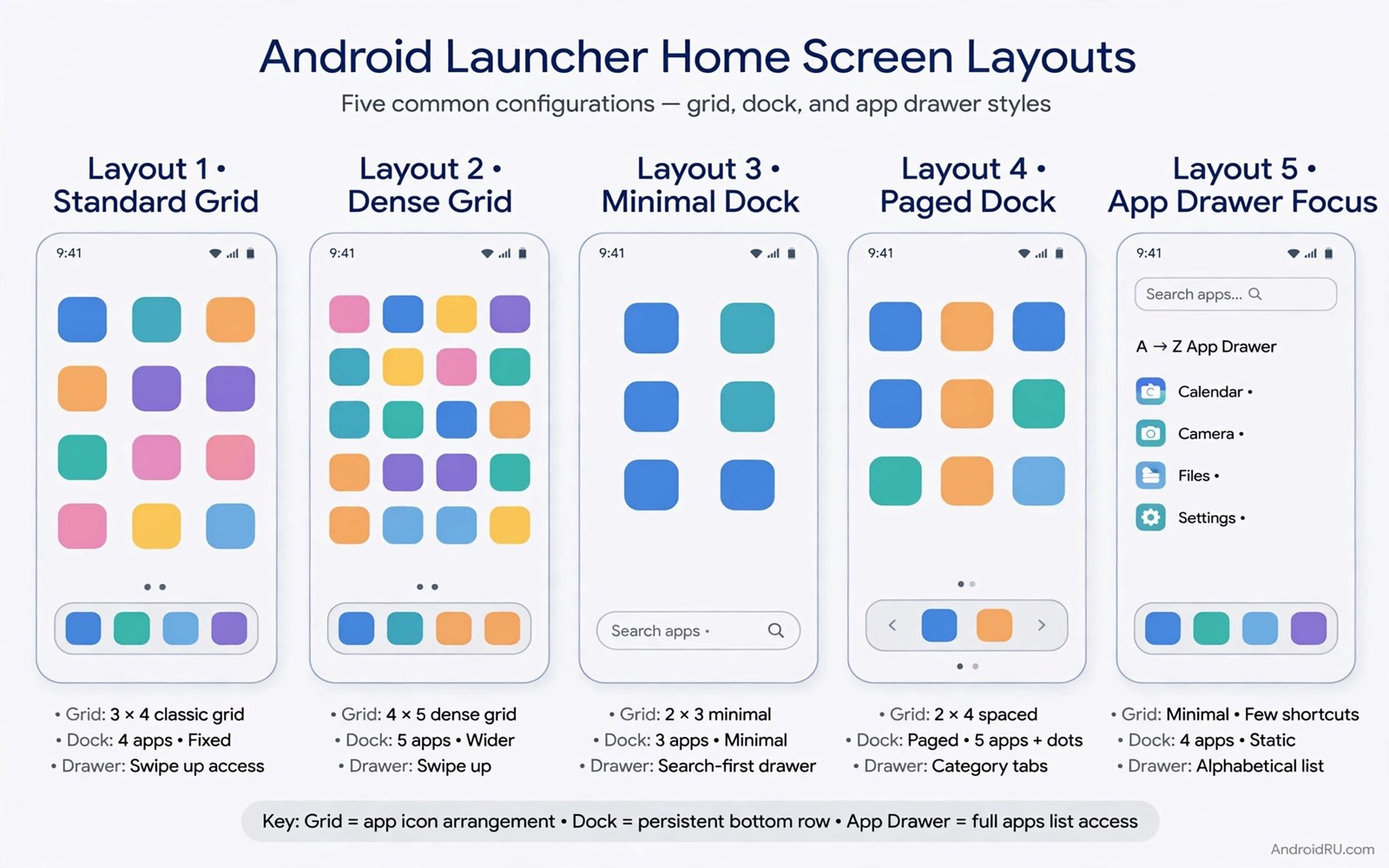
The default launcher is the most used app on your phone and the least loved. It opens every time you press home and it shapes every first impression of the device. Yet most people never replace it because the default feels safe and familiar.
Five launchers in this guide earn their place for different reasons. One is built for speed on weak hardware. One is built for total visual control. One is built for one-handed use on tall phones. Two sit in the middle and balance all three goals.
Try one launcher at a time and give it three days. A launcher changes muscle memory and a ten minute trial cannot judge that fairly. Judge by how fast you reach apps and how calm the home screen feels at the end of day three.
The speed champion for older phones
The first masterpiece is a minimal launcher with a tiny install size and no animations to slow it down. It draws a simple app list and a search bar and almost nothing else. On a phone with two gigabytes of memory this launcher can make home presses feel instant again.
Set it up with a plain dark background and a short favorites row. Turn off every optional feed and news card. The point is not beauty for its own sake. The point is a home screen that never stutters when you return from a heavy app.
Speed lovers can also explore making Android animations feel smoother for animation scale tweaks that complement a light launcher. Combine a fast launcher with calmer animations and the whole phone feels more responsive without new hardware.
The visual artist for total control
The second masterpiece gives you control over grid size and icon size and gesture mapping and folder styles. You can build almost any home screen you can sketch on paper. That power demands patience because every option invites another hour of tweaking.
Start from a preset layout and change one element per day. Change the grid on Monday and the icons on Tuesday and the gestures on Wednesday. A preset plus slow edits beats a blank canvas for most people because it prevents the endless redesign loop.
Visual control pairs with secret icon packs for a next generation look since icons carry most of the visual identity. Pick the pack after the grid is settled so icon size matches the layout.
The one-handed specialist
The third masterpiece moves everything reachable into the bottom half of the screen. Apps sit in a bottom drawer and search sits above the keyboard. Tall phones finally feel usable without hand gymnastics or a second hand.
Test it while walking and carrying something in the other hand. That is the real test for a one-handed launcher. If you still stretch for the top edge then the launcher has not solved your problem and you should try its reachability mode.
One-handed design is rated in depth by best one-handed launchers rated which compares several reach focused options side by side. Use that comparison to confirm your pick before you commit.
Two balanced all-rounders
The fourth masterpiece balances speed and beauty with a clean Pixel style layout and smart suggestions. It suits people who want a better default rather than a new hobby. Set it up in ten minutes and leave it alone for a month.
The fifth masterpiece balances privacy and simplicity with no feed and no tracking extras. It suits people who distrust data hungry home screens. Its app drawer search is fast and its settings stay refreshingly short.
Whichever balanced option you choose, finish with building custom floating widgets with KWGT if you want one signature widget on top. One widget keeps the balanced feel intact while adding personality.
Launcher trial scorecard
Score each launcher on this card after three days of use. Use a simple one to five scale and total the rows. The highest total for your hand and your phone wins even if a reviewer preferred another pick.
speed_home_press = _ / 5
app_search_speed = _ / 5
one_hand_reach = _ / 5
visual_calm = _ / 5
battery_impact = _ / 5
total = sum of five rows
The scorecard above was written for this guide as a paper tool for comparing launchers. Fill it in by hand or in a notes app. It runs nowhere and it collects no data.
Migrate your layout without losing a day
Switching launchers costs a day if you migrate carelessly. Screenshot every home screen and every folder before installing the new launcher. Screenshots are the fastest backup for a visual layout.
Export the old launcher settings if it offers an export option. Import them into the new launcher only as a reference. A direct import often carries over settings that fight the new launcher design.
Rebuild the layout by hand from the screenshots over one evening. Hand rebuilding forces you to question each app placement. Apps that survived only by habit often fail that question and stay in the drawer.
Test the new launcher with your real morning routine the next day. Open the alarm and the calendar and the news app in order. Any step that takes longer than before needs a layout fix that same evening.
Keep the old launcher installed for one week as a fallback. Uninstall it only after seven days of smooth use. A safety net makes bold switching feel safe and bold switching finds better launchers.
How launchers affect battery and privacy differently
Launchers differ in battery use more than their marketing admits. A launcher with a news feed refreshes content in the background even when you never read the feed. That refresh costs battery every hour of every day. A launcher without a feed costs almost nothing beyond drawing the home screen. Check battery stats after a week with each candidate and trust the numbers over the feature list.
Privacy differences are equally important and harder to see. Some launchers collect usage statistics and search queries to improve suggestions. Read the privacy policy section about data collection before granting a launcher broad permissions. A launcher that needs contacts access for a simple home screen deserves suspicion. Choose launchers that explain each permission in plain language.
Search behavior reveals privacy philosophy quickly. A launcher that sends every typed letter to a server for suggestions leaks your app habits continuously. A launcher that searches locally keeps that information on your device. Local search may feel slightly slower for web results but it protects daily habits that nobody else needs to know.
Update frequency also signals launcher health. A launcher updated monthly with clear changelogs is actively maintained. A launcher untouched for a year may still work but it may also miss security fixes for newer Android versions. Prefer actively maintained launchers even when an abandoned one looks prettier.
Finally consider how a launcher handles your data when you switch away. A good launcher exports your layout and deletes its local data cleanly on uninstall. A poor launcher leaves orphaned folders and widgets behind. Test uninstall cleanliness on a spare afternoon before committing your main phone to a new launcher for a year.
Launcher choice for work phones and personal phones
Work phones and personal phones demand different launcher qualities even when they share the same hardware. A work phone needs predictable placement and fast search for professional apps. A personal phone can prioritize beauty and experimentation. Using one launcher philosophy for both roles usually disappoints one of them. Choose a work launcher for reliability and a personal launcher for expression.
Work launchers should minimize distractions by design. Disable news feeds and suggestion rows that pull attention during work hours. Keep work apps in fixed positions that never change with usage patterns. Fixed positions support muscle memory during stressful moments such as client calls. A work launcher that surprises you with rearranged apps fails its primary job.
Personal launchers can embrace experimentation because mistakes cost little outside work hours. Try bold icon packs and unusual grids and gesture experiments on the personal phone. Lessons learned there can transfer to the work phone only after they prove themselves for a month. That transfer rule protects work reliability while preserving personal fun.
Dual profile phones complicate launcher choice because work and personal apps share one home screen. Some launchers support separate work tabs in the drawer. Use that separation to keep work apps contained and personal apps free. A clear boundary reduces the chance of opening a personal app during a work presentation by accident.
Security policies may restrict launcher choice on managed work phones. Some employers allow only approved launchers or forbid third party launchers entirely. Check work device policy before installing a new launcher on a managed phone. Violating that policy can lock you out of work apps or trigger a compliance warning. When in doubt keep the stock launcher on managed devices.
Finally review launcher choice whenever your job role changes. A promotion or a career switch changes which apps matter daily. A launcher optimized for field work may fail for office work. Rebuild the work layout within the first week of a role change so the phone supports the new routine immediately rather than lagging behind it.
Common mistakes
Launcher switching has its own failure modes. Avoid these.
- Judging a launcher after ten minutes before gestures become habit.
- Importing a complex backup that hides the new launcher strengths.
- Running two launchers with overlapping gesture apps at once.
- Choosing a launcher for screenshots rather than daily reach and speed.
- Keeping the old launcher as default by accident after installing the new one.
Frequently asked questions
Will a new launcher delete my apps?
No because a launcher only changes the home surface. Your apps and data stay installed. Removing a launcher returns you to the previous home screen layout.
Do launchers drain battery?
Light launchers use very little power. Heavy launchers with feeds and constant widget updates use more. If battery drops after a switch then disable the feed first.
Can I keep my folders when switching?
Most launchers can import a basic layout but folder contents may need rebuilding. Screenshot your folders before switching so rebuilding takes minutes.
Conclusion
Five launchers now stand in front of you with clear strengths. Speed and total control and one-handed reach and two balanced paths cover nearly every hand and phone. The boring default no longer deserves your home button.
Your concrete next step is to install the one launcher that matches your biggest daily annoyance tonight and set it as default. Use it for three full days before you judge it or try another.

