

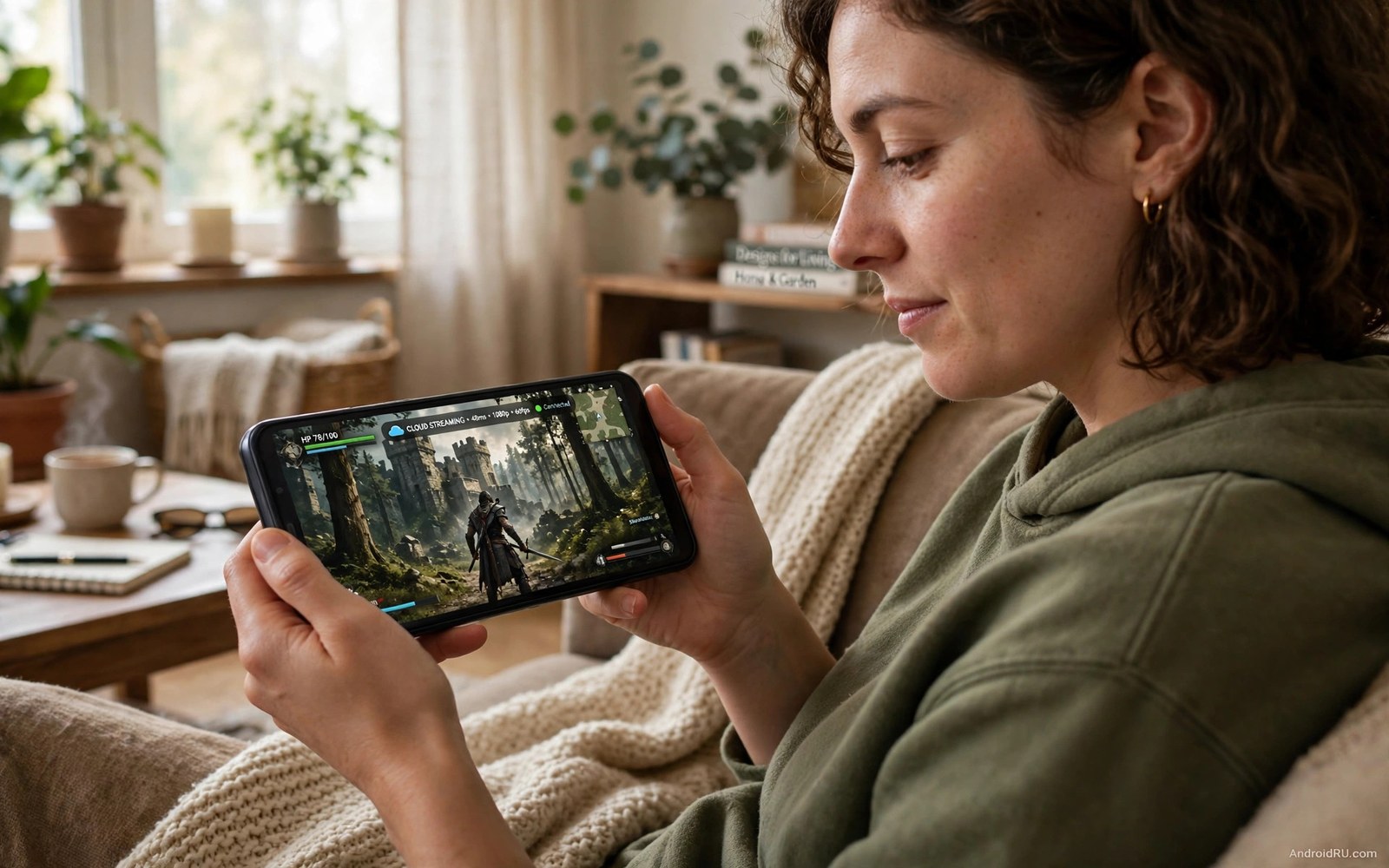
A budget phone does not need a flagship chip to play a big game. Cloud gaming moves the hard work to a server far away. The server renders the game world and sends back a video stream. Your phone only decodes that video and sends your button presses back. A weak phone can therefore show a rich game world that it could never render on its own.
The secret is not a hidden app or a magic setting. The secret is treating the network as the real hardware. A stable connection matters more than a fast chip here. A phone with a slow processor but a clean Wi-Fi signal will beat a strong phone on a crowded network. This guide focuses on that network first approach because it decides whether cloud play feels fun or frustrating.
Start by testing your connection where you actually play. Stand in your usual gaming spot and run a speed test three times. Note the download speed and the ping and the jitter if the test shows it. A jittery connection will cause rubber banding even when the average speed looks good. If home streaming also interests you then read how to stream PC games directly to an Android phone because the same network rules apply at home.
Pick the right cloud service for weak hardware
Choose a service that offers a free trial or a free tier first. A trial lets you test the exact games you want on your exact phone and network. Do not pay for a year upfront before that test. Check whether the service supports a browser or needs a dedicated app. A browser option can help on a phone with little free storage.
Check the controller support before you subscribe. Some services work well with touch controls for slow games. Fast action games need a real controller on a budget phone. Check whether your controller pairs cleanly and whether button mapping works in the service app. A service with poor controller support will waste the benefit of cloud power.
Check the game library for titles that suit streaming. Turn based games and story games tolerate small delays well. Competitive shooters punish every extra millisecond. Start with a slower game while you tune the network. Move to fast games only after the connection proves stable for a full week.
Fix the network before you blame the phone
Use the 5 GHz Wi-Fi band when your router offers it. The 5 GHz band is usually less crowded and faster at short range. Sit in the same room as the router for serious sessions. Walls and floors add delay and packet loss that no phone setting can fully fix. If you must play farther away then consider a wired adapter for a tablet or a Wi-Fi extender placed halfway.
Stop other heavy downloads during play. A family member streaming a 4K video on the same network can starve your game stream. A cloud backup uploading photos can also hurt upload speed and input delay. Pause backups and large updates before a session. Tell others in the house when you start a ranked cloud session so they can delay a big download.
Use a simple ping test to find a stable time of day. Run the test in the morning and in the evening and compare the results. Evening congestion on a shared connection can double the delay. If evenings are bad then play story games in the evening and save fast games for a quieter time. That planning trick alone can transform cloud play on a budget setup.
Test stability with a plain ping loop
A short ping loop shows packet loss and delay spread better than a single speed number. Run it against your home router first to check the local link. Then run it against a public test host only if you need a wider check. The loop below uses your router address as an example. Replace that address with your real router address before you run it.
ping -c 30 192.168.1.1
ping -c 30 192.168.1.1 | grep -E "time=|packet loss"
ping -c 100 192.168.1.1 | tail -5
The code above was written for this guide as a short network stability example. Look for lost packets and for a wide spread between the fastest and slowest replies. A clean local link should show almost no loss. Fix the local link first before you blame the cloud service.
Tune the phone for video decoding
Close every other app before a cloud session. A budget phone has little memory to spare. A chat app that refreshes in the background can steal decoding time and cause a frozen frame. Turn off battery saver during play if it limits the decoder. Battery saver can throttle the exact part of the phone that cloud gaming needs most.
Lower the stream quality one step below the maximum. A 720p stream on a small phone screen still looks sharp. It also needs less bandwidth and less decoding work. A stable 720p stream beats a stuttering 1080p stream in every way. Raise quality only after a week of clean sessions at the lower setting.
Keep the phone cool during long streams. Video decoding creates steady heat over time. A hot phone can throttle the decoder and cause frame drops that look like network lag. Remove a thick case and keep the phone in open air. If you want a tablet version of this setup then read how to turn an Android tablet into a portable cloud gaming console for a bigger screen version of the same plan.
Plan a cloud gaming week on a budget phone
A cloud gaming week works best with a simple plan. Pick three evenings for story games and one evening for a fast game test. Play story games at peak hours when the network is busy. Save fast games for a quieter time when jitter drops. That plan turns network variation into a schedule advantage.
Test your connection at the same times you plan to play. A morning test does not predict an evening result. Run a speed test in your gaming spot on each planned evening for one week. Note the ping and the jitter for each evening. A clear pattern will show the best and worst times for cloud play.
Budget your mobile data when Wi-Fi is unavailable. Cloud play at high quality can use several gigabytes per hour. A medium quality stream uses far less data and still looks good on a small screen. Set a data warning before any mobile data session. That warning prevents a surprise bill at the end of the month.
Rotate games by network demand across the week. A turn based game tolerates a busy evening well. A racing game needs a quiet link to feel fair. A story game needs only a stable stream without perfect latency. Matching game type to network condition keeps every session enjoyable.
Review the week at the end and keep what worked. Note the best evening and the best quality setting and the best controller setup. Repeat that winning combination the next week. Drop the combinations that stuttered twice. A short weekly review turns random cloud sessions into a reliable routine.
Avoid common cloud gaming traps
A common trap is judging cloud gaming from a single bad evening. Networks vary by hour and by day and by household use. One bad session may reflect a family download rather than a bad service. Test the same game at three different times before you decide. A pattern across days gives an honest verdict.
Another trap is paying for the highest tier before a basic test. A premium tier may offer higher resolution that a budget phone cannot show well. A basic tier at a stable quality often feels identical on a small screen. Start with the cheapest tier that offers your game. Upgrade only when a test proves a visible gain.
A third trap is ignoring controller battery during long cloud sessions. A controller that dies mid session ends the game even when the stream stays perfect. Charge the controller fully before a long session. Carry a cable for a mid session top up when needed. A charged controller protects a good stream from a silly ending.
Common mistakes
The biggest mistake is buying a subscription before testing the network. A fast chip cannot fix a congested evening connection. Test first and pay second. That order saves money and frustration.
- Players use the crowded 2.4 GHz band and then blame the cloud service for lag.
- Players max out stream quality on a small screen and then suffer needless stutter.
- Players leave battery saver on and then wonder why video decoding keeps freezing.
- Players start with a fast shooter and then quit cloud gaming after one bad session.
- Players ignore other devices on the network and then chase phone settings that cannot help.
Another mistake is judging cloud gaming from a single session. Networks vary by hour and by day. A bad session at peak time does not prove that the service is bad. Test at three different times before you decide. Keep notes for each test so the pattern is clear.
FAQ
Does cloud gaming use a lot of mobile data?
Yes it uses far more data than a normal mobile game. An hour of streamed video can use several gigabytes at high quality. Use Wi-Fi for regular play whenever possible. If you must use mobile data then lower the stream quality and set a data warning on the phone.
Wi-Fi is the best choice for regular cloud play because it avoids mobile data limits. A stable home Wi-Fi link also gives steadier latency than a crowded mobile tower. Use mobile data only as a backup when Wi-Fi is weak. Lower stream quality on mobile data to control data use.
Can I play cloud games offline?
No cloud gaming needs a live connection at all times. The game runs on a remote server and the phone only shows the stream. An offline mode would need the game installed locally. For offline play choose a native game that runs on the phone itself instead.
Cloud games need a live connection because the game runs on a remote server. The phone shows a video stream and sends input back. An offline mode would require the game installed locally. Native games remain the right choice for flights and low signal areas.
Is a controller required for cloud gaming?
A controller is not required for every game but it helps a lot for action titles. Touch controls can work for slow games and menu heavy games. A cheap Bluetooth controller transforms fast games on a budget phone. For controller choice read the best Bluetooth gamepads tested for Android before you buy one.
A controller transforms action games on a budget phone. Touch controls cover the screen and slow reactions in fast scenes. A cheap Bluetooth pad frees the full screen and improves aim. Test the pad in a slow game first before a fast ranked session.
Conclusion
Cloud gaming turns a budget phone into a window onto a powerful server. The window works well when the network is stable and the stream quality matches the phone. It fails when the network is crowded or the phone is overheated or overloaded. Fix the network first and tune the phone second.
Your concrete next step is to run three ping tests in your usual gaming spot tonight. Switch to the 5 GHz band and close all other apps. Play one story game at 720p for thirty minutes. Keep the setup only if the session stays smooth from start to finish.

