

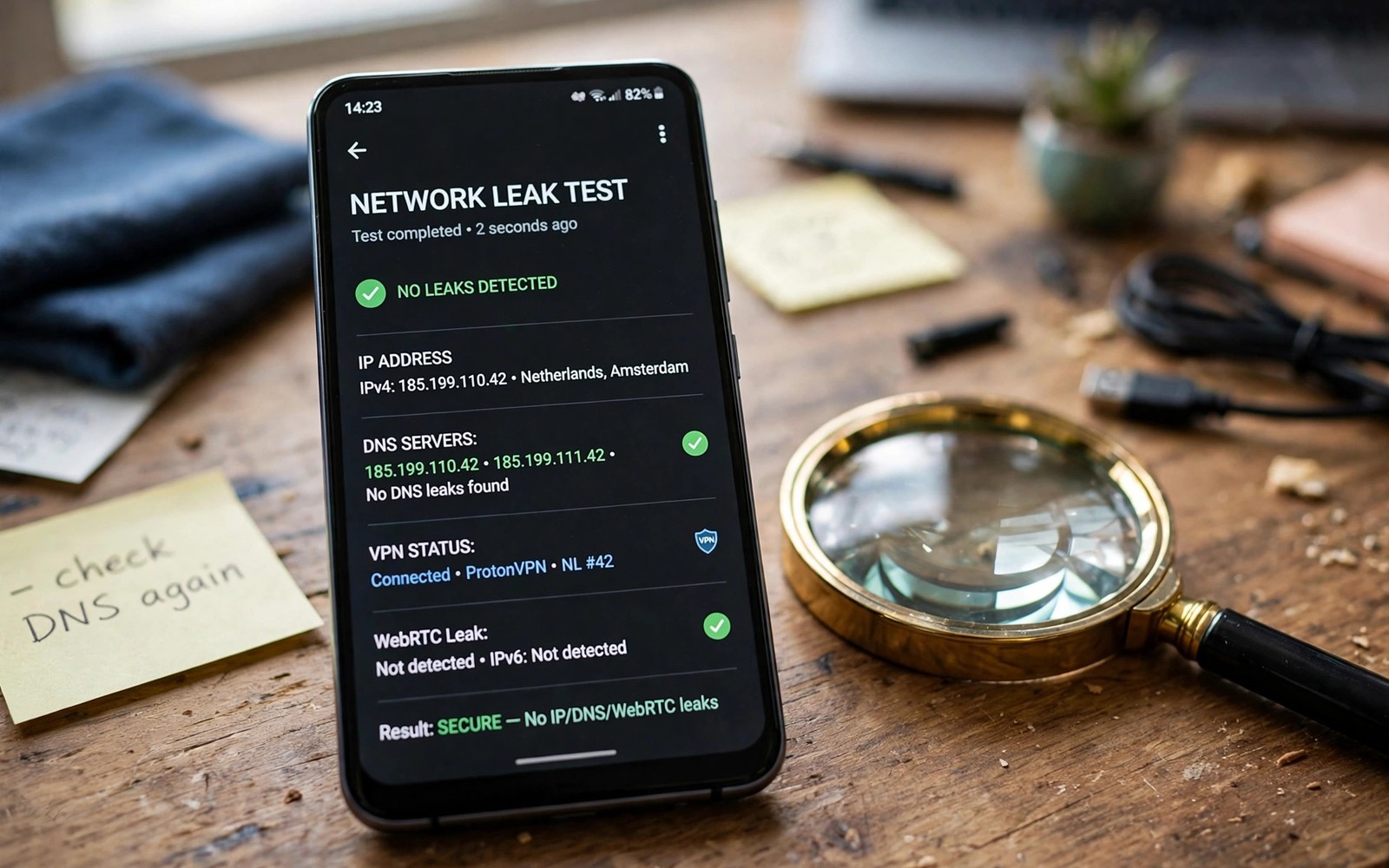
A DNS leak happens when your Android phone sends domain lookups outside the VPN tunnel. The VPN may encrypt your main traffic while DNS queries slip through a different path. Local networks and carriers can then see every domain you request despite the VPN icon. That leak defeats much of the privacy benefit the VPN is supposed to provide.
Leaks occur for several reasons including system DNS settings and app behaviour and network changes. Android may fall back to a carrier resolver when the VPN resolver responds slowly. Some apps use their own hard coded DNS servers instead of system settings entirely. Network switches between Wi-Fi and mobile data can also trigger a brief resolver change. Learning what a mobile VPN is and why you need one explains the tunnel that DNS queries should travel through.
Testing is the only reliable way to know whether your phone leaks DNS queries in daily use. A quick leak test shows which resolver actually answers your lookups during a VPN session. Regular testing catches configuration drift after app updates and system updates. A phone that passed last month may leak today after a settings change.
How DNS Leaks Happen on Android
Android routes DNS queries through the VPN tunnel when the VPN app configures system DNS correctly. A misconfigured app may leave the system resolver active alongside the tunnel resolver. Queries then split between the two paths depending on timing and app behaviour. The split is invisible in normal browsing because pages still load normally.
Work profiles and managed apps can override DNS settings for specific apps on the phone. Those overrides exist for corporate network access and security filtering. They also create leaks from a privacy perspective when a managed app queries outside the tunnel. Personal and work traffic need separate evaluation on a managed device.
Running a DNS Leak Test
Connect your VPN and open a DNS leak test page in your browser on the phone. The test page triggers several domain lookups and reports which resolvers answered them. The results should show your VPN provider or your chosen encrypted DNS provider. Carrier or home network resolvers in the results indicate a leak worth fixing.
Run the test twice with different test pages because one page may miss certain leak paths. Test on Wi-Fi first and then repeat the test on mobile data. Different networks can expose different resolver behaviour on the same phone. Reading setting up custom encrypted DNS over HTTPS helps you interpret results when encrypted DNS is also configured.
Common Leak Sources to Check
Private DNS settings are a frequent source of DNS leaks on Android phones. A Private DNS hostname set to a carrier resolver can override VPN DNS for system traffic. Clearing or changing that hostname may restore tunnel routing for lookups. Check Private DNS under Network and internet whenever a leak appears unexpectedly.
Browser secure DNS settings can create a second leak path inside the browser itself. A browser using a different resolver than the VPN reveals browser lookups to that resolver. Aligning browser and system resolvers reduces confusion during testing. Some browsers also fall back to system DNS when their secure resolver fails.
- Connect the VPN before running any leak test
- Use two different leak test pages for coverage
- Test on Wi-Fi and mobile data separately
- Check Private DNS settings when leaks appear
- Restart the phone after changing DNS settings
- Retest monthly and after system updates
Fixing a DNS Leak Step by Step
Start by updating the VPN app because older versions may contain DNS routing bugs. Switch to a different VPN server to rule out a server side configuration problem. Disable Private DNS temporarily and retest to isolate the source of the leak. Re-enable Private DNS with a trusted hostname only after the VPN test passes cleanly.
Check for apps with their own DNS settings such as browsers with custom secure DNS options. Disable custom DNS inside those apps during testing to isolate system behaviour. Restart the phone after changing DNS settings so cached resolver entries clear fully. A clean retest after restart gives the most reliable result.
Preventing Future DNS Leaks
Enable the VPN kill switch so traffic stops during tunnel failures that could expose DNS queries. The kill switch protects DNS alongside main traffic when it blocks all non-tunnel paths. Keep the VPN app and Android system updated for DNS routing fixes. Updates often patch leak paths discovered after earlier releases.
Test for leaks monthly and after every major system update on your phone. A short monthly test takes less than a minute and catches drift early. Combine DNS testing with an IP address check for complete leak coverage. Reading how a kill switch protects your IP address connects kill switch protection to the same routine.
Putting DNS Leak Testing Into Practice
Connect your VPN on your Android phone and open a DNS leak test page in the browser. Wait for the test to complete fully before reading the resolver results on the screen. Compare the resolver names against your VPN provider or chosen encrypted DNS provider. Carrier or home network resolvers in the results indicate a leak that needs fixing. Record a screenshot of the result for comparison during later tests on the same phone.
Repeat the test on mobile data after finishing the Wi-Fi test for complete coverage. Different networks can expose different resolver behaviour even with the same VPN active. Test with the VPN on and then briefly with it off to understand baseline resolver behaviour. Baseline knowledge helps you recognise whether a result reflects a leak or normal behaviour. Two network tests plus a baseline give a solid picture in under five minutes.
Troubleshooting DNS Leak Problems
Private DNS settings are the first place to check when a leak appears unexpectedly on Android. Open Network and internet settings and review the Private DNS hostname currently configured. A carrier hostname there can override VPN DNS for system traffic on the phone. Clearing that hostname and retesting often restores tunnel routing for lookups immediately. Restart the phone after changing the setting so cached resolver entries clear fully.
Browser secure DNS can create a second leak path that system tests miss entirely. Open browser settings and check which resolver the browser uses for secure DNS. Align the browser resolver with the VPN provider or disable browser secure DNS during testing. Inconsistent resolvers make leak results confusing because browser and system traffic diverge. Alignment simplifies both testing and long term maintenance of DNS settings.
Building a Habit That Lasts
Schedule DNS leak tests monthly alongside VPN kill switch tests on the same day. Combined testing takes only a few minutes and covers the two most common leak paths. Monthly testing catches configuration drift after app updates and system updates change settings. Drift happens silently because pages still load normally even when DNS leaks badly. Regular tests are the only reliable defence against silent drift over time.
Keep a simple log of test dates and results in a note on the phone for reference. A log reveals patterns such as leaks that appear only on a specific network. Patterns guide fixes better than isolated test results viewed in isolation. A log also proves diligence when troubleshooting with provider support later. Support teams respond faster to logged evidence than to vague reports of problems.
Teach friends the leak test routine by demonstrating it on their phones during a visit. A demonstrated test takes a minute and leaves a lasting impression about VPN limits. Friends who test their own phones become more careful about VPN settings generally. Shared testing habits raise privacy awareness without requiring technical lectures about DNS internals.
Advanced Tips and Next Steps
Use multiple leak test services because each service probes different DNS paths on Android. One service may miss a leak path that another service detects reliably on the same phone. Combining results from two or three services gives stronger confidence than any single test. Record which services you used so later tests remain comparable over time. Consistency in test services matters for tracking changes across months of use.
Test DNS leaks inside a work profile separately from personal profile traffic on managed phones. Work profiles can route DNS differently through corporate resolvers for managed apps. Personal tests cannot reveal work profile leaks that affect only managed applications. Separate testing respects the profile boundary that Android enforces between work and personal data. Managed device users need both perspectives for complete leak awareness.
Consider disabling IPv6 entirely on the phone when IPv6 leaks persist despite provider fixes. IPv6 disabling removes a whole leak category at the cost of future network compatibility. Most current services work fine over IPv4 alone for ordinary browsing and streaming. Disabling IPv6 is a blunt tool but an effective one for users who prioritise leak prevention. Re-enable IPv6 later when provider IPv6 support improves reliably.
Share leak test results with your VPN provider support team when leaks persist across settings changes. Detailed results with resolver names and network types help support diagnose server problems quickly. Vague leak reports without resolver details receive generic troubleshooting steps that waste time. Evidence based reports lead to faster fixes and sometimes reveal provider wide configuration errors. User reports improve provider quality for all customers when they include concrete details.
Automate monthly leak reminders with a calendar event so testing does not depend on memory alone. Calendar reminders turn a good intention into a scheduled habit that survives busy periods. Monthly reminders take seconds to create and protect privacy for years afterwards. Habits supported by reminders outlast habits supported only by willpower in practice. Simple automation is the most reliable privacy tool for busy users.
leak_test:
  vpn: connected
  expected_resolver: vpn_provider
  observed_resolver: unknown
  action: check_private_dns
The steps above follow the approach described in the official developer documentation for Android networking and privacy controls. The guidance reflects standard DNS routing behaviour and testing practice for VPN connections on Android devices.

