

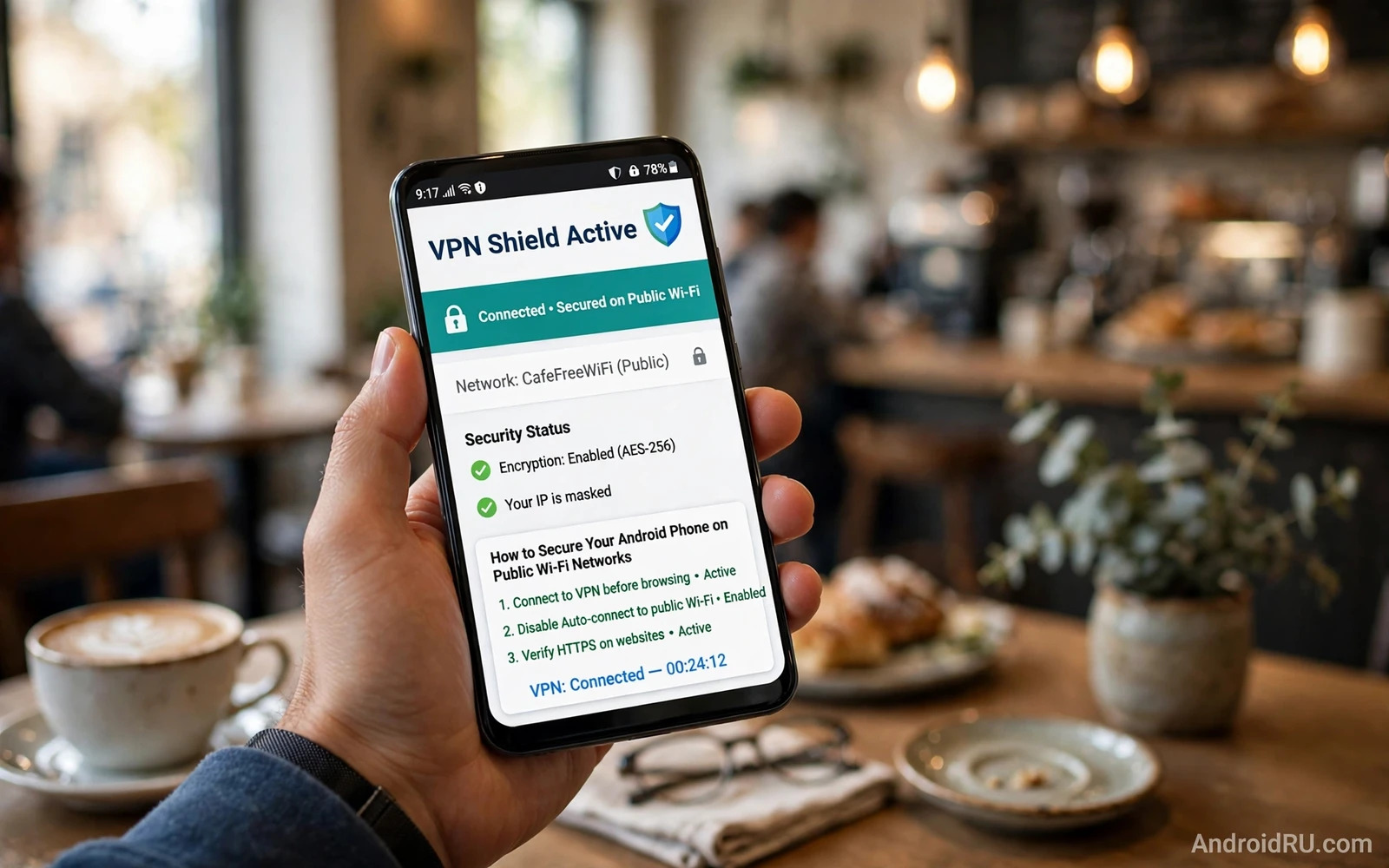
How to Secure Your Android Phone on Public Wi-Fi Networks
Free Wi-Fi in a cafe, an airport lounge, or a hotel lobby feels like a small gift. You sit down, join the network, and get fast internet without touching your mobile data allowance. I have done exactly that in dozens of cities, and most of those sessions were perfectly fine. The trouble is that the same openness that makes public Wi-Fi convenient also makes it risky, because anyone nearby can join the same network, and your phone cannot always tell a real network from a fake one that copies its name.
This guide treats every public network as untrusted until you prove otherwise. That sounds strict, and it is meant to be, because the habits below cost only a few seconds each and they protect the accounts that matter most: your email, your bank, and your work logins. You will learn how to verify a network before you join it, how to stop your phone from joining networks on its own, how to use a VPN and encrypted connections properly, how to guard your accounts while connected, and how to leave a network cleanly when you are done.
Who is this for? Anyone who uses an Android phone away from home: travellers, students, remote workers, and people who check email from a coffee shop between meetings. You do not need technical skills. Every step names the exact menu and the exact setting, and each one ends with something you can check.
Why Public Wi-Fi on Android Deserves Extra Caution
An open network is a shared space. At home, your router is yours, your password is yours, and the only devices on the network are the ones you invited. On a public network, the person at the next table is on the same network as you, and so is everyone else in the room. That shared access is the whole point of a public network, and it is also the whole problem. Traffic that leaves your phone without encryption can be read by others on that network, and login details sent over an unprotected connection can be captured and reused.
Modern apps and websites have made this much better than it was ten years ago. Most banking apps, email apps, and major websites now encrypt traffic by default, which means a casual snoop sees scrambled data rather than your password. The danger has not disappeared, though. It has moved. The remaining risks come from apps that still send some data without encryption, from fake networks that intercept connections before encryption starts, and from fake login pages that harvest credentials directly from the person typing them.
Android gives you strong tools to fight back, and most of them are already on your phone: a VPN client, per-network settings, the ability to forget networks, two-factor authentication prompts, and clear warnings when a certificate looks wrong. The gap is rarely the tools. The gap is the habit. People join networks in a hurry, tap through warnings, and leave Wi-Fi running for hours after they stop using it. This guide closes that gap one habit at a time.
What an attacker on the same network can actually see
Picture a stranger running a simple network scanner in the same cafe. On an unencrypted connection, that person can see which sites you visit and read data that travels in plain text. On an encrypted connection, the content stays hidden, but the destination can still leak through DNS requests and other metadata. That is why a VPN matters: it wraps your traffic in an encrypted tunnel, so the stranger sees a single encrypted stream to your VPN provider instead of a list of the sites and services you use.
The second thing an attacker can do is pretend to be the network itself. A phone that joins automatically does not ask questions. It sees a familiar name, connects, and starts syncing email, photos, and app data in the background before you even open an app. If that network is a fake copy run from a small device in a backpack, your phone has just handed its traffic to a stranger. This is not a rare movie plot. Security researchers demonstrate it at conferences every year with hardware that costs less than a dinner out.
Why your phone cannot spot every fake network
Wi-Fi names are just text. Anyone can create a network called “CoffeeShop_WiFi” or “Airport_Free” in under a minute, and your phone has no built-in way to check whether that name belongs to the real cafe or to the person sitting two tables away. The real network and the fake one can even broadcast at the same time, and your phone will happily show both. It may even prefer the fake one if its signal is stronger.
Android does show a small warning for some open networks, and newer versions warn you when a network has no internet access or asks you to sign in through a portal. Those warnings help, but they do not verify identity. Only you can do that, by asking staff for the exact name, by checking the spelling character by character, and by refusing to join a network that appears twice with slightly different names. Verification is a human job, and it takes about ten seconds.
How to Verify a Public Wi-Fi Network Before You Join It
Verification sounds formal, but in practice it is a short routine you can run every time you sit down somewhere new. Do it before you tap Connect, not after. Once your phone joins, background sync can start immediately, so the check has to come first. The five steps below cover the checks that matter, in the order that matters.
A five-step check before you tap Connect
- Ask staff for the exact network name. Walk to the counter or ask your server and write the name down if it is long. A name you heard from staff beats a name you guessed from a list, every single time.
- Open Settings, then Network and internet, then Internet, and look at the list of available networks. Compare the staff-given name with the list character by character, including capital letters, underscores, and numbers.
- If two networks look almost the same, treat both as suspicious. A fake network often differs by one letter, adds the word “Free”, or swaps a word like “Guest” for “Guests”. Pick neither until staff confirm which one is real.
- Check whether the network asks for a password. A password is not proof of safety, since the password is often printed on a receipt for everyone to see, but an open network with a familiar brand name and no password at all deserves an extra moment of doubt.
- Connect only after the name matches exactly. If nothing matches, or if the only match has a strange spelling, use mobile data instead and ask staff again.
That routine becomes automatic after a few trips. I now run it without thinking, the same way I check that I have my wallet before leaving a table. The first time it feels slow. The fifth time it takes less than ten seconds.
What to do when two networks have almost the same name
Pick neither, and ask. This is the single most valuable rule in this whole guide. Attackers count on you picking the stronger signal or the first name in the list. If you see “Hotel_Guest” and “Hotel-Guest” side by side, or “Cafe_WiFi” and “Cafe_WiFi_Free”, the safe move is to close the Wi-Fi list, walk to the desk, and ask which one is theirs. Staff in hotels and airports hear this question often, and a real business would much rather answer it than have a guest join a fake network. While you wait for an answer, mobile data covers maps, messages, and email without any risk from the shared network.
Turn Off Auto-Connect and Forget Old Public Networks
Auto-connect is wonderful at home. Your phone joins your home network the moment you walk in, and you never think about it. In public, the same feature is a liability. A phone set to join open networks automatically will connect to any network whose name matches one it has joined before, including a fake network that copies that name. It will do this while the phone sits in your pocket, before you have looked at the screen, and it will start syncing in the background.
The fix takes about a minute, and you only have to do it once. After that, your phone asks before joining anything new, and you decide each time. That small friction is the point. A decision made by you, looking at the name, is worth far more than a decision made by your phone in your pocket.
Switch off auto-connect for open networks
- Open Settings, then Network and internet, then Internet.
- Tap the gear icon next to the network you are using, or open Wi-Fi preferences from the same screen.
- Look for “Connect automatically”, “Auto-connect”, or “Connect to open networks” and switch it off. Menu names vary slightly by phone maker, but the option sits in the same area on every Android phone.
- While you are there, switch off “Wi-Fi scanning” prompts that suggest nearby open networks, so your phone stops nudging you toward networks you did not ask for.
- Test the change: walk past a cafe you have used before and check that your phone stays on mobile data until you choose a network yourself.
If your phone maker hides the auto-connect switch under a different name, search Settings for “auto-connect” using the search bar at the top of the Settings app. Android’s Settings search finds the option even when the menu layout differs, and it takes you straight to the right screen.
Forget networks you no longer use
Every network your phone remembers is a name an attacker can copy later. Open Settings, then Network and internet, then Internet, then Saved networks, and scroll through the list. You will probably find hotel networks from trips years ago, airport networks from cities you will not visit again, and cafe networks from places you visited once. Forget all of them except your home network, your work network, and networks belonging to family or friends you trust.
Forgetting a network does not delete anything important. It only means your phone will ask before joining that network again, which is exactly the behaviour you want for a public network. A network that was safe yesterday can be impersonated tomorrow under the same name, so a fresh verification each visit is worth the few seconds it costs.
Stop your phone from broadcasting old network names
Here is a detail most people never hear about: when Wi-Fi is on and your phone is searching, it can broadcast the names of networks it has joined before, asking whether any of them are nearby. Those broadcasts reveal places you have visited, and they hand an attacker a ready-made list of names to copy. Turning Wi-Fi off when you are not using it stops those broadcasts, and forgetting old networks shrinks the list even further. It is a quiet privacy win that costs nothing. I switch Wi-Fi off whenever I leave a cafe or a hotel, and I switch it back on only when I have a specific network in mind.
Use a VPN and Encrypted Connections on Public Wi-Fi
A virtual private network creates an encrypted tunnel for your traffic, so that others on the same public network cannot easily read what you send or see which services you use. Think of it as a private corridor through a crowded room: everyone can see you entered the corridor, but nobody can see what you carry through it. Enable a trusted VPN before you open any sensitive app on public Wi-Fi, and keep it running for the whole session. A VPN does not make a malicious network safe in every way, but it removes the easiest form of snooping, which is also the most common one.
Choosing the VPN matters as much as using one. A free VPN that funds itself by selling browsing data defeats the entire purpose of using one at all. A trustworthy provider has a clear privacy policy, a no-logs promise that has been audited by an independent firm, and apps that work reliably on Android without draining the battery in an hour. A useful companion habit is reviewing how mobile VPN services for Android security and speed compare, so that the VPN you enable on public Wi-Fi is one you actually trust and will actually keep running. Speed matters because a slow VPN tempts people to switch it off. Reliability matters because a VPN that drops silently leaves traffic exposed without any warning.
Test your chosen VPN at home before relying on it in public. Connect it, open a few apps, run a video call, and watch whether the connection holds. If it drops at home, it will drop at the airport too, and you would rather find that out on your sofa than in a departure lounge. A tested VPN is a tool you reach for without thinking. An untested one is a chore you will skip when you are in a hurry.
Set up your VPN before you need it
- Install the official VPN app from your provider and sign in with your account.
- Open the VPN app and grant the connection permission Android asks for. Android shows a clear system prompt for this, and the VPN cannot work until you accept it.
- Turn on the kill switch if your VPN app offers one. A kill switch blocks all internet traffic the moment the VPN drops, so nothing leaks onto the open network while you reconnect.
- Turn on “Always-on VPN” in Settings, then Network and internet, then VPN, then the gear icon next to your VPN. This keeps the tunnel up even when the app is closed in the background.
- Connect the VPN first, and only then open email, banking, or work apps. Order matters: traffic sent before the tunnel is up travels without its protection.
What to check before you pay for a VPN
Check three things. First, the privacy policy should state plainly what the provider logs, and an independent audit should back that claim. Second, the provider should run its own servers in enough locations that you can pick a nearby one for speed. Third, the Android app should support a kill switch and always-on mode, because a VPN without those two features leaves gaps on a phone that moves between networks all day. If a provider cannot answer all three checks clearly, keep looking. The market has plenty of honest options, and the price difference between a solid provider and a shady one is usually only a few dollars a month.
What to do when the VPN drops mid-session
Stop what you are doing, close sensitive apps, and reconnect before continuing. If the VPN will not reconnect, switch to mobile data for anything that involves a password or a payment, and use the public network only for reading news or checking a map. Never tap through a certificate warning to reach a sensitive account while the VPN is down. A warning in that moment may signal an interception attempt rather than a harmless glitch, and the right response is to disconnect and try again on mobile data.
Check the lock indicator and HTTPS before you sign in
Encrypted websites and apps provide a second layer inside or outside a VPN tunnel. In a browser, look for the lock indicator next to the address bar before you type a password. If the address starts with http instead of https, or if the browser shows a “Not secure” label, do not enter credentials on that page. Prefer official apps over browser logins when an app is available, because official apps usually enforce encrypted connections more consistently than a mobile browser does.
Certificate warnings deserve respect. When your browser or an app warns that a certificate is invalid, expired, or issued for a different name, stop. That warning can mean a misconfigured server, but on a public network it can also mean someone is intercepting your connection. Close the page, disconnect from the network, and try again on mobile data. A warning dismissed in a hurry is one of the easiest ways a careful person still gets caught.
Protect Your Accounts While You Are Connected
Banking, email, and work accounts deserve special caution on public Wi-Fi, because those are the accounts an attacker wants most. An email account can reset passwords for almost everything else. A banking session can move money. A work login can open company documents. The habits in this section treat those three accounts as the crown jewels, and everything else as replaceable.
Delay banking until you are on mobile data
When possible, delay banking transactions until you are on mobile data or on a trusted home network. Mobile data avoids the shared network entirely, and it is the safer choice for money movements and password changes. If a banking task cannot wait, use a VPN and the official banking app, and verify that the connection shows no warning before you proceed. After finishing a sensitive task on public Wi-Fi, watch account activity for unexpected events over the next few days. A quick review catches misuse early, when recovery is still simple.
Most banking apps now show recent login activity or active sessions in their settings. Spend one minute checking that list after a trip. If you see a login from a city you never visited, change your password from a trusted network and revoke that session immediately. Early action limits damage far more effectively than a review done weeks later, when logs have rotated and the trail has gone cold.
Switch on two-factor authentication before you travel
Two-factor authentication adds a safety net for the day a login is somehow intercepted on a public network. An attacker who captures a password still faces a second factor that lives on your phone or on a security key, and that second factor is something a network snoop cannot copy from traffic alone. That protection is one reason to enable strong authentication before travelling rather than after an incident. Learning how enabling two-factor authentication across apps works will help you set up that safety net for email, banking, and social accounts alike.
Use an authenticator app or a security key where the service offers one, because those methods resist phishing far better than a code sent by text message. A text message code can be intercepted if an attacker has taken over your number, while an authenticator code is generated on your device and never travels across the network. Set up the second factor at home, test it once by signing out and back in, and keep backup codes in a safe place that is not on the phone itself. Authentication plus a VPN plus encrypted connections gives an attacker three barriers instead of one, and most attackers will move on to an easier target.
Pause background sync and large updates on open networks
Automatic updates and background sync deserve a pause on public Wi-Fi. Official app stores verify downloads with signatures, which reduces the tampering risk, but system updates and large app updates are still better done over mobile data or a trusted network when you have the choice. Background sync for photos and documents can also expose filenames and metadata on a shared network, even when the file contents are encrypted.
Before you join a public network, open Settings, then Accounts, and pause sync for photo backup and document apps you do not need right now. Resume sync when you return to a trusted connection. The pause costs you nothing in the short term, because your photos will still be on your phone, and it removes a steady stream of background traffic from a network you do not trust. Treat public Wi-Fi as a place for active tasks you choose, not as a place where your phone syncs everything in the background.
Spot Fake Captive Portals and Phishing Pages on Public Wi-Fi
Many public networks show a captive portal before they grant internet access: a page that asks you to accept terms, enter a room number, or type a voucher code. A legitimate portal asks for very little. A fake portal asks for a lot, and that difference is your warning sign. A portal that asks for your email password, a payment card, or your full date of birth is not a real portal. It is a trap wearing a familiar design.
A companion awareness habit is understanding how phishing scams target mobile users through fake pages and messages, so that a suspicious portal is recognised as part of the same attack family. Phishing on public Wi-Fi works because people are in a hurry to get online. They tap “Accept” without reading, they type an email address because the page asked for one, and they hand over a password because the page looks official. Slowing down for five seconds is the whole defence.
What a real captive portal asks for
A real captive portal usually asks for one of three things: agreement to terms of use, a voucher code printed on a receipt, or a room number plus a surname at a hotel. It does not ask for your email password, your bank login, or your card number. It does not ask you to install an app or a certificate to get online. If a portal asks for anything beyond terms, a code, or a room number, close it, disconnect from the network, and ask staff whether the portal is theirs.
Red flags that mean disconnect right away
- The portal asks for an email password or a social media login. Real portals never need your password to give you internet access.
- The portal asks for payment card details for a network advertised as free. A free network that wants your card is harvesting cards, not selling internet.
- The portal asks you to install a profile, an app, or a security certificate. Installing a certificate hands the network the power to read encrypted traffic, so never do it for a public network.
- The portal page has spelling errors, a strange web address, or a design that does not match the business. A real hotel portal carries the hotel branding; a fake one is often a rough copy.
- The portal appears on a network you did not expect to have one, such as a small cafe that previously offered open access with no portal at all.
If you see any one of these signs, disconnect immediately, forget the network, and switch to mobile data. Then tell staff what you saw. A business that learns its network is being impersonated can warn other guests, and your report may be the first sign they get.
Hotel and Airport Networks and the Mobile Data Fallback
Hotel and airport networks serve many strangers at once, which makes them among the least trustworthy public networks you will use. A hotel network may require a room number and a surname for access, which creates a false sense of security, because anyone with a room can join. An airport network may be free and open, which means anyone in the terminal can join it as well. Treat both networks as fully public even when access requires a code, use a VPN for every session on those networks, and prefer mobile data for banking and for password changes.
Conference centres, shopping malls, and train stations belong in the same category. Any network that serves hundreds of strangers a day is a network where you should assume at least one of them is curious about traffic. That is not paranoia. It is arithmetic. The more people on a network, the higher the chance that one of them runs a scanner.
Why hotel and airport networks rank lowest for trust
Three facts push these networks to the bottom of the trust list. First, they are large, so an attacker can hide in the crowd. Second, they are predictable, so an attacker can arrive with a fake network name prepared in advance. Third, travellers on these networks are often tired, rushed, and eager to get online, which makes them more likely to tap through warnings. A code that grants access proves nothing about the other users on the same network. It only proves that the network wanted a code.
A simple split: public Wi-Fi for browsing, mobile data for money
Mobile data is the simplest fallback when a public network feels wrong in any way. Switch Wi-Fi off and complete a sensitive task over mobile data even when that uses part of your data allowance. The cost of a small amount of mobile data is trivial compared with the cost of a compromised account. Keep that fallback in mind before travelling so that you do not feel trapped into using a suspicious network.
A practical split works well under travel stress: use public Wi-Fi for maps, browsing, streaming, and messages, and reserve mobile data for money and identity tasks such as banking, password changes, and signing in to a new account. That split is easy to remember, it does not need a checklist in the moment, and it keeps the riskiest traffic off the riskiest networks. A traveller who plans a mobile data fallback will use public Wi-Fi as a convenience rather than a risk.
Public Wi-Fi Threats and the Protection That Stops Each One
A summary table helps because it turns a long guide into a quick reference. Each row names one threat, explains how it works in one line, and names the protection that stops it. Keep this table in mind the next time you sit down with a laptop bag in a cafe: the threat column is what can happen, and the protection column is what you control.
| Threat on public Wi-Fi | How it works | Protection that stops it |
|---|---|---|
| Eavesdropping on open traffic | Someone on the same network reads data sent without encryption | VPN tunnel plus HTTPS and official apps |
| Fake network with a copied name | An attacker broadcasts a familiar name and your phone joins it | Verify the name with staff and switch off auto-connect |
| Fake captive portal | A login page harvests your email password or card number | Never enter passwords in a portal and disconnect on any red flag |
| Stolen password reused elsewhere | One captured password opens every account that shares it | Two-factor authentication and a different password per account |
| Background sync leaking data | Photos and documents sync while you sit idle on the network | Pause non-essential sync and switch Wi-Fi off when done |
| Silent VPN drop | The tunnel fails and traffic continues on the open network | Kill switch and always-on VPN in Android settings |
Notice that no single row relies on one tool alone. The VPN protects traffic, verification protects the connection itself, two-factor authentication protects the account, and the departure routine protects you after the session ends. Layers matter because any one layer can fail. A VPN can drop. A name can be copied well. A warning can be missed. When layers overlap, a failure in one layer is caught by the next one.
Before a trip, run a short audit at home so that safe behaviour does not depend on memory alone. Turn off automatic connection to open networks and forget old public networks you no longer need. Disable sharing features that belong only on a home network. Confirm that your VPN app is updated and that you know how to enable it quickly. A pre-trip audit takes a few minutes at home where mistakes are harmless. The same audit done in a busy airport under time pressure is far more likely to be skipped, so do the audit at home and let the habits run themselves in public.
Public Wi-Fi Safety FAQ
Is it safe to use public Wi-Fi on Android without a VPN?
It can be safe for low-risk tasks such as reading news or checking a map, because most major sites and apps encrypt their traffic now. It is not safe for banking, password changes, or signing in to important accounts without a VPN, because the network itself is shared with strangers and the encryption of a single app is only one layer. If you have no VPN available, use mobile data for anything sensitive and keep public Wi-Fi for browsing only.
How can I tell if a public Wi-Fi network is fake?
Ask staff for the exact name and compare it character by character with the list on your phone. A fake network often differs by one letter, adds the word “Free”, or appears as a duplicate of the real name with a stronger signal. If two similar names appear side by side, join neither until staff confirm which one is real. A network that appears out of nowhere in a place that never offered Wi-Fi before is also worth doubting.
Should I do banking on public Wi-Fi?
Delay it when you can. Mobile data or a trusted home network is the safer choice for money movements and password changes, because that traffic never touches the shared network at all. If the task cannot wait, use the official banking app with a VPN running, check that no certificate warning appears, and review your account activity afterwards. Never do banking through a browser on a public network that shows a “Not secure” warning.
What should I do after using public Wi-Fi?
Switch Wi-Fi off, forget the network so your phone does not rejoin it later, and check that your VPN has disconnected cleanly. Over the next day, review login activity for email and banking, and watch for password reset messages you did not request. If anything looks strange, change passwords from a trusted network and revoke active sessions in account settings. A short departure routine prevents your phone from lingering on a network long after you stopped paying attention to it.
Can a VPN make public Wi-Fi completely safe?
No, and any provider that promises that is overselling. A VPN encrypts your traffic and hides which services you use from others on the network, but it cannot protect you from a fake portal that asks for your password, from a malicious app you install yourself, or from a VPN provider that logs your activity. Think of a VPN as one strong layer among several: verification, encryption, two-factor authentication, and a clean departure. All of them together give you real safety. Any one of them alone leaves a gap.
A Short Checklist to Use Every Time You Join Public Wi-Fi
Here is the whole guide on one short list. Run it in order, and you will cover every layer without needing to remember the details behind each step.
- Ask staff for the exact network name and compare it character by character before you tap Connect.
- Keep auto-connect off, and forget public networks after you leave them.
- Turn off file sharing and nearby sharing before you join, and switch Wi-Fi off when you are done.
- Start your VPN first, with the kill switch and always-on mode enabled, then open your apps.
- Check the lock indicator and HTTPS before you type any password, and never tap through a certificate warning.
- Use mobile data for banking and password changes, and keep two-factor authentication switched on.
- Close fake portals at once, disconnect, and tell staff if a network asks for a password or a card.
Public Wi-Fi safety is ultimately a combination of verified networks, encrypted tunnels, and cautious account habits. Use all three together and a cafe network becomes a convenience rather than a risk. The next time you sit down somewhere new, run the checklist, connect with confidence, and enjoy the free internet the way it was meant to be enjoyed: as a small gift, not a gamble. If you take one habit from this guide, make it this one: verify the network name before you connect, because every other protection in this article works best when the network itself is real.

