

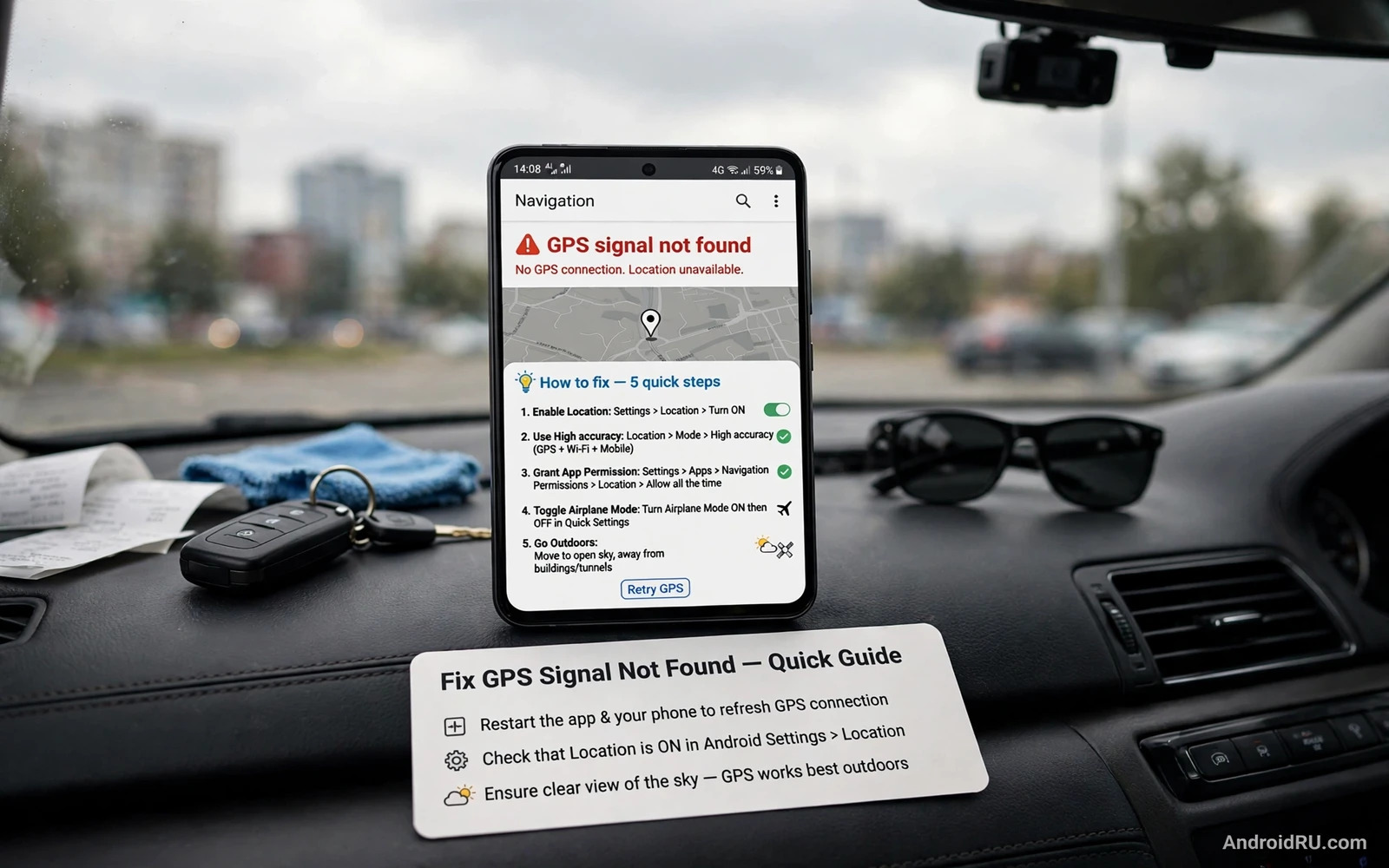
What GPS Signal Not Found Really Means
The message GPS signal not found does not always mean your phone hardware is broken. It usually means the navigation app cannot get a fresh and accurate location fix in a reasonable time. Your phone finds its position by combining satellite signals with Wi-Fi networks and mobile networks and sensors. If one part of that chain is weak then the app may show the error even while other apps seem fine. Tall buildings and tunnels and dense tree cover can block satellite signals. A phone case with metal parts can weaken reception too.
Start by separating a one-time glitch from a lasting fault. Open your navigation app outdoors with a clear view of the sky and wait for a full minute. If the blue dot settles and the route starts then the problem was likely a weak signal at that moment. If the dot keeps jumping or never appears then work through the settings in this guide in order. Each step removes one possible cause. Testing after each step saves time because you stop as soon as the fix works.
Check Location Is On And Set To High Accuracy
Open Settings and then Location and confirm that Location is turned on. Then tap Location services or Location accuracy and turn on Wi-Fi scanning and Bluetooth scanning. These scans help the phone locate itself faster when satellite signals are weak. Next tap the mode or accuracy setting if your phone shows one and choose High accuracy or Precise location. Some phones hide this choice under Google Location Accuracy. Turn that option on because it lets the phone combine every available signal source.
A battery saver mode can quietly limit location accuracy. Battery saver may pause background location and reduce scan frequency. Turn battery saver off while you test navigation. Also check that the navigation app has permission to use precise location at all times or while in use. Open Settings and then Apps and then the navigation app and then Permissions and then Location and choose Allow all the time or Allow only while using the app. Precise location must be on because approximate location is too coarse for turn-by-turn directions.
Test Outdoors And Rule Out Simple Blocks
Step outside away from tall walls and metal roofs and stand still for a minute. Satellite fixes need a stable phone because movement makes the first fix harder. Remove a thick metal case for the test and hold the phone with the screen facing up. If the fix appears outdoors but fails indoors then the phone is likely fine and the indoor spot simply blocks satellites. Navigation apps often fall back to Wi-Fi and network location indoors and that fallback can look like a GPS error when it is really a weak indoor signal.
Try a second navigation app with the same test. If both apps fail outdoors then the fault is likely system-wide. If only one app fails then the fault is likely inside that app. That distinction guides the rest of the guide. A system-wide fault points to settings and sensors and software updates. A single-app fault points to permissions and cache and app data. Write down which case matches your phone before you move on because it keeps the fix focused.
Reset The App And Clear Stale Location Data
Open Settings and then Apps and then the navigation app and tap Storage and then Clear cache. A cache clear removes temporary files without deleting your saved places. Reopen the app and test navigation again. If the error stays then return to the same screen and clear storage or clear data. That step resets the app to a fresh state and removes saved settings so use it only after a cache clear has failed. Sign back into the app if it asks and retest outdoors.
Also check for an app update. An older navigation app may use an outdated location method that newer Android versions restrict. Update the app and restart the phone. A restart clears stuck location services and lets the phone request a fresh satellite fix. After the restart open the app outdoors and wait patiently. The first fix after a restart can take longer than later fixes because the phone rebuilds its satellite data. Give it at least a minute before you judge the result.
Use Compass Calibration And Sensor Checks
A confused compass can make navigation look wrong even when GPS itself works. Open the navigation app and look for a compass calibration prompt or open Google Maps and draw a figure eight motion with the phone a few times when prompted. That motion helps the compass relearn magnetic north. Avoid calibrating near magnets and large metal objects because they distort the reading. A calm outdoor spot gives the best result.
Some phones include a sensor test in a hidden diagnostics menu but that menu varies by brand and is easy to misread. A simpler sensor check is to open a compass app and rotate the phone slowly. If the compass needle moves smoothly then the sensors respond. If the needle freezes or jumps wildly then a sensor fault is possible. Do not open internal menus you do not understand. A sensor fault that survives every software step in this guide is a reason to seek repair rather than to keep resetting the phone.
Deal With Interference And Power Saving
Power saving features can pause location updates in the background. Open Settings and then Apps and then the navigation app and then Battery and choose Unrestricted or Allow background activity if your phone offers that choice. This step matters most on long drives where the screen locks or the app runs behind another app. Without background permission the app may lose its fix when you switch screens. Test a short drive after the change and watch whether the dot stays stable.
Other apps can interfere too. A fake location app or a location spoofer left running can feed the system a false position. Remove or disable any such app before you test again. A VPN does not block GPS but it can confuse network-based location so turn it off for the test. A dashboard mount with a metal plate can also weaken reception. Move the phone away from the mount and test again. Small physical changes often explain a fault that looks like a software bug.
Update Software And Consider A Deeper Reset
Check for a system update in Settings and then System and then System update. Updates can fix location bugs and improve satellite handling. Install the update over Wi-Fi and restart the phone and test outdoors. Also update Google Play services because location services depend on it. If Play services is outdated then location accuracy can drop across every app. Updates are the least risky deep fix so try them before any reset.
If every step fails and both apps fail outdoors then a factory reset is the last software option. Back up photos and messages and accounts first because a reset erases the phone. Readers planning a reset should first read the guide to fixing mobile data that stops working because a reset also wipes network settings and you will want a plan for reconnecting afterwards. A reset that still leaves GPS broken outdoors points to hardware and a repair centre is the right next step. Do not open the phone yourself because that can void warranty and damage sealed parts.
Prevent Future GPS Failures
Keep location permissions tidy. Grant precise location only to apps that truly need it and review the list every few months. Keep your navigation app updated and avoid running location spoofers alongside real navigation. Store offline maps for areas you visit often so a weak signal still leaves you with a usable map. Offline maps do not fix GPS but they reduce the harm when a fix is slow.
For drivers the companion guide to Android Auto connection problems covers the car side of navigation when the phone fix is fine but the dashboard display misbehaves. Together the two guides separate phone faults from car faults. A steady GPS fix plus a clean car link gives you navigation you can trust on unfamiliar roads.
Offline Maps As A Safety Net
Offline maps reduce the damage of a slow GPS fix. Download the map for your home region and for any region you plan to visit. An offline map lets the app show roads and search places even when the live fix lags. It does not create a GPS fix but it makes a slow fix usable. Download maps over Wi-Fi before a trip because map files are large. Update them every few months so road changes stay current.
Test offline navigation on a familiar route before relying on it far from home. Start navigation with mobile data off and watch whether the route draws and voice guidance works. A successful test proves the offline set is complete. A failed test shows a missing region before it matters. Offline maps plus a healthy GPS fix together give navigation that survives weak signal and dead zones alike.
Battery And Location Trade-offs
High accuracy location uses more power than battery saving location. That trade is worth it during navigation because a lost fix costs more time than the power saved. Outside navigation switch back to a lower accuracy mode if your phone offers one. The switch saves power across a normal day without hurting navigation when you need it again. Make the switch a habit tied to driving rather than a permanent setting.
Background location permission also affects power. An app with always-on location can drain battery even when you never open it. Review location permissions after installing a new navigation app. Grant always-on access only to apps that truly navigate in the background. Every other app can use while-in-use access. That review protects both battery and privacy at once. For the car display side the guide to devices for car drivers and navigation use explains hardware that pairs with a steady phone fix.
Sharing Location Safely
Live location sharing helps friends meet you but it also broadcasts movement. Share live location only with trusted people and only for a limited time. End sharing when you arrive. Check sharing status after a trip because a forgotten share keeps broadcasting. A short share window gives the benefit without the lingering exposure.
Navigation apps also store location history by default on many accounts. Review that history setting and decide whether you want it kept. A kept history helps you revisit places. A deleted history protects privacy. Either choice is valid as long as it is deliberate. Location tools serve you best when you control what they remember.

