

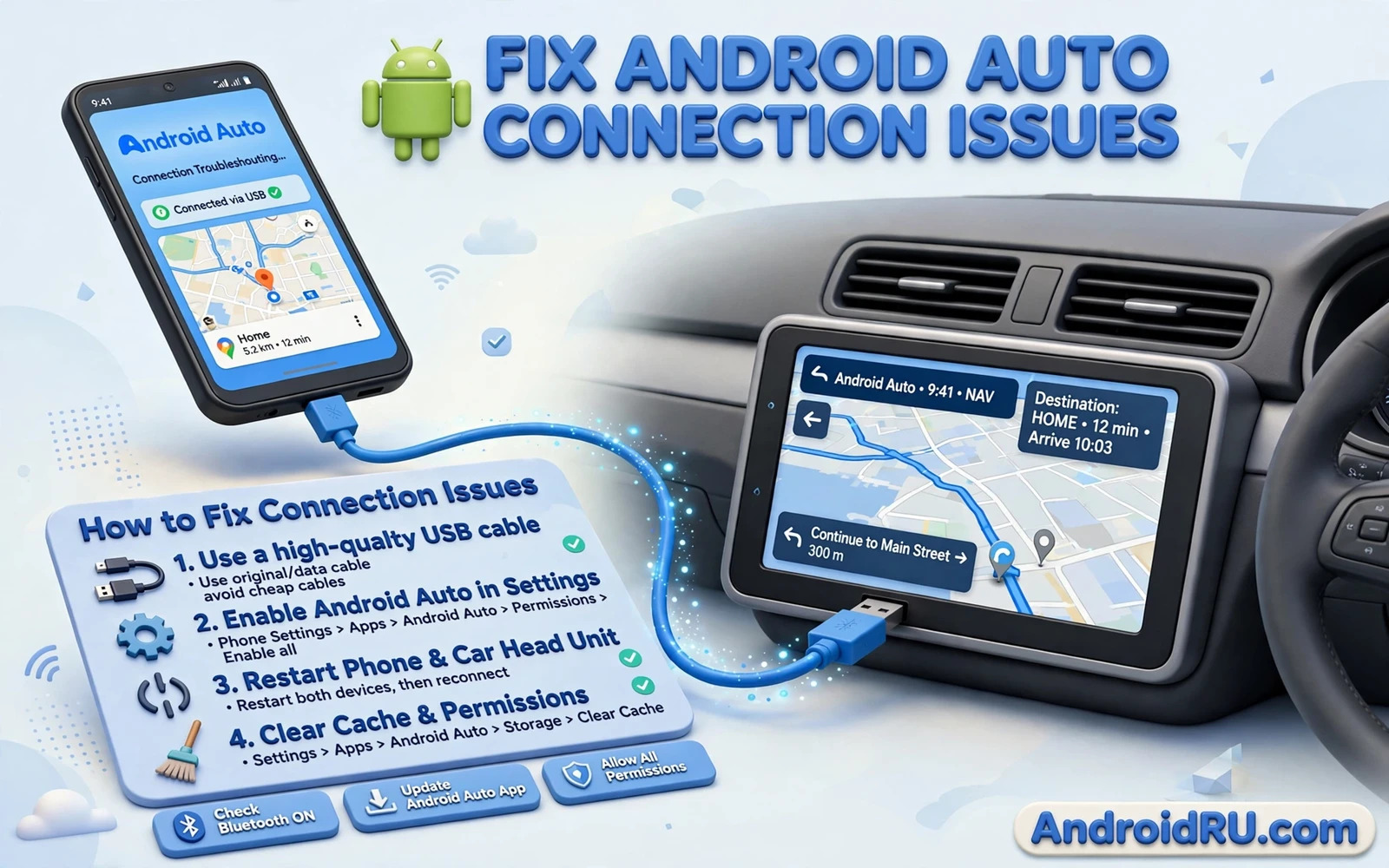
Why Android Auto Fails To Connect
Android Auto links your phone to the car display for navigation and music and calls. The link can run over USB cable or over wireless. A failure can come from the cable or the phone settings or the car settings or the app itself. The symptom varies. Sometimes the car never sees the phone. Sometimes the car sees the phone but the app never launches. Sometimes the link drops mid-drive. Each symptom points to a different layer. Work through the layers in order.
Start by noting whether you use wired or wireless Android Auto. A wired fault points first to the cable and the USB port. A wireless fault points first to Wi-Fi and Bluetooth. A fault that affects both modes points to the phone app or the car system. That split saves time. Do not replace a cable for a wireless fault and do not reset Wi-Fi for a wired fault until the shared layers are checked.
Fix The Wired Connection First
Use a high quality USB cable that supports data transfer. A charging only cable cannot carry Android Auto. Test a second data cable if the first fails. Plug the cable into the correct car USB port. Many cars mark one port for data and others for charging only. The data port often sits near the dashboard or the centre console. Try every USB port in the car with the same cable. One port may be the data port while others charge only.
Unlock the phone before connecting. Some cars fail to launch Android Auto when the phone is locked. Set the phone to stay unlocked for the car connection if your phone offers a trusted device option for the car Bluetooth. Clean the phone port gently and the cable plug. Lint in the phone port can stop data contact while charging still works. A clean port plus a data cable solves many wired faults at once.
Fix The Wireless Connection
Wireless Android Auto uses Bluetooth for setup and Wi-Fi for the main link. Turn both on. Keep the phone close to the head unit during pairing. Forget the car in the phone Bluetooth settings and forget the phone in the car settings if pairing repeatedly fails. Then pair fresh. A stale pairing record can block a new connection even when both devices look ready.
Check that the car Wi-Fi is not blocked by a VPN on the phone. Turn the VPN off for testing. Check that battery optimisation does not kill Android Auto in the background. Open Settings and then Apps and then Android Auto and then Battery and choose Unrestricted. A killed background service drops wireless links mid-drive. Test a short drive after the change and watch stability.
Check Android Auto App Settings
Open Settings on the phone and search for Android Auto. Confirm that Android Auto is enabled and that it has the permissions it requests. It needs location and phone and contacts and notifications for full function. A denied permission can block launch or break voice control. Grant the requested permissions and retry. Also check that Android Auto is updated from the Play Store. An outdated app can fail with a newer car system.
In the Android Auto settings look for previously connected cars. Remove the car entry and reconnect fresh. A corrupted car record can block launch even when the cable and pairing are fine. After removal connect again and accept any prompts on the phone and on the car screen. Accept prompts promptly because some cars time out quickly and abort the launch if you wait too long.
Check The Car Head Unit
Open the car settings and confirm that Android Auto is enabled. Some head units let you disable Android Auto or require an enable step after a system update. Check for a car system update at a dealer or through the car settings if the maker offers over-the-air updates. An outdated head unit can reject a newer phone app version. A head unit restart can also help. Turn the car off fully and wait a minute and restart it. A full power cycle clears a stuck head unit service.
Test with a second phone if possible. A second phone that connects proves the car side works and the fault sits in the first phone. A second phone that also fails points to the car or the cable. That test is decisive. Borrow a phone for five minutes rather than guessing through phone settings for an hour. The car and phone split is the most valuable diagnostic in this guide.
Fix Drops During Driving
Drops mid-drive often come from a loose cable or a sleeping phone. Secure the cable so it does not tug when the car moves. Use a short cable that does not dangle. Keep the phone charging during long drives because a low battery phone may throttle background services. Keep the phone cool because heat can throttle the link. Move the phone out of direct sunlight on the dashboard.
For wireless drops check Wi-Fi interference. A crowded car Wi-Fi environment with passenger hotspots can disrupt the link. Turn off unused hotspots in the car during testing. Restart the phone before a long drive if drops have become frequent. A fresh phone session gives the link a clean start. If drops persist on a fresh session with a good cable then the head unit or the phone app needs deeper attention.
When To Update Or Reset
Clear the Android Auto app cache in Settings and then Apps and then Android Auto and then Storage. A cache clear removes temporary data without deleting car records. If cache fails then clear data but note that it removes connected car records and preferences. Reconnect the car fresh after a data clear. Reconnecting fresh after a data clear often resolves stubborn launch failures.
A full phone reset is rarely needed for Android Auto alone. Try every cable and pairing and app step first. If the car works with a second phone and the phone works with a second car then a deeper phone fault is possible. At that point carrier or maker support can check for a device specific bug. Document every test result before contacting support. Clear notes shorten the support conversation greatly.
Keep The Car Link Reliable
Keep one good data cable in the car permanently. Label it as the Android Auto cable so no one swaps it for a charging cable. Keep Android Auto updated and keep the phone charged during drives. Pair fresh after major phone updates if the link misbehaves. A little routine keeps the dashboard link boring and reliable.
A working Android Auto link turns the car display into a safe extension of the phone. Navigation stays visible and music stays controllable and calls stay hands-free. For the navigation side the guide to fixing GPS signal not found in navigation apps covers the phone location layer that Android Auto displays. Phone location plus car link together give driving guidance you can trust.
Car System Updates
Head unit software ages like phone software. An old head unit may reject a new phone app version or mishandle a new phone model. Check the car maker support site for head unit updates. Some updates arrive over the air. Others need a dealer visit or a USB update file. A head unit update can fix connection bugs that no phone step can touch. Note the head unit version before and after an update so you can report the change accurately.
After a head unit update re-pair the phone fresh. Old pairing records can conflict with new head unit software. Forget the phone on the car and forget the car on the phone and pair again. A fresh pairing after an update removes stale records that cause launch failures. Test both wired and wireless modes after the update if the car supports both.
Voice Control In The Car
Voice control is a core Android Auto benefit. It lets you navigate and message without touching the screen. Test voice control after the connection is stable. If voice fails while touch works then microphone permission or assistant settings are suspect. Grant the assistant permission and test with a simple navigation command. A working voice path makes driving safer because eyes stay on the road.
Voice recognition struggles with road noise and music. Lower media volume when giving a command. Speak a destination clearly and confirm the recognised text on screen before starting navigation. A misheard destination wastes more time than a slow manual entry. Voice plus screen confirmation together give speed with safety.
Cables And Ports Long Term
Car USB ports wear with repeated plugging. A loose car port can cause drops that look like app faults. Test the same cable and phone in another car if possible. A port that fails with every cable and phone is a car hardware fault. A port that works with a short cable but fails with a long cable points to cable quality. Short quality cables survive car use better than long thin ones.
Keep the Android Auto cable dedicated to the car. A cable that travels between car and desk wears faster and picks up damage. A dedicated car cable stays in the car and lasts longer. For the phone side the guide to car mounts and wireless charging holders covers mounting that keeps the cable strain low. Good mounting plus a dedicated cable plus fresh pairing keep the car link stable for years.
A Practical Checklist For Car Connections
Prepare every car connection with a checklist that removes surprises. Keep a dedicated data cable in the car and test it before a long drive. Unlock the phone before connecting and confirm Android Auto permissions are granted. Forget stale car pairings after major updates and pair fresh. Test wired mode first if wireless mode misbehaves because wired mode isolates cable and port faults from wireless faults. Test with a second phone when the car refuses every connection because a second phone splits car faults from phone faults decisively. For mounting that reduces cable strain the guide to car mounts and wireless charging holders shows holders that keep the phone stable and the cable relaxed during drives.
During a drive watch for early warning signs. A link that drops when the cable moves points to a loose port or a worn cable. A link that drops when the phone sleeps points to battery optimisation killing the background service. A link that drops in one location points to wireless interference. Respond to the pattern rather than repeating the same reconnect blindly. A pattern response fixes the cause while a blind reconnect only postpones the next drop. Keep the phone cool and charging on long drives because heat and low battery both destabilise the link.
After a drive disconnect deliberately and note any problem for the next trip. A short note about a drop location or a cable position helps the next diagnosis. Update Android Auto and the car system when updates appear and re-pair fresh after major updates. A dedicated cable plus fresh pairings plus update discipline keeps the car link boring. Boring is the highest praise for a car connection because it means navigation and music and calls simply work every time you start the car.

