

What A Phone Hotspot Does For A Laptop
A phone hotspot shares the phone mobile connection with a laptop over Wi-Fi. The laptop treats the phone like a small router. The phone keeps its own connection and forwards laptop traffic through it. This setup helps when no Wi-Fi network is available or when a public network feels untrustworthy. It also helps during travel and during a home internet outage.
A hotspot uses mobile data and battery faster than normal phone use. A laptop can download updates and sync files in the background without asking. That background traffic can consume a data plan quickly. This guide shows how to turn the hotspot on safely and how to limit that background use. Wireless stability on the phone matters here and the checks in fixing a Wi-Fi connection that drops frequently on mobile can help when the shared link itself feels unstable.
Turn On The Hotspot Step By Step
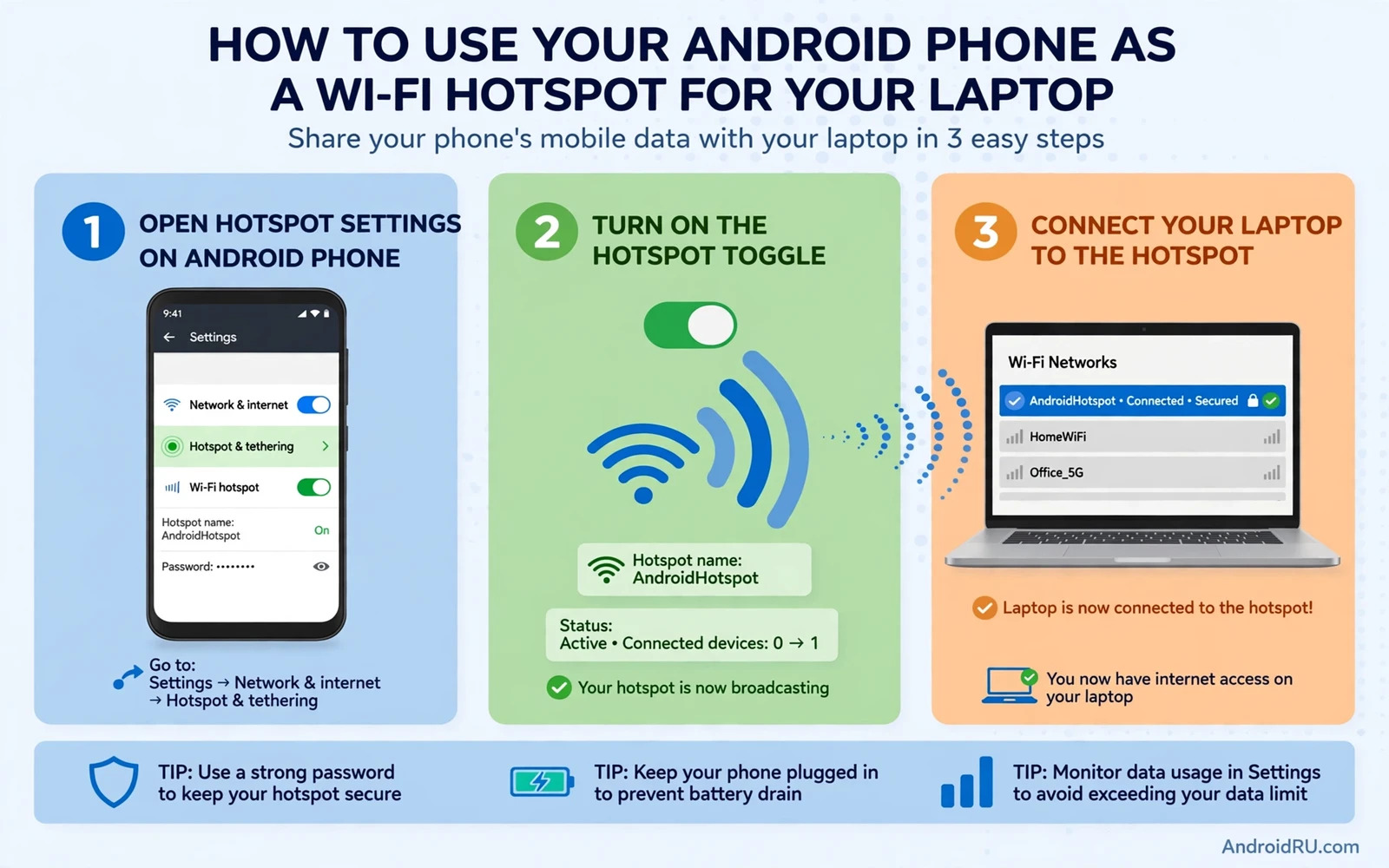
Open Settings and then open Network or Connections and then open Hotspot and tethering. Tap the Wi-Fi hotspot entry and turn it on. The phone will show a hotspot name and a password. Keep the default name or choose a name that does not reveal personal details. A simple name without your full name is safer in public places.
Set a strong password before you connect the laptop. Use a password that is long and hard to guess and different from passwords that you use elsewhere. Choose the strongest security option that the phone offers. Avoid an open hotspot with no password because anyone nearby could join and use your data. Share the password only with people that you trust to use the connection.
- Open Hotspot and tethering in network settings and turn Wi-Fi hotspot on
- Set a strong password and the strongest security option offered by the phone
- Connect the laptop from its Wi-Fi list and enter the hotspot password once
- Turn on metered connection on the laptop to limit background downloads
- Turn the hotspot off as soon as the laptop work is done
Connect The Laptop And Limit Background Data
On the laptop open the Wi-Fi list and choose the hotspot name. Enter the password and wait for the connection to settle. Open a single page first to confirm that traffic flows. If the page loads then the hotspot works and the laptop can proceed with work. If the page fails then check the phone signal and the hotspot switch before changing laptop settings.
Set the laptop Wi-Fi connection as metered when that option exists. A metered setting tells the laptop to pause large updates and cloud sync while on the hotspot. Close cloud backup apps and update tools during hotspot work. Pause video streaming when you only need documents and mail. These small limits protect both data and battery during a long session.
Fix Common Hotspot Problems
When the laptop cannot see the hotspot restart the hotspot switch on the phone and scan again on the laptop. Move the laptop closer to the phone and remove large obstacles between them. Forget the hotspot network on the laptop and connect again with a fresh password entry. A stale saved network entry can block a new connection even when the hotspot itself works fine.
When the laptop connects but no page loads check the phone mobile data switch and the phone signal strength. A weak mobile signal gives a weak hotspot even when Wi-Fi between phone and laptop is strong. Move the phone near a window or to a spot with better signal when possible. Bluetooth pairing problems share some wireless troubleshooting logic and you can review fixing Bluetooth pairing failures on Android accessories for a calm step order that also applies to wireless faults.
Settings - Network - Hotspot and tethering - Wi-Fi hotspot - On
Laptop - Wi-Fi list - Choose hotspot name - Enter password
Laptop - Network properties - Set as metered connection
Protect Battery And Data During Hotspot Use
Warning. A hotspot drains battery fast and it can use a large amount of mobile data in a short time. Keep the phone charging when you use a hotspot for more than a short session. Watch for heat on the phone and pause hotspot use when the phone feels very hot. Heat plus charging plus heavy data can stress the battery and the phone may slow the connection to protect itself.
Check data use during the session when your plan has a limit. Stop large downloads and video calls when the limit is near. Turn the hotspot off at once when work ends. A hotspot left on in a bag can keep serving traffic and draining battery without you noticing. A short habit of turning it off saves both data and battery every time.
Frequently Asked Questions
Why does my laptop connect but load nothing. The phone may have mobile data off or a very weak signal. Check mobile data and signal on the phone first and then restart the hotspot switch.
Is a hotspot safe on public networks. A hotspot with a strong password is safer than an open public network for most work. Keep the password private and turn the hotspot off when you finish.
Hotspot For Work Calls And Video
Video calls over a hotspot need a stronger signal than document work. A weak signal that loads mail fine may still break video calls with frozen frames and lost audio. Test a short call before an important meeting when you rely on a hotspot. Move the phone closer to a window or to higher ground when signal is weak. A small move can improve signal enough to turn a broken call into a usable one.
Audio calls use far less data than video calls. Switching a meeting to audio only can save data and can stabilize a weak hotspot connection. Ask meeting participants whether video is truly needed for the session. Many status meetings work perfectly well with voice and shared documents. Saving video for sessions that truly need faces keeps hotspot data for the whole workday.
Cloud sync is the silent hotspot enemy. Document apps and photo apps and backup tools can start large uploads the moment a laptop connects. Pause cloud sync apps on the laptop before hotspot work begins. Check the sync status icon in the laptop tray and confirm that no large upload runs in the background. A paused sync can save more data than any other single hotspot habit.
Multiple laptops on one hotspot multiply data use and battery drain. Each connected device can run its own updates and sync tasks. Limit hotspot sharing to one laptop when data is tight. When a second device must join then pause updates on both devices first. A shared hotspot needs shared discipline because one careless device can consume the whole plan.
Security on a hotspot extends beyond the password. Avoid logging into sensitive accounts over a hotspot that strangers may have joined. Change the hotspot password after sharing it with a group that no longer needs access. Turn the hotspot off when you leave the laptop unattended. A hotspot left running in a public place invites unknown devices to try the password and to consume data.
File transfers between phone and laptop can reduce hotspot data needs. Moving a large file directly over cable or local sharing avoids uploading it through mobile data twice. A direct transfer is faster and cheaper than a cloud round trip over a hotspot. You can plan local transfers with transferring files between Android and PC wirelessly and by USB when large files must move between the two devices.
Hotspot Battery Habits
Keep a charger nearby for any hotspot session longer than a short check. A phone that serves a laptop drains faster than a phone used alone. A power bank can extend a hotspot session away from a wall outlet. Watch the phone temperature during charging plus hotspot use and pause when heat grows strong. Battery health over months matters more than finishing one session at maximum speed.
End every hotspot session with a quick data check. Open data usage on the phone and note how much the session consumed. A growing awareness of session cost helps you plan future sessions and choose when to use a hotspot and when to wait for Wi-Fi. Good habits turn hotspot use from a data risk into a reliable backup tool.
Hotspot And Travel
Travel hotspots need extra planning because roaming data and foreign networks change cost and signal. Check your mobile plan roaming rules before a trip that relies on a hotspot. A plan that works at home may charge heavily abroad or may block hotspot use entirely while roaming. Local SIM options or hotel Wi-Fi may suit a long trip better than a home plan hotspot. Planning before departure prevents a shocking bill after return.
Airports and stations offer crowded wireless environments where hotspot discovery can struggle. Keep the phone close to the laptop and away from large metal structures during pairing. A short distance and a clear line of sight improve the shared Wi-Fi link even in a crowded hall. Test the connection before an important call rather than assuming that it works because the hotspot switch is on.
Hotel stays present a choice between hotel Wi-Fi and a personal hotspot. Hotel Wi-Fi may be faster for large downloads while a personal hotspot may be safer for sensitive work. Use the hotspot for banking and work mail and hotel Wi-Fi for large media downloads when both options exist. Mixing the two by task gives speed where it matters and privacy where it counts.
Hotspot Security Checklist
Change the hotspot password whenever you shared it with people who no longer need access. A password shared once can spread further without your knowledge. Use a fresh strong password for each new group that needs the connection. Check the connected devices list on the phone during the session and disconnect unknown devices at once. A quick device check takes seconds and protects both data and battery.
Avoid open hotspots with no password even for a quick laptop check. An open hotspot invites anyone nearby to join and to consume data. A strong password plus the strongest security option offered by the phone creates a reasonable barrier for casual nearby users. Turn the hotspot off immediately after use so the window for unwanted joins stays as short as possible.
A Final Hotspot Check
Finish hotspot setup with a short real work test before an important session. Open a document and send a mail and load one ordinary page through the hotspot. Confirm that each task completes without a long delay. A test that covers documents and mail and browsing proves the hotspot for most work needs. When any task stalls then fix signal or password or metered settings now rather than discovering the fault during an important meeting.

