

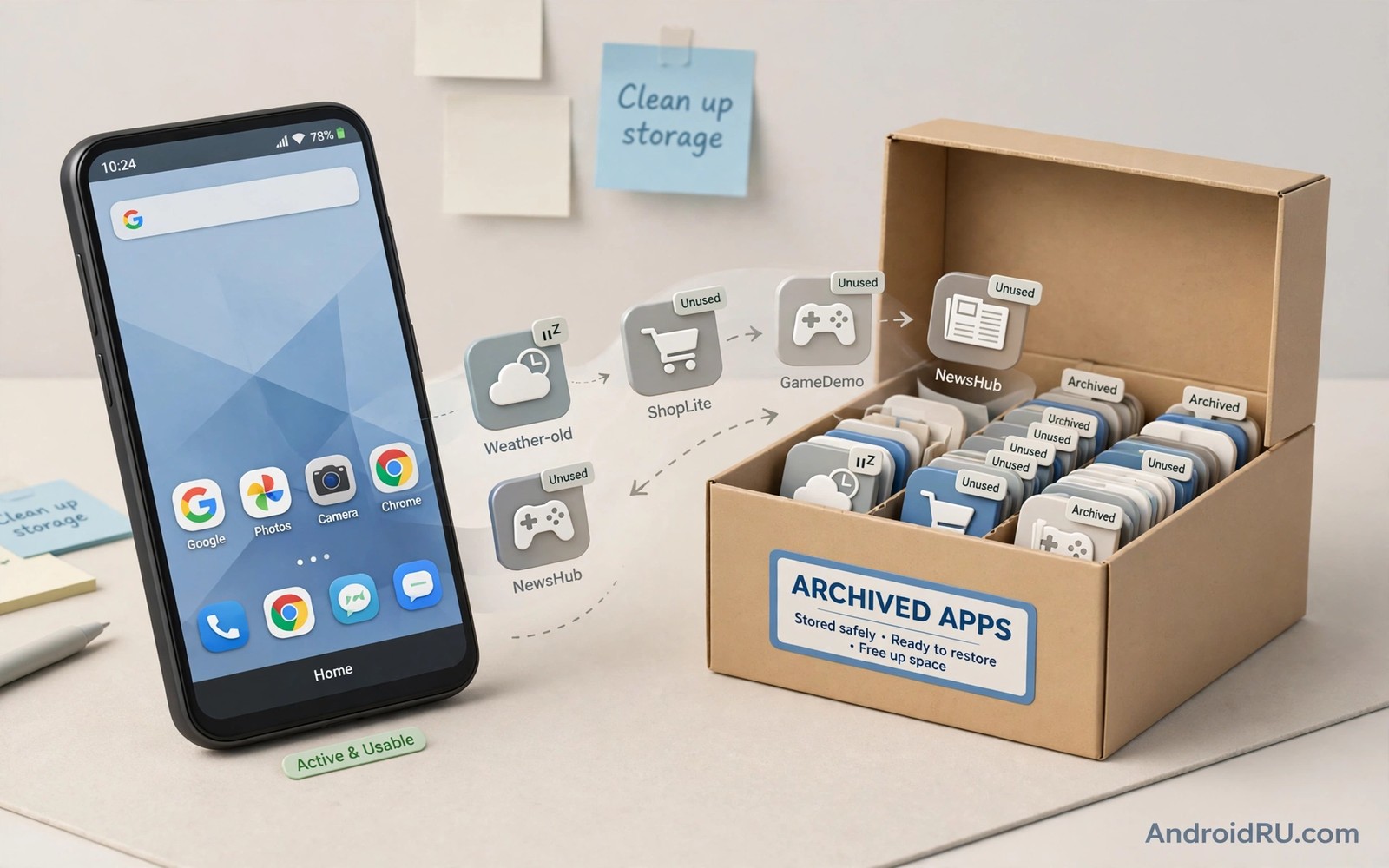
Unused apps occupy space long after interest fades. A game finished months ago still holds gigabytes. A travel app from one trip still holds maps and caches. Uninstalling feels final yet archiving offers a middle path. Archiving removes the app body while keeping its icon and data for a fast restore.
Auto archiving works best as a background habit. The system watches for apps that stay untouched for weeks. It then archives those apps during idle time. The user keeps the icon and keeps the data. A tap later restores the app without a fresh setup. That balance suits users who hate both clutter and permanent deletion.
Enable auto archive in system settings
Open Settings and open Apps and look for an auto archive or unused apps option. Some phones place this option inside app store settings rather than system settings. Enable the option and confirm that it applies only to apps that you have not opened recently. A clear threshold prevents archiving an app that you use seasonally.
Review the list of apps that the system marks as unused before the first auto archive run. Exempt apps that you use rarely but critically like banking and travel and emergency tools. An exempt list protects important apps from an automatic decision. Check the exempt list each season.
Understand what archiving keeps and removes
Archiving removes the app installation files while keeping user data and the home screen icon. A restored app returns with settings and login intact in most cases. That behaviour differs from uninstalling which usually removes data as well. The distinction matters for apps with long setup processes.
Archived apps need a download to restore. A restore on mobile data can consume a data allowance. Set restore to Wi-Fi only where that option exists. A Wi-Fi restore keeps the convenience without a data surprise.
Manually archive apps that auto archive misses
Open app info for a large unused app and look for an archive option where available. Manual archiving suits apps that the system has not yet flagged. A manual pass through the largest apps often frees more space than a month of automatic archiving. Work through the size ranking in app settings.
Archive games first when space pressure rises. Games measure largest and restore fastest through store downloads. Keep cloud saves enabled for archived games so progress returns with the restore. Readers who protect game progress can explore backing up local game saves before they are lost in this same wave.
Prevent archiving of seasonal apps
Seasonal apps suffer most from auto archiving because they sit unused for months by design. A tax app and a holiday travel app and a sports season app all look unused for long stretches. Exempt those apps explicitly before a long idle period. An exempt seasonal app stays ready when its season returns.
Open each seasonal app briefly once a month if exemption feels uncertain. A brief open resets the unused timer on many systems. That tiny habit protects apps that you cannot afford to restore under time pressure. A minute per month saves a stressful restore later.
A small check for unused apps
Sort apps by last used date in app settings to find archiving candidates. A list sorted by inactivity reveals forgotten apps quickly. Compare that list with size data to prioritise large forgotten apps. A combined view of age and size guides the best archiving order.
ls -lt /sdcard/Android/data 2>/dev/null | head -20
The snippet above was written for this article to show one safe way to list app data folders by modification time. It reads folder information and it changes nothing on the phone. Use the output only as a hint for manual review inside app settings.
Review archived apps during phone cleanups
Archived apps deserve review during each phone cleanup because an archived app that stays archived for a year may no longer be needed at all. Open the archived list and ask whether each app still serves a future purpose. Uninstall archived apps that clearly lost their purpose. Keeping them archived forever wastes the data space that archiving preserved. A yearly review turns archiving from a parking lot into a useful staging area.
Restore archived apps that you miss during a cleanup review. A restore test proves that the archived data still works after months of inactivity. A restore that fails while the data still exists allows troubleshooting. A restore that fails after uninstall offers no recovery. Review before uninstall to keep the safety net intact.
Balance archiving with storage targets
Archiving alone may not reach a storage target when data files dominate the total. Archived apps keep their data so a large game with a huge save file still occupies significant space after archiving. Combine archiving with data cleanup for such apps. Clear in-game downloads and caches before archiving to maximise the saving. A combined approach reaches targets that archiving alone cannot reach.
Set a storage target before starting an archiving session so that you know when to stop. A target of seventy percent free space or a target of ten gigabytes freed gives a clear endpoint. Stopping at the target avoids archiving useful apps unnecessarily. A target-based session respects both space and usability.
Handle archived apps on a new phone
Phone migration transfers archived apps differently depending on the backup system. Some systems restore archived apps as installed apps on the new phone. Some systems restore only the icon and require a fresh download. Check the migration result on the new phone before wiping the old phone. A migration check prevents a surprise when an expected app appears only as an icon.
Keep the old phone for a week after migration to handle any archived app that fails to restore. A week gives time to reinstall from the store and to verify data. A patient migration protects archived data as surely as it protects installed apps. Rushing a migration risks both types of data equally.
Teach archiving to family members
Family members with full phones benefit from archiving yet they may fear losing apps permanently. Explain archiving as a pause rather than a deletion. Show them an archived icon and restore it together to prove that data returns. A demonstration removes fear faster than any explanation. Family members who understand archiving will use it themselves when storage warnings appear.
Help family members set up exemptions for their critical apps before enabling auto archiving. A child who archives a school app by accident may miss homework. An older relative who archives a banking app may panic at login. Exemptions prevent those stressful moments. A little setup help makes archiving safe for the whole family.
Manage archived apps during system updates
System updates can affect archived apps because an update may change archiving behaviour or may restore archived apps unexpectedly. Check the archived list after each major system update to confirm that archiving still works as expected. An update that restores archived apps can suddenly fill storage again. A post-update check catches that restoration before it causes a storage warning. Update awareness keeps archiving reliable across Android versions.
Re-archive apps that an update restored unnecessarily. A quick re-archive pass after an update restores the previous storage state. Record which apps were archived before the update to make re-archiving fast. A recorded list turns a post-update surprise into a five-minute fix.
Archive apps before a major system update
Archiving apps before a major system update can protect storage during the update process because updates need free space to download and install. Archiving large unused apps before an update frees space without losing data. A phone with ample free space updates more reliably than a phone with tight storage. After the update completes restore any archived app that the update affected. A pre-update archiving pass therefore serves both update reliability and storage management. Users who archive before updates rarely encounter failed updates due to insufficient space. That reliability alone justifies a short archiving session before each major update cycle.
Check archived apps before travelling
Checking archived apps before travelling prevents a stressful restore at an airport or a hotel with weak Wi-Fi. Open the archived list a week before travel and restore any app that the trip may need. A travel app restored at home works immediately on arrival. A travel app restored abroad may fail on weak connections. Advance checking turns archiving from a risk into a reliable tool for travellers who plan ahead. A week of lead time solves most restore problems before they matter.
Common mistakes
One common mistake is enabling auto archive without exemptions. Critical apps can archive at an awkward moment. Exempt banking and travel and work apps before enabling automation. Another mistake is confusing archiving with uninstalling. Archived apps keep data while uninstalled apps usually lose it.
People also archive apps and then forget that restore needs a download. A restore without Wi-Fi can fail or consume data. Set Wi-Fi restore rules in advance. Readers who manage app size can explore limiting apps that cache gigabytes of data for a companion control.
Frequently asked questions
Will archiving delete my app data?
No in most cases. Archiving keeps user data and settings for a fast restore. Uninstalling usually removes data. Check the archiving description on your phone because makers vary slightly.
Can I restore an archived app offline?
No. Restore downloads the app body again. Keep Wi-Fi available for restores. An archived app icon remains visible so you can trigger restore when online.
Does auto archive work on all Android phones?
Availability varies by maker and Android version. Some phones offer it through the app store rather than system settings. Check both places if the option looks missing.
Conclusion
Auto archiving offers a gentle middle path between keeping every app and deleting apps outright. System archiving and manual archiving and a careful exempt list together free space without losing data. Seasonal apps deserve explicit protection from automation.
Your concrete next step is to enable auto archive today and exempt your banking and travel apps. Manually archive your largest unused game afterwards. Readers who want a full space routine can next explore keeping Android internal storage under seventy percent capacity and streamlining app updates to prevent storage bloat growth as follow-ups.

