

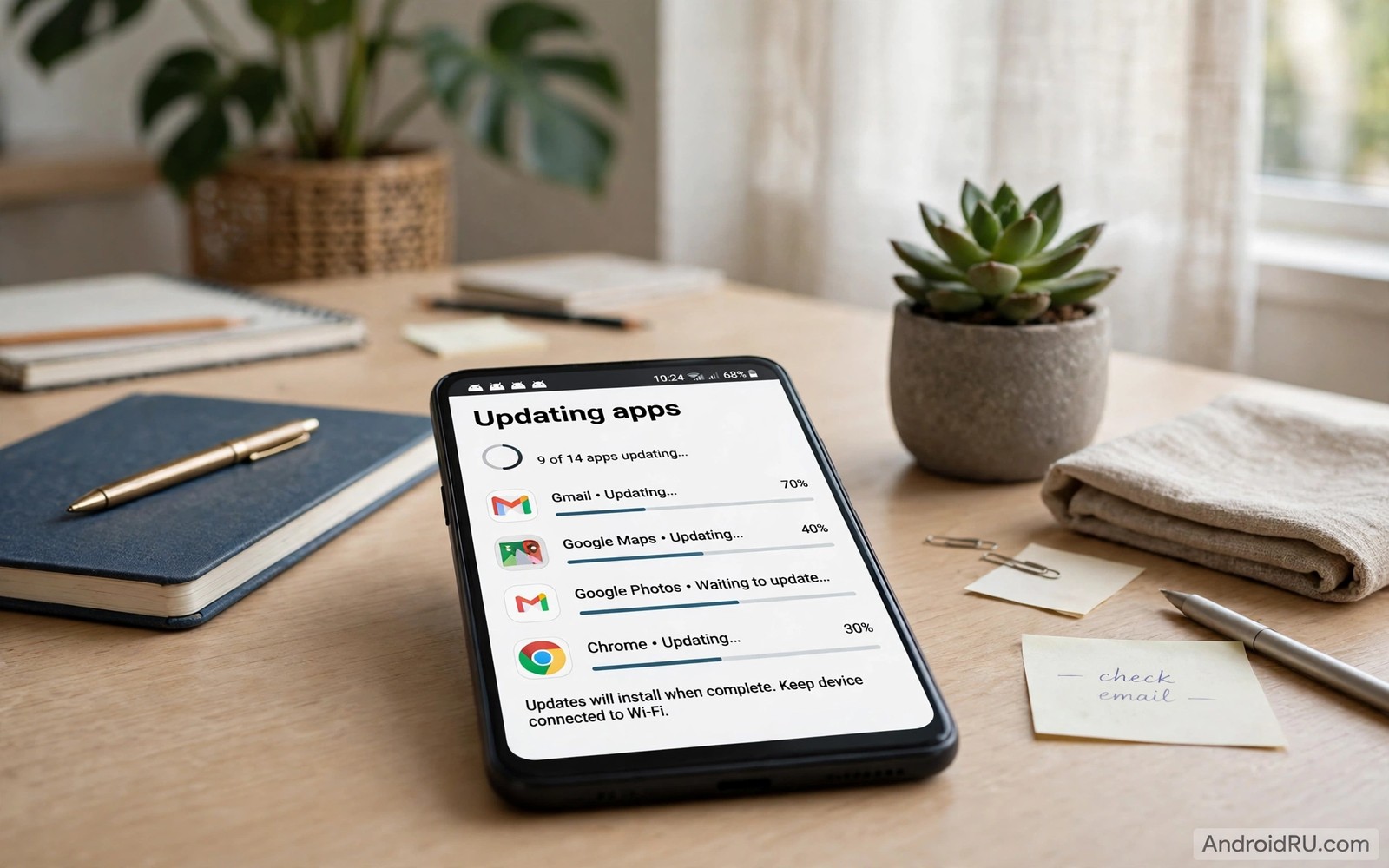
App updates keep phones secure yet they also grow storage silently. Each update adds new code and new resources while old data often remains. A phone with many apps can gain gigabytes from updates alone in a few months. Streamlining updates controls that growth without sacrificing security.
Update bloat comes from several sources. Update files download and install and then linger as caches. New features add resources that the user never uses. Old versions of resources stay inside app data for compatibility. A streamlined update routine addresses each source in turn.
Control automatic updates by connection
Open app store settings and set automatic updates to Wi-Fi only. Mobile data updates waste data and often happen at awkward times. Wi-Fi updates happen at home where a large download costs nothing extra. That single setting prevents data surprises and update interruptions.
Turn off automatic updates for apps that you rarely use. Update those apps manually when you need them. A manual update for a rare app avoids months of bloat for an app that sits untouched. Keep automatic updates on for security apps and banking apps and messaging apps.
Review update sizes before installing
Check update notes and sizes in the store before a large update. A game update of several gigabytes deserves a storage check first. Free space before installing a large update to avoid a failed install. A failed install can leave partial files that waste space.
Delay non-essential updates when storage runs low. Security updates deserve priority over feature updates. Install security updates promptly and schedule feature updates after a cleanup. That priority keeps the phone safe while storage stays manageable.
Clear update caches after major updates
Clear caches for apps after major updates that change large parts of the app. Old caches from a previous version can linger and confuse the new version. A targeted cache clear after a major update often frees space and fixes glitches. Test the app after clearing to confirm normal behaviour.
Restart the phone after a batch of updates. A restart lets the system clean temporary update files. Check storage after the restart to confirm that update files cleared. A stable total after restart signals a clean update cycle. Readers who clean caches can explore limiting apps that cache gigabytes of data for cache limits.
Uninstall apps that update without value
Some apps update frequently without adding value for a particular user. A shopping app that updates weekly for a user who shops monthly wastes storage and background time. Uninstall such apps and use their web versions instead. A web version offers most features without local bloat.
Audit app update frequency in store settings or in usage history. Apps with weekly large updates and low use deserve uninstall first. Keep only apps whose updates bring clear value. That audit reduces both storage bloat and background load.
A small check for update-heavy apps
List apps by storage size in Settings to find update bloat leaders. An app that grew far beyond its install size likely holds update caches and downloaded content. Review its in-app downloads and clear unused packs. A size ranking turns update bloat into a clear action list.
du -sh /sdcard/Android/data/* 2>/dev/null | sort -rh | head -20
The snippet above was written for this article to show one safe way to list app data folders by size. It reads folder sizes and it changes nothing on the phone. Use the output to identify apps whose updates grew largest.
Schedule updates for off-peak hours
Update scheduling affects both storage and daily usability because updates compete with foreground tasks for resources. Schedule automatic updates for night hours when the phone charges and rests. Night updates complete without interrupting daytime work. A phone that updates at night feels fresh each morning without any daytime disruption. Check store settings for a scheduled update window where available.
Disable update notifications during work hours if they distract from tasks. A notification about a non-essential update can wait until evening. Batching update notifications into a single evening review reduces interruptions. A calm update routine respects both storage and attention.
Manage beta updates separately
Beta updates offer early features yet they carry larger sizes and higher risks than stable updates. Beta versions may include debug data and unfinished resources that bloat storage. Avoid beta programmes on a phone with tight storage. Stable updates provide security and features without beta overhead. A stable channel suits most users who prioritise reliability over novelty.
Leave a beta programme cleanly when storage pressure rises. Uninstalling beta updates returns the app to its stable version in many cases. Check the beta programme exit process before joining so that leaving remains simple. A clean exit path matters more than early access for most users.
Audit update history for bloat patterns
Update history reveals which apps bloat fastest through frequent large updates. Review the store update history monthly and note apps with weekly large updates. Those apps deserve scrutiny because their update pattern drives storage growth. An app with monthly small updates poses little bloat risk. An app with weekly gigabyte updates poses a major risk for a tight phone.
Replace a bloated app with a lighter alternative when one exists. A lightweight alternative often provides the same core features with far less storage. A web version can replace a heavy native app entirely for occasional use. Replacement beats constant cleanup for apps whose update pattern never improves.
Coordinate updates with cleanups
Coordinating updates with cleanups creates a rhythm that keeps storage stable. Clean caches before a batch of updates to make room. Update apps during a scheduled window. Clear caches again after major updates to remove old data. That three-step rhythm prevents update files from accumulating unnoticed. A rhythm beats sporadic effort because it runs automatically once established.
Record the storage total before and after each coordinated cycle to measure its effect. A recorded total shows whether the rhythm works or needs adjustment. A cycle that consistently frees space deserves continuation. A cycle that fails to free space signals a different problem like a single bloated app that needs separate attention.
Handle updates for preinstalled apps
Preinstalled apps update through the store like other apps yet they occupy a special position because disabling them can stop their updates entirely. Disable preinstalled apps that you never use to prevent their updates from consuming storage. A disabled preinstalled app stops growing while an enabled unused app keeps growing with every update. Disabling unused preinstalled apps offers one of the largest storage savings available without root access.
Re-enable a preinstalled app only when a genuine need arises. A re-enabled app will download pending updates immediately and may consume significant space. Check storage before re-enabling a long-disabled app. A storage check prevents a surprise after re-enabling an app that accumulated many updates.
Review app permissions after updates for storage impact
App permissions after updates can affect storage because a new permission may enable background downloads or media caching that did not exist before. Review permissions after a major app update and revoke any new permission that lacks a clear purpose. A permission review takes a minute yet it can prevent a new background feature from silently filling storage. Apps that gain storage access after an update deserve particular scrutiny because they can now cache files that they previously could not access. Permission awareness complements update management perfectly. Together they keep both privacy and storage under user control across many update cycles.
Use update notes to judge storage impact
Update notes often hint at storage impact through mentions of new features and new content packs. A note that announces a large new map or a new media library signals a large download ahead. Reading notes before updating allows a storage check that prevents a failed install. A note that mentions only bug fixes usually signals a small update that poses little storage risk. Reading notes takes seconds yet it prevents surprises. Make note reading a habit before every large update and storage will rarely surprise you again.
Common mistakes
One common mistake is turning off all updates to save space. That choice leaves security holes open. Keep security updates automatic and control only feature updates. Another mistake is installing large updates on nearly full storage. Free space first to avoid partial installs.
People also forget to clear caches after updates. Old caches can persist for months after an update. A post-update cache check prevents that persistence. Readers who archive unused apps can explore auto archiving unused apps to save space without uninstalling in this same wave for a companion habit.
Frequently asked questions
Do updates always increase app size?
Not always but growth is common. New features add resources while old resources may remain. A clean reinstall occasionally shrinks an app that grew through many updates.
Can I roll back an update that bloats storage?
Uninstalling updates returns a preinstalled app to its factory version. Store apps usually lack a simple rollback. Back up data before a major update when rollback matters.
Should I update apps on mobile data?
Avoid large updates on mobile data. Small security updates can use mobile data when urgent. Wi-Fi updates suit most situations and protect data allowances.
Conclusion
Streamlined updates balance security and storage. Wi-Fi only automatic updates and manual control for rare apps and post-update cache clearing together prevent bloat growth. Uninstalling low value apps removes their update burden entirely.
Your concrete next step is to set app store updates to Wi-Fi only today and turn off automatic updates for three rarely used apps. Clear caches after your next major update batch. Readers who want a full routine can next explore keeping Android internal storage under seventy percent capacity and the ultimate Android storage cleanup guide for freeing gigabytes as follow-ups.

