

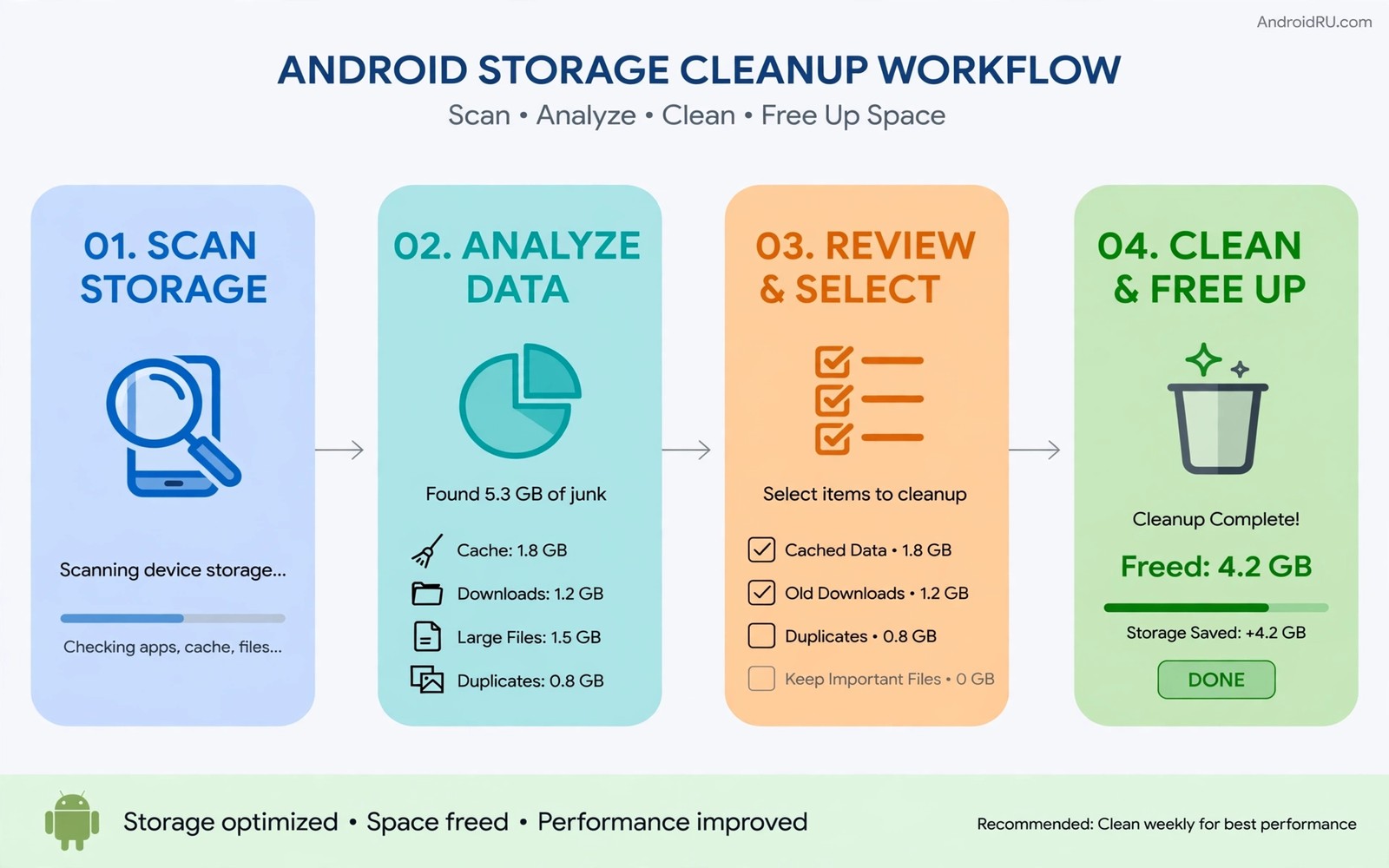
Storage cleanup feels overwhelming when warnings appear and every folder looks important. A complete guide turns that chaos into a clear sequence. Media first and caches second and downloads third and trash last. Each step frees a different kind of waste. Together they can free gigabytes without risking photos or saves or important documents.
Cleanup works best with a backup habit at its core. Back up photos and documents before deleting anything large. A backup turns a mistaken deletion into a simple restore. A cleanup without a backup turns the same mistake into a permanent loss. Start every cleanup with that safety step.
Back up before you delete anything
Open your photo backup app and confirm that recent photos show a synced mark. Open your document folder and confirm that important files exist in cloud storage or on a computer. A backup check takes five minutes and it protects the whole cleanup. Do not skip it for speed.
Export contacts and important app data where those options exist. A contact export protects the address book during a broader phone tidy. An app data backup protects game saves and work files. A complete backup set gives confidence for bold deletions later.
Clean media with a size-first approach
Open the gallery and sort by size or review large videos first. Large videos free the most space per deletion. Preview each large video and save any clip that holds a real memory to an archive folder. Delete the rest without hesitation once backup confirms.
Review duplicate photos next. Burst shots and repeated downloads create near-identical images. Keep the sharpest copy and delete the rest. A duplicate pass often frees hundreds of megabytes without losing any moment. Readers who start with messaging media can explore finding giant media files sent in group messaging apps in this same wave for a focused start.
A size-first media pass works best when you set a clear target before you open the gallery. Aim to free at least two gigabytes in the first pass and stop deleting when you reach that target rather than emptying folders at random. Start with videos longer than one minute because a single long clip can outweigh hundreds of small photos. Move family videos and travel clips to a computer folder named by year and event so the archive stays searchable after the phone copy is gone. Delete burst sequences in groups and keep only the sharpest frame from each burst so you preserve the moment without keeping ten near-identical copies. Check the free space total after the media pass and write it down so the next steps in this guide start from a measured baseline.
Clear caches and downloads systematically
Open Settings and open Apps and sort by storage size. Clear caches for the largest social and video apps. Clearing cache does not delete accounts on most apps. Test each app after clearing to confirm normal loading. A cache pass often frees gigabytes on a phone that has not been cleaned in months.
Open the downloads folder and sort by size. Move useful documents to an archive folder and delete installers and old shared files. Downloads accumulate silently because every shared file lands there. A clean downloads folder prevents the same waste from returning quickly.
Empty trash and remove unused apps
Open gallery trash and file manager trash and cloud trash and empty each one after previewing contents. Trash holds deleted files until emptied. A cleanup that skips trash frees nothing at all. Empty trash as the final deletion step in every cleanup session.
Uninstall apps that you have not opened in a month. A store reinstall returns them quickly when needed. Archive apps that you may need seasonally instead of uninstalling them. Readers who archive can explore auto archiving unused apps to save space without uninstalling in this same wave for that middle path.
A small check for total storage leaders
List user folders by size before and after cleanup to measure the result. A before and after comparison proves which steps paid most. Record the free total after cleanup in a note. That record helps the next cleanup start from a known baseline.
du -sh /sdcard/* 2>/dev/null | sort -rh | head -20
df -h /sdcard
The snippet above was written for this article to show one safe way to list user folders by size and to check free space. It reads storage information and it changes nothing on the phone. Use the output to measure cleanup results.
Clean app data for rarely used apps
Rarely used apps accumulate data that a cache clear alone cannot remove. Settings and downloaded content inside those apps can measure hundreds of megabytes. Review rarely used apps individually and clear their data only after confirming that no important progress lives inside them. A data clear for a forgotten app frees far more space than a cache clear. A data clear for an important app risks loss so check first.
Uninstall rarely used apps instead of clearing their data when reinstall remains easy. A store reinstall takes minutes and it guarantees a clean state. Data clearing suits apps that cannot reinstall easily or that hold offline content. Uninstalling suits everything else. Choose the simpler path for each app individually.
Manage screenshots and screen recordings
Screenshots and screen recordings accumulate faster than most users realise because each capture feels small. Hundreds of screenshots from chats and games and work can total gigabytes. Review the screenshots folder monthly and delete captures that served only a momentary purpose. Keep only screenshots that document something important. A screenshots review often frees surprising space.
Move useful screenshots to a dedicated folder with clear names. A screenshot named by date and purpose remains findable months later. A screenshot left in the default folder with a generic name becomes unfindable clutter. Naming and filing useful screenshots turns a messy folder into a helpful archive.
Clean messaging attachments systematically
Messaging attachments duplicate media that already exists in the gallery in many cases. A photo received in a chat and saved to the gallery exists twice on the phone. Review messaging storage and delete media that already lives in the gallery. A systematic attachment review frees duplicates without losing any unique file. Check the gallery copy before deleting the messaging copy.
Set messaging apps to avoid saving received media to the gallery automatically. Manual saving gives you control over which files deserve gallery space. Automatic saving fills the gallery with memes and forwards that you never wanted to keep. Manual control keeps the gallery meaningful and the storage lean.
Maintain the cleanup result monthly
Maintaining a cleanup result requires less effort than achieving it the first time. A monthly maintenance session of fifteen minutes prevents a return to chaos. Review large media and caches and downloads and trash in that order each month. That order matches the original cleanup sequence and it keeps the habit simple. A simple habit survives busy months while a complex habit collapses.
Celebrate the maintenance result by noting the free space after each session. A rising or stable free space trend proves that the habit works. A falling trend signals a new storage source that needs attention. Tracking the trend turns maintenance from a chore into a visible achievement.
Review storage after installing new apps
Installing a new app changes the storage picture immediately because the app itself and its initial data consume space. Check the storage total after installing a large new app to confirm that the phone still meets its free space target. A new app that pushes free space below the target deserves an immediate cleanup of old files. Post-install checks prevent a slow slide toward full storage that only becomes visible during a warning.
Uninstall a new app quickly when it disappoints rather than letting it linger for months. A disappointing app that stays installed consumes storage and background resources for no benefit. A quick uninstall decision keeps the phone lean and it frees the user from a forgotten app. Decisive app management complements every cleanup routine.
Set a yearly deep cleanup alongside monthly maintenance
A yearly deep cleanup complements monthly maintenance by addressing categories that monthly sessions overlook. A deep cleanup reviews old archives and forgotten folders and long-term app data that monthly sessions skip for speed. Schedule the deep cleanup at the start of a new year when a fresh start feels natural. A deep session may take an hour yet it resets storage to a clean baseline for the year ahead. Monthly maintenance then preserves that baseline with minimal effort. Combining a yearly deep cleanup with monthly maintenance creates a sustainable rhythm that keeps storage healthy for the life of the phone. A rhythm that balances depth and frequency beats sporadic heroic cleanups every time.
Common mistakes
One common mistake is deleting files without a backup. A backup first rule prevents that loss. Another mistake is clearing all app data instead of cache. App data deletion removes settings and saves while cache clearing removes only temporary files. Choose cache for routine cleanup.
People also clean once and never repeat the routine. Storage fills again through daily use. A monthly cleanup habit keeps the phone lean permanently. Readers who maintain a margin can explore keeping Android internal storage under seventy percent capacity in this same wave for a maintenance target.
Frequently asked questions
How much space can a full cleanup free?
Results vary by phone history. A phone cleaned for the first time in a year can free ten gigabytes or more. A phone cleaned monthly frees less each time because waste never accumulates deeply.
Will cleanup delete my photos permanently?
It will only when you delete photos without a backup and then empty trash. Back up first and preview deletions carefully. A careful cleanup keeps every photo that matters.
How often should I run a full cleanup?
Run a full cleanup once a month and a quick cache check weekly. Monthly sessions prevent deep build-up. Weekly checks catch sudden growth from a busy event or trip.
Conclusion
A complete storage cleanup follows a simple order. Back up first and clean large media and clear caches and downloads and empty trash and remove unused apps. Each step frees a different waste type. Together they restore gigabytes and restore phone speed.
Your concrete next step is to back up your photos today and delete your five largest videos. Note the free space before and after that single pass. Readers who want to maintain the result can next explore streamlining app updates to prevent storage bloat growth and freeing up twenty gigabytes of storage quickly as follow-ups.

