

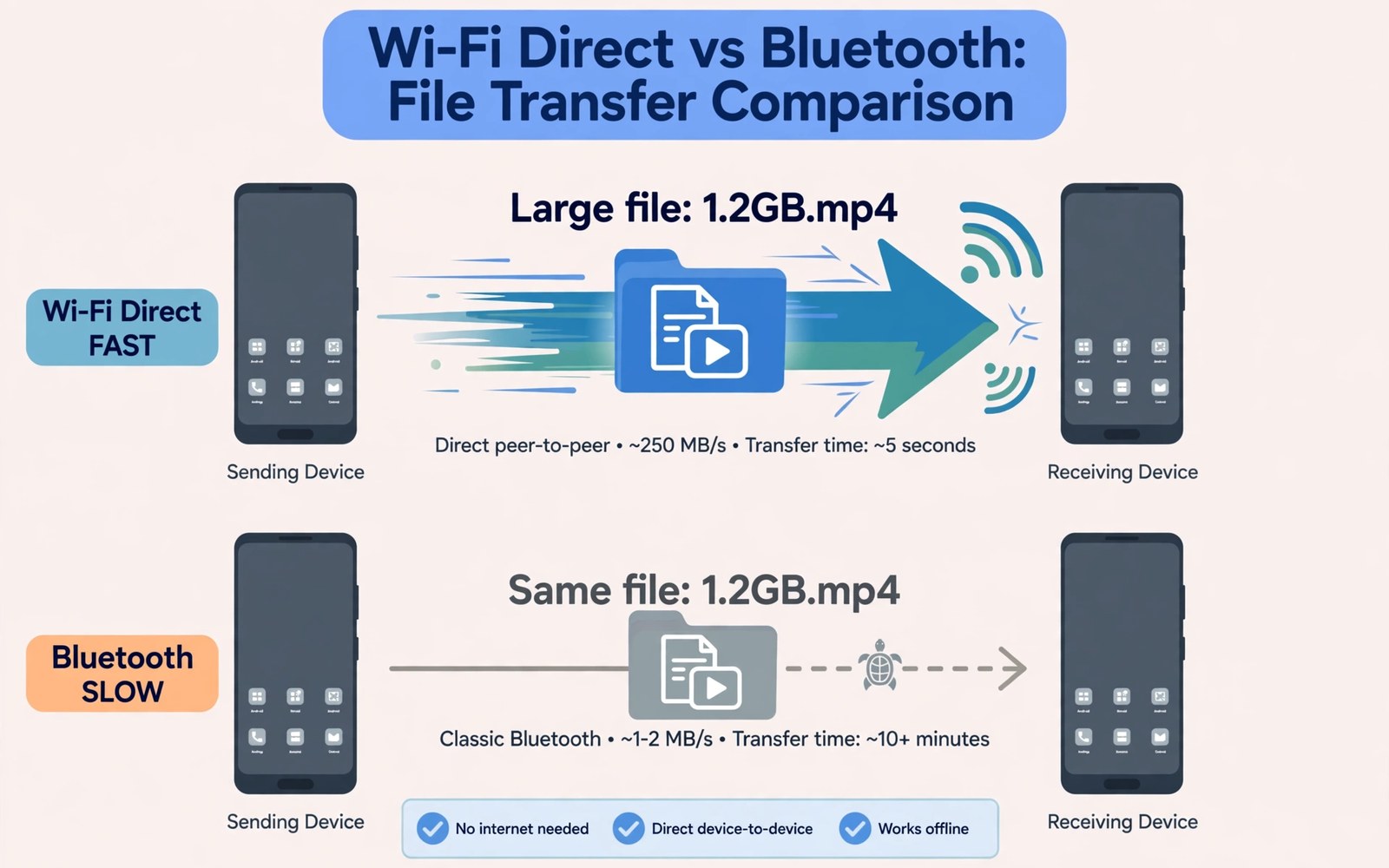
Wi-Fi Direct sends files between phones without a router or mobile data. It creates a direct wireless link that can move large files fast. Bluetooth feels slow by comparison for a multi gigabyte video. Wi-Fi Direct can finish the same transfer in a fraction of the time. Learning it saves time when you share large files in person.
Wi-Fi Direct works even without internet access. The phones connect directly to each other. A file moves over that direct link at Wi-Fi speeds. No router is needed and no mobile data is used. This method suits large videos and photo batches and offline sharing.
Start a Wi-Fi Direct connection
Open Wi-Fi settings on both phones. Look for Wi-Fi Direct or Wi-Fi preferences depending on brand. Tap Wi-Fi Direct to scan for nearby devices. Both phones must have Wi-Fi turned on for discovery. Discovery may take a few seconds on the first try.
Tap the other phone name in the discovered list. The other phone should show a connection request. Accept the request on the receiving phone. A successful connection shows both phones as connected peers. Keep both phones near each other during setup.
Some phones use Nearby Share or Quick Share for Wi-Fi Direct transfers. Open the share menu on the sending phone and choose Nearby Share. Select the receiving phone from the nearby list. Accept on the receiving phone. The system may choose Wi-Fi Direct automatically for large files.
Send large files with Wi-Fi Direct
Open the file manager or gallery on the sending phone. Select the large file or batch you want to send. Tap Share and choose Wi-Fi Direct or Nearby Share. Select the receiving phone. Wait for the transfer to start and do not lock either phone during a large transfer.
Keep both phones close and stationary during transfer. Distance and movement can slow a direct link. A transfer that pauses may resume but it can also fail on a weak link. Place both phones on a table for a large file. A stable placement keeps speed high.
Check the received file size after transfer. Compare it with the original size on the sending phone. A matching size proves a complete transfer. Open a video or photo to confirm it plays correctly. A size match plus a playback check is a solid verification.
Fix discovery and connection failures
Discovery fails most often when Wi-Fi is off on one phone. Turn Wi-Fi on even if no router is available. Wi-Fi Direct needs the Wi-Fi radio for discovery. Check that both phones are not in airplane mode with Wi-Fi off. Enable Wi-Fi manually in airplane mode if needed.
Restart Wi-Fi on both phones if discovery shows nothing. Toggle Wi-Fi off and on and scan again. A fresh scan often reveals a device that a stale scan missed. Move the phones closer for the second scan. A closer distance improves discovery reliability.
Check for a VPN or firewall app that blocks direct connections. Disable a VPN during a Wi-Fi Direct transfer. A VPN can route traffic away from the direct link. Restore the VPN after transfer. A direct transfer needs a clear local path.
Hotspot sharing can conflict with Wi-Fi Direct on some phones. The guide to turning your phone into a dual-band hotspot explains hotspot modes that share the Wi-Fi radio. Turn a hotspot off before a Wi-Fi Direct transfer if discovery fails. A free Wi-Fi radio discovers peers more reliably.
Compare Wi-Fi Direct with other transfer methods
Bluetooth suits small files and audio accessories. It struggles with large video files because of low speed. Wi-Fi Direct suits large files because of high speed. A cable suits the largest files when both devices support it. A cloud upload suits remote sharing but it uses data and time.
Nearby Share may choose Bluetooth for a small file and Wi-Fi Direct for a large file. That automatic choice is usually sensible. Force Wi-Fi Direct through Wi-Fi settings when you need speed for a known large file. A manual choice avoids a slow Bluetooth start for a huge transfer.
USB transfer remains fastest for a very large batch to a computer. Wi-Fi Direct wins for phone to phone sharing without a cable. Choose the method that matches the destination. A phone to phone large transfer is the sweet spot for Wi-Fi Direct.
adb shell cmd wifi list-networks
adb shell dumpsys wifi | grep -i -m 5 "p2p"
These diagnostic lines draw on standard Android Wi-Fi tooling and are offered as a learning example for direct transfer checks. A network list can confirm saved networks before a transfer. Peer hints in the output relate to direct device discovery.
Keep transfers safe and private
Accept Wi-Fi Direct requests only from people you know. A stranger request can lead to unwanted files. Check the device name before accepting. A device name that matches a friend phone is a good sign. Decline any request from an unknown device in a public place.
Check received files before opening them. A file from a trusted friend is usually safe. A file from a stranger deserves a scan and caution. Do not open an executable file from an unknown sender. Delete a suspicious received file at once.
Turn Wi-Fi Direct discovery off after a transfer. A phone left discoverable can receive unwanted requests. Close the Wi-Fi Direct screen after transfer. A closed screen reduces exposure in public places.
Use Wi-Fi Direct for work and travel
Work teams can share large presentation files without a meeting room router. A direct transfer works in a room with no Wi-Fi at all. It also works on a plane in airplane mode with Wi-Fi on. A direct link keeps work moving offline.
Travel sharing benefits from Wi-Fi Direct too. Share a batch of trip photos with a friend without mobile data. A direct transfer avoids roaming charges abroad. It also avoids slow hotel Wi-Fi uploads. A direct link is a travel friendly sharing method.
Backup a large video to a second phone before deleting it from the first. A direct transfer creates a second copy fast. Verify the copy before deleting the original. A verified second copy protects an important video.
USB sharing offers another offline path for a computer. The guide to using a phone as a USB Wi-Fi adapter covers a different USB role for a desktop. Wi-Fi Direct remains the simpler phone to phone choice. Use USB when the destination is a computer.
Transfer photos in batches for reliability
Large photo batches transfer better in smaller groups. Split a thousand photos into groups of about one hundred. A smaller batch restarts faster if it fails. A huge batch that fails near the end wastes time. Batching also lets you verify each group as it completes.
Name batches clearly on the receiving phone. A clear folder name helps you find a batch later. Check each batch count against the sending phone. A matching count proves the batch completed. A missing count points to a partial transfer that needs a retry.
Keep the sending phone screen on during a batch transfer. A locked phone may pause Wi-Fi Direct on some models. Disable auto lock temporarily for a large transfer. Restore auto lock after transfer. A screen on habit prevents a pause that looks like a failure.
Use Wi-Fi Direct in places without a router
A field site with no router still allows direct sharing. Two phones can exchange survey photos without internet. A direct link works in a basement or a remote cabin too. A router free method suits outdoor work teams. It also suits classrooms with unreliable Wi-Fi.
Prepare files before a router free session. Select files and check sizes in advance. A prepared sender starts transfer fast. A receiver with free storage avoids a mid transfer failure. Check storage on the receiving phone before a large batch.
Verify transfers before deleting originals
Never delete an original file right after a transfer starts. Wait until the receiving phone shows a complete file with matching size. Open the file on the receiving phone to confirm playback. A playback check catches a corrupt transfer that size alone can miss. Delete the original only after both checks pass.
Keep a backup copy of an important file until the transfer is confirmed by the recipient. A backup on the sending phone costs little storage for a short time. A deleted original with a failed transfer cannot be recovered easily. A short backup habit protects irreplaceable photos and videos.
Label a transferred batch with the date and sender name on the receiving phone. A clear label helps you find the batch months later. A labelled batch also avoids confusion with older files of the same type.
A labelled batch also helps a recipient who receives files from several senders on the same day.
Common mistakes
One mistake is leaving Wi-Fi off because no router is available. Wi-Fi Direct needs Wi-Fi on for discovery. Another mistake is moving phones apart during a large transfer. Distance slows the link and can fail the transfer.
Another mistake is accepting requests from strangers in public. An unknown request can deliver unwanted files. Check the device name first. People also forget to verify file size after transfer. A size check catches an incomplete transfer early.
Frequently asked questions
Does Wi-Fi Direct use mobile data?
No. Wi-Fi Direct creates a direct link between phones. It does not use mobile data or a router. A transfer over Wi-Fi Direct should not count against a data allowance. Check with your carrier app if a transfer seems to use data.
Why is my phone not discovered?
Wi-Fi may be off or the other phone may not have the Wi-Fi Direct screen open. Open Wi-Fi Direct on both phones and scan again. Move closer and toggle Wi-Fi off and on. A fresh scan usually fixes discovery.
Is Wi-Fi Direct faster than Bluetooth for all files?
Yes for large files in most cases. Wi-Fi Direct uses Wi-Fi speeds that far exceed Bluetooth speeds. A tiny file may transfer similarly fast on either method. Large files show the biggest gain.
Conclusion
Open Wi-Fi Direct on both phones and accept the peer connection. Select the large file and share it over the direct link. Keep phones close and verify file size after transfer. Your concrete next step is to try a Wi-Fi Direct transfer with a large video between two phones today. For home speed gains revisit doubling Wi-Fi speed on Android next.

