

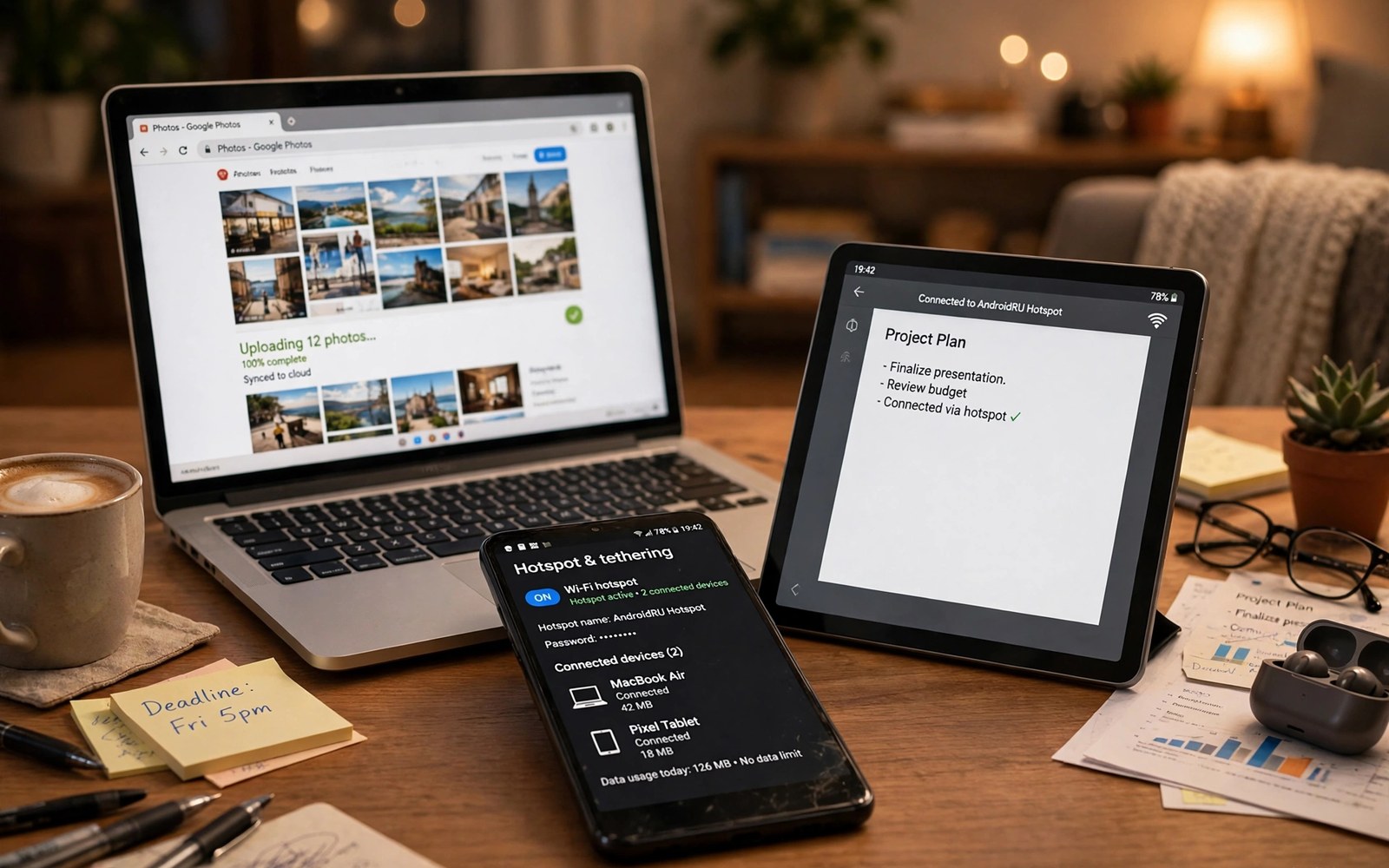
A phone hotspot turns mobile data into Wi-Fi for a laptop or tablet. A dual band hotspot goes further by using two Wi-Fi bands at once. The 2.4 GHz band reaches far and supports older devices. The 5 GHz band offers faster speed at short range. A dual band setup lets each device use the band that suits it best.
Hotspot mode matters for work on the move. A laptop near the phone can use the fast band for video calls. A tablet in another room can use the far reaching band for browsing. A single band hotspot forces every device onto one compromise. Dual band removes that compromise when your phone supports it.
Check dual band support on your phone
Open hotspot settings and look for band or AP band options. Some phones show a choice between 2.4 GHz and 5 GHz. Some phones show a dual band or automatic option. The exact label varies by brand and Android version. A phone without a dual band option may still support 5 GHz alone. Test each available option with your devices.
Check the connected devices list after you enable the hotspot. A dual band hotspot may show which band each device uses on some phones. Other phones show only a device count. Use a laptop Wi-Fi details screen to confirm the band in use. A laptop near the phone should show 5 GHz when dual band works. A device far away may show 2.4 GHz by design.
Carrier plans can limit hotspot speed or data even when the phone supports dual band. Check your plan hotspot allowance before a long work session. A fast band does not increase your data allowance. A video call on the fast band can use data quickly. Set a data warning to avoid a surprise bill.
Set up a powerful dual band hotspot
Open Settings and tap Network and Internet and then Hotspot and Tethering. Tap Wi-Fi hotspot and turn it on. Tap Hotspot settings to set a strong password. Choose WPA2 or WPA3 security when available. A strong password stops strangers from joining and draining your data.
Choose the band option that fits your session. Choose dual band or automatic when you have devices at different distances. Choose 5 GHz only when all devices sit near the phone and need speed. Choose 2.4 GHz only when devices sit far away or use older Wi-Fi. Change the band only when devices disconnect or speed drops.
Place the phone in an open spot with good mobile signal. A phone in a bag or pocket loses both mobile signal and Wi-Fi range. Keep the phone charging during a long hotspot session. Hotspot mode uses battery fast especially on the fast band. A charger keeps the session alive for work.
Hotspot sharing pairs with careful data control. The guide to setting strict app meter limits helps you cap background use while sharing. A cap protects your allowance when a laptop starts a large update. Set limits before you share with others. A shared hotspot can burn data faster than a single phone.
Fix speed and disconnects on a hotspot
Test mobile signal first when hotspot speed is low. A weak mobile link limits every connected device. Move near a window to improve mobile signal. A hotspot cannot create speed that the mobile link lacks. Fix the mobile link before you blame the Wi-Fi band.
Reduce the device count when speed drops. Each extra device shares the same mobile link. A laptop update can starve a video call on another device. Pause updates on connected devices during calls. Ask guests to pause large downloads during a shared session.
Restart the hotspot if devices connect but get no internet. Turn the hotspot off and on again. Reconnect one device first and test internet. Add other devices one by one. A staged reconnect reveals a device that breaks the session.
Tethering over USB can beat Wi-Fi for a single laptop. The guide to speeding up cellular tethering covers tethering trade offs. USB tethering charges the phone while it shares data. It also avoids Wi-Fi interference in a crowded room. Use USB for a long single device session.
Manage security and battery on a hotspot
Change the hotspot password after sharing with guests. A shared password stays valid until you change it. Guests can reconnect later without asking. A fresh password after a session closes that path. Use a password that is long but easy to type once.
Set a hotspot timeout to turn off sharing when no device is connected. A timeout saves battery and it reduces exposure. Some phones offer an auto off timer in hotspot settings. Enable it for casual sharing. Disable it only for a planned long session where devices may idle.
Watch battery temperature during a long hotspot session. A hot phone may throttle speed to protect the battery. Move the phone to a cooler spot and remove a thick case. Keep the phone out of direct sunlight. A cooler phone holds speed longer.
adb shell dumpsys wifi | grep -i -m 5 "hotspot"
adb shell settings get global tether_dun_required
The lines above draw on standard Android Wi-Fi diagnostics and are provided as a learning example for hotspot testing. Hotspot hints in the output can confirm whether sharing is active. A tethering setting read varies by carrier and may be absent on some phones.
Share a hotspot with a group safely
Group sharing needs clear rules to protect data and speed. Tell guests the data limit before they join. Ask guests to pause cloud backups and large updates during the session. A single laptop update can consume the allowance for everyone. A short briefing at the start prevents a surprise bill later.
Use a separate hotspot password for each group session when possible. Change the password after the group leaves. A changed password stops guests from reconnecting days later. It also stops a guest from sharing the password onward without your knowledge. A fresh password is a simple security habit.
Monitor connected devices during a group session. Open hotspot settings and check the device list. Remove an unknown device by changing the password. A device list check takes seconds and it reveals unwanted joins early. Do not ignore an unknown device name.
Hotspot use for travel and remote work
Travel hotspots work best with a plan for charging and signal. Carry a power bank for long hotspot sessions away from mains power. A power bank keeps the phone alive during a train or field session. Keep the phone near a window in a vehicle for better mobile signal. A vehicle roof and body can weaken signal noticeably.
Remote work over a hotspot needs a stable video plan. Use audio only for long meetings when signal is weak. Turn video on only for short key moments. Audio uses far less data and it holds up better on a weak link. A stable audio call beats a frozen video call for work.
Prepare offline files before a hotspot work session. Download documents and slides while on home Wi-Fi. Offline files reduce hotspot data use during the session. They also keep work moving if the hotspot drops briefly. A prepared laptop can survive a short hotspot outage without losing work.
Test hotspot speed with a fair routine
A fair hotspot test needs the same conditions each time. Test mobile speed on the phone alone first. Then test a laptop on the hotspot in the same spot. Compare the two results to see hotspot overhead. A large gap points to Wi-Fi interference or a device issue. A small gap means the mobile link is the limit.
Repeat the test at a different time of day. Evening congestion can slow the mobile link for every device. A morning test may look far better than an evening test. Judge hotspot quality by the worst time you need it. A hotspot that only works in the morning will disappoint for evening work.
Test hotspot behaviour with two devices at once before a real work session. A two device test reveals sharing limits early. A laptop and a tablet together can show whether video on one device starves the other. A test before work prevents a failure during a live meeting. A short test is cheaper than a failed call.
Note the hotspot band and password that worked best for your group session so the next session starts fast. A short hotspot note avoids repeating the same setup tests each time you share.
Check the hotspot device list one last time before you end a shared session. An unknown device in that list deserves a password change right away.
Common mistakes
One mistake is choosing 5 GHz only for devices in far rooms. The fast band fades through walls and can drop. Use dual band or the far reaching band for distant devices. Another mistake is sharing an open hotspot with no password. An open hotspot invites strangers and data theft.
Another mistake is ignoring mobile data limits during a shared session. A laptop can download a large update in minutes. Set a data warning before you share. Pause updates on connected devices during important work.
People also place the phone in a pocket during a hotspot session. A pocket weakens both mobile and Wi-Fi links. Place the phone on a table in an open spot. A simple placement change often fixes slow hotspot speed.
Frequently asked questions
Does dual band use more battery?
Dual band can use slightly more power than a single band. The difference is small compared with the cost of the mobile data link itself. Keep the phone charging for long sessions. A charger matters more than the band choice for battery life.
Can older devices join a dual band hotspot?
Yes when the hotspot offers the 2.4 GHz band. Older devices that lack 5 GHz support will use the far reaching band. A 5 GHz only hotspot will hide from those devices. Use dual band when you share with older hardware.
Why does my laptop show slow speed on a fast hotspot?
The mobile link may be the limit rather than the Wi-Fi band. Test mobile speed on the phone alone first. A weak mobile signal caps every device. Move the phone near a window and test again.
Conclusion
Check band support and set a strong password for your hotspot. Choose dual band when devices sit at different distances. Place the phone in an open spot with good mobile signal and keep it charging. Your concrete next step is to open hotspot settings now and enable dual band and test one laptop near the phone and one device farther away. For sharing without revealing a password read sharing Wi-Fi via QR code next.

