

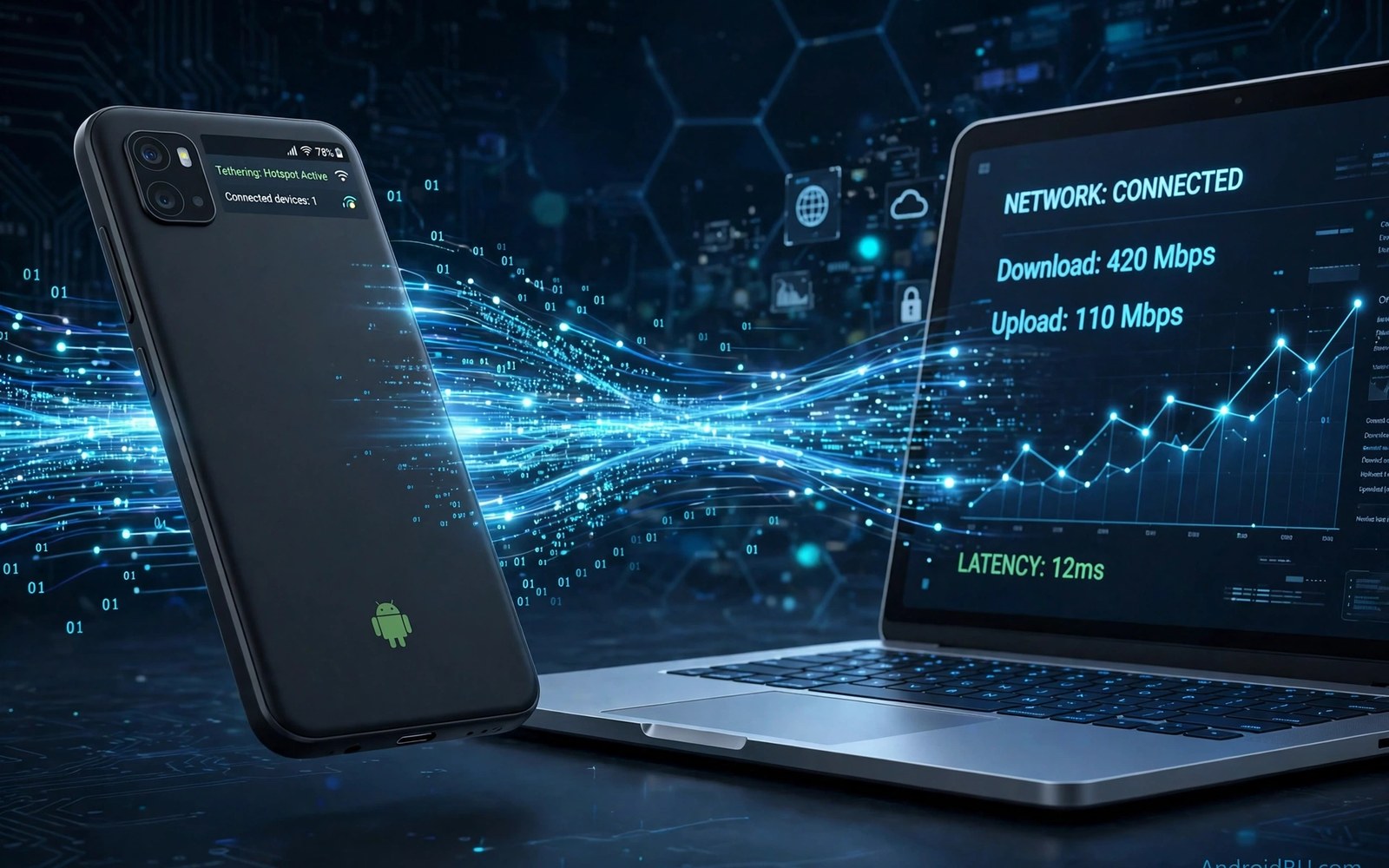
Tethering shares mobile data with a laptop or tablet. Some carriers restrict tethering speed or data even when phone data feels fast. A laptop on a restricted tether can crawl while the phone browses fine. You can improve tethering with settings and habits that respect your plan. This guide focuses on lawful settings and not on bypassing carrier terms.
Tethering speed depends on mobile signal and on the link type. Wi-Fi tethering adds Wi-Fi overhead. USB tethering avoids Wi-Fi interference and charges the phone. Bluetooth tethering is slow and suits only light use. Choose the link type that matches the task.
Choose the fastest tethering link
Use USB tethering for a single laptop that needs stable speed. Connect the phone by USB and enable USB tethering in hotspot settings. A USB link avoids crowded Wi-Fi channels. It also keeps the phone charged during a long session. Test speed on USB before you judge the mobile link.
Use Wi-Fi tethering when you share with several devices. A Wi-Fi hotspot can serve a laptop and a tablet at once. Choose the 5 GHz band for a nearby laptop when possible. Choose the 2.4 GHz band for a distant device. A dual band hotspot balances speed and range for a group.
Use Bluetooth tethering only for light messaging or email. Bluetooth speed is too low for video or large downloads. A Bluetooth link can still save battery compared with Wi-Fi. Reserve it for a low data task when no other link is available.
Improve the mobile link behind tethering
Move the phone near a window for a stronger mobile signal. A strong mobile link lifts every tethered device. Test phone speed alone before you test tethered speed. A weak phone link caps tethered speed at once. Fix the phone link first.
Pause cloud backups and updates on the phone during tethering. A phone backup can compete with laptop traffic. Pause updates on the laptop during a call too. A laptop update can starve a video call on the same link. Pause heavy tasks during important tethered work.
Set the laptop to metered connection for the tethered network. A metered setting stops large automatic downloads. Windows and other systems respect metered networks by pausing updates. Enable metered mode for the phone hotspot network. A metered laptop protects your data allowance.
Fix tethering that connects but gives no internet
Toggle tethering off and on again for a fresh session. A fresh tether clears a stale network session. Reconnect the laptop after the toggle. Test a simple web page before a video call. A simple page test proves basic connectivity fast.
Check APN settings if tethering worked before but fails now. A carrier update can change APN details. Compare APN settings with carrier guidance. A wrong APN can allow phone data while blocking tethered data. Restore the carrier APN before you try other fixes.
Restart both phone and laptop if a fresh tether still fails. A restart clears a stuck network stack on either side. Reconnect USB or Wi-Fi after restart. Test with one device first. A staged test reveals whether the fault follows the phone or the laptop.
Hotspot setup details matter for tethered speed. The guide to turning your phone into a dual-band hotspot covers band and password choices for sharing. A correct band choice can lift tethered speed noticeably. Pair band choice with a strong mobile signal for best results.
Manage data limits while tethering
Tethering can burn data faster than phone use alone. A laptop browser loads desktop pages with more images. A laptop update can download gigabytes without warning. Set a data warning on the phone before tethering. A warning at eighty percent of allowance leaves time to adjust.
Set the laptop browser to data saving mode for tethered sessions. Disable auto play video on the laptop browser. A browser that auto plays video can use data fast. Pause cloud sync on the laptop during tethering. A paused sync protects the allowance for work tasks.
Track tethered data separately if your carrier app shows it. Some carriers count tethered data against a separate allowance. A separate allowance can run out while phone data remains. Check the tethered total before a long session. A checked total prevents a surprise cutoff.
adb shell dumpsys wifi | grep -i -m 5 "tether"
adb shell settings get global tether_dun_required
The lines here use standard Android Wi-Fi diagnostics and are provided as a learning example for tethering checks. Tethering hints can confirm whether sharing is active. A tethering setting read depends on carrier build and may be absent.
Use tethering for work without surprises
Plan tethered work around signal strength. A video call needs a stable link more than a peak speed number. Test a short call before a long meeting. A short test reveals jitter and drops early. Switch to audio only if video keeps freezing.
Download work files on Wi-Fi before a tethered session when possible. Offline files reduce tethered data use. A prepared laptop can work through a brief tether drop. Offline preparation is the simplest tethering optimisation.
Keep the phone charging during USB tethering and near power during Wi-Fi tethering. A phone that dies mid session drops every connected device. A charger keeps a long session alive. A power bank helps for outdoor tethered work.
Data limits protect tethered work too. The guide to setting strict app meter limits shows how to cap wasteful apps. A capped phone leaves more allowance for laptop work. Set limits before a long tethered day.
Test tethering in different locations
Tethering speed varies sharply by location. A desk near a window may give twice the speed of a basement desk. Test tethering in each work location you use. Note the best spot for video calls. A location note saves repeated speed tests.
Test tethering at different times of day too. Evening tower load can slow a link that feels fast in the morning. A location that works in the morning may fail in the evening. Judge a tethering spot by its worst time. A spot that passes an evening test is reliable.
Test with the exact laptop and apps you use for work. A test with a browser alone hides video call load. A test with a real meeting reveals jitter. A realistic test prevents a surprise during a live call. Use real work apps for the final test.
Handle carrier tethering limits honestly
Some plans include a separate tethering allowance. Check that allowance in the carrier app before a long session. A separate allowance can end while phone data remains. A checked allowance prevents a sudden cutoff during work. Plan large tethered tasks around that allowance.
Ask the carrier about a tethering add on when you need it regularly. An add on can cost less than overage charges. A regular tether user benefits from a plan that matches use. A plan change is cheaper than repeated overage fees. Compare add on cost with overage cost before deciding.
Optimise a laptop for tethered work
A laptop set for tethered work uses less data and holds calls better. Disable cloud sync apps on the laptop during tethering. Pause automatic updates and large downloads. Close browser tabs that auto refresh with video. Each closed tab reduces background data use.
Use a lightweight browser profile for tethered sessions. A lightweight profile blocks heavy ads and auto play video. A lighter page loads faster on a weak link. It also uses less data per page. Switch back to a full profile on Wi-Fi.
Set video call apps to standard quality on a tethered link. High quality video can saturate a weak mobile link. Standard quality keeps audio clear and video usable. A stable standard call beats a frozen high quality call. Change quality back on a strong Wi-Fi link.
Keep a tethering log for work trips
A tethering log helps you plan future work trips. Note the location and speed and data used for each session. A log reveals which locations support video calls reliably. It also reveals which locations need audio only calls. A log turns guesswork into planning.
Share the log with colleagues who travel to the same locations. A shared log helps a team choose meeting times and call quality. It also helps IT understand mobile coverage gaps. A team log is more useful than a private note.
Review the tethering log at the end of each work trip and note the best location for the next visit. A reviewed log improves the next trip without extra testing on arrival.
A short log entry after each session keeps the record accurate while details are fresh in memory.
Keep the log on the phone so it travels with you to the next work location.
Common mistakes
One mistake is using Wi-Fi tethering in a crowded Wi-Fi area for a single laptop. USB tethering avoids that interference. Another mistake is ignoring laptop updates during tethering. A laptop update can consume the allowance in minutes.
Another mistake is blaming tethering when mobile signal is weak. Test phone speed alone first. People also forget to set the laptop network as metered. An unmetered laptop downloads freely on a tethered link.
Frequently asked questions
Why is tethered speed slower than phone speed?
Tethering adds link overhead and shares the mobile link with another device. Wi-Fi interference can also slow a Wi-Fi tether. USB tethering usually shows less overhead than Wi-Fi tethering. Test USB to compare fairly.
Can I tether without a hotspot plan?
That depends on your carrier plan and terms. Some plans include tethering and others charge separately. Check your plan before you rely on tethering. A plan check avoids a surprise charge.
Does USB tethering charge the phone?
Yes in most cases. A USB connection to a laptop or charger supplies power while sharing data. A low power USB port may charge slowly. Use a proper charger port for long sessions when possible.
Conclusion
Choose USB tethering for a single laptop and Wi-Fi tethering for a group. Improve mobile signal and pause updates on both phone and laptop. Set the laptop network as metered and watch data warnings. Your concrete next step is to enable USB tethering today and test laptop speed against phone speed. For desktop sharing by USB read using a phone as a USB Wi-Fi adapter next.

