

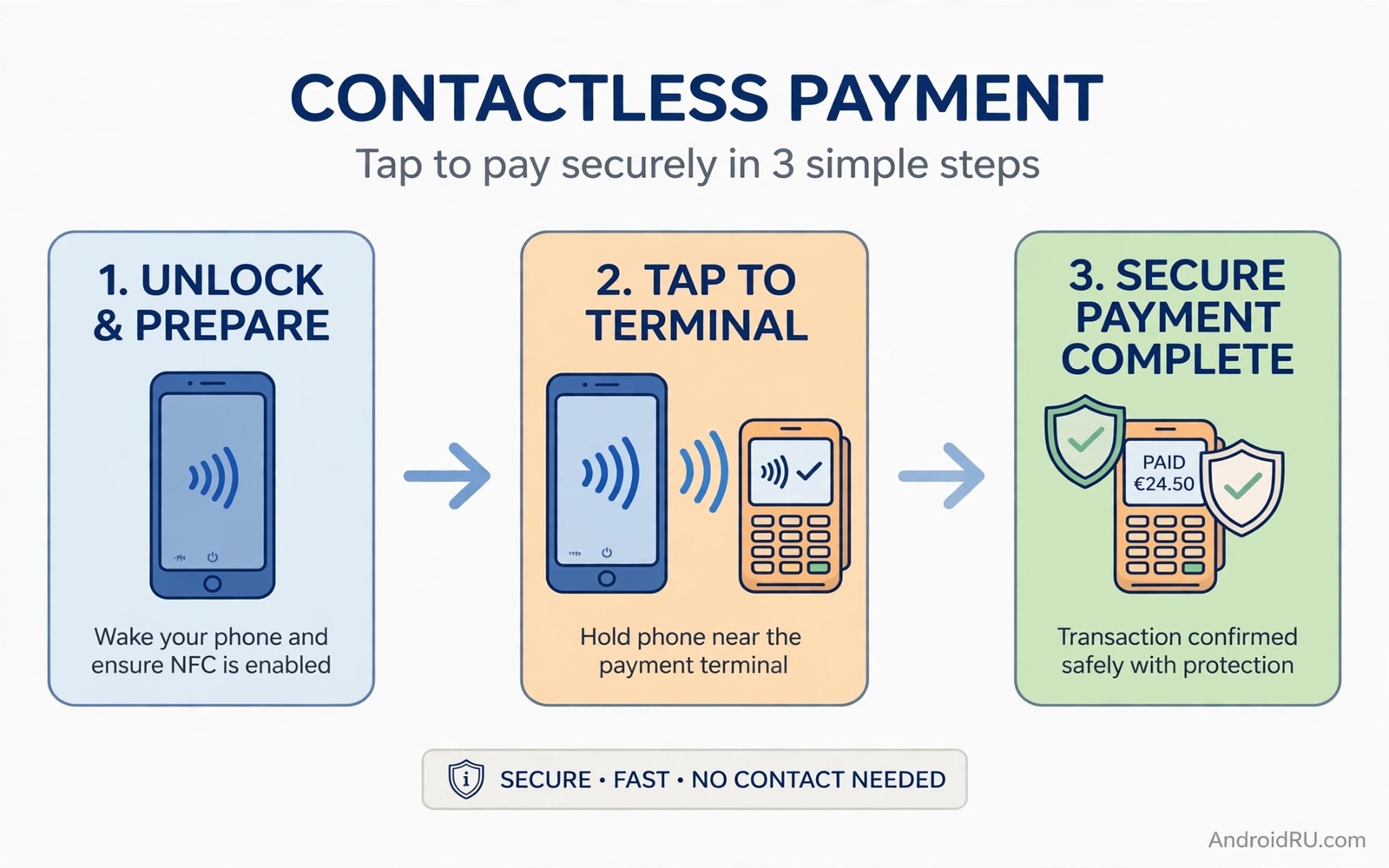
Tap to pay feels like magic until your phone fails at a shop terminal. You hold the phone near the reader and nothing happens. That failure can come from hardware or from a wallet setting or from a lock screen rule. A phone without NFC hardware cannot tap to pay at all. A phone with NFC hardware can fail for a simple setting reason. This guide helps you tell the difference quickly.
NFC stands for Near Field Communication. It is a short range radio that lets a phone talk to a payment terminal at a distance of a few centimetres. A payment wallet stores a virtual card and presents it through NFC. A terminal reads that virtual card like a physical card. The whole process needs hardware and software and bank approval to work together. A fault in any part breaks the tap.
This guide starts with a hardware check. It then shows wallet setup and tap to pay defaults. It shows how to test safely at a terminal. It also shows what to do when a phone truly lacks NFC. A safe alternative keeps you paying even when tap to pay is impossible on that device.
Check whether your phone has NFC hardware
Open Settings and search for NFC. A phone with NFC hardware will show an NFC switch in connected devices or connection settings. A phone without NFC hardware will show no NFC setting at all. A search that finds nothing is strong evidence that the hardware is absent. A specification sheet for your exact model can confirm the result.
Check the phone box or the manufacturer specification page for your model name. A model name that differs by one letter can have different hardware. A regional variant can lack NFC even when another variant includes it. Confirm the exact model in About phone before you trust a generic specification. An exact model check prevents a long settings hunt for hardware that does not exist.
Turn the NFC switch on if it appears. A switch off will block every tap attempt. A switch on is the first requirement for any payment test. Keep NFC on only when you need it if you worry about battery or security. A modern NFC payment still needs a wallet unlock for most transactions. An NFC switch alone does not make payments automatic.
Set up a wallet and a default card
Open your payment wallet app and add a card from a supported bank. Follow the bank verification steps exactly. A card that is added but not verified cannot pay at a terminal. A verification step may need a code from the bank app or a message. Complete that step before you test at a shop.
Set the wallet as the default payment app in NFC settings. A phone with two wallet apps can send the wrong wallet to the terminal. A default setting removes that ambiguity. Open the NFC payment settings and choose your preferred wallet as the default. Test with that wallet only until tap to pay works reliably.
Check the default card inside the wallet as well. A wallet with several cards needs a clear default for quick taps. A tap without a default may ask you to choose a card at the terminal. That choice can fail if the terminal times out quickly. A clear default gives a fast and reliable tap. Change the default later if you want a different card for a specific purchase.
Test tap to pay safely
Test at a small purchase first rather than a large weekly shop. A small test limits the impact if the tap fails or charges the wrong card. A successful small test proves the full chain from hardware to bank. A failed small test gives a clear error to investigate. A large test adds stress without adding information.
Hold the phone with the NFC area near the terminal. The NFC area usually sits near the top or the centre of the back. A case with metal parts can block the signal. Remove a thick metal case for the test. A successful tap without the case points to the case as the cause. A failed tap without the case points to a setting or bank cause.
Unlock the phone before the tap if the wallet requires it. Some wallets allow a small payment with a locked phone. Most wallets require an unlock for larger payments. An unlock also wakes the NFC service on some phones. A tap with an unlocked phone gives the fairest test. A tap with a locked phone can fail even when every setting is correct.
Fix common tap failures
Check the default payment app again if the terminal shows a different card or no card. A recent app update can reset the default on some phones. A reset default is easy to miss because the wallet still opens normally. A quick check in NFC settings restores the correct default. Test again after the fix.
Remove and re-add the card if the bank declines every tap. A card token can expire or break after a phone restore. A fresh card add creates a new token with the bank. A new token often fixes a persistent decline. Complete bank verification again after the re-add. A card without verification will fail just like the old token.
Restart the phone if taps fail after a system update. An update can leave the NFC service in a stale state. A restart clears that state and it restores the service. Test a small tap after the restart. A successful tap after a restart points to a temporary service fault. A failed tap after a restart needs a wallet or bank check. Nearby transfer features use similar radios and the guide to using Wi-Fi Direct for large files shows how short range links behave under interference.
Use this NFC setup routine
Follow the same routine for every new phone or new card. Check hardware and turn NFC on. Add and verify the card. Set the wallet and card defaults. Test a small tap with an unlocked phone and no metal case. That routine covers every common failure in order.
Step one: check NFC switch in Settings
Step two: add card and complete bank verification
Step three: set wallet as default payment app
Step four: set default card inside wallet
Step five: test small tap with phone unlocked
This routine is an original example written for this guide. It uses only standard NFC and wallet screens. It does not require any extra app beyond a supported wallet. The routine works because it checks hardware before software and defaults before a live test. A live test without defaults can fail for a trivial reason.
Secure NFC payments on your phone
Use a strong lock screen for any phone that holds payment cards. A fingerprint or a strong PIN protects the wallet from a stolen phone. A weak lock screen undermines every other payment protection. A strong lock is the simplest and most effective payment security step. Set it before you add any card.
Review the wallet transaction history regularly. A history check can spot an unfamiliar charge early. A bank app can also send alerts for every tap payment. Turn those alerts on for immediate notice. An alert plus a history check gives fast detection of any misuse. A fast detection limits the damage from a lost phone.
Turn NFC off when you travel in a crowded place if you do not need tap to pay that day. An NFC switch off removes the radio entirely. A switch on with a locked wallet is still safe for most users because a tap needs an unlocked wallet for most amounts. A personal comfort choice between convenience and caution is valid. Choose the setting that lets you sleep well. New phone setup includes many similar defaults and the guide to network settings for a new phone covers the wider setup after a device change.
What to do when a phone lacks NFC
Use a physical card or a wearable with NFC if your phone lacks the hardware. A wearable can tap to pay even when the phone cannot. A physical card remains a reliable fallback in every shop. A phone without NFC is not a broken phone. It simply lacks one radio that a card or a wearable can replace.
Check the next phone purchase for NFC before you buy if tap to pay matters to you. A specification check takes a minute and it prevents disappointment later. A budget phone can still include NFC in many regions. A flagship phone almost always includes it. A deliberate check beats an assumption based on price alone.
Keep the wallet app for online payments even without NFC hardware. You can still move files between phones without NFC, and the fixes for Nearby Share connection failures will help when a direct transfer does not appear. An online wallet can still pay in apps and on websites. A lack of NFC only blocks terminal taps. An online payment path keeps the wallet useful for digital purchases. That distinction helps you use the phone fully despite the missing radio.
Common mistakes
A common mistake is to test tap to pay with a locked phone and a metal case and then blame the bank. Both factors can block a tap on their own. Another mistake is to add a card without completing bank verification. An unverified card looks ready in the wallet but it will fail at a terminal. Complete verification before any live test.
Do not install a random wallet app that promises NFC on a phone without hardware. No app can create NFC hardware. A fake wallet can steal card details. Use only a wallet from a trusted developer and a supported bank. A trusted wallet plus verified hardware is the only safe path to tap to pay.
Frequently Asked Questions
Can I add NFC with an app or a sticker?
No because NFC needs hardware inside the phone. A sticker cannot add a secure payment radio to a phone that lacks it. A wearable with NFC is a real alternative because it contains its own hardware and wallet.
Why does tap to pay work in one shop but not another?
Terminals differ in NFC antenna position and sensitivity. A terminal with a weak antenna needs a precise phone position. A case or a hand position can matter more at one terminal than at another. Test with an unlocked phone and no metal case at the failing terminal.
Is NFC payment safe if I lose my phone?
A strong lock screen and a remote wipe option protect a lost phone. A bank can also suspend the virtual card quickly. Contact the bank at once after a loss. A suspended virtual card stops taps even if the physical card still works.
Check wallet limits for large taps
Check the tap limit that your bank sets for contactless payments. A tap above that limit will require a PIN or a fingerprint even with a perfect NFC setup. A failed large tap can look like an NFC fault when it is actually a limit rule. Knowing the limit before a large purchase prevents embarrassment at the terminal. A small test tap cannot reveal a limit that only applies to larger amounts.
Ask your bank about a limit change if you regularly pay large amounts by tap. Some banks allow a higher limit after an identity check. A higher limit can make large purchases smoother. A limit that stays low is still a useful fraud protection. Balance convenience against protection when you decide whether to request a change.
Conclusion
Today search Settings for NFC and confirm whether your phone has the hardware. If it does then turn NFC on and verify a card in your wallet. Set the wallet and the card as defaults. Test a small tap with an unlocked phone and no metal case. That concrete test will prove tap to pay on your device or point to the exact setting that needs fixing.
If your phone lacks NFC then choose a wearable or a physical card as a reliable fallback. Check NFC on the specification sheet before your next phone purchase if tap to pay matters to you. A deliberate hardware check saves a future disappointment at the shop terminal.

