

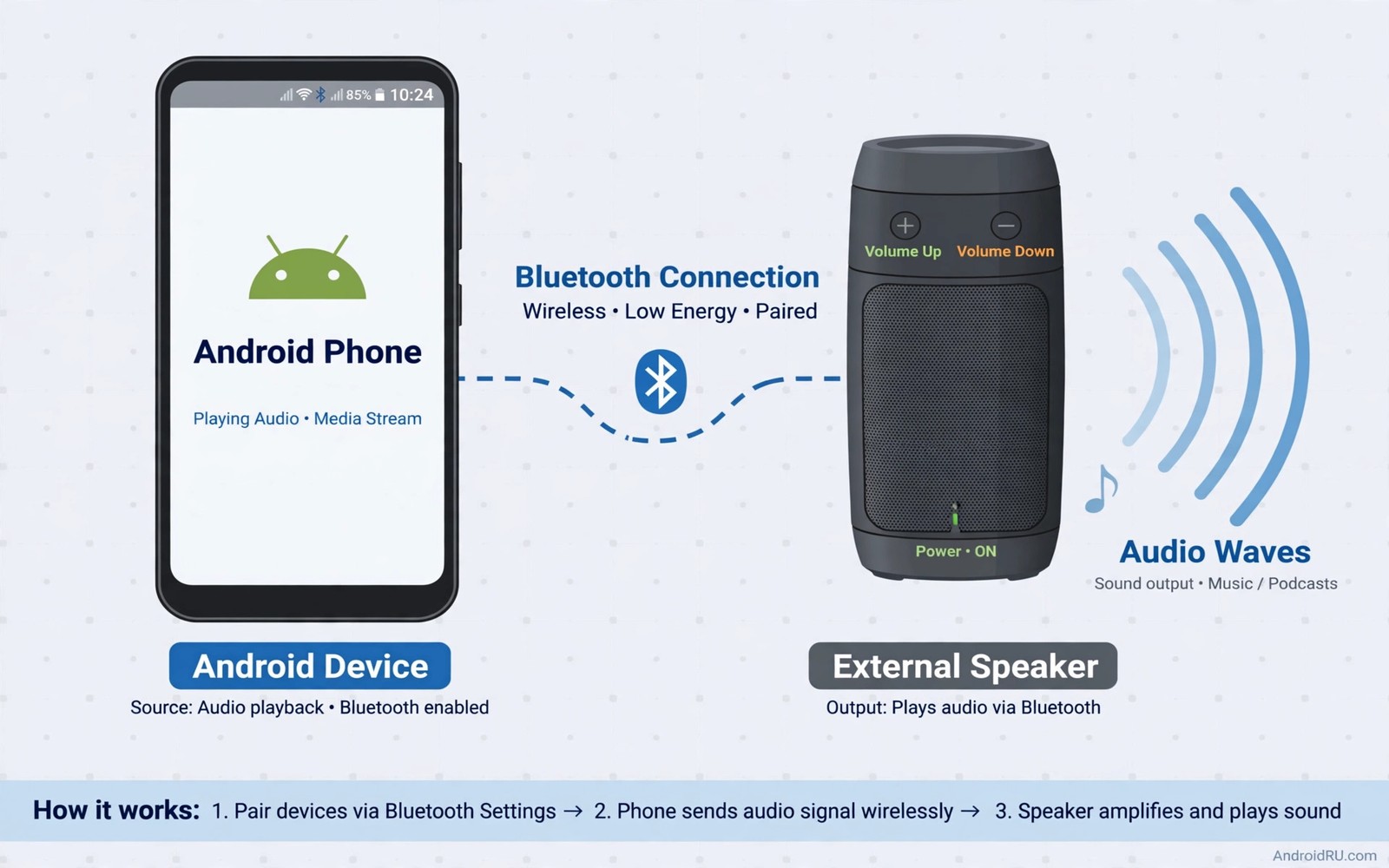
A Bluetooth speaker can sound loud with one phone and quiet with another phone. The fault is often a volume setting that hides between the phone and the speaker. Android and the speaker each hold a volume level. When those levels disagree the result is weak sound even at full volume on one side. A few checks can bring the sound back without buying new gear.
Start by thinking of the chain as three controls. The app holds a volume level. The phone holds a Bluetooth volume level. The speaker holds its own volume level. Any one of those controls can cap the final sound. Turning only the phone volume up will not help if the app volume is low. Turning only the speaker up will not help if Android limits Bluetooth output.
This guide walks the chain from the app to the speaker. It covers volume sync and codec choice and absolute volume settings. It also covers speaker placement and battery saving limits. Work through the steps in order and test after each change. That order stops you from changing five settings at once and losing track of the fix.
Check All Three Volume Controls First
Open the app that plays the sound and set its volume to full. Many music and video apps have a volume slider inside the player. Next press the phone volume buttons while sound plays over Bluetooth. Watch the Bluetooth volume bar and raise it to full. Finally press the volume buttons on the speaker itself and raise it to full.
Test a loud track after all three controls are at full. If the sound is now loud then the problem was a hidden low control. Lower the speaker volume to a comfortable level and keep the phone and app at high levels. That habit gives you one main control for daily use. If the sound stays quiet then move to the Bluetooth settings in the next section.
Turn On Absolute Volume And Volume Sync
Android can link phone volume and speaker volume through a feature called absolute volume. Open Settings and tap Connected devices. Tap the gear icon beside your speaker. Look for volume sync or absolute volume options on your phone brand. Turn the option on and test the volume buttons again. The phone and speaker should now move together.
If the option is missing then open Developer options on your phone. Search Settings for Build number and tap it seven times if Developer options are hidden. Open Developer options and find the absolute volume toggle. Turn it off and on again if the toggle already looks on. Reconnect the speaker after the change. A fresh connection often applies the new volume link. Codec choice also affects loudness and switching Bluetooth audio codecs for better sound explains which codec suits your speaker.
Fix Codec And Audio Quality Limits
A low quality codec can sound flat and quiet even at high volume. Open the speaker settings in Bluetooth settings and look for HD audio or codec options. Turn on HD audio if your speaker supports it. If sound drops or stutters after the change then turn HD audio off again. A stable standard codec beats a broken high quality codec for daily listening.
Check the audio source quality as well. A low bitrate stream will sound weak on any speaker. Test the same speaker with a downloaded high quality track. If the downloaded track sounds loud then the stream quality was the limit. Raise the streaming quality in the music app settings when you use Wi-Fi. That change can improve both loudness and clarity.
Rule Out Battery Saving And Distance Problems
Battery saving modes can limit Bluetooth power on some phones. Turn off battery saver for a test and play the same track again. Check the app battery setting and set the music app to unrestricted for the test. If volume returns then battery saving was part of the problem. Keep the music app unrestricted only if you accept higher battery use.
Distance and walls also weaken Bluetooth sound. Move the phone within a few metres of the speaker with a clear line of sight. Remove a thick case for a test if the phone sits in a metal case. Test the speaker in a different room to rule out interference from Wi-Fi routers. A speaker that sounds loud at close range but quiet far away suffers from range loss and not from a volume setting.
Reset The Bluetooth Link When Nothing Else Works
Forget the speaker in Bluetooth settings and restart both devices. Pair the speaker again from scratch. A fresh pairing clears a stale volume profile from an old connection. Test volume before you change any other setting. That clean test shows whether the old pairing was the cause.
Update the phone software if a fresh pairing fails. A Bluetooth stack update can fix volume bugs on specific phone models. Check the speaker maker app for a speaker firmware update as well. A firmware update can fix low volume on a specific speaker model. Keep a note of the software versions before and after the update.
app_volume = full
phone_bluetooth_volume = full
speaker_volume = full
absolute_volume = on
The snippet above is an original example written for this guide. It shows generic settings that you can adapt to your own device. It does not copy code from any outside source.
Use the example above as a checklist for the volume chain. It is not code to run on your phone. Check each line in order during your next test. Write down which line changed the result.
Test Speakers In Different Rooms
A speaker that sounds quiet in one room may sound loud in another room. Room size and wall material change how sound travels. A small tiled room reflects sound and feels louder. A large carpeted room absorbs sound and feels quieter. Test the same track in two rooms before you blame a setting.
Move the speaker away from a corner if bass sounds muddy. A corner boosts bass and can make the overall sound feel unbalanced. Move the speaker to ear height for a fair test. A speaker on the floor loses treble to furniture. A speaker at ear height reveals its real balance. Placement tests cost nothing and they often fix a perceived volume fault.
Check for objects that block the speaker driver. A book or a bag in front of a driver muffles sound badly. Clear the front of the speaker during a test. Note the difference with and without the block. A clear path matters more than a small volume increase.
Test the speaker with a second phone in the same room and position. A second phone test separates room effects from phone effects. If both phones sound quiet in that room then the room is the cause. If only one phone sounds quiet then the phone setting is the cause. That separation saves wasted settings changes.
Maintain Bluetooth Pairings Over Time
Old Bluetooth pairings can carry stale volume and codec profiles. A pairing made on an old phone software version may not update cleanly. Forget and re-pair a speaker after a major phone update. A fresh pairing rebuilds the profile with current settings. That rebuild often fixes quiet volume after an update.
Limit the number of paired devices that stay connected at once. A phone connected to a watch and earbuds and a speaker can split Bluetooth attention. Disconnect devices that you are not using during a speaker test. A single active link gives the cleanest test result. Reconnect other devices after the test ends.
Update speaker firmware when the maker offers it. Firmware can fix volume bugs on specific models. Check the maker app once a month for updates. Note the firmware version before and after an update. A version note helps support if a new update breaks volume. Codec choice remains important and switching Bluetooth audio codecs for better sound explains the tradeoffs for your speaker.
Clean the speaker charging port and buttons occasionally. Dust in a button can cause a volume button to stick at a low level. A stuck button can mimic a software volume fault. A gentle clean with a dry cloth removes that risk. Physical maintenance complements software fixes.
Fix Speaker Volume For Calls And Media Separately
Android treats call volume and media volume as separate controls. A speaker that plays music loud may still play calls quietly. Test a call on the speaker after you fix music volume. Note call volume separately from music volume. Separate notes prevent a music fix from hiding a call fault.
Check call audio routing during a test call. A call may route to the phone earpiece instead of the speaker. Routing can change when a second Bluetooth device connects. Disconnect other Bluetooth devices during a call test. A single device test reveals the true routing.
Test media volume with a video app as well as a music app. Video apps can have their own volume limits. A video that plays quietly may have an in app volume cap. An in app cap looks like a speaker fault. App specific tests separate app caps from system faults.
Check speaker firmware for call audio improvements. A firmware update can fix call volume on specific models. Note the firmware version before the update. A version note helps support if call volume changes after an update. Disconnect problems can also mimic volume faults and fixes for Bluetooth disconnecting repeatedly covers unstable links.
Keep a simple volume log for music and calls. A log shows whether a fix helped both uses or only one. A fix that helps only music still leaves a call problem. Both uses deserve a working volume. A complete log keeps the fix honest.
If Bluetooth audio stutters as well as sounding quiet then fixing Bluetooth interference problems that cause audio stuttering covers interference sources to check.
Common Mistakes
The first mistake is raising only the phone volume and ignoring the app and speaker controls. The second mistake is blaming the speaker before testing a second phone. A second phone test separates a phone fault from a speaker fault fast. The third mistake is changing codec and volume and battery settings at once. Change one setting at a time and test after each change.
Another mistake is testing with a quiet recording and calling the speaker faulty. Test with a loud well recorded track first. A further mistake is leaving the phone in another room during the test. Distance can mimic a volume fault and waste an hour of settings changes.
Frequently Asked Questions
Why is Bluetooth quieter than a wired connection?
Bluetooth adds its own volume stage and codec stage that a wired cable lacks. A mismatch in those stages can lower the final sound. Absolute volume usually fixes the mismatch. Test a wired connection only to confirm that the speaker itself can play loud.
Does a codec change make sound louder?
A codec change mainly affects clarity and not raw loudness. A better codec can sound fuller at the same volume level. A broken codec can sound weak and flat. Choose a stable codec that your speaker supports well.
Should I buy a new speaker if volume stays low?
No test a second phone and a fresh pairing first. Test the speaker at close range with a loud track. If every phone sounds quiet at close range then the speaker may be faulty. If only one phone sounds quiet then the phone setting is the cause.
Conclusion
Set the app and phone and speaker volumes to full today and test one loud track. Turn on absolute volume and reconnect the speaker if the sound stays quiet. Test a second phone before you spend money on a replacement. That three step test is your concrete next step toward full Bluetooth speaker sound.

