

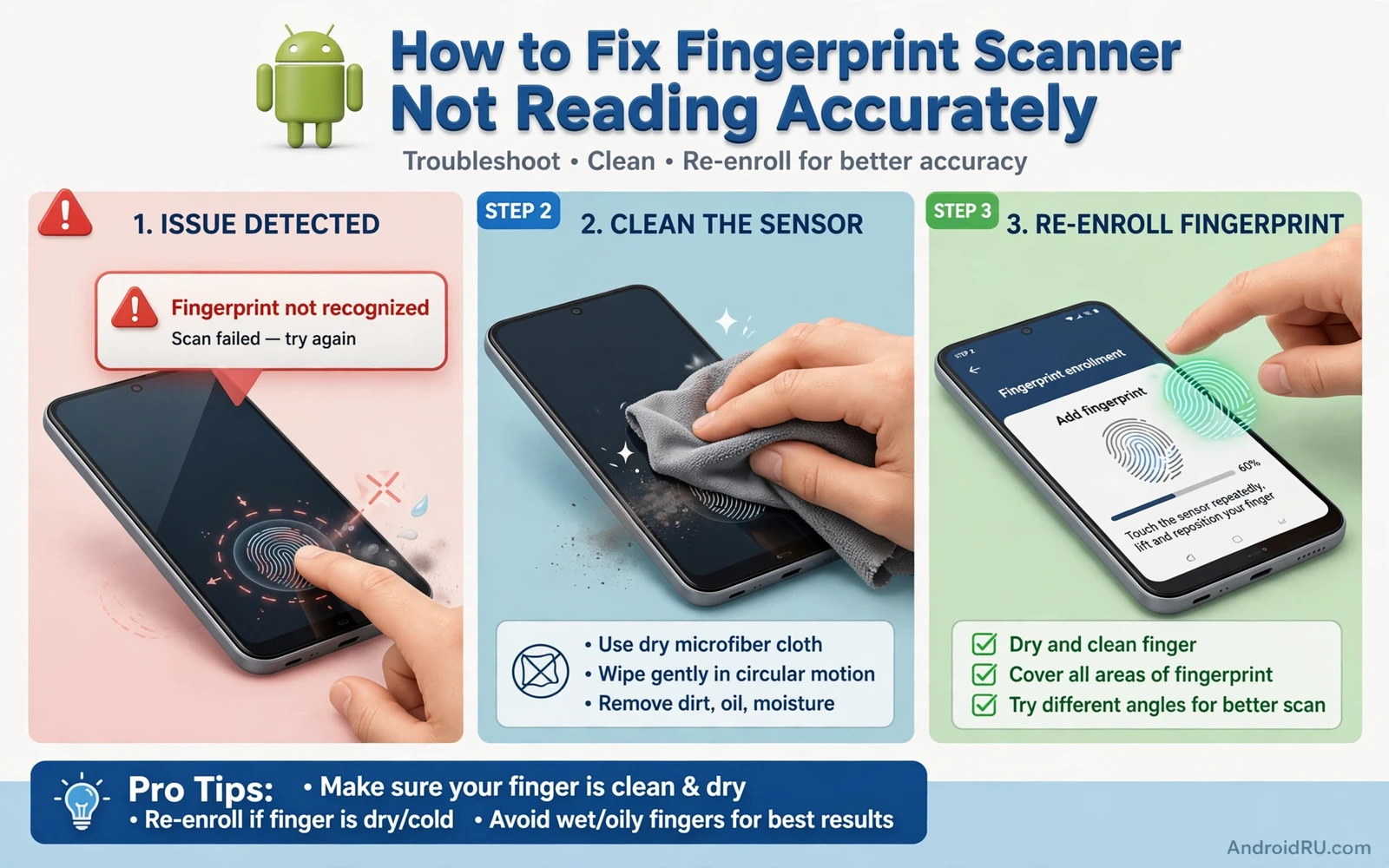
Why A Fingerprint Scanner Starts Misreading
A fingerprint scanner reads tiny ridges on your skin. Anything that changes those ridges or the sensor surface can cause a misread. Dry skin and wet fingers and lotion and dirt all change the pattern the sensor sees. A scratched screen protector over an under-display sensor can blur the reading. A worn sensor on an older phone can lose sensitivity. Software can add to the problem when a fingerprint template ages or when an update changes sensor behaviour. Most misreads come from a mix of these small causes rather than one dramatic fault.
Start with a simple test. Try the same finger several times with a relaxed press. Then try a different enrolled finger. If one finger fails and another works then the problem is likely that finger or its template. If every finger fails then the problem is likely the sensor surface or the software. That quick split saves you from re-enrolling every finger when only one template is stale. Note the result before you change anything.
Clean The Sensor And Prepare Your Finger
Power off the screen and wipe the sensor area with a soft dry cloth. For a rear or side sensor wipe the sensor itself. For an under-display sensor wipe the screen area above the sensor. Remove dust and oil and moisture. Avoid harsh cleaners and avoid soaking the phone. A damp cloth wrung almost dry is enough for stubborn grime. Let the area dry fully before you test again. Moisture is a common cause of repeated failures on under-display sensors.
Wash and dry your hands and try again with a natural press. Press firmly but do not mash the sensor. Hold the finger still for a moment instead of sliding it. Cold dry skin reads worse than warm skin so rub your hands gently if they are cold. If you use hand cream then wipe the excess off before testing. These small habits sound trivial but they fix a large share of everyday misreads without touching a single setting.
Remove And Re-Enrol Your Fingerprints
Open Settings and then Security or Biometrics and then Fingerprint. Confirm with your PIN or pattern. Delete the fingerprint that fails most often. Then tap Add fingerprint and follow the prompts. Place the finger in varied positions as the phone asks. Cover the edges and the tip and the centre so the template learns the full pattern. A template built from one flat press only will fail when you press at an angle in real life.
Enrol the same finger twice under two entries if your phone allows it. The second entry can capture a slightly different angle and improve recognition. Also enrol a finger from each hand so you can unlock when one hand is busy or wet. Name the entries if the phone allows names so you know which entry to delete later. After re-enrolment lock the phone and test unlocking ten times. A good template should succeed almost every time in normal conditions.
Check Screen Protectors And Cases
A thick or poorly fitted screen protector is a frequent cause of under-display sensor trouble. Lift the edge gently and check for bubbles or dust over the sensor area. A bubble over the sensor scatters the light the sensor uses. Replace a damaged protector with one rated for fingerprint sensors. Some makers list fingerprint compatibility on the packaging. After fitting a new protector re-enrol your fingerprints because the optical path has changed.
Cases rarely block a sensor but a case with a raised edge can force an awkward finger angle on a side sensor. Remove the case and test unlocking. If accuracy improves then the case is part of the problem. A case with a precise cutout around a rear sensor avoids this issue. For under-display sensors a case does not matter unless it presses on the screen edge and distorts the display. Test without the case before you blame the sensor itself.
Update Software And Reset Biometric Data
Check for a system update because makers often tune sensor behaviour in updates. Install the update and retest before you change templates again. Also check for a security app or a theme that overlays the lock screen. An overlay can interfere with the sensor area on some phones. Disable lock screen overlays temporarily and test. A cleaner lock screen often restores normal behaviour.
If re-enrolment fails repeatedly then remove all fingerprints and restart the phone and enrol fresh. A full biometric reset clears a corrupted template store that single deletions cannot fix. Keep your PIN or pattern ready because the phone will ask for it after the reset. Do not disable the screen lock entirely during testing unless you accept the security risk. A PIN backup keeps the phone protected while you rebuild fingerprints.
Deal With Wet And Dry And Damaged Skin
Wet fingers defeat most capacitive and optical sensors. Dry the finger fully and dry the sensor and try again. If your work leaves your hands wet often then enrol a finger that stays drier or rely on face unlock or PIN for those moments. Dry cracked skin also reads poorly. A small amount of moisturiser left to absorb fully can help but excess cream hurts readings. Find the balance for your skin through short tests.
A cut or burn on a fingertip changes the pattern until it heals. Enrol a different finger while the injured finger recovers. Do not keep forcing a damaged finger because repeated failures can lock you out temporarily. The phone may ask for a PIN after several failures. That lockout is a security feature not a fault. Wait for it to clear and use your PIN or another finger. Patience protects both your data and your patience.
Know When The Sensor Needs Repair
A sensor that fails for every finger after cleaning and re-enrolment and updates may have a hardware fault. A sensor that worked before a drop or a screen repair and never worked after it also points to hardware. Check whether the fault appeared suddenly after physical damage. A sudden change after damage is a strong hardware signal. A gradual decline over months can still be a worn sensor or an ageing screen protector.
Before seeking repair back up your data and note your PIN. A repair centre may reset the phone during sensor work. Readers facing a wider lock screen problem can compare notes with the guide to fixing an unresponsive touch screen because sensor and touch faults sometimes share a cause after screen damage. If repair costs more than the phone is worth then a strong PIN and face unlock can serve as a practical alternative.
Keep Fingerprint Unlock Reliable
Re-enrol fingerprints every few months if you notice accuracy slipping. Skin changes slowly with seasons and work and age. A fresh template keeps pace with those changes. Clean the sensor weekly with a dry cloth. Replace screen protectors before they wear badly. Keep the phone updated. These habits take minutes and prevent the slow slide into daily unlock frustration.
Fingerprint unlock should feel invisible. When it works you forget it exists. When it fails it interrupts every pickup. The steps in this guide restore that invisible feel in most cases. Clean first and re-enrol second and check protectors third. That order fixes the common causes before you spend time on deeper steps. For a related display fault the guide to fixing auto-rotate that stops working covers another sensor driven feature that benefits from the same careful testing approach.
Fingerprint Versus Face Unlock
Fingerprint unlock and face unlock suit different moments. Fingerprint works in the dark and with a mask on. Face unlock works with wet hands and gloves on. A phone with both gives you a fallback for every situation. Set up both methods if your phone offers them. A fallback method prevents lockouts when one method fails. The two methods together are stronger than either alone for daily convenience.
Face unlock quality varies by phone. Some phones use a simple camera match that is less secure. Others use depth sensing that is far stronger. Read what your phone uses before relying on face unlock for banking apps. A banking app may demand fingerprint or PIN even when face unlock opens the phone. That demand is a security feature. Respect it rather than fighting it with settings.
Secure The Lock Screen
A fingerprint is convenient but a strong PIN remains the foundation. The PIN protects the phone after a restart and after several failed fingerprint attempts. Choose a PIN that is not a birth year or a simple sequence. A six digit PIN with no obvious pattern resists casual guessing far better than a four digit sequence. Memorise it rather than writing it on the phone case.
Review lock screen notification settings alongside biometrics. A phone that unlocks fast but shows full message text on the lock screen leaks privacy before unlocking matters. Hide sensitive notification content on the lock screen. The guide to fixing a black screen of death also touches lock behaviour after serious faults and it reminds readers that a healthy lock screen is part of a healthy phone. Security is a system not a single sensor.
Enrolment Tips For Hard Cases
People with worn fingerprints from manual work may struggle with enrolment. Enrol the finger with the clearest ridges first. Press with medium force and vary the angle slowly during enrolment. A slow varied enrolment builds a richer template than a fast flat enrolment. If one finger fails repeatedly then try another finger entirely. Finger choice matters more than persistence with a worn finger.
Seasonal skin changes also affect enrolment. Dry winter skin reads differently from warm summer skin. Re-enrol after a major seasonal change if accuracy drops. A fresh template for the current season restores reliability. Keep a note of which finger works best in each season if you notice a pattern. Small seasonal maintenance keeps fingerprint unlock invisible all year.
A Practical Checklist For Fingerprint Reliability
Walk through this checklist once a month and fingerprint unlock stays reliable. Clean the sensor area with a dry cloth and inspect the screen protector for wear over the sensor. Delete fingerprints that fail often and re-enrol them with varied angles. Test unlocking with each enrolled finger ten times and note any finger that still struggles. A finger that struggles after a fresh enrolment may need a different finger entirely. Keep the phone updated because sensor tuning arrives in system updates more often than people expect. A monthly checklist takes five minutes and it prevents the slow slide into daily unlock frustration that makes people disable biometrics altogether.
Check the environment before blaming the sensor. Cold weather dries skin and reduces ridge contrast. Wet weather leaves moisture on the sensor. A dusty workplace coats the sensor faster than an office. Adapt to the environment rather than fighting it. Dry hands gently before unlocking in wet conditions and warm hands briefly in cold conditions. Wipe the sensor after dusty work. Environmental adaptation is part of sensor ownership. A sensor is a skin reader and skin changes with weather and work and age. A checklist that ignores environment will misdiagnose half of all failures as hardware faults when they are really skin and weather effects.
Keep a fallback unlock method ready at all times. A strong PIN is the foundation and face unlock is a convenient second method where available. A fallback prevents a lockout when a finger is injured or wet or bandaged. Test the fallback monthly so you remember it under stress. A PIN forgotten during a fingerprint failure turns a small annoyance into a real lockout. Write the PIN down in a safe place away from the phone if memory is a concern. A checklist plus a fallback plus environmental awareness together make fingerprint unlock feel invisible again. That invisible feel is the goal of every step in this guide.

