

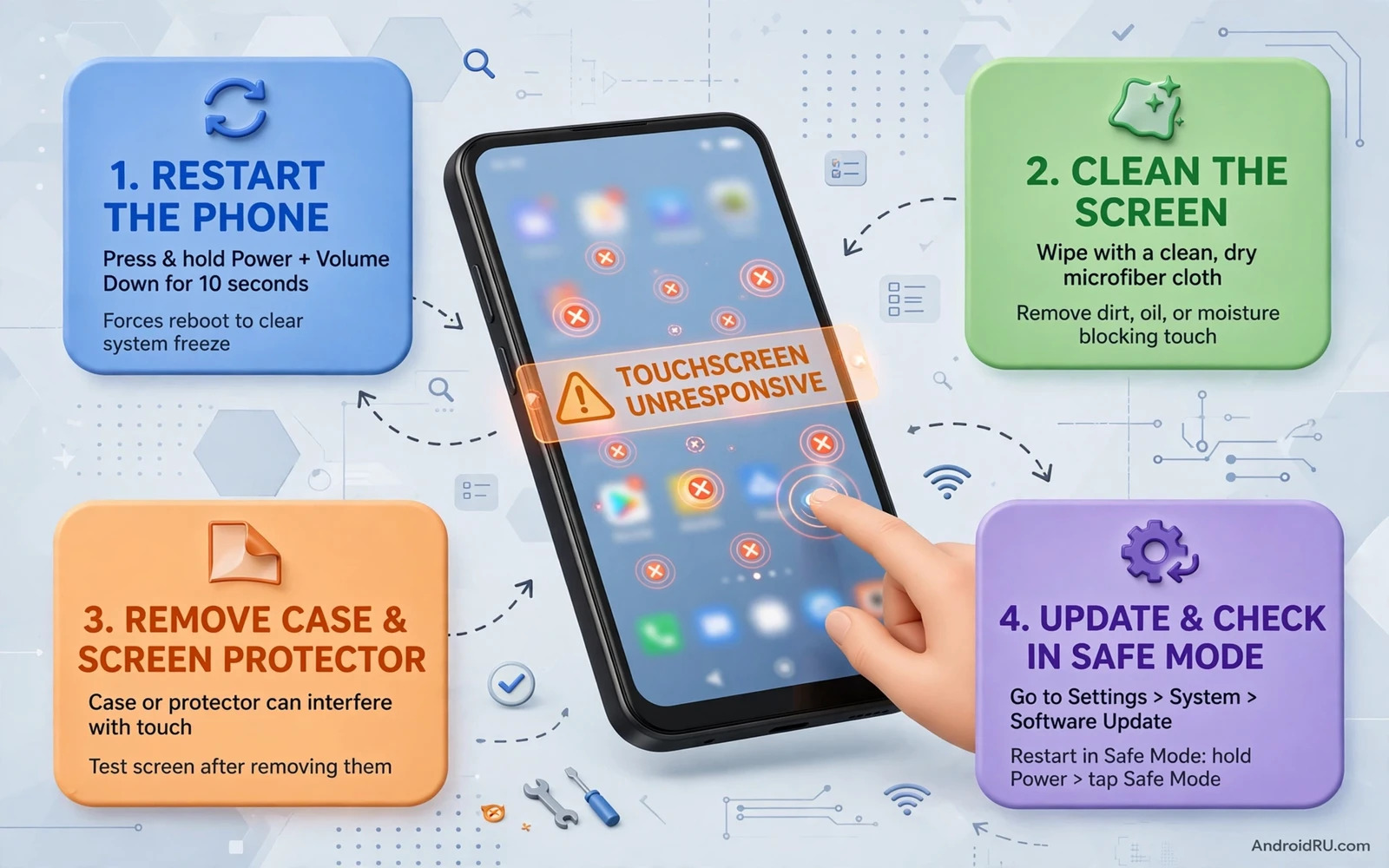
Check For Simple Causes First
A touch screen that stops responding can feel alarming but the cause is often simple. A screen protector may lift at the edge and create a dead zone. Moisture on the screen can confuse touch sensing. A case that presses the edge can block swipes. A frozen app can make the whole screen look dead even though the hardware still works. Start with these simple checks before you assume a hardware fault.
Remove the case and clean the screen with a soft dry cloth. Dry your hands and try a simple tap and swipe in several areas. Test the lock screen and the home screen and one app to see whether the problem follows one app or the whole phone. When only one app freezes then closing that app may restore touch at once. A wider screen fault needs the deeper steps below and a related system fault guide such as fixing a black screen of death issue on mobile devices can help when the display itself goes dark.
Restart And Test In Safe Mode
Restart the phone first even when touch feels dead. Use the power button and volume keys when the screen will not accept a tap. A restart clears temporary glitches that block touch input. After the restart test touch in several areas again and note whether the dead zone moved or stayed in the same place. A dead zone that stays in exactly the same place points more strongly to hardware than to software.
Safe mode loads only system apps and it disables third party apps for the test. If touch works well in safe mode then a third party app is likely interfering. Restart normally and remove recently installed apps one at a time starting with the most recent. Test touch after each removal so you can identify the app that caused the trouble.
- Remove the case and clean the screen with a soft dry cloth before deeper tests
- Restart the phone with hardware keys when the screen will not accept taps
- Test touch in safe mode to separate app interference from hardware faults
- Remove recently installed apps one at a time and test touch after each removal
- Check for a system update that may include touch driver fixes
Check Screen Protector And Display Settings
A thick or damaged protector can reduce touch sensitivity especially near the edges. Remove the protector temporarily and test touch directly on the glass. If touch improves then replace the protector with a thinner one made for your phone model. Some phones include a touch sensitivity setting for use with protectors. Turn that setting on when you reinstall a protector and test edge swipes again.
Display settings can also affect touch feel. Accidental touches protection and glove mode and palm rejection change how the screen reads input. Open display or advanced features settings and review these options. Turn off any option that you do not need and test again. A setting that helps one user can hurt another so test each change on its own rather than changing several settings at once.
Update Software And Clear Problem App Cache
Touch drivers live inside system software so an update can fix a touch bug that no restart can fix. Open system update settings and install any pending update. Back up important data before a large update when the phone offers a backup. After the update test touch in the same areas that failed before so you can compare fairly.
For a single app that freezes touch clear that app cache from app info. Do not clear data first because that step can sign you out and remove settings. Cache clearing is safe and it often fixes an app that locks the screen. The same measured approach helps other stubborn system faults and you can review fixing Android overheating problems during normal use for a guide that also separates app faults from hardware faults.
Power key plus volume key - Restart phone
Safe mode - Test touch - Restart normally to exit safe mode
Settings - Apps - Problem app - Storage - Clear cache
When Touch Points To Hardware Damage
Warning. A cracked screen or a phone that suffered water exposure needs professional inspection. Do not open the phone yourself unless you have proper tools and experience. Internal connectors are fragile and a wrong repair can damage the display further. Back up data at once when touch works even partly because a failing screen can stop fully without warning.
Visit a repair service with a clear note about the symptoms. Note when the fault started and whether it followed a drop or water exposure or an update. Note which areas fail and whether the fault changes with temperature or pressure. Clear notes help a technician test the right parts and avoid replacing a screen that only needed a software fix.
Frequently Asked Questions
Can a screen protector really block touch. Yes. A thick protector or a lifted edge can create dead zones especially near the screen edge. Removing the protector for a test quickly shows whether it is the cause.
Is safe mode safe for my data. Yes. Safe mode only disables third party apps temporarily. Your files and accounts stay in place and a normal restart returns the phone to full use.
Test Touch With Simple Tools
A drawing app or a touch test app can map dead zones more clearly than random tapping. Open a drawing app and drag slowly across the whole screen. Watch for gaps or jumps in the line where touch drops out. A straight line that breaks in the same place each time points to a hardware dead zone. A line that breaks in different places each time points more to software or to a loose connection that changes with pressure.
Test edge swipes separately from centre taps because edges fail first with protectors and cases. Swipe in from each edge and note which edge resists. Test the corners as well because corner touches drive back gestures and app switching on many phones. A fault that affects only one edge is easier to explain to a repair service than a vague report that touch feels wrong. Precise notes speed up diagnosis and reduce unnecessary part replacement.
Temperature can change touch behaviour on a damaged screen. A screen that works when cool but fails when warm may have a loose connector that expands with heat. A screen that fails after a cold night and recovers indoors may suffer from moisture condensation. Note temperature conditions alongside each test. A pattern tied to temperature helps a technician decide between a screen replacement and a connector repair.
Water exposure needs patience even when the screen seems to recover. Dry the phone fully and avoid charging until you are confident that the port is dry. Touch glitches after water exposure can appear days later as corrosion grows. Back up data early when touch works even partly because a water damaged screen can fail fully without warning. A service check after water exposure is wise even when touch returns to normal for a day.
Software updates deserve a test window after installation. Install an update and test touch in the same areas that failed before. Give the phone a restart after the update completes and test again. Some touch fixes apply only after a restart that follows the update. Rushing to a repair shop before that restart can waste a visit when the update already fixed the fault.
Other hardware features can give clues about the fault. Test the camera and the speaker and the buttons during the same session. A phone that suffered a drop may show several small faults at once. A camera that also fails after a drop strengthens the case for a hardware inspection. You can compare camera behaviour with fixing a camera app that crashes constantly on Android when camera faults appear alongside touch faults.
Protecting A Repaired Screen
After a repair install a protector made for your exact model and test touch at once in the shop when possible. A protector that fits poorly can recreate the fault that you just paid to fix. Avoid pressing hard on the new screen during the first day when adhesive still settles. Keep the phone away from water and drops while the repair settles. A careful first week protects the repair and reveals any fitting problem while warranty help remains simple.
Keep a short record of the repair date and the parts replaced. A future fault becomes easier to explain when you know what changed. A record also helps warranty claims when the same area fails again. Good records turn a frustrating repeat fault into a clear service conversation.
Touch Calibration Myths
Many guides promise a touch calibration app that fixes dead zones. Most modern Android phones do not offer a true user calibration for the touch panel. Apps that claim to recalibrate touch usually only test touch or restart the phone. A test app can map a dead zone clearly but it cannot repair a hardware fault. Treat calibration apps as diagnostic tools rather than as cures and avoid apps that demand broad permissions for a simple test.
Factory reset is another overused suggestion for touch faults. A reset helps only when a software fault or a corrupt setting causes the problem. A reset cannot fix a cracked panel or a loose connector. Try safe mode and updates and protector removal before any reset. When those steps fail and the dead zone stays fixed in place then hardware becomes the stronger suspect and a reset only costs time and backup effort.
Pressure tricks found online can damage a screen further. Pressing hard on a dead zone or bending the phone slightly may restore touch briefly while stressing internal connectors. A brief recovery through pressure usually means a loose connector that needs professional repair. Note the pressure effect for the repair service but do not repeat the trick as a daily workaround. Professional repair fixes the connector while pressure tricks only hide the fault.
When To Stop Troubleshooting Touch
Stop troubleshooting at home when the screen shows visible cracks across the dead zone or when liquid entered the phone recently. Further home tests cannot repair physical damage and repeated pressing may spread a crack. Back up data while touch still works partly and book a professional inspection. A clear stopping point protects the phone from well meant but harmful home repairs and it protects your data while a repair remains possible.
Stop also when the same dead zone survives a restart and safe mode and a protector removal and a system update. That combination points firmly to hardware. Continuing to reset software after that point wastes time and risks data through unnecessary wipes. A technician can test the panel and the connector directly. Bring your notes about the dead zone location and the tests already completed so the visit starts from evidence rather than from scratch.

