

Why Auto-Rotate Stops Working
Auto-rotate turns the screen when you turn the phone. It relies on a rotation setting and on motion sensors inside the phone. When either part fails the screen stays stuck in one orientation. A common cause is simply a turned-off rotation setting. Another common cause is an app that locks orientation for video or reading. A case with magnets can confuse sensors. A software glitch can freeze the sensor service. Most cases resolve with settings checks before any deeper step.
Start by noticing the pattern. Does rotation fail in every app or only in one app. Does it fail in both directions or only one. Does it fail after a drop or after an update. A single-app failure points to that app. An every-app failure points to system settings or sensors. A failure after an update points to software. Write down the pattern because it guides the fix and prevents wasted steps.
Turn Rotation On In The Right Places
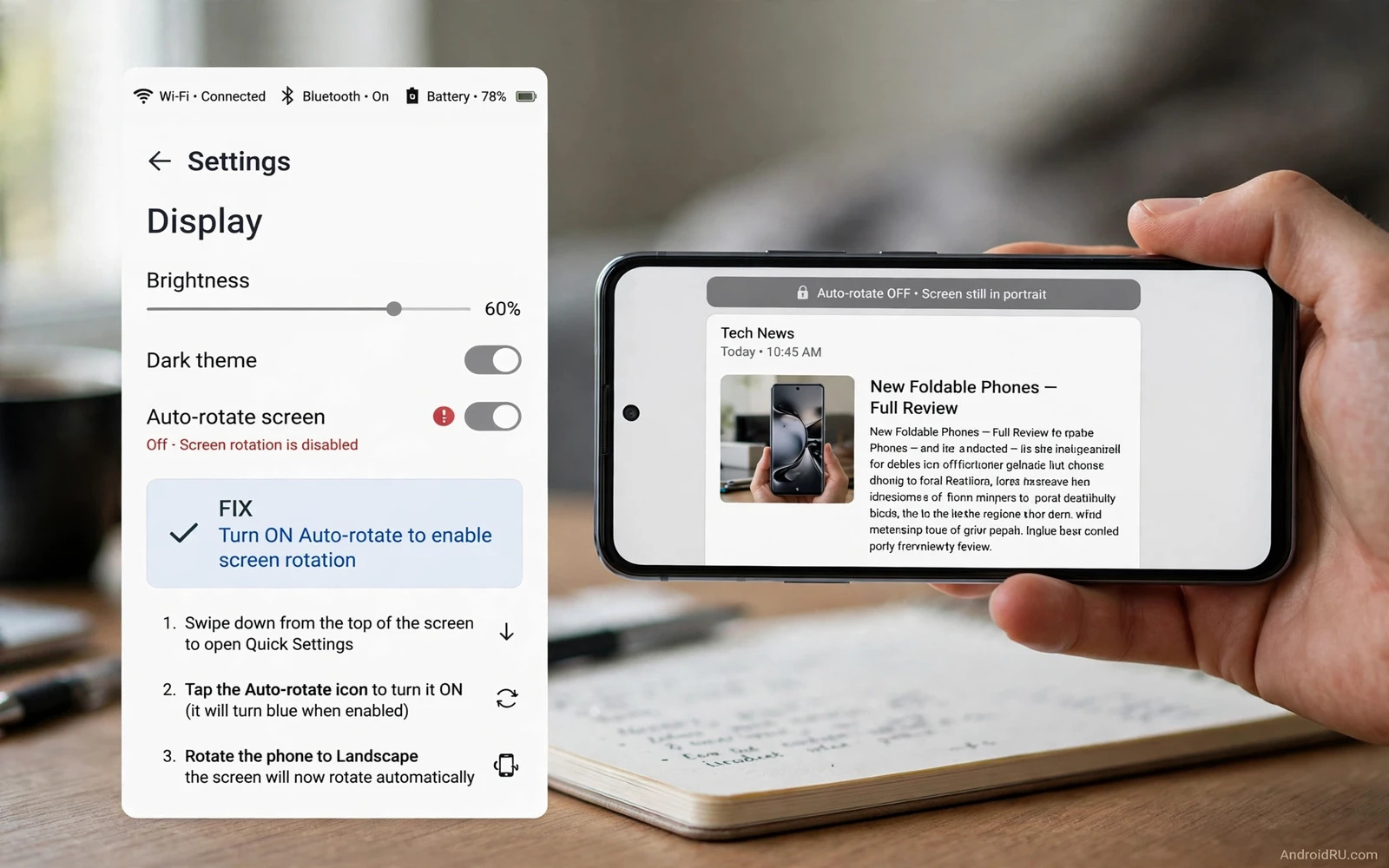
Open the quick settings panel by swiping down from the top of the screen. Look for a tile named Auto-rotate or Rotation. Tap it so it shows as on. Some phones show a portrait lock tile instead. Make sure portrait lock is off. Then open Settings and then Display and look for Auto-rotate screen. Confirm it is on there too. Two switches control the same feature on some phones and both must agree.
Test rotation on the home screen first. The home screen on many launchers rotates only when allowed in launcher settings. Open launcher settings if the home screen stays portrait. Inside an app such as a browser or a gallery rotate the phone slowly and wait a second. Rotation needs a clear tilt past a threshold. A tiny tilt may not trigger it by design. Tilt the phone fully to landscape and hold it still.
Check App Locks And Full Screen Modes
Some apps lock orientation by design. A video app may lock to landscape during playback. A reading app may lock to portrait. A game may lock to one orientation always. That lock is not a fault. Test rotation in several apps before you conclude the system is broken. A browser and a gallery and a settings screen give a fair test set. If those rotate then the system works and the single locked app is behaving as designed.
Check accessibility settings too. An accessibility rotation control can override the quick setting on some phones. Open Settings and then Accessibility and look for an auto-rotate option. Make sure it matches your intent. Also check whether a screen pinning or lock task feature is active. A pinned screen can restrict rotation. Unpin the screen and test again. Small system features can quietly hold orientation without any visible warning.
Restart And Test Sensors
Restart the phone to clear a stuck sensor service. After the restart test rotation immediately before opening other apps. A fresh sensor service often restores rotation that froze after days of uptime. If rotation works after a restart but fails again later then an app may be freezing the service over time. Note which apps run before the failure returns. That pattern can identify the culprit.
Test the motion sensors with a simple app. Open a compass app and rotate the phone slowly. If the compass responds smoothly then the sensors respond. Open a level or bubble app if one is installed and tilt the phone. If sensor apps respond but screen rotation does not then the fault is likely a rotation setting or a system service rather than dead sensors. If sensor apps also freeze then a deeper sensor fault is possible.
Remove Cases And Check For Interference
Remove the case and test rotation. A case with a magnetic clasp can interfere with sensors near the phone edge. A heavy case can also change how you hold the phone and reduce the tilt you apply. Test without the case and with a full deliberate tilt. If rotation returns then the case is part of the problem. Choose a case without strong magnets near the sensor area.
Keep the phone away from magnets during testing. A magnetic car mount or a magnetic stand can distort sensor readings. Move away from the mount and test again. Metal desks rarely cause trouble but a strong magnet close to the phone can. A clean test environment removes doubt. Test in your hand away from mounts and magnets for a trustworthy result.
Update Software And Clear System Cache
Check for a system update. Updates can fix rotation bugs that affect many users. Install the update and test rotation right after the restart. Also check the launcher app for an update because launcher rotation logic lives partly in the launcher. An outdated launcher can ignore rotation even when the system setting is on. Update the launcher from the Play Store and test again.
If rotation still fails then clear the cache of the system UI or launcher through Settings and then Apps. A cache clear removes temporary data without deleting personal files. Do not clear data for system apps unless you accept losing home screen layout settings. Cache is the gentler step and it fixes many display glitches. Restart after the cache clear and test rotation in several apps.
When Sensors Need Professional Help
A sensor fault that survives settings and restarts and updates may need repair. A phone that stopped rotating right after a drop or water exposure fits a hardware story. A phone that never rotates even in sensor test apps also fits a hardware story. Back up data before seeking repair because service may reset the phone. Note the failure pattern for the repair centre. Clear notes speed up diagnosis.
While waiting for repair use the manual rotation button that appears when you turn the phone on some devices. A small rotate icon appears near the navigation bar when the system detects a turn but auto-rotate is off. Tapping it rotates once. That button is a useful bridge. Readers with touch faults alongside rotation faults can compare with the guide to fixing an unresponsive touch screen because both faults can follow screen damage. A single repair may fix both.
Keep Rotation Reliable
Keep auto-rotate on only when you use it. Some people keep rotation off deliberately to avoid screen flips in bed. That choice is valid. Toggle it from quick settings when you need it rather than leaving it in an unknown state. Keep the phone updated and avoid magnetic accessories near sensors. Clean the habit of checking the quick tile first whenever rotation seems stuck. That one tile solves the most common case.
Auto-rotate should feel effortless. A screen that turns when you turn the phone fades into the background. The steps here restore that feel for most phones. Setting first and app check second and restart third and sensor test fourth. That order fixes common causes before deeper ones. For a personalised display the guide to one-handed mode on large screens pairs well because both features shape how the screen responds to your hands.
Rotation And Reading Comfort
Rotation matters most for reading and video. A book app in landscape shows wider lines that some readers prefer. A video in landscape fills the screen. A browser in landscape shows wider tables. Locking rotation to portrait for reading can help focus because the layout stays stable. Unlock rotation for video so the picture fills the display. Match rotation policy to the task rather than leaving it in one state forever.
Some reading apps offer their own orientation lock inside the app. That lock overrides the system setting for that app only. Check the app settings when one app refuses to rotate while others rotate fine. An app lock is a feature not a fault. Disabling it restores system control. App level locks explain many single-app rotation mysteries.
Sensors And Other Features
Motion sensors drive more than rotation. They drive compass and level and step counting and gaming tilt controls. A sensor fault that breaks rotation may also break those features. Test a compass app and a game that uses tilt when rotation fails. A shared failure strengthens the hardware story. A rotation-only failure points more to settings or software. Cross-feature testing sharpens diagnosis without special tools.
Calibration apps that promise sensor repair deserve caution. Most cannot fix a hardware sensor fault. They can only help the system relearn a drifting compass. A compass that drifts slowly may benefit from figure-eight calibration. A sensor that never responds will not benefit from any app. Avoid apps that demand deep permissions for a simple calibration task.
Rotation In Bed And On Desks
Rotation in bed frustrates many users because a slight tilt flips the screen while lying down. That flip is the sensor working correctly for a tilted phone. Lock rotation to portrait for bed reading. Unlock it when you sit up. A quick tile toggle makes this routine painless. The quick settings tile is the rotation control you will use most. Learn its position by muscle memory.
On a desk stand rotation can also surprise. A phone docked at an angle may sit near the rotation threshold and flip back and forth. Lock rotation while docked if flips annoy you. For a personalised display the guide to customising lock screen clock styles and widgets and the guide to custom vibrate patterns for contacts show how display and alert settings together shape daily comfort. Rotation plus lock screen plus vibration make the phone respond to you rather than to gravity alone.
A Practical Checklist For Rotation Health
Check rotation health with a simple routine. Confirm the quick settings tile shows auto-rotate on and confirm the display setting agrees. Test rotation on the home screen and in a browser and in a gallery. Test both directions and hold each tilt for a second. Remove the case and test again if rotation fails. Restart the phone and test again before opening other apps. Each step removes one cause. A routine followed in order finds the fault without random changes that confuse diagnosis and waste time.
Watch for patterns in rotation failures over weeks. A failure that follows a specific app points to that app. A failure that follows long uptime points to a stuck sensor service that a restart clears. A failure that follows a drop points to hardware. Patterns turn isolated incidents into a diagnosis. Keep a short note of when rotation fails and what you were doing. Notes reveal patterns that memory misses. A pattern note is the cheapest diagnostic tool available and it costs only seconds per incident.
Use rotation deliberately rather than leaving it to chance. Lock rotation for bed reading and for docked desk use where flips annoy. Unlock it for video and for wide tables where landscape helps. A deliberate rotation policy feels calmer than a screen that flips unexpectedly. The quick tile makes policy changes instant. Learn its position by muscle memory so toggling becomes reflex. A phone that rotates when you want it to and stays put when you do not is a phone that respects your intent rather than fighting it.

