

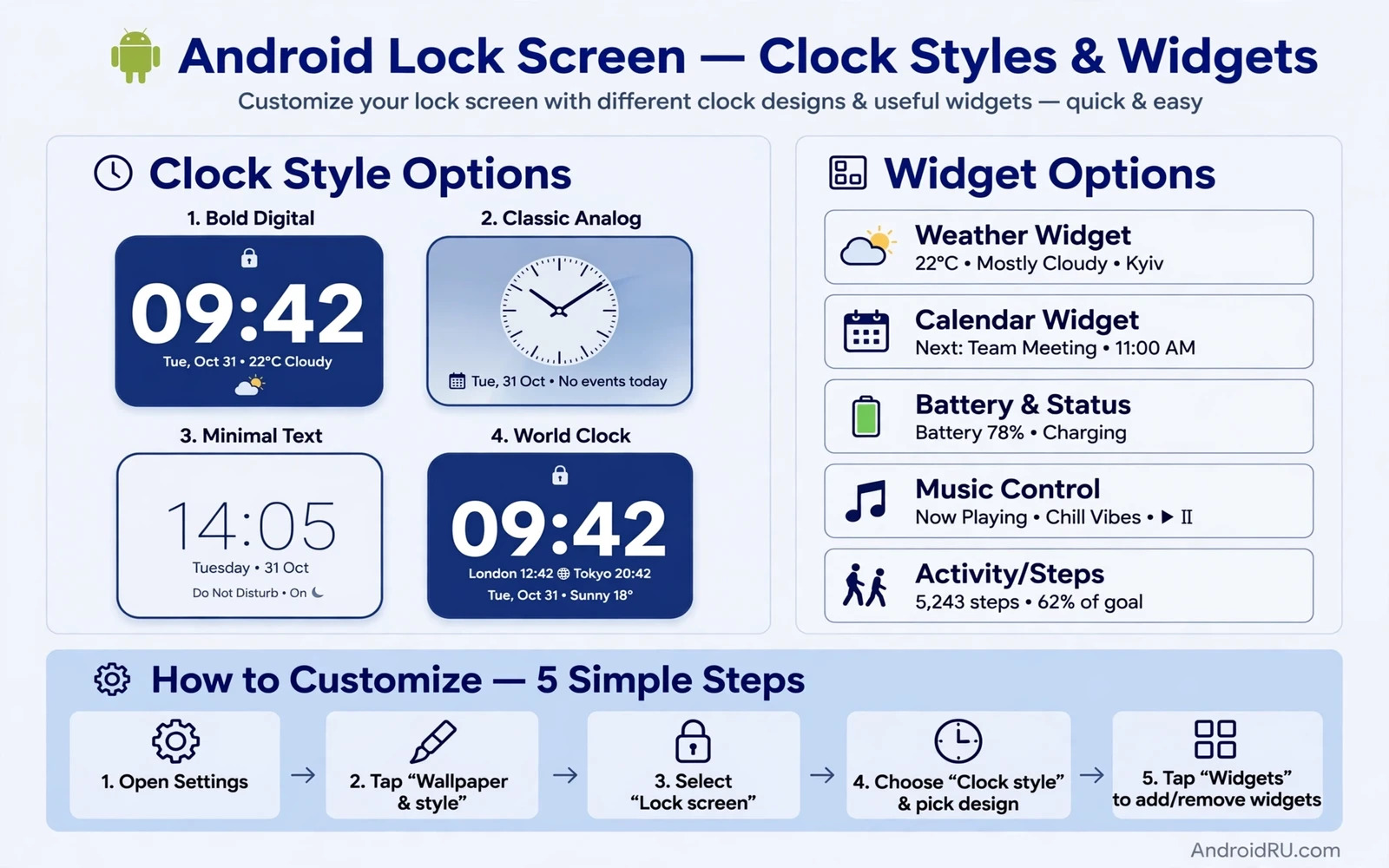
The Lock Screen Is Your Most Seen Screen
You see the lock screen dozens of times a day. A clock style you like and widgets you actually use turn those glances into useful moments. A clock that is hard to read wastes every glance. A widget that shows stale information wastes space. Android offers clock faces and widget options that vary by brand. Some phones offer deep customisation. Others offer a small set of choices. This guide covers the common paths and the workarounds when options are thin.
Start by deciding what the lock screen must do for you. A minimal clock suits people who want calm. A clock plus weather plus calendar suits people who plan from glances. A large clock suits older eyes and quick time checks. Your answer shapes every later choice. A lock screen packed with widgets you ignore is worse than a simple clock done well. Choose purpose before decoration.
Change The Clock Style
Open Settings and then Display and then Lock screen or open Settings and then Wallpaper and style on some phones. Look for a clock style or clock face option. Tap it to preview the available faces. Styles range from thin modern digits to bold stacked numbers. Some styles show the date large and the time small. Others reverse that balance. Pick the style that reads fastest at arm length rather than the style that looks best in a screenshot.
Some phones let you change clock colour and font weight. A light clock on a bright wallpaper can vanish. A dark clock on a dark wallpaper can vanish too. Test the clock against your actual wallpaper in daylight. If contrast is poor then change the wallpaper or pick a clock colour with a stronger edge. A clock with a subtle shadow or outline survives busy wallpapers better than a flat clock. Preview the lock screen after each change by locking the phone and waking it.
Add Widgets To The Lock Screen
Lock screen widgets live in different places depending on Android version and brand. On newer versions open Settings and then Display and then Lock screen and look for widgets or glance options. On some phones long press the lock screen itself and tap customise. That customise view may offer widget slots you can fill. Common widgets include weather and calendar and music and device controls. Add one widget at a time and test it for a day before adding another.
A widget that needs unlocking to show data is less useful. Prefer widgets that show live data on the lock screen itself. Weather widgets show temperature and condition at a glance. Calendar widgets show the next event. Music widgets show playback controls. Smart home widgets show device toggles. Each widget adds value only if its data matters to you daily. Remove widgets that you never read. An empty slot beats a ignored widget.
Use Wallpaper And Style Together
Wallpaper and clock style work as a pair. A busy photo wallpaper fights a detailed clock. A calm gradient wallpaper lets a bold clock shine. Try a simple wallpaper first when testing clock styles. Once the clock reads well on a simple background test it on your favourite photo. If the photo wins the fight then dim the photo or pick a clock with an outline. Some phones offer a wallpaper dim option for the lock screen specifically.
Material You colour extraction can tint the clock and widgets from the wallpaper. That tinting can look elegant or can reduce contrast. If the extracted colour hurts readability then pick a manual colour instead. A manual colour stays stable when you change wallpaper. Stability matters for a clock you read by reflex. Readers who enjoy full theming can also explore the guide to customising dark mode across apps because dark mode and lock screen style together set the phone tone.
Customise Notifications On The Lock Screen
Notifications shape the lock screen as much as the clock does. Open Settings and then Notifications and then Lock screen notifications. Choose whether to show all content or hide sensitive content or show nothing. Showing all content is convenient but exposes message previews to anyone near the phone. Hiding sensitive content shows the app name without the message text. That middle option suits most people. It keeps the lock screen useful without leaking private words.
Per-app notification control refines the lock screen further. Silence noisy apps so they never reach the lock screen. Let only important apps appear. A lock screen with three useful notifications beats a lock screen flooded with twenty. Review the list monthly because new apps often enable lock screen notifications by default. A tidy notification policy keeps the clock and widgets visible instead of buried.
Fix Clock Or Widget Options That Are Missing
If your phone offers no clock style option then the launcher or the brand skin controls the lock screen tightly. A third party lock screen app can add options but it also adds security risk. A lock screen app can see notifications and can delay unlocking. Weigh that risk before installing one. A safer workaround is a widget app that adds a clock widget to the home screen and a simpler lock screen expectation. Not every phone needs a fancy lock screen.
If widgets do not update then check battery permission for the widget app. A widget app killed in the background cannot refresh weather or calendar data. Set the widget app to unrestricted battery use if your phone offers that choice. Also check data access for widgets that need the network. A weather widget without network access shows stale data forever. Test the widget after a manual refresh to confirm the data path works.
Shortcuts And Quick Access
Some lock screens offer shortcuts in the corners. Common shortcuts include camera and flashlight and voice assistant. Set shortcuts you truly use. A camera shortcut saves seconds when a moment matters. A flashlight shortcut helps in the dark. An unused shortcut is just visual noise. Check the lock screen settings for a shortcuts section and assign the two shortcuts that match your habits.
Test shortcuts from a locked phone. Lock the phone and swipe the shortcut and confirm it opens without a full unlock where the phone allows it. Camera shortcuts usually open without unlocking for quick shots. Other shortcuts may ask for unlock first. Knowing which behaviour applies prevents fumbling. A shortcut that demands unlock is still faster than unlocking and hunting for the app icon.
Keep The Lock Screen Fresh
Change the wallpaper seasonally and revisit the clock style when you do. A fresh pairing keeps the lock screen pleasant without constant tweaking. Remove widgets that stopped being useful. Keep the clock readable above all else. The lock screen is a glance surface not a dashboard. A glance should answer time and next event and weather in under two seconds.
A well tuned lock screen rewards you every time you pick up the phone. Clock first and widgets second and notifications third. That priority order keeps the design honest. Pair the lock screen with personal touches elsewhere such as the guide to changing the default launcher for a home screen that matches. Together the lock screen and the home screen make the phone feel designed for you.
Clock Styles For Accessibility
A lock screen clock should be readable for every eye. Large bold digits help older users and anyone glancing from a distance. High contrast colours help in bright sunlight. A clock with a solid background panel can beat a clock floating over a busy photo. Test readability outdoors because indoor lighting flatters weak contrast. A clock that fails outdoors fails where you need it most.
Some phones offer a clock size slider. Use it generously. A clock that fills the top third of the screen is not excessive if it serves quick glances. A tiny elegant clock may look refined in a screenshot but it forces a closer look every time. Readability beats elegance for a surface you check dozens of times daily.
Widgets That Earn Their Place
A weather widget earns its place when you check weather before leaving home. A calendar widget earns its place when your next meeting shapes your morning. A music widget earns its place when you control playback from the lock screen often. A widget that shows data you never act on wastes space. Audit widgets monthly and remove the ones you stopped reading. A lock screen with two useful widgets beats a lock screen with six ignored ones.
Widget refresh settings affect battery life. A weather widget that updates every few minutes uses more power than one that updates hourly. Choose an hourly refresh for weather unless you need minute-level storm tracking. A calendar widget needs no network refresh beyond sync. Tune refresh to the data urgency. Small refresh choices add up across a day of glances.
Lock Screen And Security Balance
Lock screen widgets and notifications trade convenience against privacy. A calendar widget that shows meeting titles can reveal work details to anyone near the phone. A message preview can reveal personal words. Hide sensitive widget content when the phone leaves your hands often. A balance between glance value and privacy exposure is personal. Choose it deliberately rather than accepting defaults.
Shortcuts on the lock screen deserve the same thought. A wallet shortcut is convenient but it opens payment tools from a locked phone. A camera shortcut is low risk. A smart home shortcut that unlocks a door is high risk. Assign shortcuts by risk as well as by frequency. For the wider personalisation picture the guide to custom vibrate patterns for contacts and the guide to one-handed mode on large screens show how small settings combine into a phone shaped around its owner.
A Practical Checklist For Lock Screen Design
Design the lock screen with a checklist that puts readability first. Choose a clock style that reads at arm length in daylight. Test it against your actual wallpaper rather than a preview background. Add one widget at a time and live with it for a day before adding another. Set notification visibility to hide sensitive content. Assign two shortcuts you truly use and test them from a locked phone. Each step earns its place by proving value in real use. A lock screen built by checklist stays useful instead of drifting into decoration that nobody reads.
Review the lock screen monthly because needs change. A weather widget that mattered in winter may matter less in summer. A calendar widget that showed a busy work schedule may show an empty calendar during leave. Remove widgets that stopped earning their place. Change the wallpaper seasonally and retest clock contrast with the new image. A monthly review keeps the lock screen fresh without constant fiddling. Freshness through review beats freshness through endless tweaking.
Balance beauty and privacy on every lock screen choice. A stunning photo wallpaper can hide a clock and expose a private notification at the same time. A calm wallpaper with a bold clock and hidden notification content serves both beauty and privacy. Choose wallpaper for contrast first and beauty second. Choose widgets for action value first and novelty second. A lock screen that serves glance value and privacy together is a design success. A lock screen that serves only beauty is a poster that happens to show the time.

