

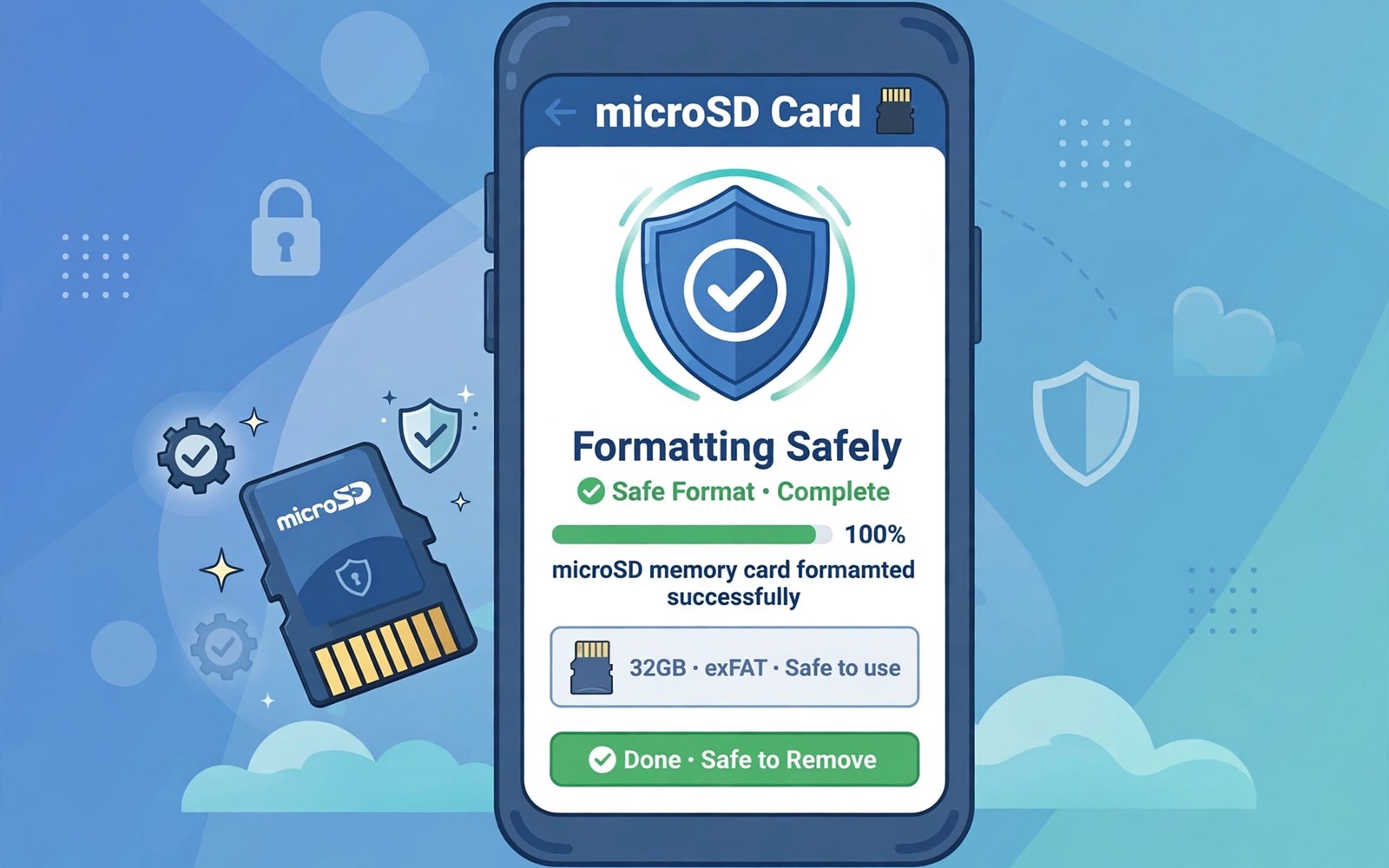
A memory card feels simple until it fails at the worst moment. Photos vanish after a format in the wrong file system. A card that worked in a camera refuses to work in a phone. A card that worked yesterday shows as damaged today. Most of those failures trace back to a rushed format or a missing backup. A careful format routine prevents most of them.
Start with the purpose of the card. A card for phone storage needs a format that Android reads well. A card for a camera needs a format that the camera expects. A card for moving files between devices needs a format that many systems understand. One format does not fit every purpose. Choosing the format after you know the purpose avoids a second format later. Owners who move apps to cards should also understand how moving apps to a memory card actually works before they format for app use.
Back up the card before any format even when the card looks empty. Hidden folders can hold app data and thumbnails and cached media. Copy the whole card to a computer folder and open a few files to confirm the copy works. A backup that you never test is only a hope. A tested backup turns a format into a routine task.
Choose the right file system
Small cards often use FAT32 because many devices support it. FAT32 limits a single file to a size below four gigabytes. That limit breaks large video files and large backups. Larger cards often use exFAT because it supports larger files and many modern devices. Check your phone manual for the supported formats before you choose. A format that your phone cannot read is worse than no format at all.
Android may offer a format option inside storage settings. That built in option usually picks a format that suits the phone. A computer format tool gives you more choices but also more ways to pick wrongly. Use the phone format option when the card will live in the phone. Use a computer tool only when you need a specific format for another device. The same caution about device fit applies when you use adoptable storage rules for internal storage on a phone that supports that mode.
Format step by step without rushing
Remove the card safely through the storage menu before you pull it out. A card that is still mounted can corrupt files when it is removed. Insert the card into the device that will format it. Open storage settings and confirm that the device sees the card size correctly. A wrong size reading can signal a fake card or a damaged reader. Stop and investigate when the size looks wrong.
Start the format and leave the device alone until it finishes. Do not remove the card and do not restart the phone during the process. A partial format can leave the card in an unreadable state. Test the card after formatting by copying a small photo and opening it. Copy a larger video next and play it back. A card that passes both tests is ready for real use.
Verify card capacity with a short script
import os
import shutil
total, used, free = shutil.disk_usage("/sdcard")
print("total", total // 1000000000, "GB")
print("free", free // 1000000000, "GB")
The snippet above follows a standard pattern for reporting total and free storage in gigabytes. It only reads storage information and it changes nothing. You can adapt the path for a mounted card on a test system.
Compare the reported total with the size printed on the card package. A large gap can signal a counterfeit card or a format problem. Fill the card with test files only when you suspect a fake card. A full write test takes time but it reveals a card that lies about its size. Return a card that fails that test rather than trusting it with photos.
Test a card after formatting
A format alone does not prove that a card works well. A test after formatting proves that the card reads and writes correctly. Copy a small photo to the card and open it from the card. Copy a larger video next and play it from start to finish. A card that handles both tests is ready for daily use. A card that fails a video test may be too slow or may be damaged.
Test the card in the device that will use it most. A card that works in a computer may still behave differently in a phone. Phone power limits and phone file systems can reveal problems that a computer hides. A phone test also confirms that the phone recognises the full capacity. A capacity mismatch after formatting deserves investigation before you trust the card.
Keep a test file on the card for a week and open it again later. A file that opens after a week shows that the card holds data reliably. A file that corrupts after a week signals a failing card. Return a card that fails a week test rather than filling it with irreplaceable photos. A week of patience saves years of regret.
Handle cards that move between devices
A card that moves between a phone and a camera needs a format that both devices understand. Check both manuals before you format the card for shared use. A format that one device rejects will force a reformat and a data loss. A shared card also needs a backup habit because each device may write different folder structures. A computer backup unifies those structures into one safe copy.
Label a shared card with its purpose and its format. A label prevents a well meaning format in the wrong device. A label also reminds you which card holds which trip or project. Physical labels work better than memory when several cards look alike. Store shared cards in a case that protects contacts from dust and static.
Never format a shared card to fix a problem on one device without checking the other device first. A problem that looks like corruption may be a simple compatibility issue. Test the card in the other device and in a computer reader before formatting. A compatibility test can save data that a format would erase. Formatting should be a planned step rather than a panic response.
Advanced card care for long term use
Long term card use needs care beyond a single format. A card that works well at first can degrade slowly through many write cycles. A card used for video recording faces heavier writes than a card used for occasional photos. Heavier writes wear cells faster and can cause errors sooner. Monitoring card behaviour over months reveals wear before it causes data loss. A card that starts showing slow writes deserves a replacement plan.
Rotate cards for critical work when you shoot frequently. A rotation system spreads writes across several cards rather than wearing one card continuously. A card that rests between uses also has time for internal maintenance. Rotation also limits loss because a failing card holds only part of a project. A simple rotation with two or three cards is easy to manage and it improves reliability noticeably.
Keep cards away from heat and moisture and magnetic fields during storage. A card left on a car dashboard in summer can suffer heat damage. A card stored in a damp pocket can corrode contacts over time. A protective case solves most storage risks at low cost. A case also prevents physical bending that can crack internal connections. Physical care is as important as format care for long term reliability.
Test a card fully before an important event rather than trusting a quick format check. A full test writes data across the whole card and reads it back. A full test takes time but it reveals a card that lies about capacity or that has bad sectors. A card that passes a full test is trustworthy for an event that cannot be repeated. A card that fails a full test should be retired immediately.
Document card age and usage in a simple note when you own several cards. A note with purchase date and main use helps you retire old cards before they fail. A card that is several years old and heavily used deserves retirement even when it still works. Retirement before failure protects data better than replacement after failure. A planned retirement is a small cost compared with lost photos.
A practical card checklist before a shoot
A shoot checklist for a card starts the night before an event. Format the card in the device that will use it and test it with a few shots. A night before test gives you time to replace a failing card. A test on the morning of an event leaves no time for a replacement. A calm night before routine prevents a stressful morning scramble.
Charge the device fully and check card free space the night before as well. A full charge and a free card are the two basics that every shoot needs. A card with only a small amount of free space may fill during a long event. A spare card packed alongside the main card covers that risk. A spare card that is also formatted and tested is ready to swap instantly.
Pack cards in a labelled case with a clear order for use. A first card and a second card in order prevents confusion during a fast shoot. A case that protects contacts from dust keeps cards reliable across many events. A labelled case also helps an assistant hand you the right card without asking. Organisation in the bag mirrors organisation in the files.
After a shoot copy cards to a computer before you format them for the next event. A copy verified by opening random files is a safe backup. A format before verification risks losing the only copy of an event. A verified copy habit is the final step of every shoot checklist. A checklist that ends with verification protects the whole shoot.
Common mistakes
One common mistake is formatting a card to fix a read error without copying data first. The format erases the chance of recovery. A second mistake is removing a card while the phone is writing to it. A third mistake is buying a very cheap card for important photos. Card quality matters because a failing card can corrupt files silently over weeks.
Another mistake is formatting the same card in many devices without a clear purpose. Each format erases data and each device may expect a different file system. Pick one home device for the card and format it there. Move files through a computer when you need to share them rather than reformatting the card each time.
Frequently asked questions
Will formatting erase everything on the card?
A full format removes the file index and makes old files hard to reach. It should be treated as erasure for practical purposes. Back up the card before you format it. Recovery after a format is uncertain and it should never be your plan.
Which format should I pick for a 128GB card?
Most modern phones handle exFAT well for larger cards. Check the phone manual for the exact supported list. Use the phone format option when the card will stay in that phone. A computer format may pick a setting that the phone reads slowly.
Why does my phone say the card is damaged?
A damaged message can mean corruption or a bad card or a loose connection. Remove the card safely and reinsert it firmly. Test the card in another reader when possible. Back up any readable files before you format a card that shows this message repeatedly.
Conclusion
Proper formatting starts with purpose and backup and ends with a simple test. The right file system depends on card size and on the device that will use it. A safe removal habit protects the card between formats. A capacity check protects you from fake cards.
Your concrete next step is to back up your current card to a computer folder today and test that three random files open. Only then format the card inside the phone that will use it. Readers who store photos on cards can also follow automatic moves for camera photos to an SD card once the card is ready.

