

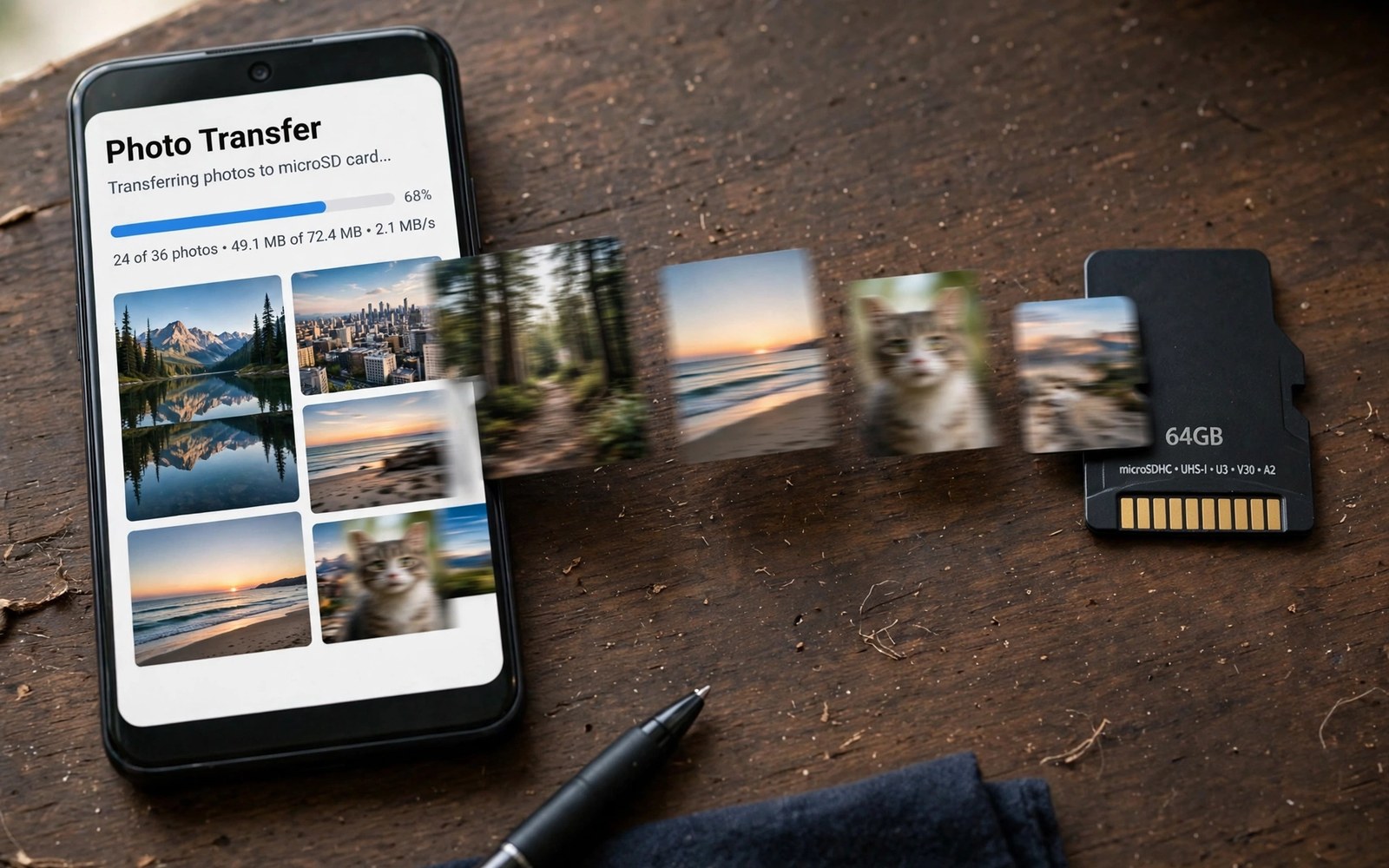
Camera photos arrive in bursts that internal storage cannot always absorb. A travel day can add hundreds of pictures and videos. A phone with a small internal store fills before the trip ends. Moving photos by hand after the trip feels tedious and it often gets postponed. Automatic moves solve the problem at the moment of capture.
Some camera apps let you choose a card as the storage location directly. That setting is the cleanest automatic move because the photo never lands on internal storage first. Other phones need a file automation rule that moves new camera files to the card. Both paths reach the same result with different steps. Check your camera app settings first before you add automation. Owners who adopt cards for apps may also read adoptable storage rules for internal storage to compare approaches.
Test the move with a single photo before a trip. Take a test shot and check where the file lands. Open the card folder and confirm that the photo opens at full quality. Delete the test photo from internal storage only after the card copy verifies. A single test prevents a trip full of photos landing in the wrong place.
Set the camera app to save to the card
Open camera settings and look for a storage location option. Choose the memory card when the option appears. Take a test photo and check the card folder for the new file. Check that burst mode and video mode follow the same setting. Some camera apps treat video storage separately from photo storage. Set both when the app offers separate choices.
Format the card in the phone before you rely on it for camera work. A phone format ensures that the card uses a system that the camera app reads well. Back up the card before formatting it. A formatted card with a speed rating for video work handles bursts better. The same format care matters when you format memory cards properly without losing data for any camera use.
Automate moves when the camera lacks the setting
Use a file automation app that watches the camera folder. Create a rule that moves files older than a few minutes to a card folder. A short delay lets the camera finish writing the file before the move starts. Grant the automation app access only to the camera folder and the card destination. A narrow permission scope keeps the automation safe.
Test the rule with several photos in quick succession. Check that every photo lands on the card and that none remain stranded internally. Check that file names and dates survive the move. A move that renames files can confuse a gallery that sorts by name. Fix naming issues before a large shoot rather than after it.
Verify a camera move with a short script
import os
internal = "/sdcard/DCIM/Camera"
card = "/storage/card/DCIM/Camera"
print("internal files", len(os.listdir(internal)) if os.path.exists(internal) else 0)
print("card files", len(os.listdir(card)) if os.path.exists(card) else 0)
The snippet above follows a standard pattern for counting files in internal and card camera folders. It only prints counts and it moves no file. You can adapt the paths for camera folders on your own test system.
A count comparison shows whether moves keep pace with shooting. A growing internal count signals a stalled rule. A growing card count with a stable internal count signals a healthy rule. Check counts after a busy shooting day. Fix a stalled rule before the internal store fills again.
Protect card photos with a second copy
A card copy alone is not a backup because a card can fail or be lost. A second copy on a computer or in the cloud protects photos that matter. Copy card photos to a computer at the end of a trip. Copy them to a cloud folder when a computer is not available. A second copy turns a card from a sole home into a working copy. That distinction matters when a card fails unexpectedly.
Verify the second copy by opening a few photos at random. A copy that looks complete from a file count may still miss a corrupted file. A random open check catches a corrupted copy early. A corrupted copy discovered early can be recopied from the card. A corrupted copy discovered after the card is formatted cannot be fixed.
Label second copy folders with the trip name and the date. A label such as Mountain Trip October helps you find the backup later. A folder named with a random date is harder to recognise. A clear label also helps family members find photos when they need them. A backup that is hard to find is almost as bad as no backup.
Handle card full warnings during a shoot
A card full warning during a shoot needs a calm response rather than a panic delete. Stop shooting and check free space on the card. Delete only test shots and blurry shots that you already reviewed. A panic delete of unreviewed shots can erase a keeper. A calm review of recent shots frees space safely.
Switch to internal storage temporarily when the card fills and no spare card is available. Internal storage can hold a limited number of additional shots. Move those shots to a new card as soon as possible. A temporary internal save is better than missing a moment entirely. Remember to move those shots later so internal storage does not fill as well.
Carry a spare card for important events such as weddings and graduations. A spare card costs little compared with a missed moment. Format the spare card before the event and test it with a few shots. A tested spare card is ready to swap in seconds. A swap during an event should feel routine rather than stressful.
Advanced card workflows for videographers
Videographers need card workflows that handle large files and long recordings. A video file can exceed the size limit of some file systems. A card format that supports large files is essential for video work. A format check before a shoot prevents a recording from stopping at a file size limit. A stopped recording during an important moment is a serious failure.
Use multiple cards for a long shoot rather than relying on a single large card. Multiple cards limit loss when one card fails. Multiple cards also let you swap a full card quickly without stopping for a long transfer. A swap habit keeps shooting continuous. A labelled card system prevents confusion about which card holds which footage.
Back up video cards at the end of each shooting day. A daily backup protects footage that cannot be reshot. A backup to a computer drive or to a portable drive works well. A backup verified by playing a random clip proves that the copy succeeded. A verified backup is the only backup that matters for professional work.
Format video cards in the camera or phone that will record with them. A format in the recording device ensures compatibility. A format on a computer may create a structure that the recording device reads slowly. A device format also clears old folder structures that could confuse the recorder. A clean device format is a professional starting point.
Store video cards in a waterproof case during outdoor shoots. Rain and dust can damage card contacts and corrupt footage. A waterproof case protects cards between swaps. A case with clear labels also speeds up card selection under pressure. Physical protection is part of a professional video workflow.
A practical camera checklist for events
An event camera checklist starts with a battery and card check the night before. A full battery and a tested card are the basics that every event needs. A battery that dies mid event misses moments that cannot be repeated. A card that fills mid event has the same effect. A night before check prevents both failures.
Set camera resolution to a level that suits the event output. A social event that will be shared online does not need maximum resolution for every shot. A lower resolution saves card space and speeds up transfers. A maximum resolution suits a professional shoot that will be printed large. A resolution choice matched to output is a professional decision.
Back up event photos during a break in the event when possible. A mid event backup to a laptop or a drive protects early photos. A backup during a break does not interrupt the event flow. A mid event backup also frees card space for later shots. A break backup is a smart habit for long events.
Review event photos on a larger screen after the event before you delete any. A larger screen reveals blur and closed eyes that a phone screen hides. A review on a larger screen prevents deleting a keeper by mistake. A careful review after an event is worth the time. A keeper chosen on a large screen is a keeper you can trust.
Common mistakes
One common mistake is removing the card while the camera is still writing. A second mistake is using a slow card for burst photography. A third mistake is moving photos to a card without a backup elsewhere. A card can fail and a single card copy is not a backup. Each mistake risks photos that cannot be retaken.
Another mistake is setting the camera to a card and then forgetting that the card is full. A full card stops the camera at a bad moment. Check card free space before a shoot. Carry a spare card for long events when possible.
Frequently asked questions
Will photos move automatically after I change the setting?
New photos save to the card after you change the camera storage setting. Old photos stay where they were until you move them. Move old photos in a batch after the setting change. Verify a few old photos on the card before you delete internal copies.
Does a card slow down burst photos?
A slow card can slow burst capture and video recording. A fast card rated for video work keeps up better. Test burst mode with the card before an important event. Replace a slow card when bursts stutter or drop frames.
What if my camera app has no card option?
Use a file automation rule that moves new camera files to the card. Set a short delay so the camera finishes writing first. Test the rule with several photos. Keep the automation scope narrow to camera folders only.
Conclusion
Automatic camera moves keep internal storage free without manual sorting after every shoot. A direct camera setting is the cleanest path when it exists. A watched folder rule covers phones that lack that setting. A test photo and a card speed check make either path reliable.
Your concrete next step is to open camera settings today and set storage to the card or create a move rule for new camera files. Take three test photos and verify them on the card. Readers who back up photos can follow automatic photo backup to free cloud platforms as a second safety layer.

