

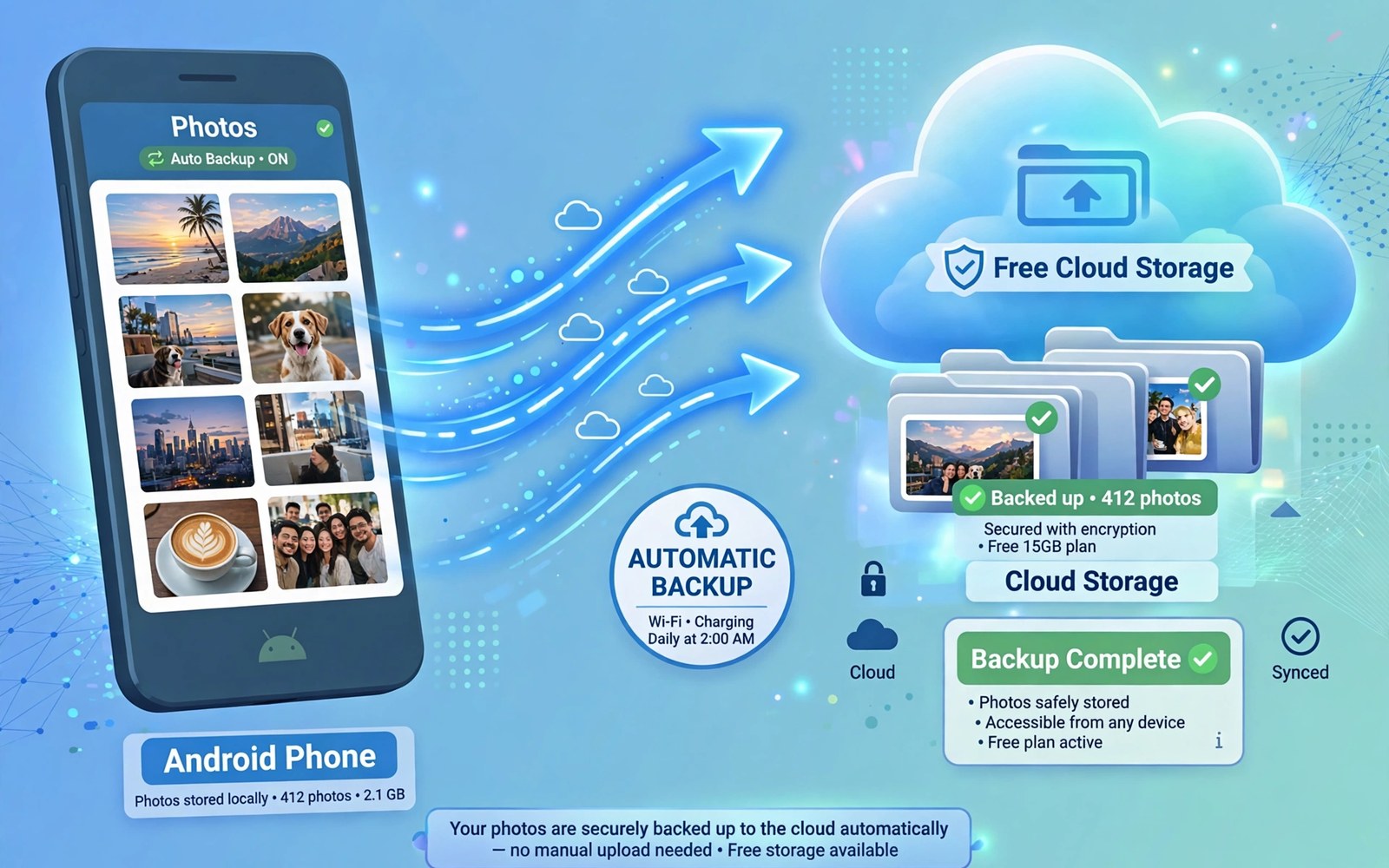
Photos carry memories that a new phone cannot replace. A lost phone or a broken screen can erase years of pictures in a moment. Automatic backup removes that risk by copying new photos as soon as they appear. A free cloud plan can cover a typical camera roll when you set limits wisely. The key is to start backup before a crisis forces the issue.
Choose a cloud service that you already trust with personal files. Check the free storage limit and check whether original quality counts fully against that limit. Some services compress photos for free backup and some services count every byte. Compression may suit casual snapshots but it may disappoint for detailed travel photos. Know the trade off before you enable the switch. Owners who also clean their galleries may like automatic duplicate cleaners for photos so backup does not copy endless copies.
Start backup on Wi-Fi only to avoid mobile data surprises. A new trip album can use a large data allowance in a single afternoon. Wi-Fi only backup still runs each night when you charge the phone at home. It also gives you a predictable rhythm for checking progress. A backup that runs quietly at home is a backup that you will actually keep.
Set up backup with clear folder rules
Enable backup for the camera folder first. Add screenshots only when you truly need them in the cloud. Exclude meme folders and forwarded albums that clutter a backup. A narrow folder list keeps the free plan focused on real memories. It also makes finding a photo later far easier.
Turn on original quality only for photos that deserve it. Use a compressed option for everyday shots when the free plan is tight. Review the storage meter after the first week. A fast growing meter signals a folder that should be excluded. The same selective mindset helps when you move camera photos to an SD card automatically for local storage relief.
Verify that backup actually worked
Open the cloud service on another device and open a recent photo. Check that the photo opens at full detail and that the date looks correct. A backup entry without a working preview is not a backup. Test a video as well because videos use more space and more time to upload. A video that stalls may need a Wi-Fi retry.
Check the backup status screen on the phone each week for the first month. Look for pending items and for errors that need attention. A single failed upload can hide behind a green icon when other items succeed. Fix failed items early while the original still sits on the phone. A verified backup is the only kind that matters in an emergency.
List backup folders with a short script
folders = ["Camera", "Screenshots", "Downloads"]
for folder in folders:
    print(folder, "backup" if folder == "Camera" else "review")
The snippet above follows a standard pattern for listing folders with a simple backup decision for each one. It only prints folder names and decisions and it changes no file. You can adapt the folder list for your own phone and your own backup plan.
A written folder list prevents accidental backup of junk folders. Review the list after a month of use. Add a folder only when it holds photos that you would miss. Remove a folder when it fills the free plan with files that you never open.
Manage backup for videos separately from photos
Videos deserve a separate backup plan because they use far more space than photos. A single minute of high resolution video can outweigh hundreds of photos. Backing up every video at original quality can fill a free plan in a single trip. A separate video rule lets you keep photo backup generous while video backup stays selective. That separation protects the free plan for the memories that matter most.
Choose a lower resolution backup for casual videos that you share on social apps. A social video rarely needs full resolution in the cloud. Keep original quality only for videos that you plan to edit professionally or to print as stills. A professional video deserves a paid plan or a local drive backup. A casual video deserves a compressed cloud copy that still plays well on a phone.
Review video backup monthly and delete cloud copies of videos that you no longer need. A video that you watched once and never shared can leave the cloud. A video that documents a milestone should stay backed up in two places. A monthly video review keeps the cloud plan focused on lasting value rather than on every clip that you ever shot.
Protect backup accounts and shared albums
A backup account holds private memories and it deserves protection beyond a simple password. Enable two step sign in and keep recovery codes in a safe offline place. A recovery code saved only on the phone is useless when the phone is lost. A recovery code saved on paper in a safe place can restore access when you need it most. Account recovery planning is part of backup planning.
Review shared albums regularly because a shared album can expose photos to people who no longer need access. Remove a person from a shared album when a project ends. Check link sharing settings for albums that you shared by link. A link that remains active can be forwarded beyond your original intent. A periodic sharing review keeps private photos private.
Test account recovery on a second device before an emergency forces the issue. Sign out on a test device and sign back in with your recovery method. A successful test proves that your recovery plan works. A failed test reveals a missing recovery code while you still have access to fix it. Recovery testing is boring until the day that it saves your photos.
Advanced backup for family photos
Family photos involve several people and several devices. A backup system that works for one person may fail for a family. A shared family album can collect photos from every member in one place. A shared album backup ensures that a photo taken by one member survives even when that member loses a phone. A family album also creates a shared memory that everyone can enjoy. Coordination makes family backup stronger than individual backup alone.
Assign a backup owner for each major family event. An owner collects photos from all attendees after the event. An owner uploads the collection to a shared folder with a clear event name. A single owner prevents duplicate collections with different names. A single collection is easier to back up than many scattered collections. A clear owner role turns a vague hope into a concrete task.
Teach family members to enable camera backup on their own phones. A short tutorial with screenshots helps less technical members. A tutorial that shows Wi-Fi only backup and folder selection covers the essentials. A family member who enables backup protects their own photos without constant reminders. A little teaching effort pays off across many future events.
Review family albums annually and remove duplicates that accumulated through sharing. A family album that collects the same photo from several members can grow large. A duplicate review keeps the album meaningful. A meaningful album is easier to browse and easier to back up. An annual review is a pleasant task when done together.
Print a selection of family photos each year as a physical backup. A printed photo survives digital failures and account losses. A printed album also gives family members a tangible memory to enjoy. A physical backup complements a digital backup rather than replacing it. Together they cover failures that neither alone can cover.
A practical backup checklist for new phones
A new phone setup is the perfect moment to verify backup habits. Open the cloud app on the new phone and confirm that old photos appear. A new phone that shows old photos proves that backup worked on the old phone. A new phone that shows no old photos signals a backup failure that needs investigation. A setup check catches a failure while the old phone still exists.
Transfer backup settings to the new phone deliberately rather than accepting defaults blindly. Check folder selection and Wi-Fi only settings on the new device. A default setting may back up folders that you excluded on the old phone. A deliberate settings transfer preserves your careful choices. A settings check takes minutes during setup and it prevents months of unwanted uploads.
Keep the old phone until the new phone backup is fully verified. An old phone kept for a week gives you a safety window. A safety window lets you recover any file that did not transfer correctly. A week of overlap is cheap insurance for a lifetime of photos. A rushed trade in of the old phone removes that insurance.
Test a restore from the new phone backup after a month of use. A restore test on a second device confirms that new photos are backing up correctly. A test that succeeds builds confidence in the new setup. A test that fails reveals a setting error while originals still exist. A monthly restore habit keeps backup trustworthy across phone changes.
Common mistakes
One common mistake is enabling backup for every folder at once. A broad backup fills a free plan with screenshots and memes. A second mistake is assuming that backup means the phone copy can be deleted at once. A third mistake is ignoring upload errors for weeks. Each mistake turns a safety tool into a false sense of security.
Another mistake is using the same weak password for the cloud account as for other services. A cloud backup holds private memories and it deserves a strong unique password. Turn on two step sign in for the cloud account when the service offers it. A strong account protects the backup itself.
Frequently asked questions
Will free backup keep original quality?
Free backup quality depends on the service and on the setting that you choose. Some free plans store compressed copies and some count original files against a limit. Read the storage meter and the quality setting together. Choose original quality only for photos that truly need it.
Can I back up without mobile data?
Set backup to Wi-Fi only in the cloud app settings. The app will wait for a Wi-Fi connection before uploading. Charging at home usually gives enough time for a daily batch. Check pending items after a trip with many new photos.
What happens when free storage fills up?
New uploads pause when free storage fills up. Old backups usually stay available for viewing. Free space by deleting backed up junk or by excluding a folder. Do not delete phone originals until you confirm that a copy opens in the cloud.
Conclusion
Automatic photo backup protects memories with a quiet nightly habit. A narrow folder list and a Wi-Fi only rule keep a free plan useful. Verification on another device proves that the backup really works. Strong account security protects the copies themselves.
Your concrete next step is to enable camera folder backup on Wi-Fi only today and verify one recent photo on another device tonight. Then exclude screenshots from backup to save free space. Readers who want local copies as well can follow automatic moves for camera photos to an SD card as a second safety layer.

