

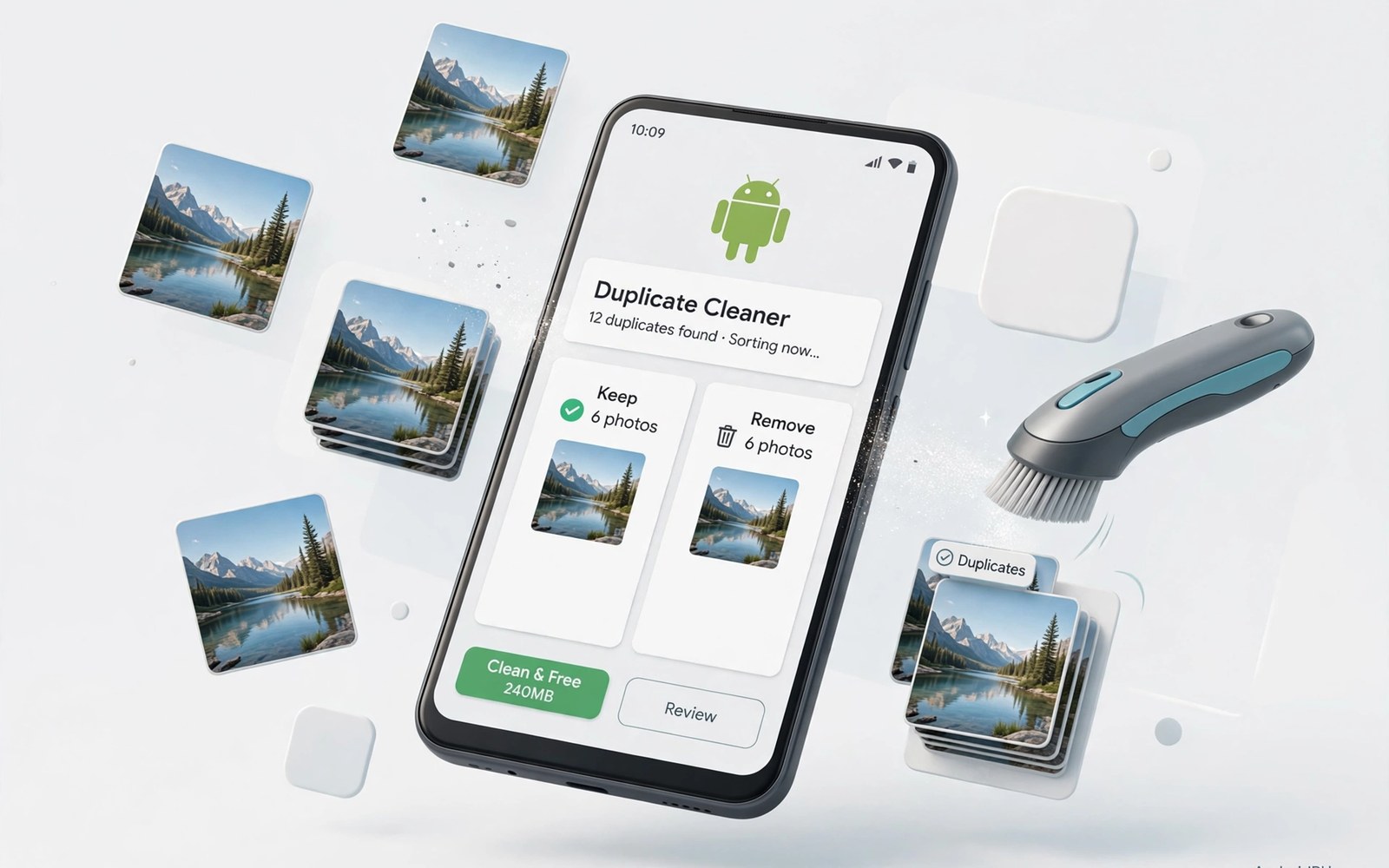
Your camera roll grows quietly every week. Burst shots stack up beside screenshots and forwarded pictures and edited copies. A quick glance rarely shows how many near copies hide in that pile. Manual deletion turns into a long hunt through folders that look alike. That hunt also risks deleting the sharp version while keeping a blurry twin. An automatic cleaner changes the job from hunting to checking because it groups similar images before you decide anything.
Duplicate cleaners work by comparing image data and visual content rather than file names alone. Two files can share a name yet hold different pictures. Two pictures can look identical yet carry different names and different folders. A good cleaner catches both cases and shows the group side by side. You can then keep one copy with confidence instead of guessing from tiny thumbnails. Readers who want a wider storage reset can also look at ways to free a large amount of phone storage quickly before they start this photo pass.
Start with a backup even when the tool promises a recycle bin. Copy your camera folder to a computer drive or to a cloud folder that you control. A backup turns a mistake into a short restore task instead of a permanent loss. Check that the backup opens on the other device before you delete anything on the phone. Once the copy is verified you can clean with a clear head and a safety net behind you.
Set up a duplicate scan the safe way
Open the cleaner and grant only the photo permission that the scan needs. Deny access to contacts and messages and other data that has nothing to do with pictures. Choose a scan scope that starts with the camera folder and the screenshots folder. Those two folders hold most duplicates for most owners. A narrow scope also finishes faster and produces a shorter review list.
Turn on similarity detection if the tool offers it as a separate switch. Owners who sort many folders may also like fast ways to organise thousands of phone files as a companion habit. Exact matching finds byte identical files. Similarity matching finds resized copies and lightly edited versions and near identical bursts. Set similarity to a middle level for the first run. A very loose setting flags different photos that share a background. A very strict setting misses edited copies that still waste space.
Review groups before you delete anything
Open each group and look at resolution and sharpness and file size before you tap delete. The cleaner may suggest a keeper based on size alone. Size alone can mislead you when a larger file is blurry and a smaller file is sharp. Tap to enlarge the top two candidates in every large group. Keep the version with clear eyes and clean edges and natural colour.
Protect special folders before you run a bulk delete. Mark family albums and work photos and travel folders as protected when the tool allows exclusions. A protected folder stays out of automatic deletion even when a copy sits elsewhere. That single habit prevents the most painful cleaner mistakes. It also lets you run the same scan later without rethinking every folder choice.
Use a simple script to preview duplicates on a computer
import hashlib
from pathlib import Path
for path in Path("Camera").rglob("*.jpg"):
    data = path.read_bytes()
    print(path.name, hashlib.md5(data).hexdigest()[:12], len(data))
The snippet above follows a standard pattern for listing photo files with a short hash and a size value. It only prints information and it does not delete any file. You can adapt the folder name and the file pattern for your own backup copy.
Run the preview on a copy of your photos rather than on the phone itself. The output shows which files share a hash and therefore hold identical data. Use that list to check the cleaner result and to spot groups that need a closer look. A preview step takes a few minutes and it builds trust in the automatic result.
Build a monthly duplicate routine that stays small
A monthly routine works when it has a fixed day and a fixed folder and a fixed time limit. Choose the first Sunday of each month and open the cleaner for the camera folder only. Set a timer for fifteen minutes and stop when the timer ends even when groups remain. A short routine that you repeat beats a long routine that you dread. The camera folder stays manageable because duplicates never accumulate for more than a month. A routine with a clear end also protects you from deleting in a tired rush at midnight.
Review the largest groups first because they free the most space with the fewest decisions. A group with twenty burst copies may free more room than fifty tiny screenshots. Open the group and compare sharpness on the largest screen that you have. A phone screen can hide blur that a tablet screen reveals. Keep the copy with the cleanest focus and the most natural skin tones. Delete the rest only after you have checked the keeper at full size.
Record the result of each monthly pass in a simple note. Write the date and the number of groups reviewed and the amount of space freed. A note turns cleanup into a visible habit rather than a vague intention. It also shows whether a new habit such as burst mode creates more duplicates than before. When the note shows a rising duplicate count you can change shooting habits before the gallery grows again.
Protect edited versions and originals together
Edited photos create a special duplicate problem because the edit may be the version that you love most. A filter version and a cropped version and an original version can all look similar to a cleaner. The cleaner may suggest keeping only the largest file. The largest file is not always the version with the best crop or the best colour. Open edited versions before you accept any suggestion that involves an edited file.
Create a small favourites folder for edited photos that you have shared or printed. Move the edited keeper into that folder after the duplicate review. A favourites folder protects the edited version from a future bulk delete. It also gives you a quick place to find your best work without searching the whole gallery. A folder with a clear purpose is easier to back up than a scattered set of edits.
Keep the original beside the edited version only when the original holds detail that an edit removed. A heavy crop removes background that you might want later. A strong filter removes colour information that you cannot restore. When an edit is mild you can keep only the edited version and save space. When an edit is dramatic you should keep both versions and accept the extra storage cost.
Advanced duplicate handling for large galleries
Large galleries need a different review strategy because hundreds of groups cannot be checked one by one in a single evening. Sort groups by total size and start with groups that hold the largest files. A large group review frees the most storage with the least number of decisions. Small groups can wait for a later pass without harming free space. A size first strategy respects your time and it delivers visible progress quickly.
Use date filters inside the cleaner when the tool offers them. A date filter can isolate photos from a single trip or a single event. A trip filter makes decisions easier because you remember which version you shared from that trip. A shared version is usually the keeper even when another version is technically sharper. Memory of sharing beats a technical sharpness score in many real cases.
Check burst sequences as a whole rather than as isolated pairs. A burst sequence may contain twenty frames with subtle differences in expression and motion. The best frame is not always the sharpest frame because a slightly softer frame may capture a better smile. Open the whole sequence and compare expressions first. Choose the frame that tells the story best and then check sharpness as a second criterion.
Handle screenshots separately from camera photos because screenshots follow different rules. A screenshot of a receipt deserves a longer life than a screenshot of a meme. A screenshot of a map deserves to survive until a trip ends. Sort screenshots by purpose before you delete any of them in bulk. A purpose sort prevents a bulk delete from erasing a useful reference that you forgot you saved.
Archive the keeper set to a second location before a major duplicate purge. A second location such as a computer folder or a cloud folder gives you a recovery path. A purge without a second copy is a gamble even when you reviewed every group. A verified second copy turns a purge into a routine task. Check that the second copy opens on the other device before you confirm deletions on the phone.
A practical duplicate checklist for busy weeks
Busy weeks create duplicates faster than quiet weeks because you shoot more and you share more. A checklist for busy weeks keeps cleanup from slipping entirely. Start the checklist on the same day each week even when you have only five minutes. Open the cleaner and review only the five largest groups. Five groups in five minutes is a realistic target that you can keep during a hectic schedule. A small consistent effort beats a large effort that you postpone.
Flag photos that you shared publicly before you delete any copies. A shared photo may be the version that friends already saw and commented on. Deleting the shared version while keeping an unshared version can break links and confuse conversations. A shared version deserves protection even when another version looks technically better. Public sharing history is a practical keeper criterion that technical scores ignore.
Check burst groups after sports events and birthday parties in particular. Those events generate many near identical frames in a short time. A sports burst may contain a perfect action frame hidden among many ordinary frames. A party burst may contain a perfect smile hidden among many blinks. Reviewing event bursts promptly while memory is fresh helps you choose the best frame. A delayed review makes every frame look alike.
End each busy week by emptying the cleaner recycle bin only after a gallery check. Open the gallery and confirm that recent photos still appear correctly. A gallery check after a purge catches a mistaken deletion while recovery is still possible. A recycle bin that sits for a week gives you a second chance without effort. A bin emptied too quickly removes that safety net.
Common mistakes
One common mistake is deleting from the cleaner result without opening the groups. Bulk delete buttons feel efficient and they hide the keeper choice. A second mistake is running a cleaner before a backup exists. A third mistake is granting every permission that the tool requests without reading the prompt. Each mistake is easy to avoid when you slow down for the first run and set exclusions first.
Another mistake is cleaning only once and then forgetting the habit. Duplicates return with every burst session and every forwarded album. Schedule a short review each month and keep the scan scope narrow. A tidy gallery also pairs well with automatic photo backup to free cloud platforms so a deleted copy never means a lost memory. A monthly pass stays small and it never feels like a large project. The phone stays lighter because the pile never gets a chance to grow again.
Frequently asked questions
Will a duplicate cleaner delete my original photos?
A cleaner deletes only the copies that you approve in the review screen. It should never delete a whole group without leaving one keeper. Check the keeper in each group before you confirm. Keep a backup until you have checked the phone gallery after the clean.
Why do similar photos remain after an exact scan?
An exact scan matches identical data only. Resized copies and edited versions hold different data even when they look the same. Turn on similarity detection for those cases. Review the groups carefully because similarity can also group different photos from the same scene.
How often should I run a duplicate scan?
A monthly scan suits most owners who take photos every week. Heavy burst shooters may benefit from a scan every two weeks. Light shooters can scan every two months without losing much space. Match the rhythm to your shooting habits and to your free storage level.
Conclusion
Automatic duplicate cleaning works best as a review habit rather than a blind delete button. A backup and a narrow scope and a careful group check protect your memories while freeing real space. Similarity detection handles the edited copies that exact matching misses. Monthly passes keep the gallery lean without turning cleanup into a chore.
Your concrete next step is to back up the camera folder today and run one similarity scan on that folder only. Review the ten largest groups by hand and delete only the copies that you have checked. Readers who also struggle with hidden files can follow steps to remove hidden files that eat system storage as the next cleanup task.

