

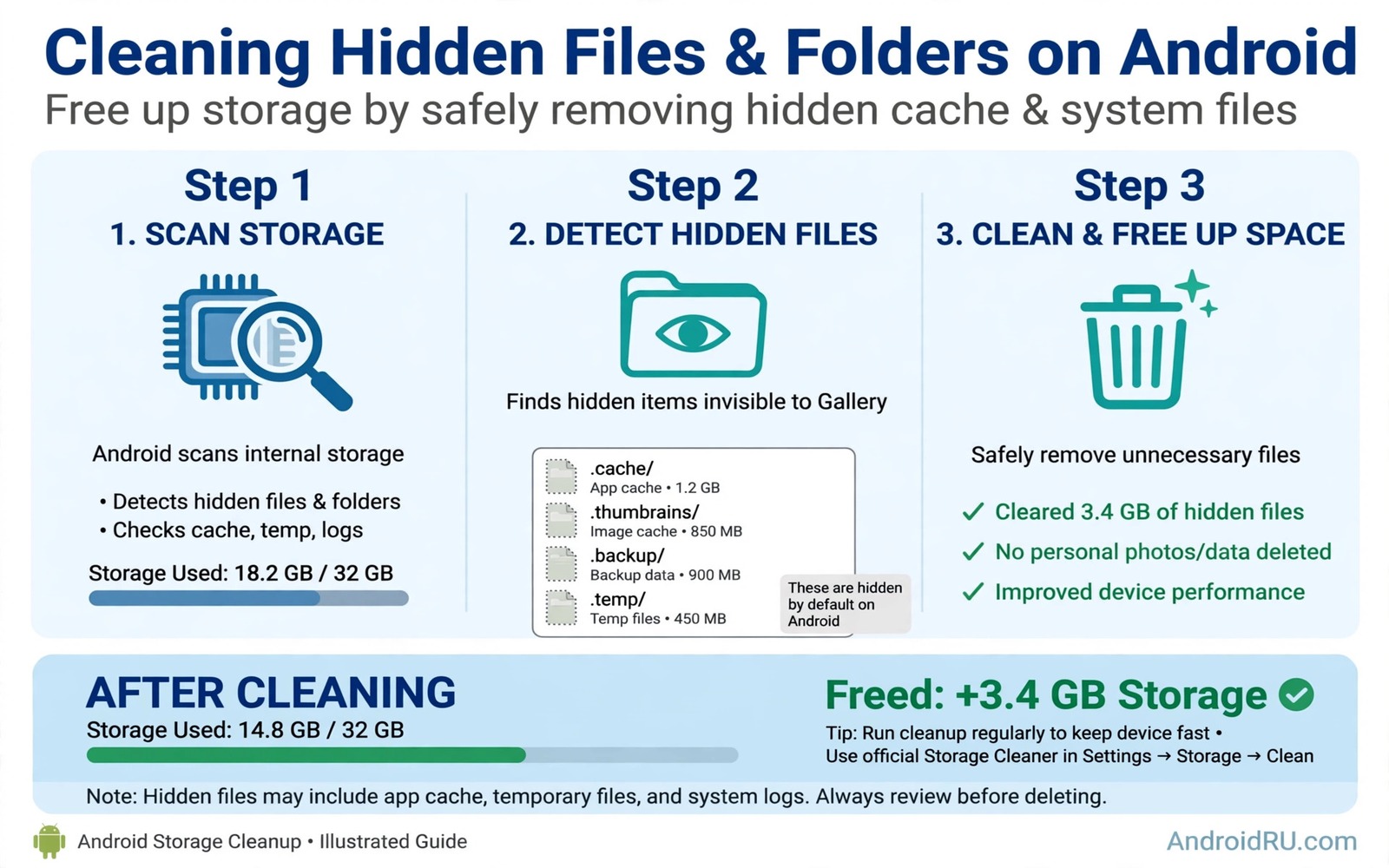
Storage warnings often appear even when your visible files look modest. Photos and apps may account for only part of the total. Hidden files fill the gap quietly. Thumbnails and logs and temporary caches and leftover app folders accumulate in places the gallery never shows. Deleting the safe ones can reclaim gigabytes without touching your photos or your system.
Hidden does not mean dangerous. Many hidden files are simply working files that an app should have cleaned up but did not. Some are previews that can be rebuilt. Some are logs that record events for debugging. A few hidden folders belong to the system and must stay untouched. Learning the difference between safe and system files is the key to a confident cleanup.
This guide walks through safe hidden locations in order of likely size. You will learn how to view hidden files safely and how to delete in small batches with a backup mindset. You will also learn which folders to leave alone even when they look large. A careful cleanup beats a reckless purge every time.
Show hidden files safely first
Most file managers hide files that start with a dot. Enable show hidden files in your file manager settings to see them. A hidden file name often starts with a dot such as a thumbnail cache folder. Viewing hidden files does not change them. It simply reveals the full picture of what occupies storage.
Work with a file manager that shows folder sizes. A size view lets you sort folders by total size and spot the largest hidden folders quickly. Without size information you may waste time deleting tiny logs while a multi gigabyte thumbnail cache sits unnoticed. Size first and deletion second is the efficient order.
Take a screenshot of the largest hidden folders before deleting. A record helps you reverse a mistake or explain a change later. It also helps you track which folders regrow quickly. A folder that regrows to gigabytes in a week points to an app setting that needs changing rather than repeated deletion.
Thumbnails and media caches are usually safe
Thumbnail caches store small previews of photos and videos so galleries load quickly. They can grow to gigabytes when you browse many images. Deleting a thumbnail cache is safe because the gallery rebuilds previews as needed. The gallery may load slower for a short time after deletion while previews rebuild. That temporary slowness is a fair trade for gigabytes of space.
Media scanner caches also store metadata about photos and videos. They help apps find media quickly. Deleting them is safe but it may trigger a rescan that takes time. Perform a thumbnail cleanup when you do not need instant gallery access such as before bed. Let the rescan complete overnight.
App specific media caches for social and shopping apps also qualify as safe in most cases. These caches store images you have already viewed. Deleting them does not delete your account or your saved items. It only removes local copies that can be downloaded again. Start with the largest app caches in Storage settings for a quick win.
Logs and temporary files need a closer look
Log files record app events and system events for troubleshooting. Old logs are usually safe to delete because they describe past events that no longer need storage. A single log folder rarely holds gigabytes but many small logs together can add up. Delete logs older than a month when you are not troubleshooting a current problem.
Temporary files from failed downloads and interrupted updates also accumulate. A download folder may hold partial files with cryptic names. Delete partial downloads that you do not recognise and that are months old. A partial file from a failed update will be downloaded again cleanly if needed. Keep recent partial downloads only if you plan to resume them soon.
Leftover folders from uninstalled apps are another safe target. An uninstalled app sometimes leaves a folder with settings or cache behind. If the app is gone and you do not plan to reinstall it then its leftover folder can go. Check the folder contents for personal files before deleting. A leftover folder that contains exported documents deserves a backup first. Readers who want a systematic scan will benefit from storage analyzer apps that find giant hidden files because analysers surface these folders by size.
Folders you must leave alone
System folders with names tied to the operating system should stay untouched. Deleting system files can break updates or cause apps to crash. If a folder name includes system or framework or a core service then leave it alone. A large system folder usually reflects normal operating system size rather than waste. Storage settings already separate system size from user deletable size for a reason.
App data folders for apps you still use need care. Deleting app data logs you out and removes offline content. Only clear app data when you intend to reset that app completely. Cache is the safe target inside an active app. Data is the reset target and it should never be deleted in a bulk hidden file sweep.
Backup and sync folders also need protection. A folder that syncs with cloud storage may delete cloud copies if you delete local files while sync is active. Pause sync before deleting a synced folder. Confirm what sync will do after deletion. A hidden file cleanup should never trigger a cloud deletion by accident.
A small script to find large hidden folders
The script below lists large folders in a local backup copy of a file tree. It helps you practise hidden folder analysis on a computer before touching your phone. Run it on a local folder that mirrors your storage.
import os
totals = {}
for root, dirs, files in os.walk("phone_backup"):
    total = 0
    for name in files:
        try:
            total += os.path.getsize(os.path.join(root, name))
        except OSError:
            pass
    totals[root] = total
for folder, total in sorted(totals.items(), key=lambda item: item[1], reverse=True)[:15]:
    print(f"{total / 1048576:.1f} MB {folder}")
The code above was written for this guide as an original folder size helper. It walks a local folder named phone_backup and prints the fifteen largest folders in megabytes. It does not delete anything and it does not access your phone. Use the list to decide which hidden folders deserve a closer look on the device itself.
Set a monthly hidden file routine
A monthly routine prevents hidden files from growing into a crisis. Choose one day each month to review thumbnail caches and old logs and leftover folders. A calendar reminder on that day turns cleanup into a habit rather than a panic response. A routine also lets you notice folders that regrow unusually fast.
During the monthly review note the largest hidden folder and its size in a simple note. Compare that note with the previous month. A folder that doubles in a month points to an app setting that needs attention. A folder that stays stable needs only occasional deletion. Tracking turns cleanup into diagnosis rather than repetition.
End each monthly review by checking that the gallery and key apps still work normally. A quick function check after deletion confirms that no important folder was removed. A routine that ends with a check is safer than a routine that ends with deletion alone.
Old app folders sometimes contain a settings file that a reinstalled app can reuse. If you plan to reinstall an app soon then keep its settings folder for now. Deleting it forces a fresh setup later. A folder kept for a planned reinstall is not waste. A folder kept for an app you abandoned years ago is waste.
Common mistakes
The biggest mistake is deleting every hidden folder in a bulk sweep. Bulk deletion can remove a system folder or an active app data folder by accident. Delete one folder at a time and check the result. A slow careful sweep protects you from a fast damaging one.
Another mistake is deleting thumbnails repeatedly without fixing the cause. A gallery that rebuilds a huge thumbnail cache in days may be scanning a folder with thousands of images. Move or archive old images to reduce the scan load. Repeated deletion without a cause fix wastes time and slows the gallery.
People also delete logs while troubleshooting a current bug. Logs help support teams diagnose a problem. If an app is crashing now then keep its recent logs until the problem is solved. Delete old logs only when no active issue needs them.
Finally avoid third party cleaners that promise to delete hidden system files automatically. Such tools may target folders they do not understand. Built-in storage tools and a manual file manager review give you control. Automation is useful only when you understand what it will delete.
Frequently asked questions
Will deleting thumbnails delete my photos?
No. Thumbnails are small previews generated from your photos. Deleting them does not delete the original photos. The gallery rebuilds previews when you open an album again. Original photos stay in their normal folders unless you delete those folders directly.
How do I know if a hidden folder is safe to delete?
Check the app name in the folder path and whether the app is still installed. A cache or thumbnail folder for an installed app is usually safe. A system folder or an active app data folder is not safe for bulk deletion. When in doubt search the folder name inside the file manager help or leave the folder alone.
Why do hidden files come back after deletion?
Apps rebuild caches and thumbnails during normal use. A cache that returns quickly is working as designed. The goal is to reclaim space from stale caches rather than to keep caches at zero permanently. A monthly cleanup keeps regrowth under control without fighting normal app behaviour.
Conclusion
Hidden files reclaimable on Android include thumbnail caches and old logs and temporary downloads and leftover folders from uninstalled apps. System folders and active app data and synced folders must stay untouched. A size sorted review and a one folder at a time deletion habit keep the cleanup safe. A record of what you deleted helps you track regrowth and spot apps that need setting changes.
Your concrete next step is to enable show hidden files in your file manager today and sort folders by size. Delete only the largest thumbnail cache folder and restart the gallery to confirm photos remain intact. If the gallery works normally then continue with old logs next. Readers who want a fast overall win will also like freeing 20GB in under two minutes and the secret folder taking up gigabytes as follow-ups.

