

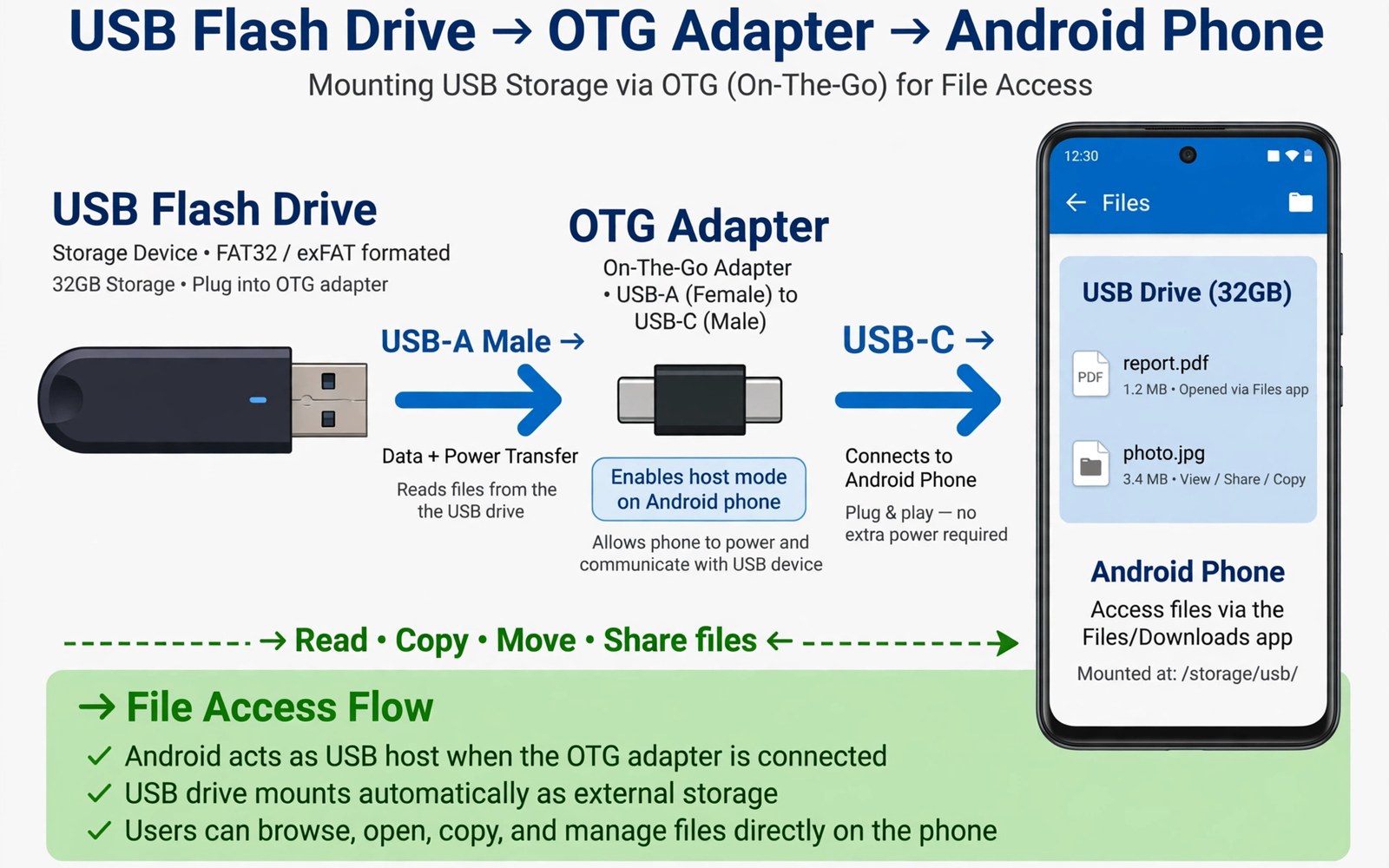
A USB flash drive is a pocket sized expansion for a phone that runs out of room. A single adapter connects the drive to the phone port. The phone can then read documents and play media straight from the drive. That setup suits travel and field work and large file transfers. It also avoids a cloud upload when a file must move quickly.
Most modern Android phones support USB host mode through an OTG adapter. OTG lets the phone act as the host for a connected drive. A drive formatted in a common file system usually mounts without extra software. A drive formatted in an unusual system may need a different approach. Checking format before travel saves frustration at the moment you need the file. Owners who use cards for expansion may compare this with how to format memory cards properly without losing data for a related skill.
Start with a small test drive and a single document. Connect the adapter and the drive and watch for a storage notification. Open the file manager and confirm that the drive appears as a separate storage location. Open the document and confirm that it reads correctly. A small test proves the adapter and the format before you trust a large transfer.
Connect the drive correctly
Use an adapter that matches your phone port type. A USB C adapter suits most modern phones. A micro USB adapter suits older phones. A cheap adapter can cause intermittent disconnects that corrupt transfers. A well made adapter feels firm and it holds the drive steady. Test the adapter at home before you rely on it in the field.
Connect the drive before you open the file manager. The system needs a moment to mount the drive and read its file index. Wait for the notification that the drive is ready. Opening files too early can show an incomplete folder list. Patience at mount time prevents a false impression that files are missing. The same mount patience helps when you move camera photos to an SD card automatically after a card is inserted.
Move files and unmount safely
Copy files from the drive to the phone when you need offline access. Copy files from the phone to the drive when you need a backup. Use copy rather than move for important files until you verify the copy. A verified copy on both sides protects you from a transfer error. Delete the source only after the destination copy opens correctly.
Unmount the drive through the storage notification before you remove it. An unmount tells the system to finish pending writes. Removing a drive during a write can corrupt the file being copied. It can also corrupt the drive index and make other files hard to reach. A safe unmount takes seconds and it prevents hours of recovery work.
Check drive contents with a short script
import os
base = "/storage/usbdrive"
for name in sorted(os.listdir(base))[:20]:
    print(name)
print("listed", min(20, len(os.listdir(base))), "items")
The snippet above follows a standard pattern for listing the first items on a mounted drive. It only prints names and it changes no file. You can adapt the base path for a mounted drive on your own test system.
A short listing confirms that the drive mounted and that the file index reads correctly. A listing with missing files can signal a format issue or a loose adapter. Reseat the adapter and list again before you start a large copy. A stable listing is a good sign for a large transfer.
Handle drives formatted for computers
A drive formatted for a computer may use a file system that a phone reads only partially. A phone may show the drive but refuse to write to it. A phone may show files but hide others due to a format quirk. Check the drive format on a computer before you rely on it with a phone. A format that both systems support avoids those surprises. A shared format is worth a reformat when the drive holds no irreplaceable data.
Back up a computer formatted drive before you reformat it for phone use. A reformat erases the file index and makes old files hard to reach. Copy the drive contents to a computer folder and test a few files. A tested backup turns a reformat into a routine step. A reformat without a backup turns a compatibility fix into a data loss.
Test write access after mounting a computer formatted drive on the phone. Create a small test file on the drive from the phone. Open that test file on a computer to confirm that it transferred correctly. A test file that opens on both systems proves full compatibility. A test file that fails on one system signals a format issue that needs fixing before a large transfer.
Use a drive as a portable backup station
A flash drive can serve as a portable backup station for a phone that travels. Copy important photos to the drive at the end of each day during a trip. A daily copy protects photos even when the phone is lost the next day. A drive backup is offline and it does not need a network. An offline backup suits remote locations with poor connectivity.
Keep the drive in a separate bag from the phone when possible. A separate bag means a lost phone does not mean a lost backup. A drive in the same pocket as the phone shares the same loss risk. Separation is a simple physical habit that improves backup value greatly. A small case protects the drive from dust and bending during travel.
Verify drive backups by opening a random file each evening. A backup that you never verify may be incomplete. A random file check takes seconds and it catches a failed copy early. A failed copy early in a trip can be retried while the phone still holds the original. A failed copy discovered at home may be too late to fix.
Advanced drive use for presentations
A flash drive can carry a presentation to a meeting without relying on a network. A presentation file on a drive opens directly from the phone or from a laptop. A drive presentation avoids a cloud login on an unfamiliar network. A drive also works in rooms with no Wi-Fi at all. A portable presentation habit suits speakers who travel to varied venues.
Prepare a presentation drive with a single folder containing the presentation and its media. A single folder prevents missing media files during playback. A folder with only the presentation files is easy to navigate under pressure. Test the presentation from the drive on the actual presentation device when possible. A test reveals font or media issues before an audience sees them.
Carry a backup drive with the same presentation in case the first drive fails. A backup drive costs little and it protects against a single point of failure. A backup drive in a separate pocket also protects against a lost bag. A speaker who carries a backup feels calmer and performs better. A calm speaker delivers a better presentation.
Unmount a presentation drive properly after a meeting to protect the files. A drive removed during a write can corrupt the presentation for the next meeting. A proper unmount takes seconds and it ensures that all writes complete. A habit of proper unmounting protects every file on the drive. A corrupted presentation at the next meeting is an avoidable embarrassment.
Label presentation drives with the event name and date. A label prevents confusion when several drives look alike. A label also helps you find the right drive quickly in a bag. A clear label is a small detail that saves time under pressure. A labelled drive system scales well across many events.
A practical drive checklist for field work
Field work needs a drive checklist that works without a reliable network. Pack a drive with all documents that a field visit may require. A field drive should contain forms and maps and reference files. A complete field drive lets you work offline in remote locations. An incomplete drive forces a return trip or a network search.
Test the field drive on the phone that you will carry before leaving the office. A test confirms that the drive mounts and that files open correctly. A test at the office gives you time to fix a format problem. A test in the field leaves no time for a fix. An office test is a professional habit.
Copy field results to the drive at the end of each field day. A daily copy protects work against a phone loss the next day. A daily copy also creates a backup that travels separately from the phone. A separate backup is valuable when field conditions are harsh. A daily habit is more reliable than an end of trip copy.
Verify field copies by opening a random result file each evening. A verified copy proves that the transfer succeeded. An unverified copy may hide a corrupted file. A corrupted file discovered in the evening can be recopied while the original still exists. A corrupted file discovered back at the office may be too late to fix.
Common mistakes
One common mistake is pulling a drive out during a copy. A second mistake is using a drive formatted for a different system without checking support. A third mistake is moving the only copy of a file instead of copying it first. Each mistake risks data that a few seconds of care would protect.
Another mistake is leaving a drive connected while the phone sleeps for a long time. Some phones power down the port and the drive may remount oddly on wake. Unmount the drive when you finish a transfer. Store the drive in a case that protects the connector from dust and bending.
Frequently asked questions
Why does my phone not see the flash drive?
A missing drive can mean a bad adapter or an unsupported format or a power limit. Try another adapter and try a smaller drive. Check the drive format against formats that your phone supports. Test the drive on a computer to confirm that it works at all.
Can I play video directly from a flash drive?
Many players can play video directly from a mounted drive. Large high resolution files may stutter on a slow drive. Copy a stuttering file to the phone for smoother playback. A fast drive usually handles standard video without a copy.
Should I format a new drive on the phone?
Format a drive on the phone when it will live mostly with the phone. A phone format picks a system that the phone reads well. Format on a computer when the drive must move between many systems. Back up the drive before any format.
Conclusion
Mounting a USB drive turns a phone into a flexible file station. A matching adapter and a common format make mounting reliable. Copy before move and unmount before removal protect every transfer. A small test drive proves the setup before a large job.
Your concrete next step is to connect a test drive today and copy one document to the phone and back. Then unmount the drive through the notification and confirm the copy opens. Readers who need more portable storage can follow ways to free a large amount of phone storage quickly as a companion skill.

