

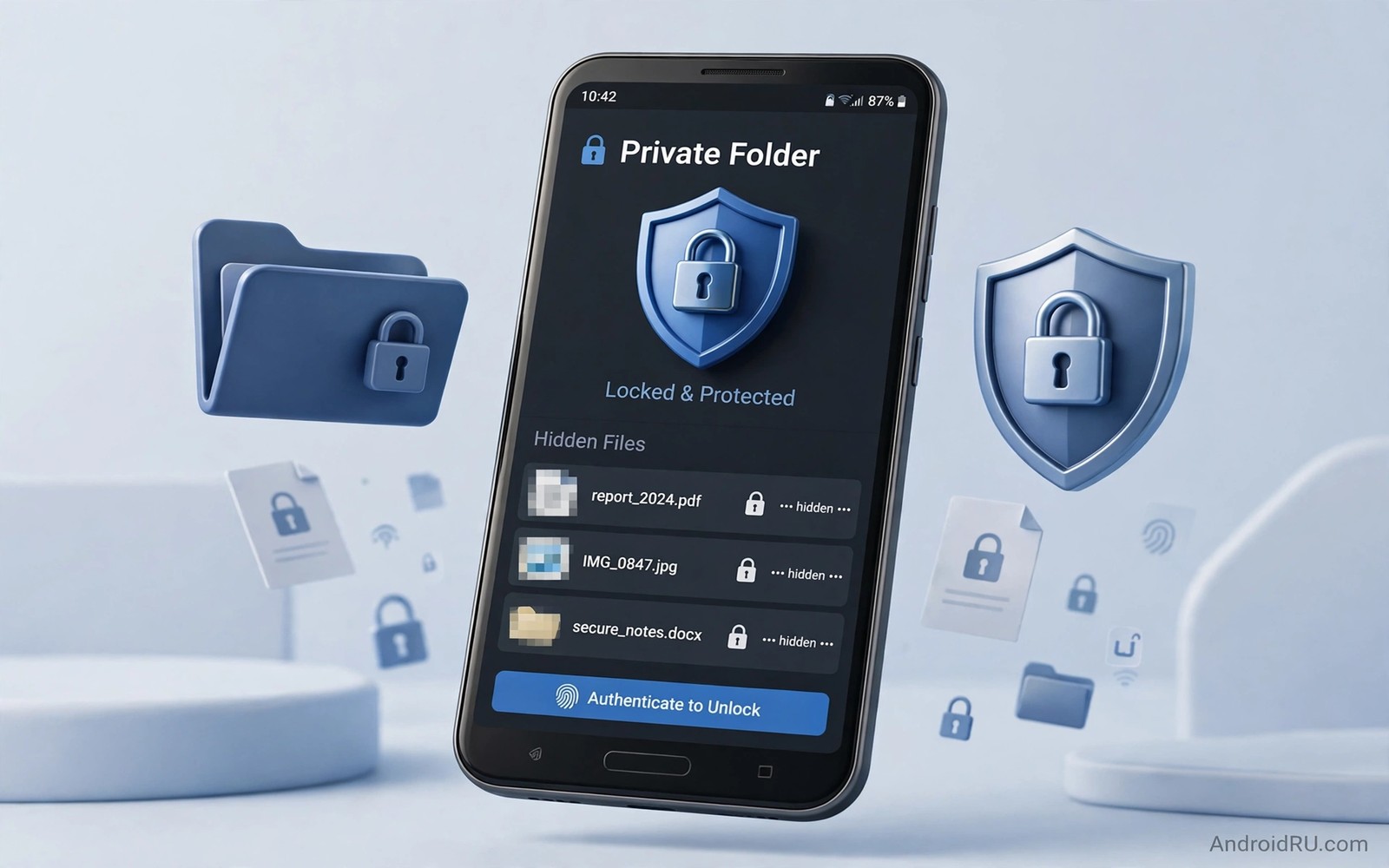
Private files deserve a quiet corner on a phone that other people sometimes hold. A borrowed phone can reveal far more than its owner intends when photos and documents sit in plain sight. Renaming a file extension feels like a quick fix yet it breaks previews and confuses apps and leaves the file easy to find. A better method hides the file in place while keeping its format intact and its app working normally.
The safest approach uses tools that Android already provides. A locked folder inside a gallery app keeps chosen items out of the main timeline and out of shared albums. A private folder in a file manager adds a password or a fingerprint gate to a normal directory. A work profile or a secure folder on supported phones creates a separate space with its own apps and files. Each method protects privacy without altering the file itself.
Use a locked folder in your gallery app
Open your gallery app and look for a locked folder or a private album option in its library or utilities section. Select the photos and videos that you want to move and confirm the move when the app asks for a lock method. The items leave the main grid at once and they stop appearing in recent photos and in shared suggestions. They remain viewable only after you unlock the folder with your chosen method.
Test the result before you trust it. Close the gallery app completely and reopen it and check that the locked items stay hidden. Ask a friend to browse the gallery for a minute if you want a realistic check. Remember that a locked folder does not encrypt files for a skilled attacker. It stops casual browsing and that is the threat that most people actually face.
Hide a folder with a dot at the start of its name
Android treats a folder name that starts with a dot as a hidden folder. Create a new folder in your file manager and name it with a leading dot followed by a plain word. Move personal files into that folder and most gallery and music apps will skip it during a normal scan. This trick works well for files that you want to keep out of automatic media lists.
Place a file named .nomedia inside any folder that you want media apps to ignore. The file can be empty and its name alone tells scanners to skip the folder. This method suits downloaded images and audio clips and project files that should not appear in a gallery timeline. It does not lock the folder and anyone who opens the file manager can still find it. Pair this trick with a locked folder for items that need real protection. Readers who want a broader cleanup first can explore ways to free up a large amount of storage quickly before they sort private files from ordinary clutter.
Use a secure folder or a second profile
Some phones include a secure folder feature that creates an encrypted space with its own gallery and files and apps. Move sensitive documents into that space and set a separate lock that differs from your main lock screen. The separation matters because a guest who unlocks the main phone still cannot open the secure space. Check your security settings for this feature if your phone maker supports it.
A work profile offers a similar separation on phones without a secure folder. A work profile keeps its apps and files apart from personal apps and files. You can pause the profile when you hand the phone to someone else. The profile icon makes the boundary visible to you while the contents stay out of reach. This method needs a little setup time yet it gives the strongest everyday separation on a shared device.
Keep original files intact with a file manager lock
A trusted file manager with a private vault can lock a folder without renaming anything inside it. Choose the folder and enable the vault or lock option and set a strong password. Test the lock by closing the app and reopening it and by searching for a file name from the main screen. A good vault hides search results as well as the folder itself.
Avoid apps that promise invisibility by changing extensions in bulk. Those apps often leave a trail of renamed files that break after an update. They also make recovery harder when the app stops working. A lock that respects the original format keeps your files usable in any app after you unlock them. That respect for format is the whole point of this guide.
A small checklist for hidden file safety
Record where you hid each folder in a private note that only you can open. Include the folder name and the lock method and the date of the move. This note saves you from a panicked search months later when you forget a dot folder. Keep the note outside the hidden folder itself so a lock problem does not also lock your reminder.
mkdir -p /sdcard/.private_notes
touch /sdcard/.private_notes/.nomedia
ls -la /sdcard/ | grep private
The snippet above was written for this article to show one safe way to create a hidden folder and a media skip file. It creates a folder that most media apps will ignore and it lists the folder to confirm the result. It does not encrypt anything and it does not delete any file. Use it only for organisation and pair it with a locked folder for real privacy.
Layer privacy for different levels of sensitivity
Not every private file needs the same level of protection and a layered approach saves time while keeping truly sensitive items safe. Everyday personal photos can sit inside a gallery locked folder that stops casual browsing during a quick phone hand-over. Financial documents and identity scans deserve a stronger vault with a separate password and a fingerprint gate that a guest cannot bypass by accident. Work documents that contain client information deserve a secure folder or a work profile that separates them from personal apps entirely. Assigning each file to the right layer prevents both overkill and dangerous under-protection in daily use.
Review your layers once a season and move files when their sensitivity changes. A photo that once felt ordinary can become sensitive after a life change. A document that once felt critical can become ordinary after a project ends. Seasonal review keeps the system honest and it prevents a growing pile of files that sit in the wrong place. A short review session with a clear checklist takes less time than a frantic search after a privacy scare.
Share private files without exposing the original folder
Sharing a single file should never expose the whole folder that holds it. Open the locked folder and select only the file that the recipient needs and share it through the share sheet. Avoid sharing a folder link that grants access to every file inside that folder. A single file share limits exposure even when the recipient forwards the file later. Check the share destination carefully before confirming because a wrong contact can receive a file that was never meant for them.
Remove sharing links after the recipient confirms receipt. A link that stays active for months can be opened by anyone who later finds it in a chat history. Set an expiry date on shared links where the sharing service offers that option. An expired link protects you even when you forget to clean up old messages. This habit matters most for documents that contain addresses or identification numbers.
Recover hidden files after a phone change
Hidden files need a migration plan before a phone change or a factory reset. A dot folder does not migrate automatically through every backup service. A locked gallery folder may not transfer its lock state to a new phone. Export hidden files to a secure archive before a reset and verify that archive on a computer. A verified archive turns a phone change into a routine transfer rather than a stressful hunt for missing files.
Test the restore on the new phone before wiping the old phone completely. Open the restored archive and confirm that photos display correctly and that documents open without errors. Keep the old phone untouched for a week after migration. That waiting period gives you time to notice a missing file while the original still exists. A patient migration protects privacy and prevents loss at the same time.
Protect privacy on a shared family phone
Family phones face a special privacy challenge because children and partners use the same device for different purposes. A guest mode or a second user profile can separate family use from personal use without constant locking and unlocking. Set up a profile for general family use and keep personal files inside your own profile. A child who plays games in the family profile cannot stumble into personal documents that sit elsewhere.
Teach family members the basic boundary without turning privacy into secrecy. Explain that locked folders protect work documents and personal photos from accidental deletion. A shared understanding prevents curious browsing and accidental sharing. Privacy on a family phone works best when everyone respects the same simple rules and when the phone itself enforces those rules through profiles and locks.
Audit hidden folders after app updates
App updates can change how a gallery app handles locked folders and how a file manager handles hidden folders. An update may reset a lock setting or may change the location of a private album. Check locked folders after each major app update to confirm that hidden items remain hidden. A quick check after an update prevents a surprise when a guest browses the gallery later. Updates should improve privacy yet they sometimes alter behaviour in unexpected ways that only a manual check reveals.
Record the lock status of each hidden folder in a private note after every update check. A note that lists each folder and its lock state creates a baseline for future checks. Comparing a new check against that baseline reveals changes quickly. A baseline note turns a vague feeling of uncertainty into a concrete comparison that takes only a few minutes to complete.
Common mistakes
One common mistake is hiding a file and then forgetting its location. A dot folder can vanish from view so completely that its owner cannot find it later. A short private note prevents that loss. Another mistake is trusting a dot folder as a security tool. It only hides media from scanners and it will not stop a determined person with a file manager. Use a locked vault for documents that must stay truly private.
People also hide files on a phone and then upload the same files to a shared cloud album by accident. Check your backup settings after you move sensitive items. Turn off automatic upload for the hidden folder or for the vault app if that option exists. A clean phone means little when the same photos appear in a shared cloud library. Readers who sort media regularly may also benefit from finding hidden thumbnail files that waste space as part of the same tidy up.
Frequently asked questions
Does hiding a folder delete the files inside it?
No. Hiding a folder only changes how apps discover it. The files stay in place with their names and formats untouched. You can unhide the folder at any time by removing the leading dot or by moving the files back to a normal folder.
Will a locked folder survive a phone backup?
It depends on the backup app and its settings. Some backup apps skip locked folders by design. Check the backup list after you create a lock and confirm whether the folder appears there. Keep a separate encrypted backup of truly important documents.
Can I hide files without installing a new app?
Yes. The dot folder trick and the gallery locked folder need no new app on most phones. A secure folder needs only a built-in feature where it exists. Install a file manager only if your built-in tools lack a lock option.
Conclusion
Hidden files stay safest when the method respects the file format and matches the real threat. A locked gallery folder stops casual browsing. A dot folder keeps clutter out of media apps. A secure folder or a work profile adds a firm boundary on a shared phone. Choose the lightest method that fits the sensitivity of the file.
Your concrete next step is to open your gallery app today and move five sensitive photos into its locked folder. Test the lock and write a private note about the move. Readers who want stronger protection for documents can next explore organising files with the scoped storage framework and the secret folder that can take up gigabytes of space for a fuller storage plan.

